
Dadan is an online video creation platform designed to help educators create, edit, and share professional video content efficiently. It simplifies the process of recording screens, webcams, and audio to communicate ideas through interactive videos.
This guide focuses on features and workflows relevant to educational use cases, including creating tutorials, interactive lessons, recording classes, and engaging students.
What is the dadan platform? #
Dadan is an AI-powered video creation platform tailored for recording, editing, hosting, and sharing videos. It’s designed to simplify the entire video workflow, making it ideal for educational applications.
Key capabilities #
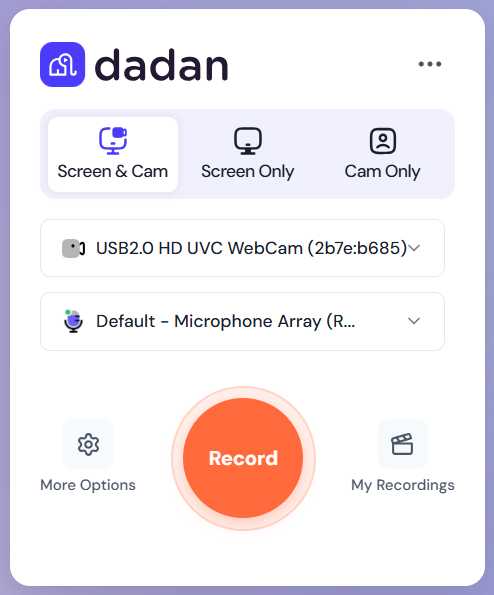
- High-quality recording (up to 4K) via screen, webcam, or both.
- Built-in video editor for trimming, blur, annotations, callouts, stickers, chapters, and more.
- AI tools include transcription, summaries, auto-generated titles/tags/descriptions, multi-lingual support, and meeting notes.
- Interactive elements: quizzes, polls, feedback prompts, and CTAs within videos.
- Secure hosting, collaboration tools, integration with platforms like Google Classroom, Slack, YouTube, etc.
Dadan for educational purposes #
The dadan platform enables educators to produce high-quality, interactive video content without the need for advanced technical skills. It’s ideal for:
- Creating tutorial videos for lessons or training.
- Recording online meetings or classes (e.g., via Zoom, Teams, or Google Meet).
- Adding interactive elements like quizzes and polls to assess student understanding.
- Collaborating with colleagues on educational materials.
- Hosting and organizing content in playlists for easy access by students.
Dadan emphasizes asynchronous video communication, making it suitable for remote or hybrid learning environments where real-time meetings aren’t always feasible.
Getting started with dadan for education #
Dadan provides foundational steps to set up and begin using the platform for educational video creation.
Key steps
- Getting started with dadan: your online video creation platform:
- Sign up: Create a dadan account through the web app, Chrome extension, or desktop app (available for Windows).
- Navigate the web app: Access the Create option to start new recordings.
- For educators: Begin by recording a simple tutorial, selecting a screen, webcam, or both, and add audio narration to explain concepts.
- Tips for education: Use this to create introductory videos for courses, ensuring clear communication of ideas through professional recordings.
- Managing your profile photo:
- Update your dadan profile picture to personalize your educator presence.
- Go to account settings, upload a new image, or remove the existing one. This helps build rapport in educational videos where your face appears.
Once set up, educators can quickly move to recording content, as dadan streamlines the workflow for fast video production.
Recording educational content #
Dadan’s recording features are central to creating educational videos, allowing capture of screens, webcams, and meetings. The Recording & Editing features outline the process for creating content, such as lesson demos or class recordings.
Key steps
- Record Zoom, Teams, and Google Meetings with dadan meeting bot:
- Record meetings: Use the dadan Meeting Bot to automatically join and record virtual classes or discussions.
- Steps: Schedule the bot via dadan’s interface, input meeting details (link, time), and it records audio, video, and screen shares.
- Educational application: Capture live lectures for absent students or review purposes, ensuring no key discussions are missed. This is useful for client-like interactions in educational consulting or parent-teacher meetings.
- Recording video request:
- Send a request link to students: Allowing them to respond with a video, audio, or text message directly in dadan.
- For assessment: Collect student presentations, oral exams, or quick reflections without requiring live sessions, making it easier to evaluate understanding asynchronously.
- Respond to a video request:
- Students’ requests: Requesting a recording of targeted content.
- Steps: Select recording mode (screen only, camera only, or both), click Start Recording, and cover the required topics.
- For more details: Create on-demand explanations for student queries, such as solving a math problem or demonstrating software use.
These tools make dadan ideal for educators who need to record demos, tutorials, or full classes efficiently.
Adding AI Assist & interactive elements #
Editing in dadan allows for the refinement of recordings, while AI Assist & Interactions enable the addition of engaging features, such as quizzes, perfect for educational content to boost student retention.
Key features
- Dadan supports editing recorded videos with annotations, cuts, and enhancements:
- Change thumbnails for better visual appeal: Upload a custom image to make educational videos more inviting.
- Add AI Assistant elements: Utilize AI-powered features, such as Video Description and Summarization, to increase understanding during playback.
- Educational workflow:
- After recording a lesson, edit to trim unnecessary parts and add text overlays for key points.
- Utilize AI-driven interactions to generate a Quiz (e.g., multiple-choice questions at specific timestamps) to assess student comprehension in tutorial videos.
- Example: In a science tutorial, pause the video for a Poll on a concept, allowing students to interact and receive immediate feedback.
- Educational use:
- Share interactive tutorials with students for self-paced learning.
- Collaborate with fellow teachers on video series, using asynchronous feedback to refine content.
This interactivity transforms passive videos into active learning experiences.
Sharing and collaborating on educational content #
The Sharing & Collaboration features help distribute videos securely and work with others, which is essential for educators sharing with students or teaming up on curriculum development.
Key steps
- Sharing & Collaboration overview:
- Share videos via links, embeds, or direct invitations for feedback.
- Collaborate in real-time: Add timeline-anchored comments, edit together, and provide annotations without needing meetings.
- How to control the privacy of dadan video and comments:
- Adjust visibility: Set videos to public or keep them private.
- Restrict comments: Allow or disable interactions to manage student discussions.
- For education: Share private links with class team space to protect sensitive content, or enable comments for Q&A sessions.
Hosting and managing your educational content #
The Hosting & Managing Your Content features help organize videos for long-term educational use, such as building course libraries.
Key steps
- Using intelligent search to find anything in dadan:
- Search by keywords across videos, folders, and transcripts.
- Educational benefit: Quickly locate specific lessons or clips for reuse in classes.
- Import a video from Dropbox to dadan:
- Integrate external content: Click Create > Import from Dropbox to upload existing educational videos.
- Useful for migrating old lesson recordings into dadan for editing and interaction addition.
- Video hosting and management:
- Organize into playlists for structured courses (e.g., a series on history topics).
- Host videos on dadan’s cloud with unlimited storage for easy access by students.
| Feature | Educational Application | Key Benefit |
|---|---|---|
| Screen & Webcam Recording | Create demos and lectures | Personalizes teaching with face-to-face feel |
| Meeting Bot | Record online classes | Captures discussions for review or absent students |
| Interactive Quizzes/Polls | Add assessments to videos | Boosts engagement and immediate feedback |
| Privacy Controls | Share securely with classes | Protects student data and content |
| Intelligent Search & Playlists | Organize course materials | Easy navigation for students and educators |


