
Dadan streamlines team collaboration by organizing videos and resources, and integrating with Slack enhances communication for teams. This connection enables automated notifications in a chosen Slack channel, keeping everyone updated on activities like new video uploads or folder changes.
This guide provides a step-by-step process for connecting your Team space to Slack.
How to connect dadan team space to Slack #
To connect a dadan Team space to Slack:
- Access dadan team space Slack settings:
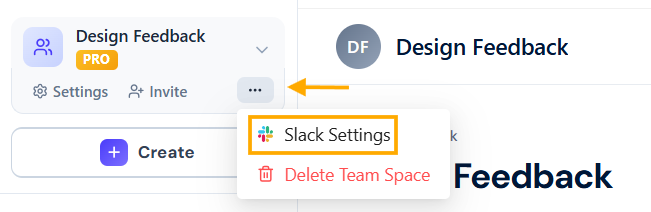
- Open the dadan web app and navigate to your team space (e.g., Design Feedback).
- Click the three dots under the team name, then select Slack Settings.
- Connect to Slack:
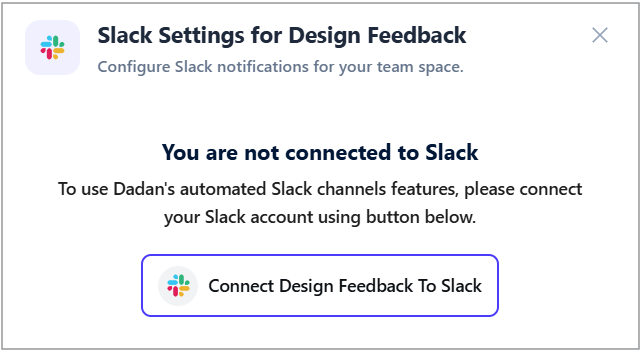
- A pop-up will appear with the message: “You are not connected to Slack”.
- Click Connect Design Feedback To Slack (or the equivalent button for your team’s name).
- Sign into Slack workspace:
- You’ll be redirected to Slack’s sign-in page.
- Enter your workspace’s Slack URL (e.g.,
example.slack.com) in the provided field.

- Click Continue.

- Grant permissions:
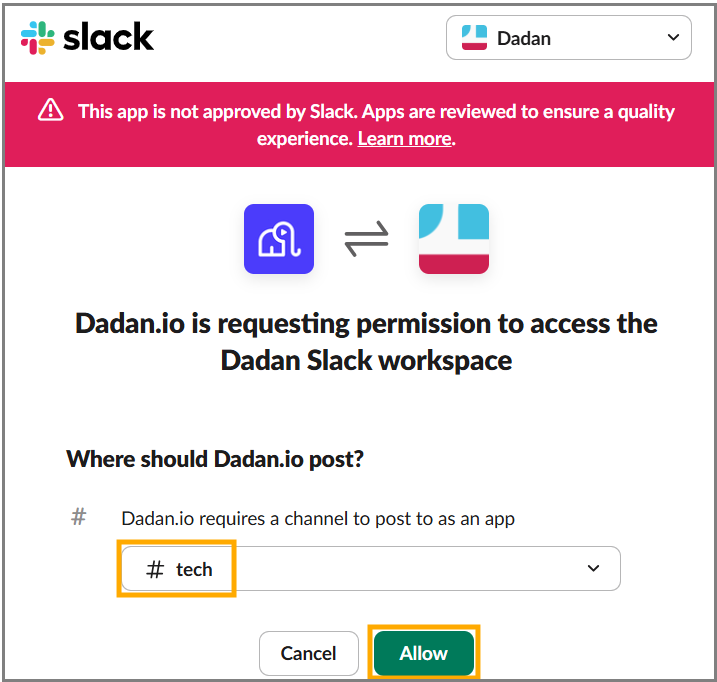
- Slack will display a permission request: “dadan.io is requesting permission to access the dadan Slack workspace.”
- Under “Where should dadan.io post?”, select a channel (e.g.,
#tech) from the dropdown menu. - If needed, search for a channel using the search bar.
- Click Allow:
- Grant dadan.io access to the selected channel.
Notes:
- If you see a warning in Slack stating “This app is not approved by Slack…”, proceed with the process.
- Review Slack’s app approval policies by clicking Learn more if necessary.
- Verify connection:
- A confirmation message will appear.
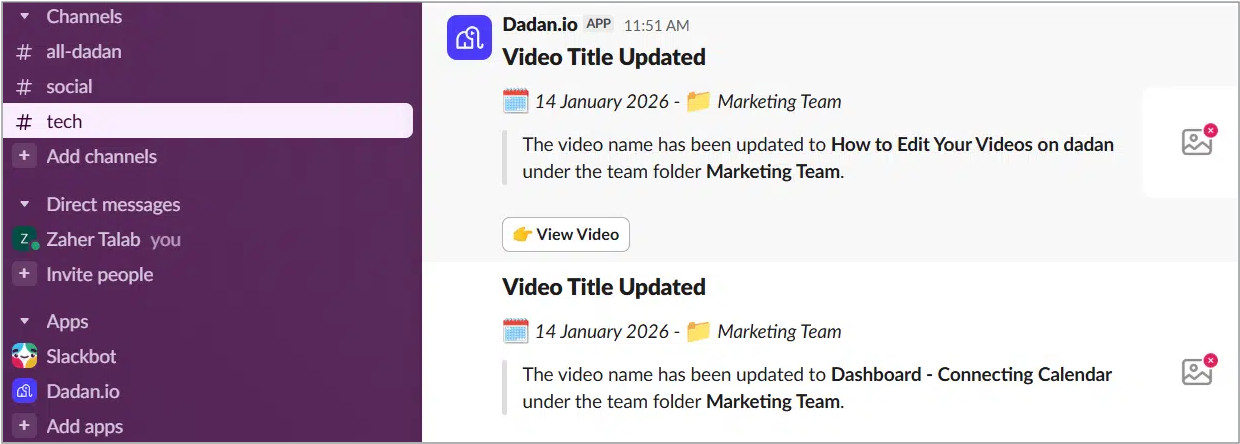
- Dadan’s automated Slack features include auto-posting updates to the selected channel.
- When you create a new folder in your Team Space, for instance, an auto-update message will be sent to your connected Slack channel.
Dadan-Slack auto update use cases #
Connecting dadan to Slack enables real-time notifications for your team’s activities, keeping everyone in the loop. Here are the key use cases for automated updates in your chosen Slack channel.
- New video added: Alerts when a video is uploaded.
- Video moved: Notifies when a video is moved.
- Folder created: Informs about new folders.
- Comment added: Shares new video comments.
- Folder deleted: Alerts when a folder is deleted.
- Folder renamed: Updates on folder name changes.
- Comment reply: Notifies about comment replies.
- Video removed: Informs when a video is deleted.
- Video title updated: Alerts on title changes.
Note: Once connected, customize your Slack notifications with our Slack settings for dadan Team Space guide.


