
Customizing Slack settings for your dadan Team Space ensures your team receives timely updates on key activities, such as new videos, folder changes, or comments. This guide walks you through the steps to tailor notifications, streamline communication, and boost collaboration.
- Note: If your dadan team space isn’t connected to a Slack channel, refer to our guide on Connecting dadan Team Space to a Slack channel before customizing settings.
Slack Settings for your team pop-up #
Once you connect your dadan Team Space with a Slack channel, the Slack Settings for your team (e.g., Marketing Team) pop-up will open.
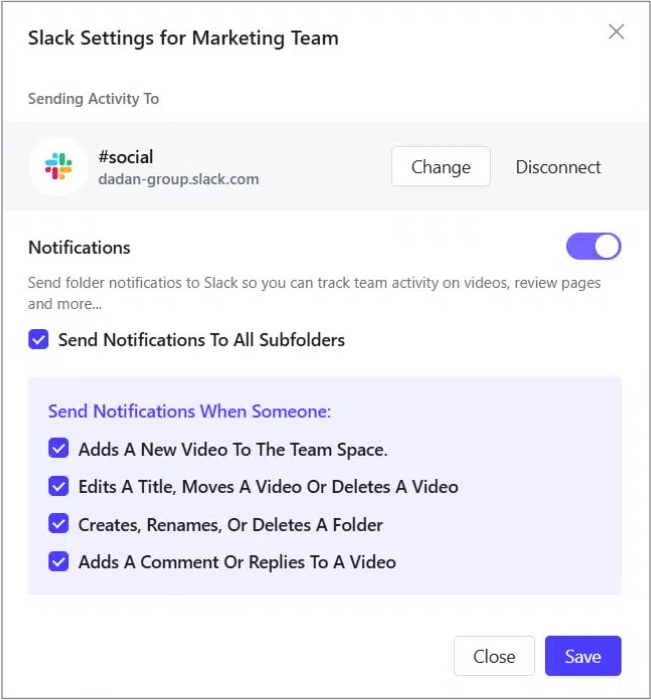
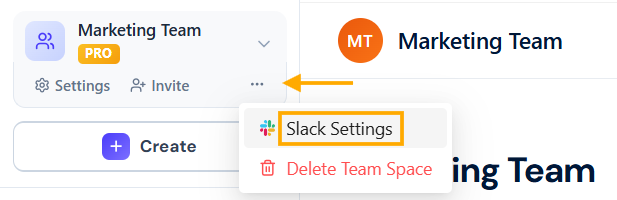
- Alternatively, navigate to your team space.
- Click the three dots under the team name and select Slack Settings.
Steps to configure Slack settings for Team Space #
To configure Slack settings for your Team Space:
- Configure notification settings:
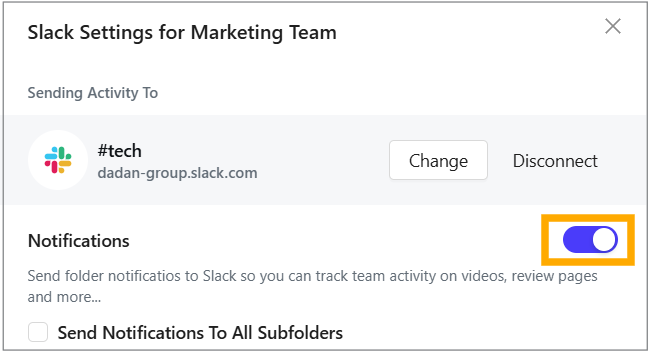
- Toggle the Notifications switch to enable or disable notifications.
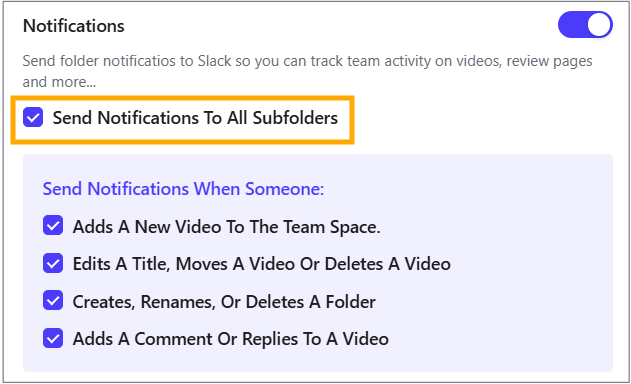
- Check the “Send Notifications to All Subfolders” box if you want.
- Configure notification triggers:
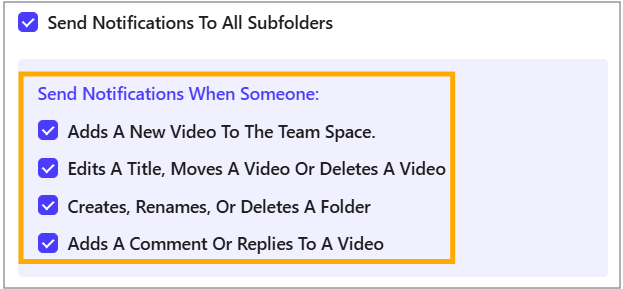
- In the Send Notifications To All Subfolders section, check the actions you want to receive notifications for:
- Adds A New Video To The Team Space.
- Edits A Title, Moves A Video Or Deletes A Video.
- Creates, Renames, Or Deletes A Folder.
- Adds A Comment Or Replies To A Video.
- In the Send Notifications To All Subfolders section, check the actions you want to receive notifications for:
- Change Slack Channel (optional):
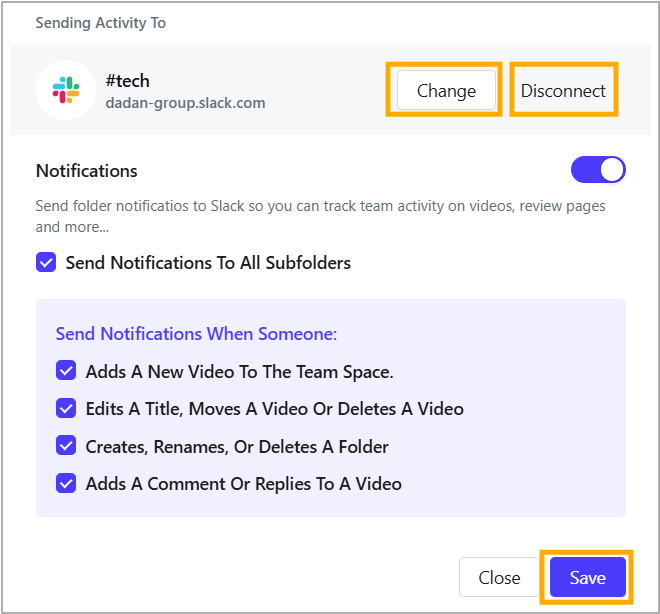
- If you need to change the Slack channel, click Change next to the current channel name.
- Follow the prompts to select a new channel and grant permissions again.
- Disconnect Slack (optional):
- To disconnect the Slack integration, click Disconnect next to the Change button.
- A confirmation message will confirm disconnection.
- Save settings:
- Click Save to apply your notification settings or Close to discard changes.
- Confirmation:
- After saving changes or updating the Slack channel, a confirmation message will appear in the top-right corner: “Team Slack channel has been successfully updated.”


