
Ensuring the privacy of your recordings is essential to controlling who can view and interact with your content. Dadan offers flexible privacy controls, allowing you to restrict access and enable or disable comments based on your needs.
This guide provides step-by-step instructions on how to:
- Adjust video visibility settings.
- Set comment restrictions.
Dadan video share settings #
Follow these steps to change video share settings:
- Select a video.
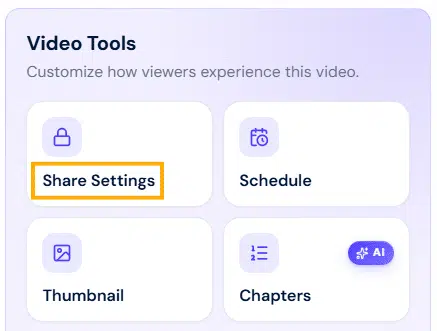
- In the Video Tools section, click the Share Settings button.
How to control the share settings of dadan video and comments 1
- Toggle on/off the following privacy setting options as needed, then click Save to apply your changes:
- Make video private: Restrict access to the video, making it private.
- Allow comments: Allow users to leave comments on the video.
- Emoji reactions: Allow users to react to the video with emojis.
- Enable interaction: Allow general interactions with the video.
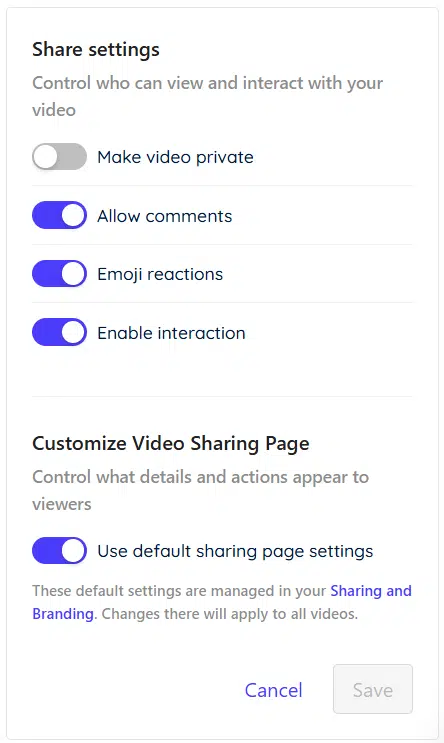
- Click Save.
Customize video share page #
To customize your Video Share Page:
- Disable the Use default sharing page settings option to customize these sharing page settings for this specific video, independent of your general sharing page options.
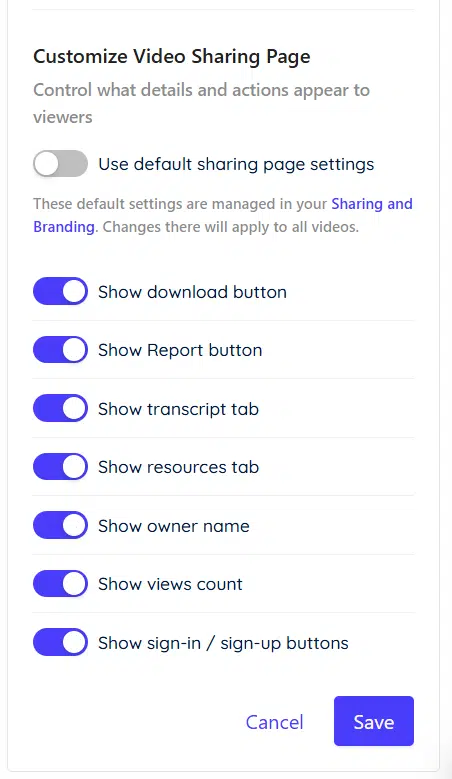
- Click Save.
Comments privacy settings #
dadan lets you control your video comments’ privacy and who can comment, as follows:
- Click the blue Share button.
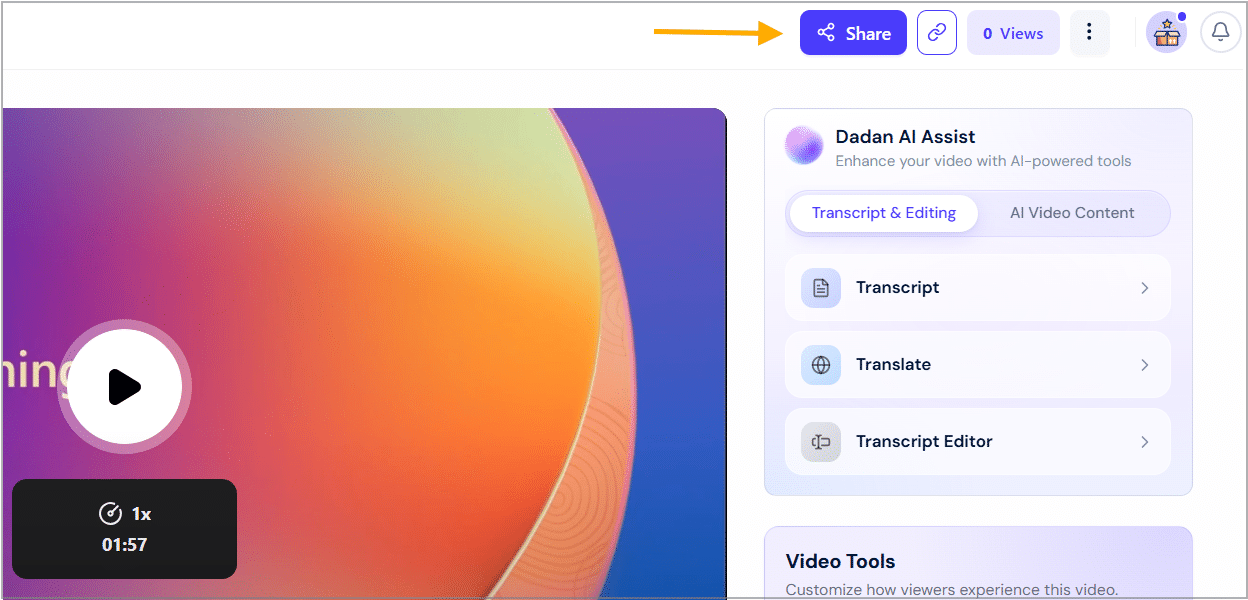
- Stay on the Link tab in the Share Your Video pop-up window.
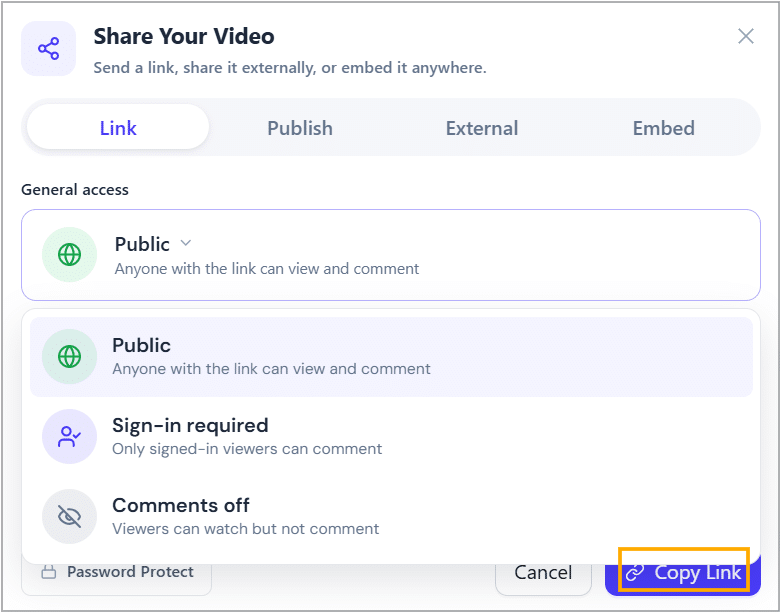
- Click on the Comments Privacy Settings to see the options for sharing a video:
- Public: Anyone with the link can comment on the video.
- Signed-in required: only signed-in users can comment on the video.
- Comments off: No one can comment on the video.
- Click on the Comments Privacy Settings to see the options for sharing a video:
- Click Copy Link: Each option generates a unique sharing link, with its own comment privacy setting.
See also: Secure and schedule your dadan video access.


