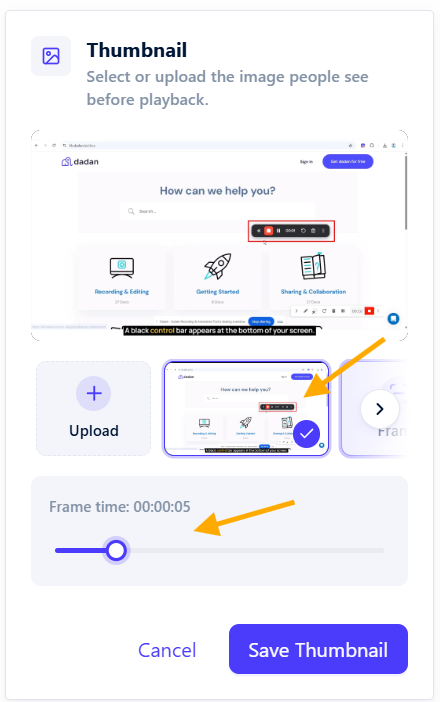
A well-chosen thumbnail makes your video more engaging and helps viewers decide to watch. In this guide, you’ll learn how to change your dadan video thumbnail by selecting a new image or uploading a custom one.
How to change the thumbnail of your dadan video #
You can change the thumbnail of your dadan video to make it more engaging and visually representative of your content.
- In the video playback screen, click the Thumbnail button in the Video Tools box.
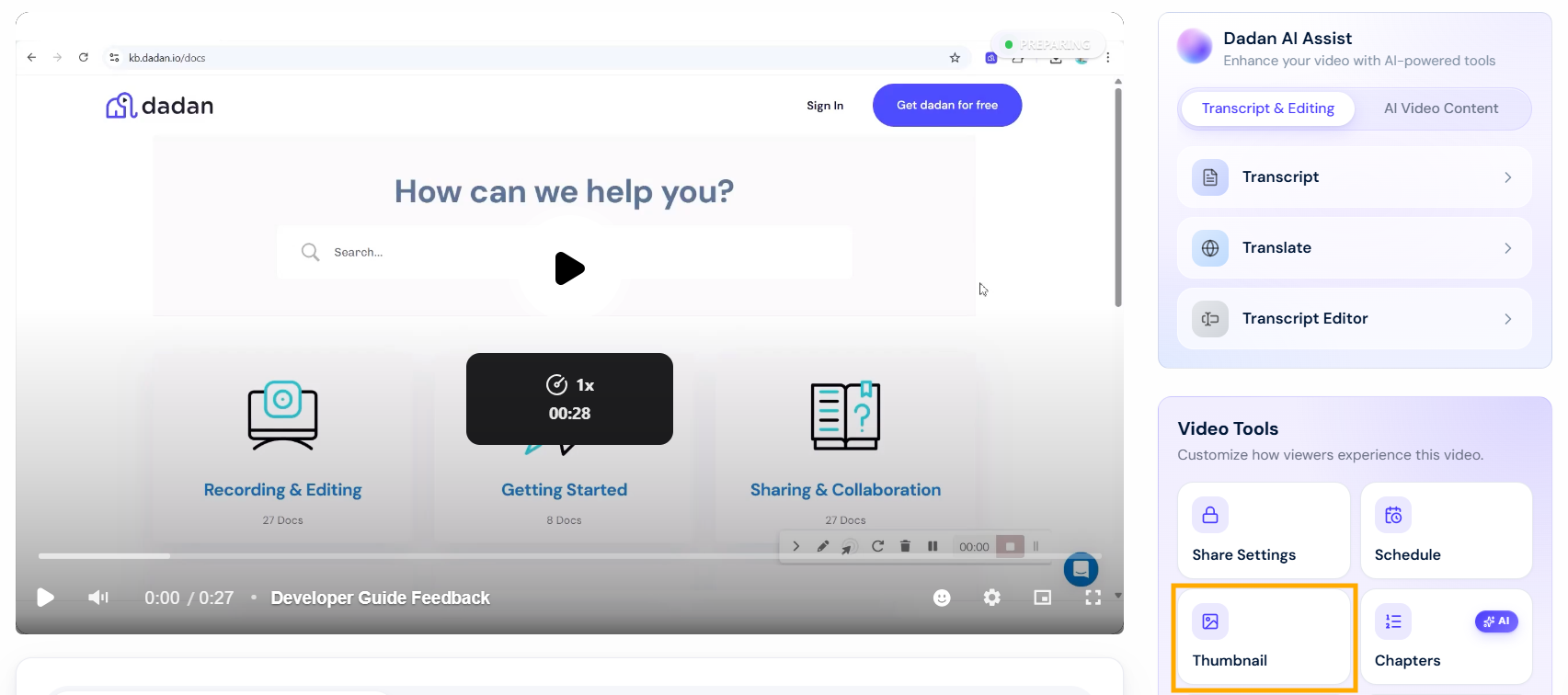
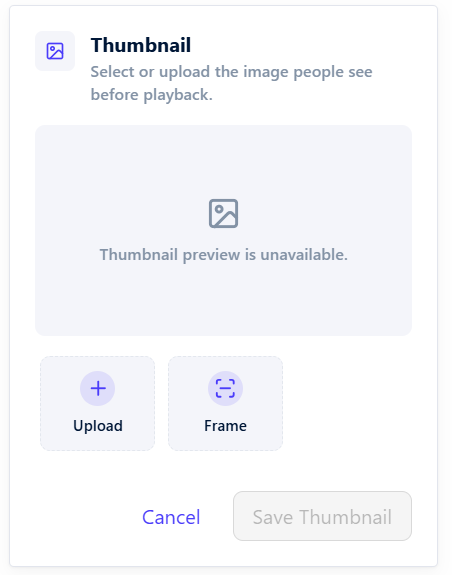
- The Thumbnail box will open, allowing you to change the thumbnail or click Cancel.
Upload external thumbnail #
To upload an external thumbnail:
- Click the + Upload icon to add a thumbnail or replace the current one.
- Select the new thumbnail image from your device.
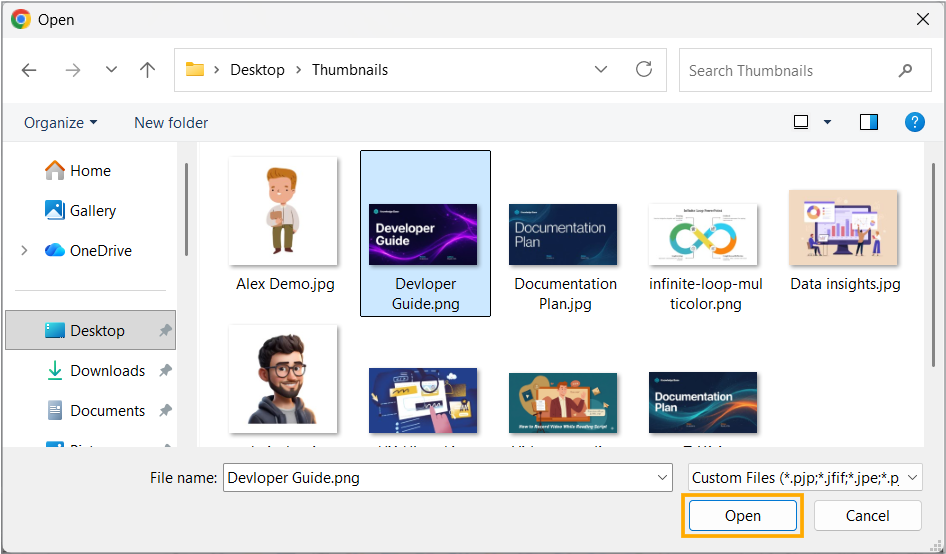
- Click Save Thumbnail to save the changes made.

Notes:
- The image must be no larger than 2 MB.
- Recommended 16:9 aspect ratio and dimensions of 1920 x 1080 or 1280 x 720 pixels for optimal display quality.
Supported file:
- JPEG variants: .jp, .jfif, .jpe, .jpeg, .jpg
- PNG: .png
- GIF: .gif
From video frame #
If you prefer to use a frame from your video as the thumbnail, you can easily capture and set it directly within dadan. This option helps you choose a natural moment that best represents your content, without uploading an external image.
- Choose the Frame tab icon.
- Select the Frame Time moment that contains the image you want.
- Click Save Thumbnail to make this image the video thumbnail.