Dadan offers robust support for translating video subtitles into most global languages, making content accessible to diverse audiences with ease.
This guide provides a concise walkthrough for translating video subtitles into multiple languages using dadan’s AI-powered features. Follow the steps below to generate, select, and manage translations seamlessly.
Accessing the video and translation options #
Start by navigating to your video library in dadan to access the translation tools for your content.
- Open the video you want to translate.
- In the video Settings, no captions or language translations are available by default.
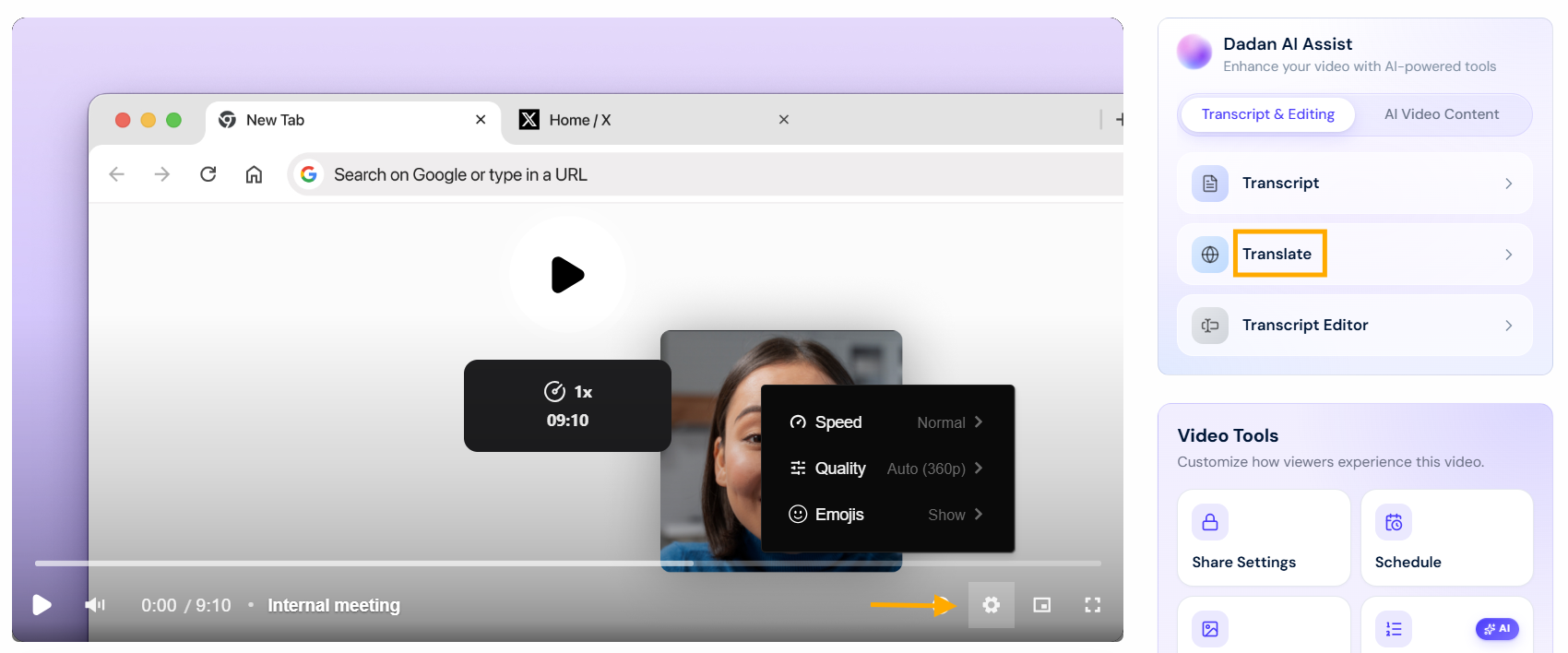
- Select the Translate option in the Dadan AI Assist box on the right.
Generating a transcript #
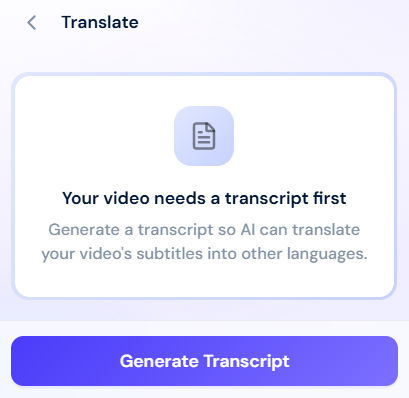
A transcript is required before translating:
- In the Translate panel, select the video’s original language (e.g., English) from the dropdown.
- Click Generate Transcript, then click Confirm when prompted.
Selecting a translation language #
After the transcript is ready, choose the language for translated subtitles:
- Click the Select Language box.
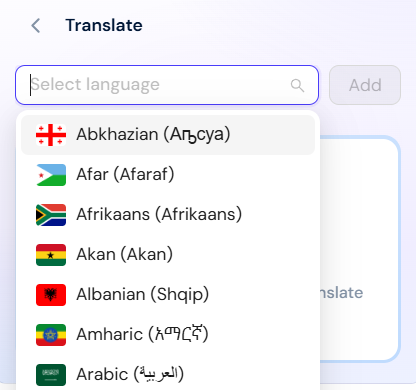
- Select a language from the list and click Add to start the translation process.
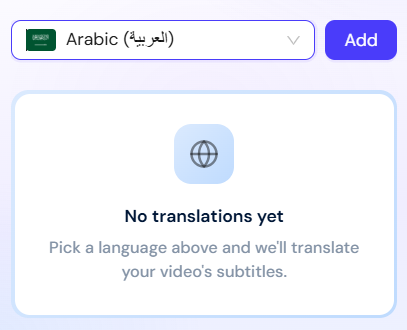
- Once initiated, the panel will display Translations In Progress with a progress bar.
- Wait for the translation to complete; a notification will confirm when it’s ready.
- You can add more translation languages as desired.
Viewing and managing translated subtitles #
Once translation(s) are complete, you can view them directly in the video player.
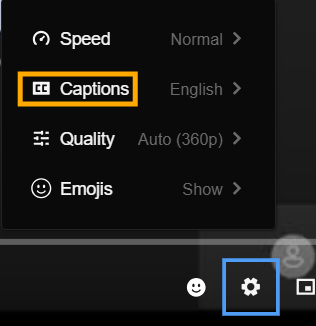
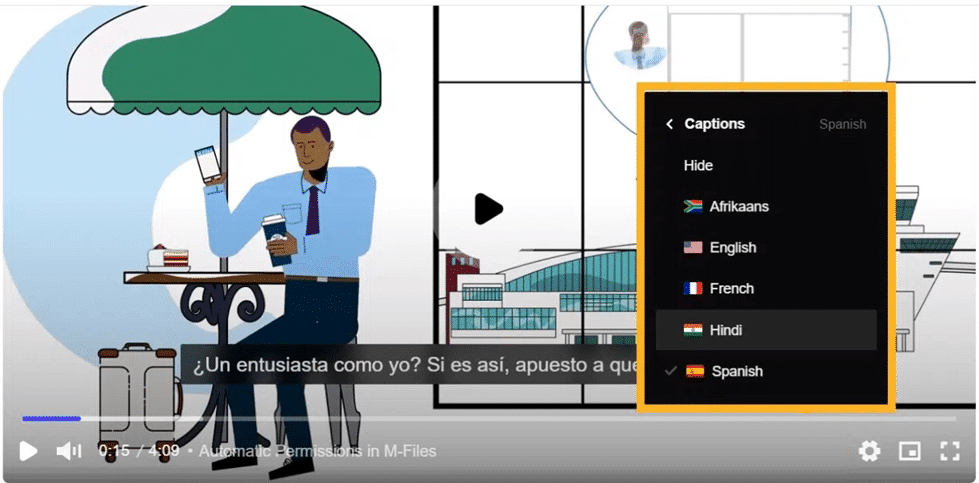
- Select Captions in the settings menu to see the list of translated languages.
- Select your preferred language to display the translated subtitles.
Managing translated subtitles #
The managing option allows you to export your translated subtitles for external use. It also enables you to review and edit the translated subtitles for accuracy, as automated translations may require minor adjustments to ensure context and tone are correct.
- In the Translate panel, locate the translated language you want to review.
- Click the Download button next to the language to export the translation subtitle file.
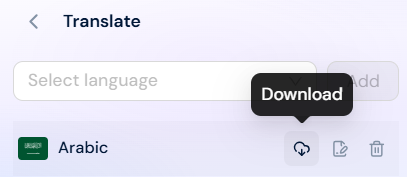
- After downloading and editing the translation file, click the Update button to upload the edited translation file.
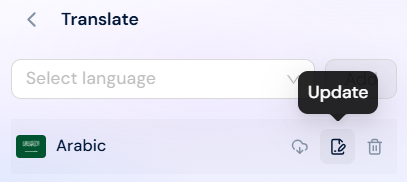
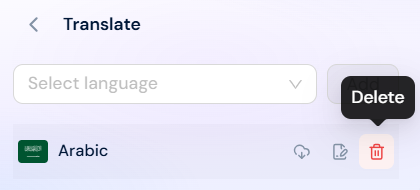
- To remove a translation, go to the Translate panel, select the language, and click the Delete button to delete its translation.