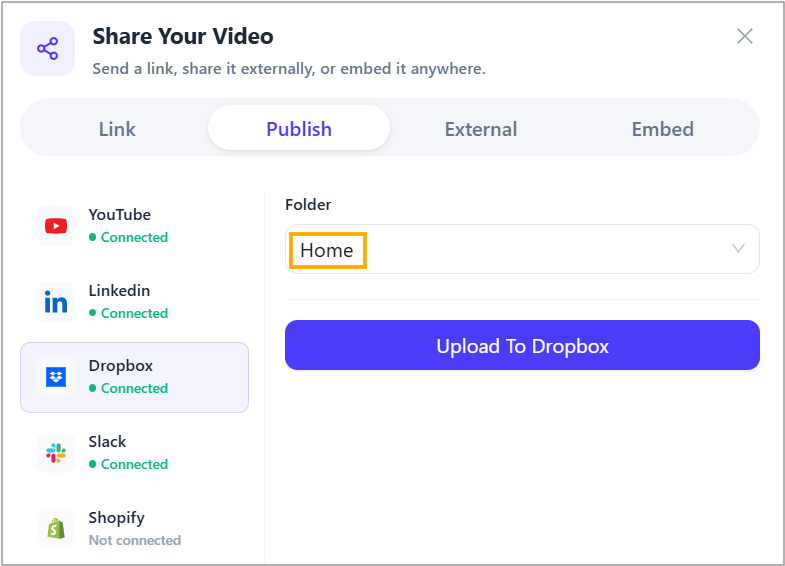
You can import videos from Dropbox directly into dadan without downloading and re-uploading them. This guide outlines the steps required to import your Dropbox videos efficiently.
How to import a video from Dropbox to dadan #
Follow the steps below to import your videos from Dropbox to dadan easily:
- Open the dadan app.
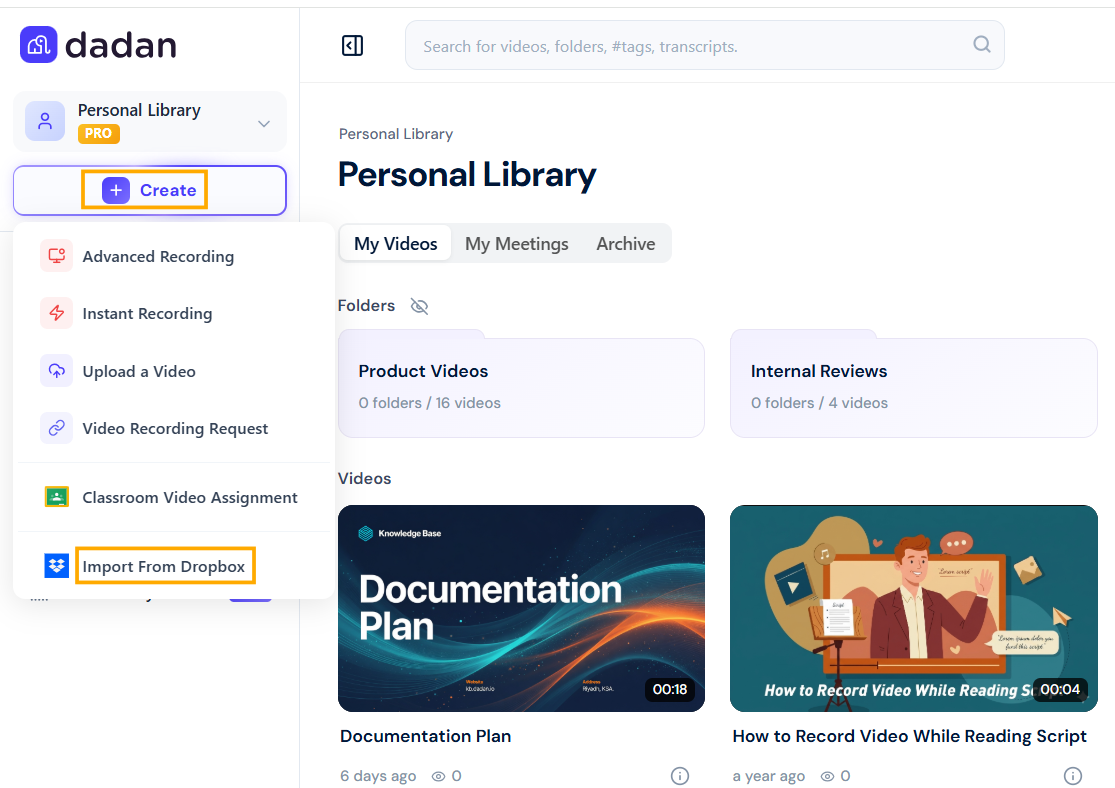
- Click the Create button in the left sidebar.
- Choose Import From Dropbox.
- A new window will pop up, prompting you to log in to your Dropbox account.
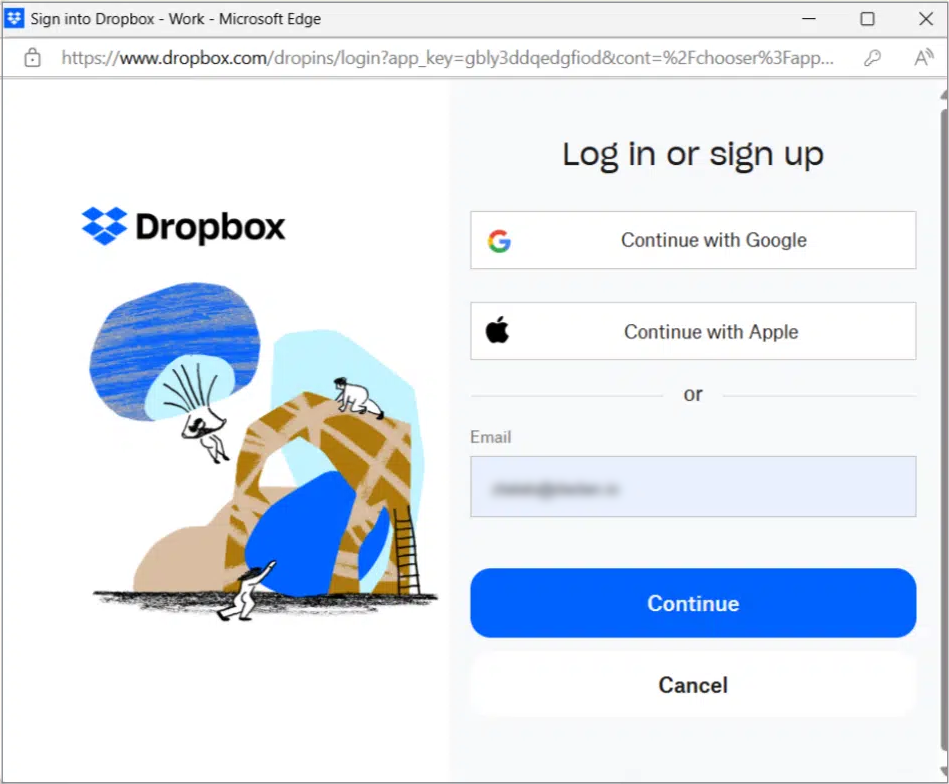
- Once logged in, you’ll be directed to your Dropbox My files section.
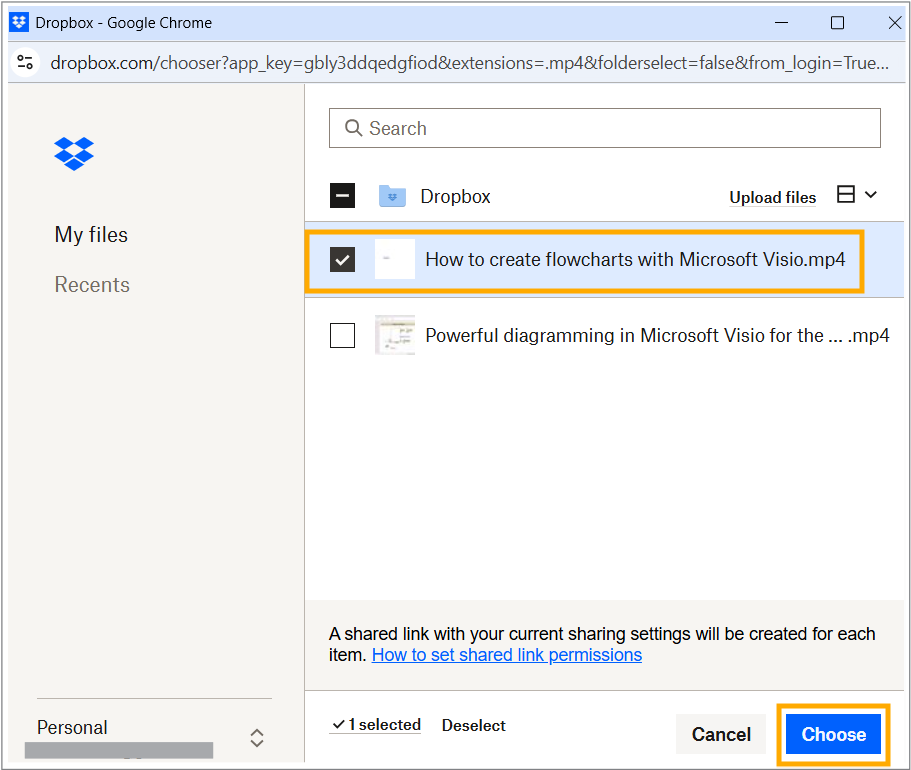
- Select the video file:
- Browse through your files and locate the video you want to import.
- Check the box next to the video file(s) to select them.
- Click the blue Choose button at the bottom right of the Dropbox pop-up window.
- Wait for the import to complete:
- Dadan will begin importing the video.
- You are almost here:
- The import process may take a few moments depending on the file size and connection speed.
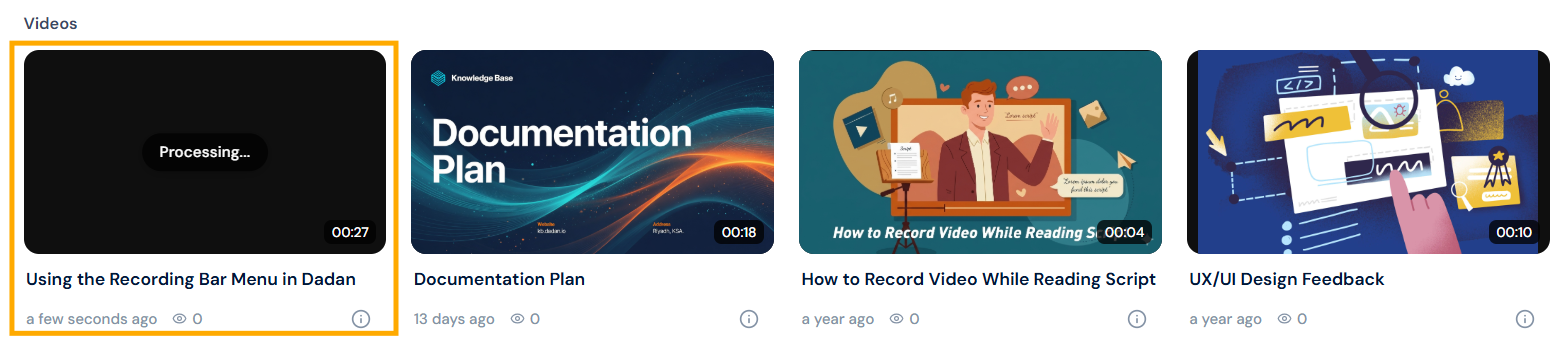
- The video will appear in your dadan Videos section under Personal Library.
Notes:
- The imported video will be available in your dadan account for further use, such as sharing or organizing into folders.
- If the video doesn’t appear immediately, it might still be processing. The status may show “In a minute” until it’s fully ready.
- We can’t import a folder from Dropbox to dadan.
Send video from dadan to Dropbox #
dadan also allows you to send videos directly to Dropbox. To do so, follow these steps:
- Open the video playback screen.
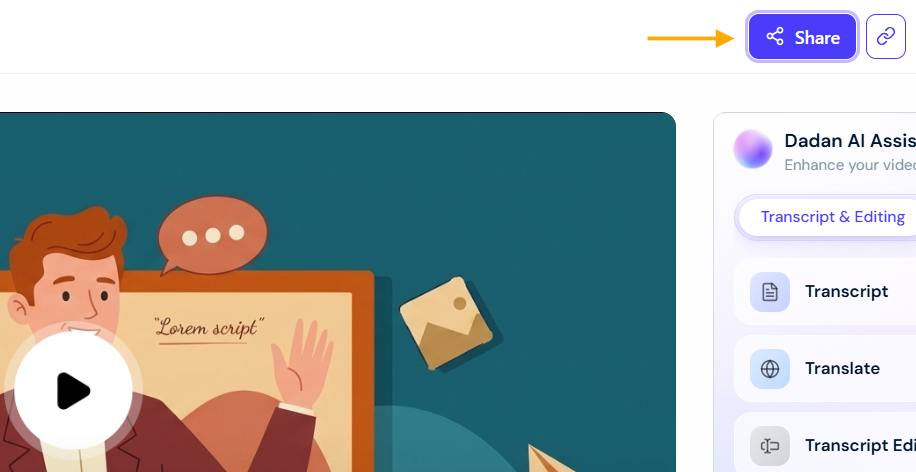
- Click the Share button.
- In the Share Your Video popup:
- Select the Published tab.
- Select the Dropbox app in the left bar.
- Choose the designation Folder in Dropbox.
- Click the Upload to Dropbox button to complete the process.