
When a folder is archived, it no longer appears in your regular workspace, but it still takes up space. If you’re sure you no longer need it, you can delete it permanently.
This quick guide will walk you through how to permanently delete archived folders.
Looking for the full guide on managing folders? Check out the complete folder management guide.
Steps to permanently delete an archived folder #
To delete a folder, follow these steps:
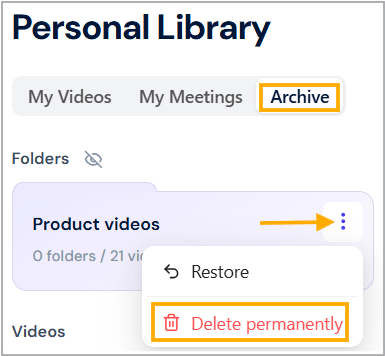
- Find and click the Archive menu.
- In the folders section, find the folder you want to delete and click the three dots [⋮] menu.
- A sub-menu will expand; click Delete permanently.
- A confirmation box will appear; click Yes, delete it! button.
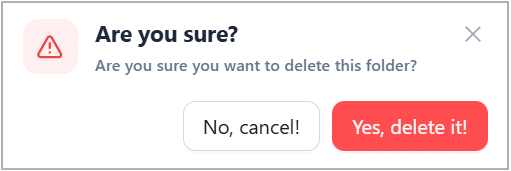
⚠️ Warning: This action cannot be undone. Once permanently deleted, the folder and its contents will be gone.


