
With dadan, you can quickly and effectively communicate ideas through professional video recordings. This guide will walk you through the steps to start using dadan and make the most of its features, whether you’re creating team updates, client presentations, or training materials.
- Note: Get started with your dadan account here or view our plans and subscription.
What does dadan do? #
Dadan features mainly enable you to:
- Record your screen: Capture your entire screen or a specific area with ease.
- Host on your terms: Embed videos on your site or knowledge base without relying on third-party platforms.
- Edit videos seamlessly: Split, blur, or annotate directly within the app.
- Share instantly: Generate a unique link to share your videos anywhere.
- Collaborate effortlessly: Get feedback and engage your audience through AI-based interactive features.
Dadan can also help with:
- Organize with folders: Keep your video library structured and easy to manage.
- Add CTAs and links: Drive action by embedding clickable buttons or links in your videos.
- Reuse and repurpose content: Duplicate or remix existing videos to fit different contexts.
- Control privacy settings: Set your videos to public, private, or password-protected.
- Track engagement: See who watched your video, for how long, and where they dropped off.
- Download in HD: Export your videos in high quality for offline use or further editing.
Dadan AI Assist #
Enhance your videos more with dadan AI, including:
- Transcript: Automatically generate video transcripts.
- Title: Get suggestions for engaging video titles.
- Tags: Add relevant tags for better organization.
- Description: Create concise, informative video descriptions.
- Summary: Generate quick summaries for your content.
- Note Taker: Capture key points and notes from your video.
- Translation: Translate video subtitles into multiple languages.
Sign up for dadan #
Getting started with dadan is quick and easy, just follow these steps:
- Access the sign-up page:
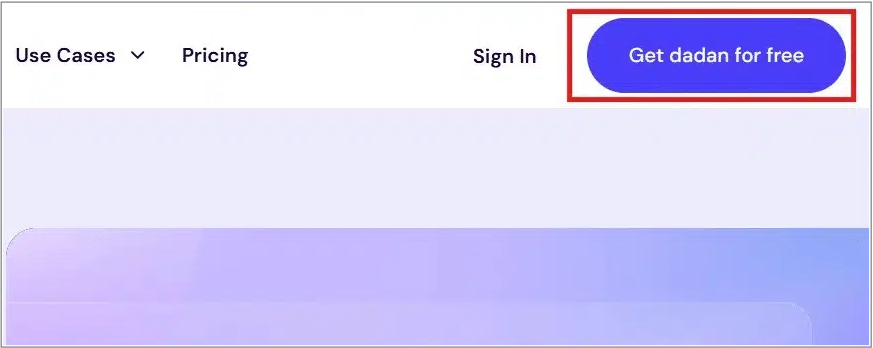
- Click the Try for Free button at the top-right corner of the dadan homepage.
- This will take you directly to the sign-up page.
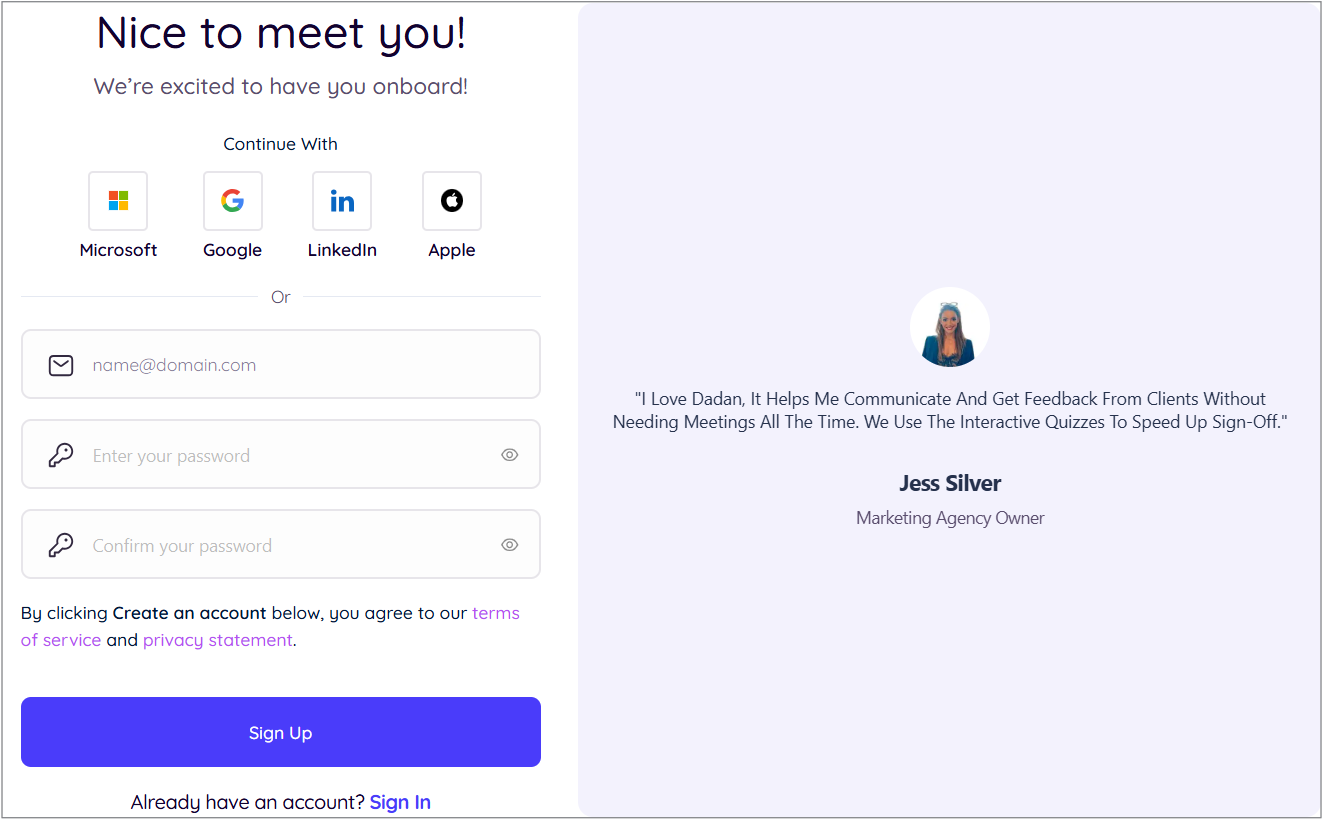
- Choose your sign-in method:
- You can sign up using your Google or Microsoft account for a faster setup.
- You can also create an account manually by providing your email address and password.
- Click Sign Up to create your account.
- Once you’re signed up, you’re ready to explore dadan’s features and start creating amazing videos!
Install dadan #
You can download and install dadan as a desktop app or a browser extension, depending on your recording needs.
For Windows #
To access advanced recording features like full desktop capture and offline recording:
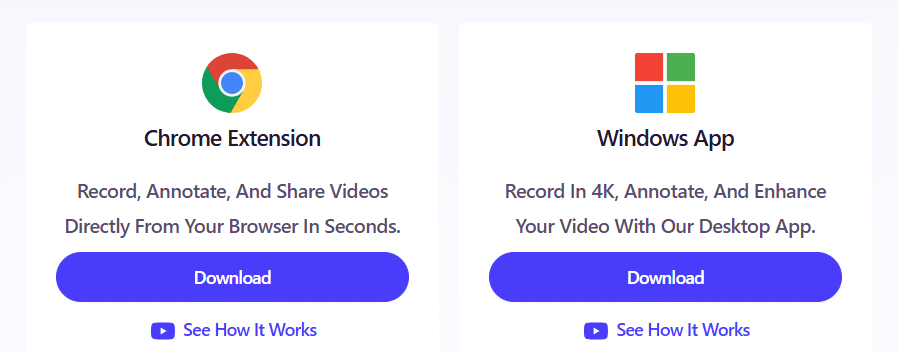
- Click the Download button below the Windows App icon.
- Run the installer and follow the on-screen instructions to complete setup.
For Chrome and Edge #
To use dadan directly from your browser for quick screen recordings:
- Click the Download button below the Chrome Extension icon.
- You’ll be redirected to the Web Store. Select Add to Chrome (or Edge), then confirm installation.
Note: For detailed dadan installation instructions, please visit Installing dadan on Windows: step-by-step guide and Installing dadan on Chrome: your guide to the browser extension.
Screen recording #
Learn how to easily record your videos with dadan, capturing your message with just a few clicks.
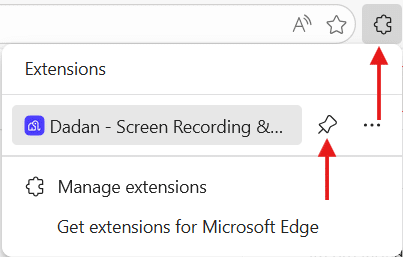
- Click the dadan icon in the browser toolbar. The dadan browser extension will open.
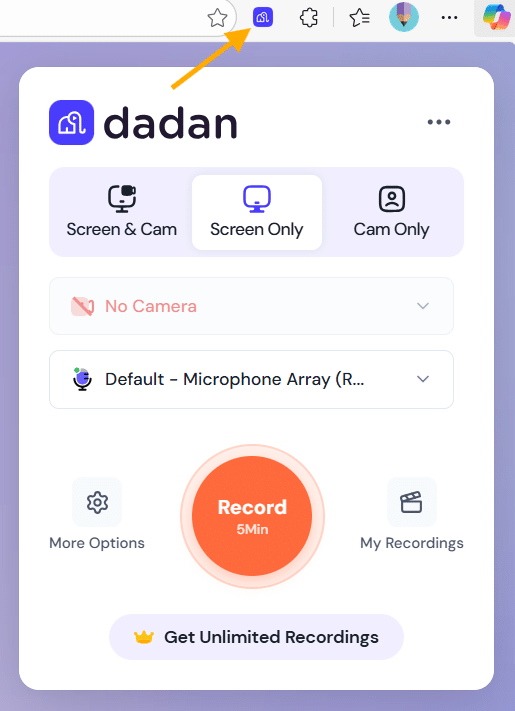
Note: If you don’t find the dadan extinction icon, click on the browser extensions icon to pin the dadan icon and add it to your extensions bar.
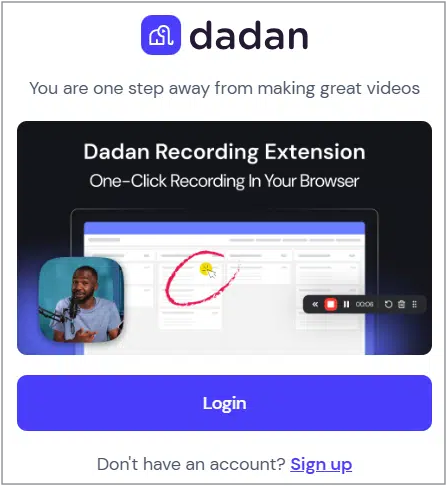
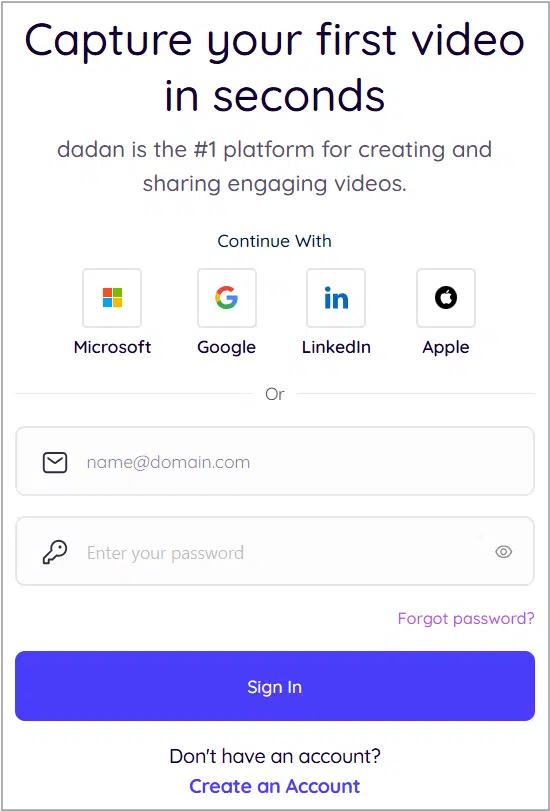
- Log in / Sign up using your dadan credentials, Google, or Microsoft account for seamless access.
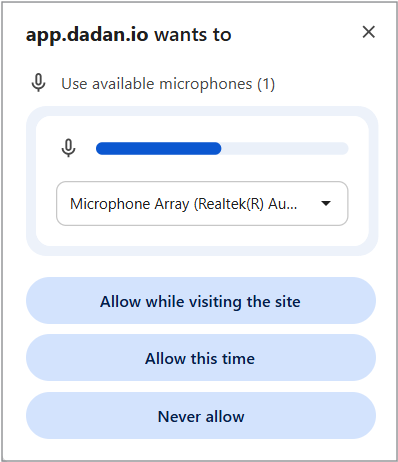
- Allow microphone and camera access:
- Two pop-up windows will appear asking for permission to use your microphone and camera.
- Click Allow while visiting this site to grant dadan permanent access to your microphone and camera for video recording.
- Choose your recording preferences:
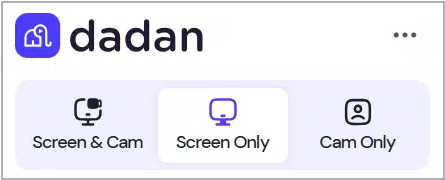
- From the dadan extension pop-up, choose:
- Screen & Cam: Record both your screen and webcam.
- Screen Only: Record only your screen.
- Cam Only: Record only your webcam.
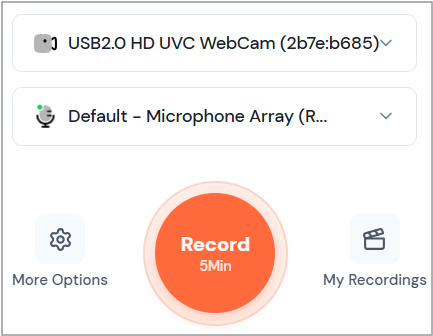
- Select preferred mic and camera.
- Click Record to begin.
- Select what to record:
- Entire Screen, a specific Window, or a Browser tab.
- Click Share.
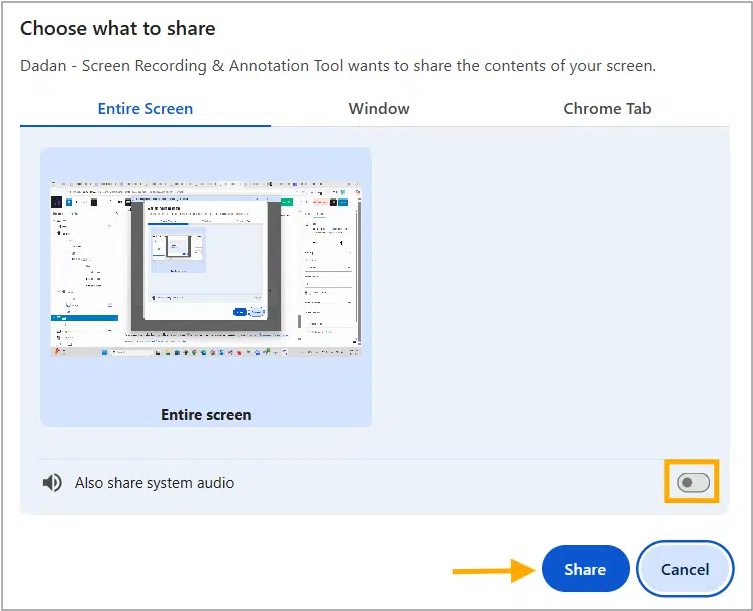
Note: If you want to include computer audio in your recording, toggle the Also share system audio option when selecting your recording window.
- For a more detailed guide about using dadan in the browser extension, visit Dadan browser extension: how to use dadan for video recording.


