
Once your recording is ready, it’s time to refine it. Utilize dadan’s video editor to eliminate minor errors, highlight key segments, and enhance the overall quality.
Editing videos can be simple. You can quickly and easily edit videos with dadan and make them look professional! This guide will walk you through the key features of dadan’s video editor, empowering you to perfect your recordings.
How to edit videos with dadan #
To edit videos with dadan:
- Starting from the video page, click the Edit Video button in the Edit your Video section right below.

- This will open the dadan Studio video editor.
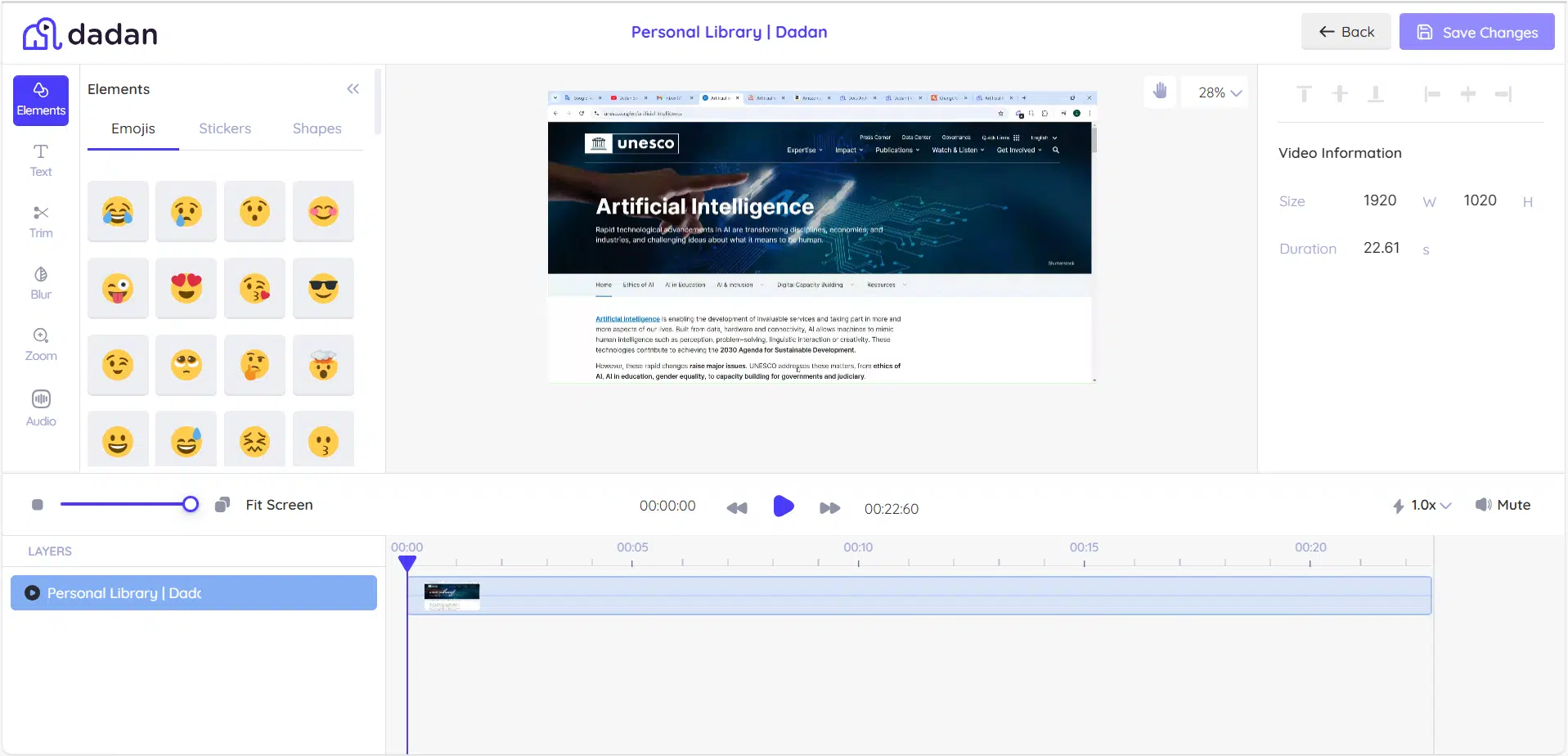
Dadan video editor overview #
There are four main panels in dadan’s video editor, which is called dadan Studio. They provide a streamlined editing experience, each serving a specific purpose:
- Tools panel: For editing options.
- Video monitor: For previewing changes.
- Control panel: For adjustments.
- Timeline panel: For managing clips and sequencing.
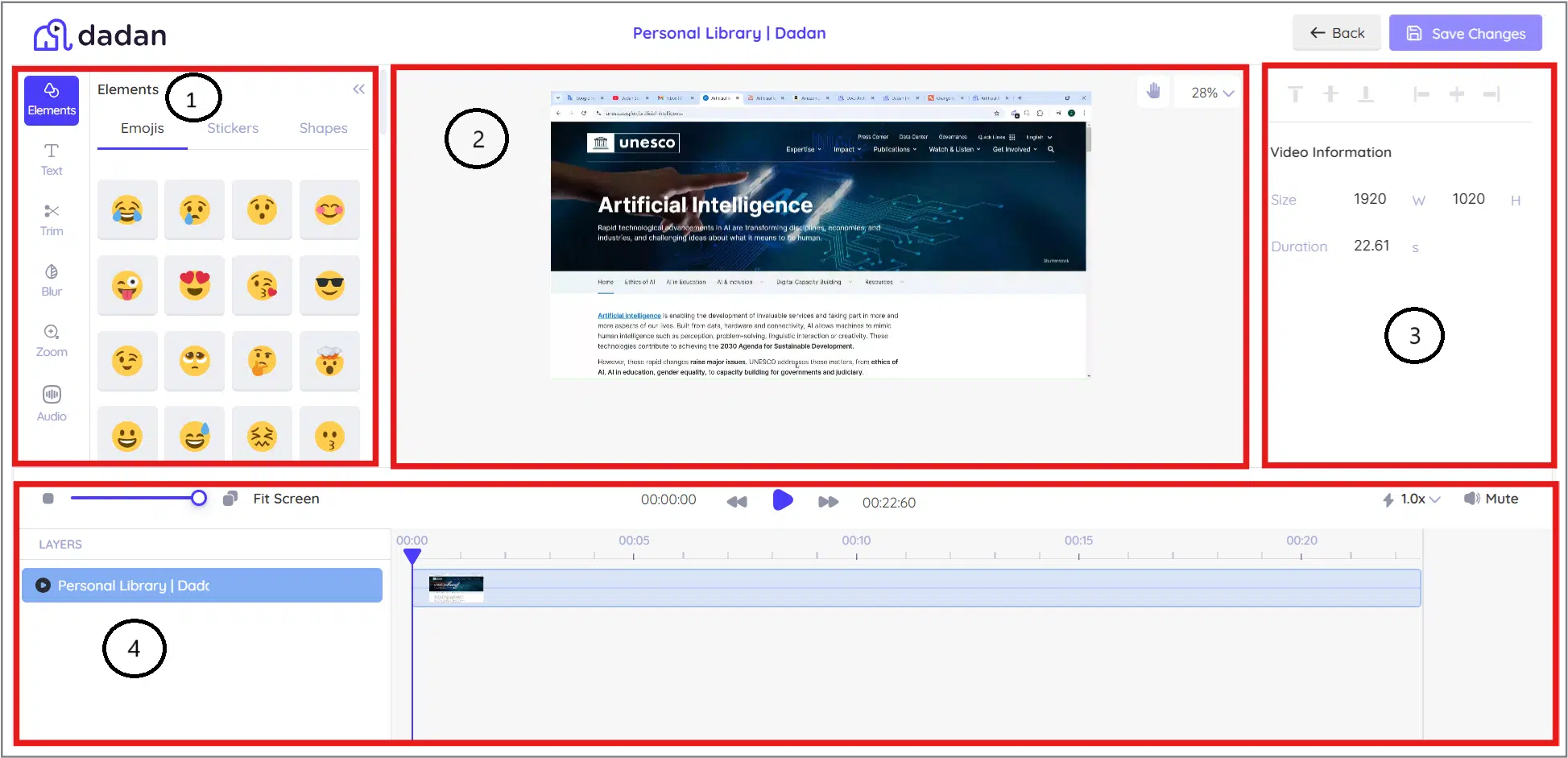
Dadan studio tools panel #
Dadan’s tools panel includes a variety of effects and components to enhance your videos, such as:
- Elements: Add emojis, stickers, and shapes to make your visuals more engaging.
- Text: Insert titles, subtitles, or any other text elements into your video.
- Trim: Remove undesired sections from your video.
- Blur: Conceal sensitive information or highlight key areas.
- Zoom: Focus on specific parts of the video for dramatic or instructional effects.
- Audio: Adjust the volume or mute specific sections.
Video monitor #
Video Monitor allows you to:
- Use the video monitor panel as your live display.
- Playback and preview edits in the timeline panel.
- To move the video within the video monitor panel:
- Click the hand icon.
- Adjust the video as needed.
- Click the hand icon again to exit move mode.
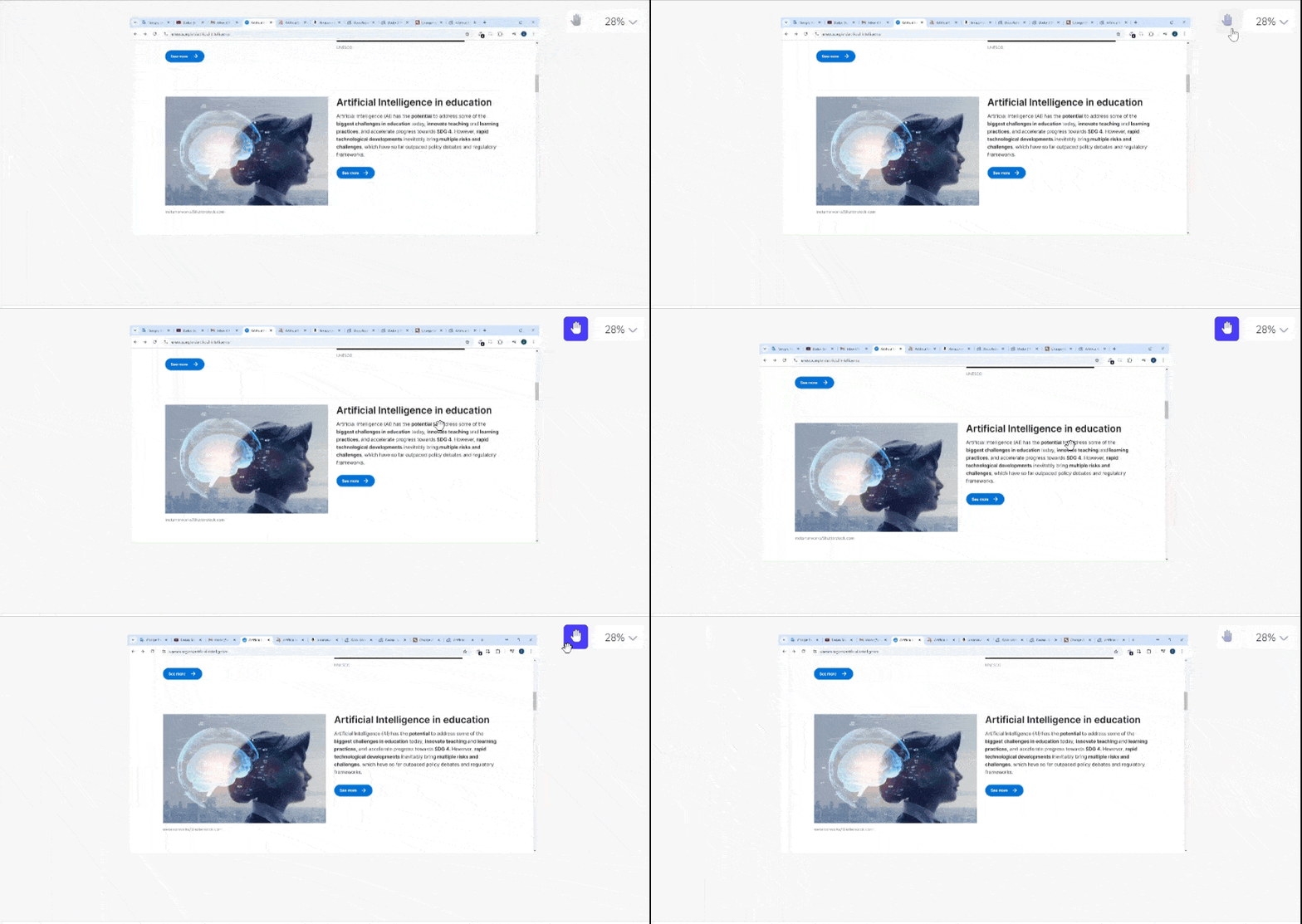
Note: Components cannot be selected while the move mode is active.
Control panel #
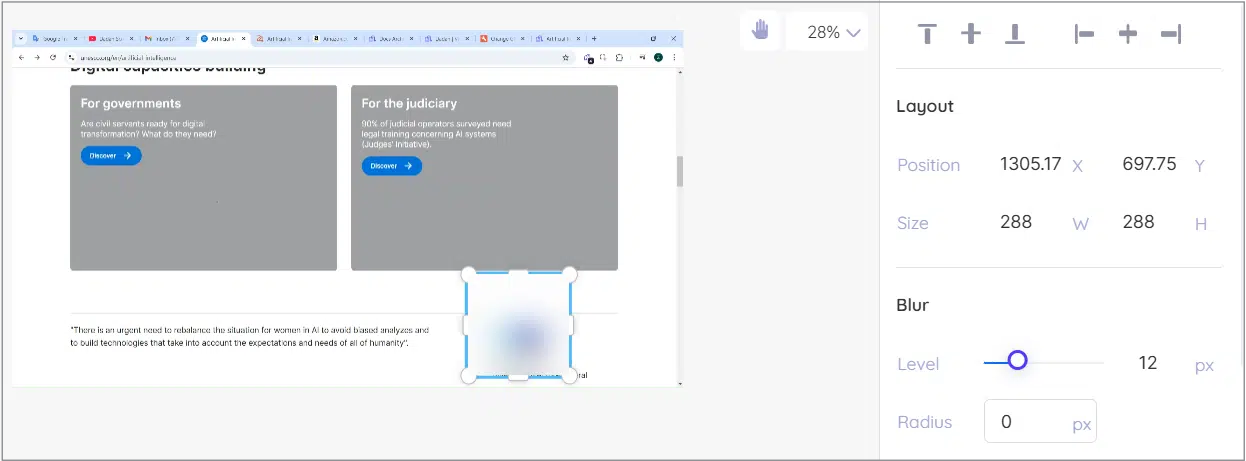
After selecting a component from the tools panel, its settings will be displayed in the Control panel.
You will be able to control the following areas:
- Alignment: Adjust the vertical and horizontal positioning of elements.
- Rotation: Rotate components for precise positioning.
- Opacity: Modify transparency for effects or text.
- Time settings: Control when elements appear and disappear in the video.
- Text format: Change the font, size, and style of text layers.
- Level (Blur, Zoom): Fine-tune the intensity of blur and zoom effects.
- Volume: Increase, decrease, or mute audio for selected sections.
Timeline panel #
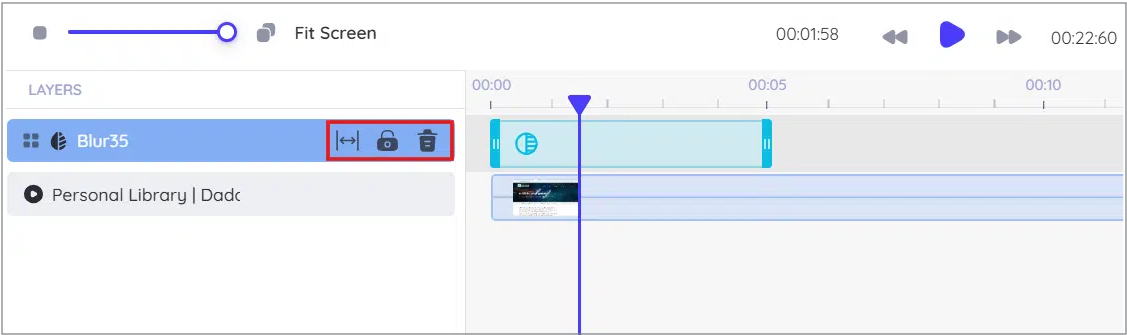
The Timeline panel allows you to:
- Select a video to edit, along with any additional components from the tools panel, and they will be added as layers in the Timeline panel.
- Adjust the positioning, length, and order of layers as needed.
- Remove an editing component and delete the corresponding layer.
- Lock a layer to prevent accidental removal.
- Expand component layers with one click to match the length of the main footage.
Save your edits #
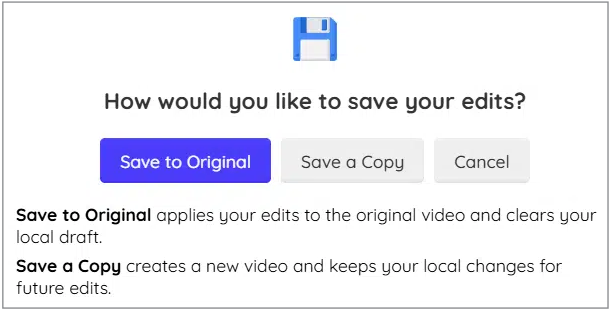
When you finish editing, click Save changes in the top right corner of the editor.

Choose to save or cancel:
- Save to Original: Overwrite the original file with the edited version.
- Save as a Copy: Save the edited version as a separate file.
- Cancel: Go back and continue any last-minute changes.
To view your edited video, wait for the processing to finish after saving your edits. dadan will notify you through the app and via email once your video is ready.
FAQs #
Is there a free online video editor? #
Yes, dadan is a free online video creation platform and video editor that makes video editing simple and accessible. With dadan, you can trim, blur, add text, and much more—all from your browser.
Is it possible to edit a screen recording? #
You can easily edit a screen recording using dadan’s video editor. With features like trimming, adding text, blurring sensitive information, and enhancing audio, dadan makes it simple to refine your screen recordings for tutorials, presentations, or social media.


