
Adding visual elements to your video is a powerful way to communicate more clearly and keep your audience engaged. Whether you’re highlighting essential details, guiding attention, or reinforcing your message with visual cues, dadan makes it easy to enhance your video content with shapes, text, arrows, stickers, and more.
This guide walks you through the process of inserting, customizing, and positioning elements in your video using dadan’s intuitive editor. You’ll learn how to adjust their size, color, rotation, and duration to create professional-looking, on-brand visuals that effectively support your message.
- Note: Read How to edit videos with dadan before proceeding.
Adding elements to dadan video #
Incorporating Elements into your video can:
- Enhance focus: Use arrows or highlights to draw attention to key information.
- Increase engagement: Add emojis or stickers to make your content visually appealing and enjoyable.
- Improve understanding: Utilize shapes or labels to clarify complex ideas and emphasize important steps in a process.
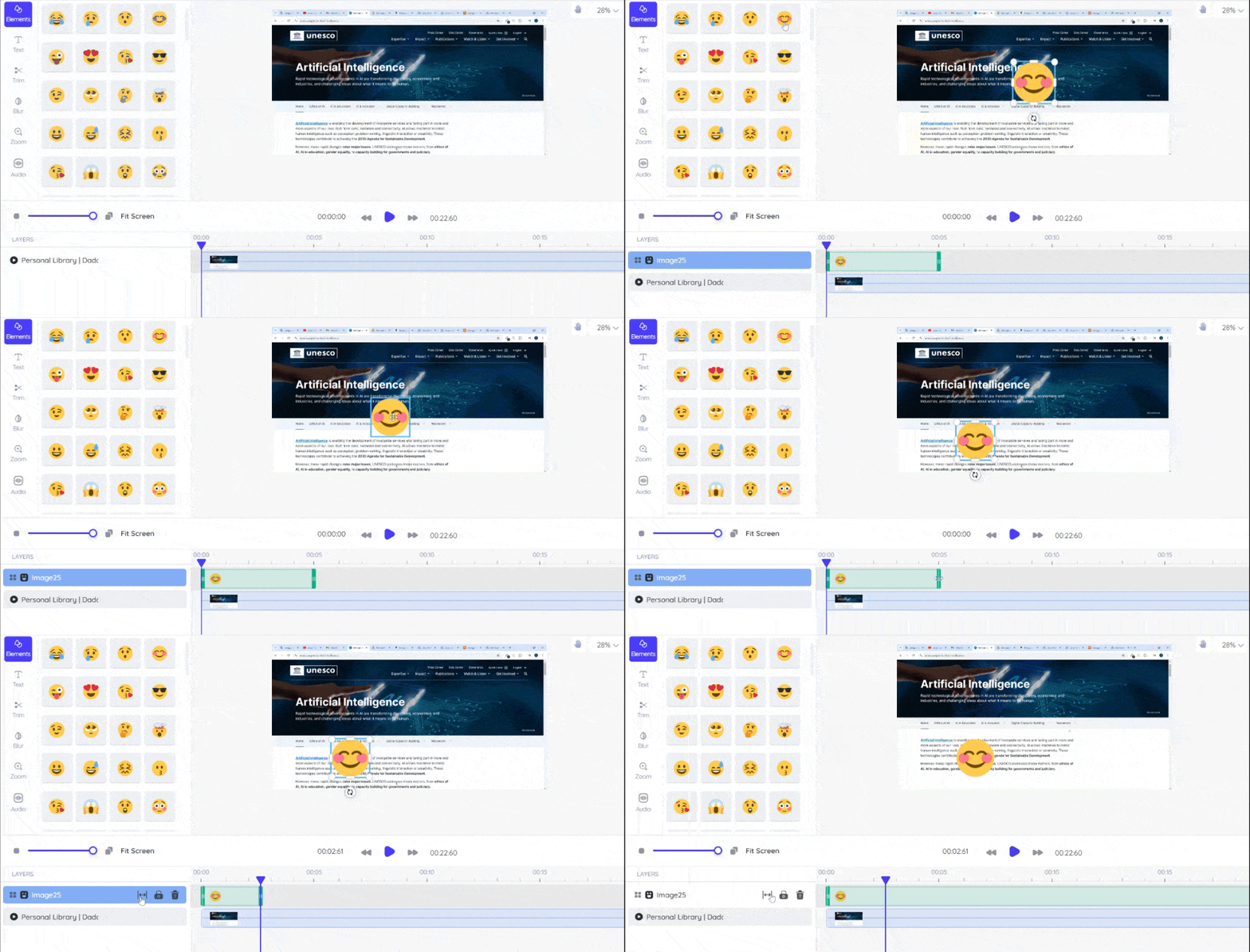
To add an element:
- Select your desired option from the Tools panel.
- Click on the element to create a new layer in the timeline panel automatically.
- The clip will be positioned at the current playhead location.
- The Control panel will display the settings for the selected element.
Elements size and rotation #
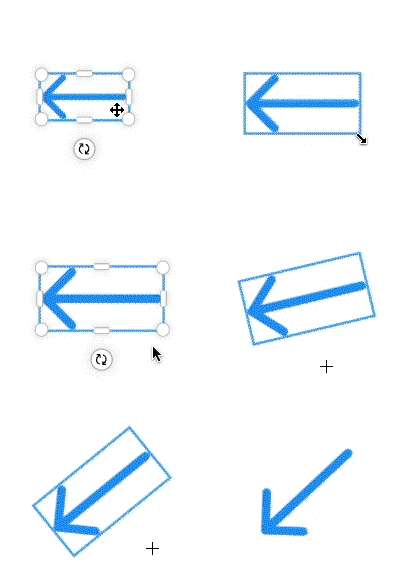
Adjust the size and rotate an element to match the angle of the object it’s referencing.
- To adjust the size of an element, select either a vertex or an edge and drag it.
- Vertex: This option maintains the current aspect ratio of the element.
- Edge: This option allows you to expand or shrink the selected side without maintaining the aspect ratio.
- To rotate an element, either click and drag the rotation icon or modify the Rotate settings in the control panel.
Elements color and stroke #
Use brand colors to make on-screen text and shapes consistent with your company’s identity. Highlight an area with a bright outline to direct viewers’ attention.
- To change the color, click the color icon in the Shape section of the control panel.
- This will open the color panel, where you can select a color or enter a HEX code.
- To use your monitor’s exact color, use the eyedropper tool by clicking anywhere on the screen.
- To add a stroke, select a stroke type, color, and width.
- To change the opacity, open the color panel and drag the circle on the second scale.
Elements length and position #
Shorten the element’s duration and position it correctly on the timeline so it appears only during the relevant segment of the video.
- To adjust the position of the clip:
- Drag and drop it within the timeline.
- To change the length of the clip:
- Grab the left or right end and drag it to the desired length or modify the Time settings from the control panel.
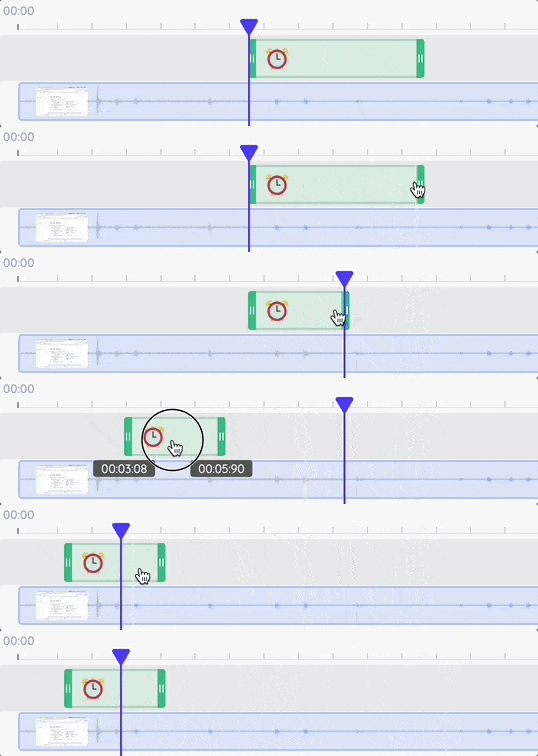
Note: Drag and drop means select a virtual object and move it to a different location or onto another object.)


