
Dadan’s Transcript Editor is a powerful tool designed to streamline video editing through its intuitive transcript-based interface.
This guide introduces you to Transcript Editor, a powerful tool that streamlines video transcription and editing. Discover key features such as Focus Mode, Silence Detection, and Clip Creation to enhance your workflow. Whether you’re refining content or preparing clips for sharing, this editor offers intuitive controls and advanced capabilities. Dive in to explore how dadan simplifies your video editing process!
Generating the transcript #
Before you can edit, you’ll need an AI-generated transcript. Dadan makes this effortless. Here’s how to get started in this guide: Dadan video AI Transcript. Once complete, a notification will appear, and the transcript will populate in the Transcript view. You’ll see the full text synced to the video timeline, with timestamps for easy navigation.
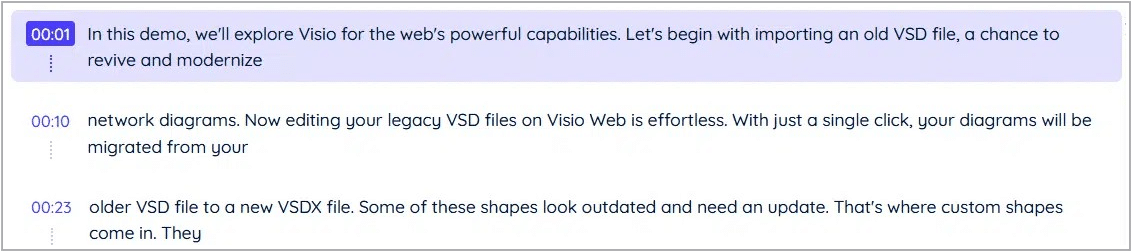
- Tip: Only owner users can generate or edit transcripts in collaborative projects. If you’re collaborating, ensure you have the right permissions.
Opening the Transcript Editor and navigating the interface #
With your transcript generated, it’s time to dive into editing. The Transcript Editor provides an intuitive interface for refining your text while staying synced with the video.
- Open the Transcript Editor:
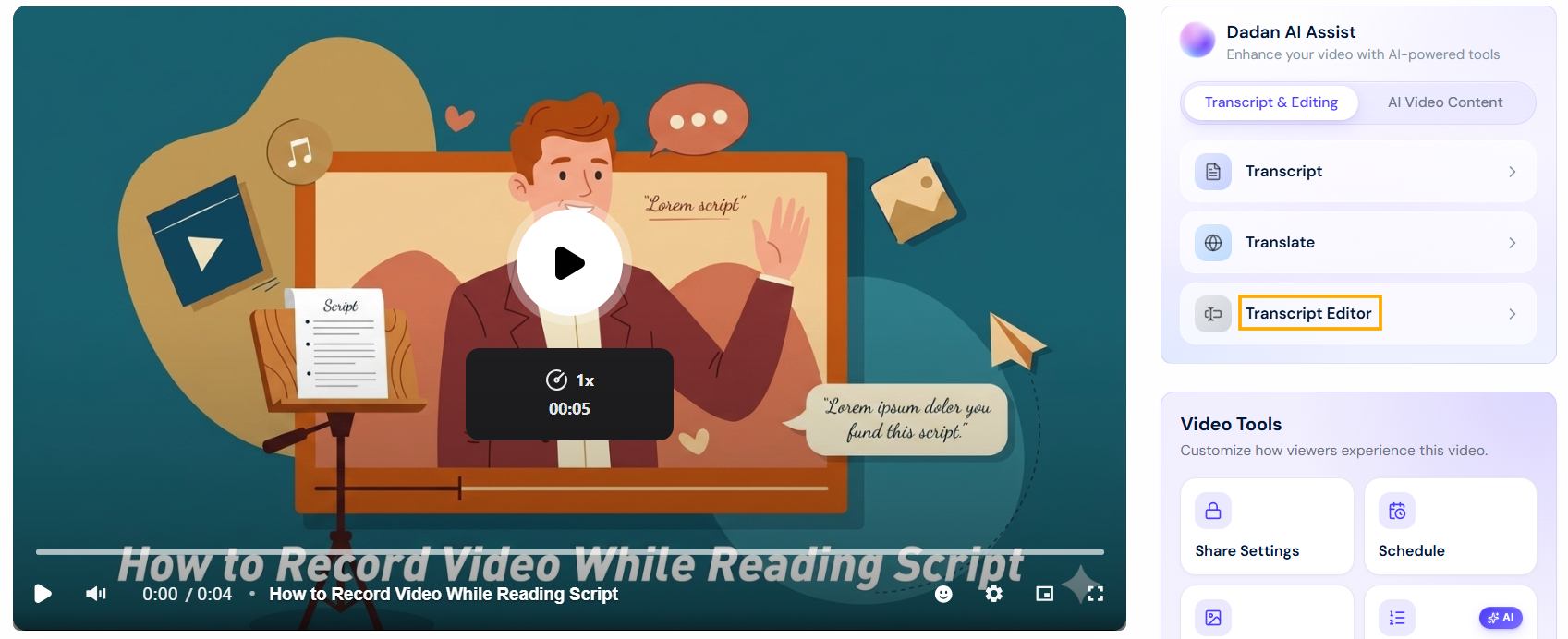
- In the AI Assist panel, click the Transcript Editor button.
- This opens the full editing mode, displaying the editable transcript alongside your video player.
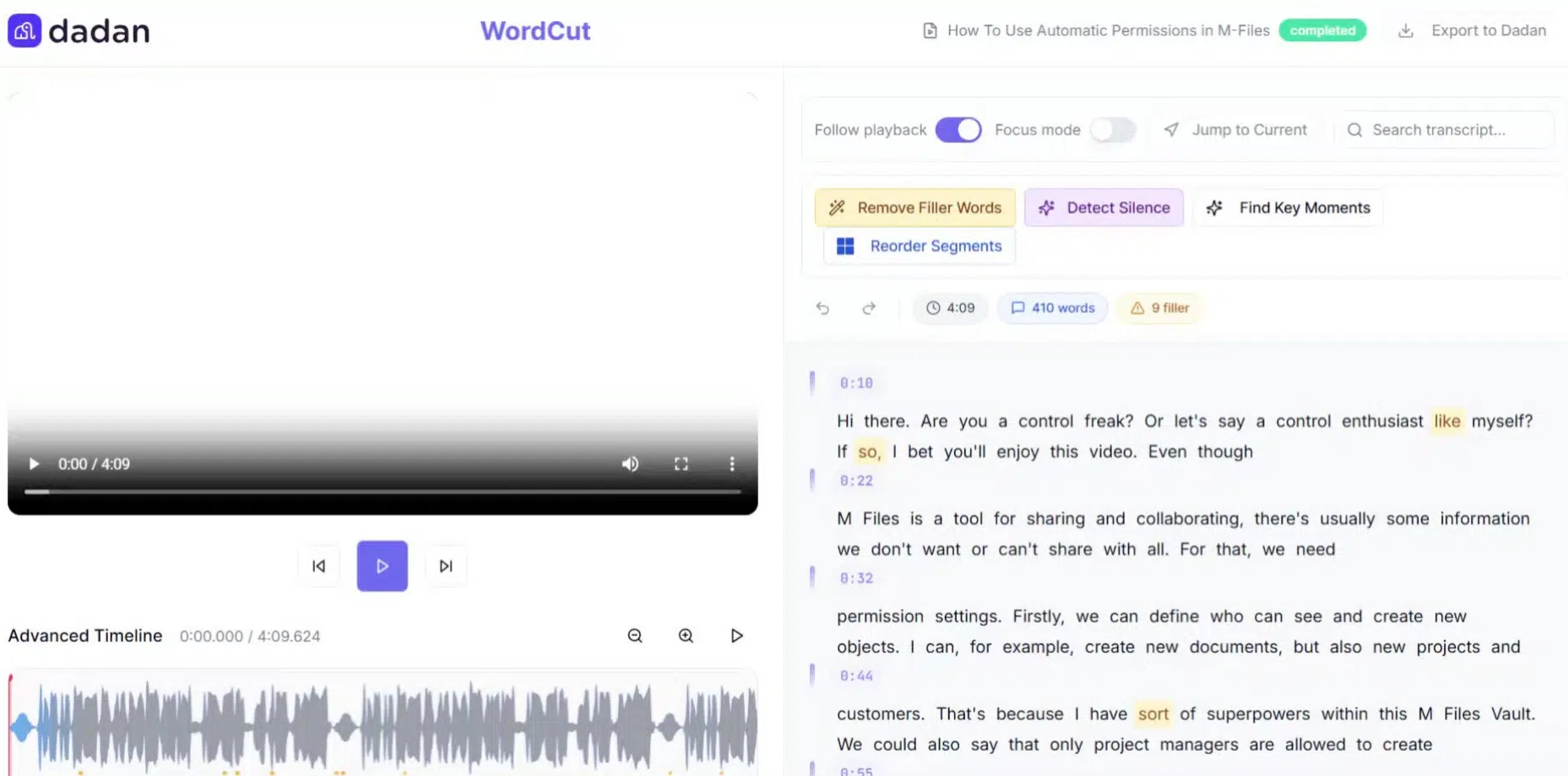
- Explore the Transcript Editor interface, which includes:
- Video Player: At the top left, showing your video with playback controls.
- Advanced Timeline: Below the player, with an audio waveform for visual audio cues and precise scrubbing.
- Transcript Panel: On the right, showing timestamped text segments.
- Toolbar: Quick-access tools like search (🔍), playback options, and AI enhancements.
- Familiarize yourself with key controls:
- Search Transcript: Use the search bar at the top of the panel to find specific words or phrases across the entire transcript.
- Jump to Current: Click this button to sync the transcript cursor to the current video playback position.
- AI Tools: Icons for Remove Filler Words (✨ in yellow), Detect Silence (in purple), Find Key Moments (in white), and Reorder Segments (blue square). These automate common edits; more on them in later steps.
- Stats Overview: At the bottom of the AI tools, view metrics like total words (e.g., 410 words), filler count (e.g., 9 fillers), and video duration.
Enabling and using follow playback for synced editing #
One feature in the Transcript Editor is Follow playback, which dynamically highlights the spoken words in the transcript as the video plays. This makes it easy to verify accuracy, spot timing issues, or edit in context without losing your place.
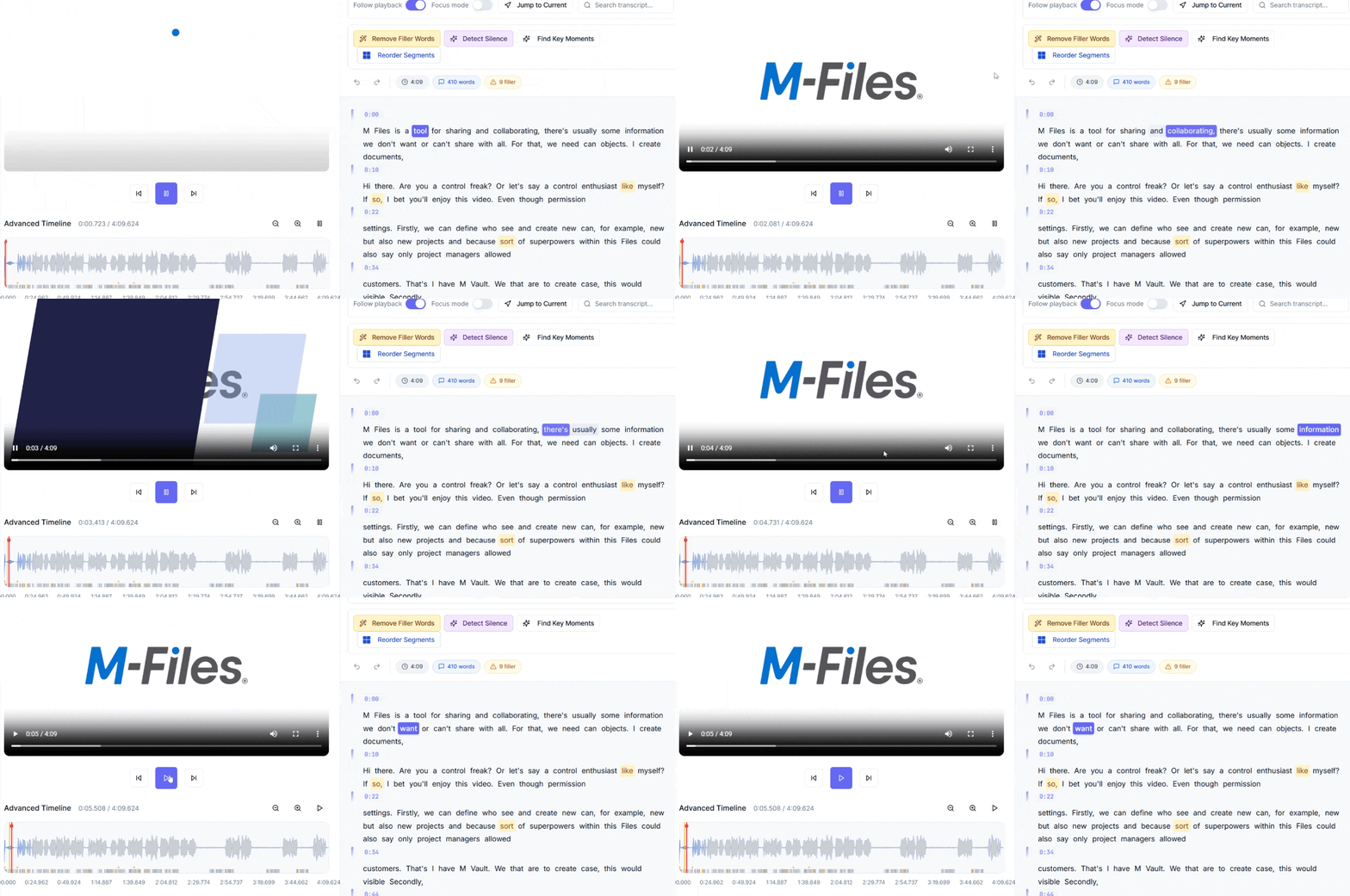
- Enable Follow playback: In the playback controls at the top of the Transcript Editor, the Follow playback toggle is enabled by default.
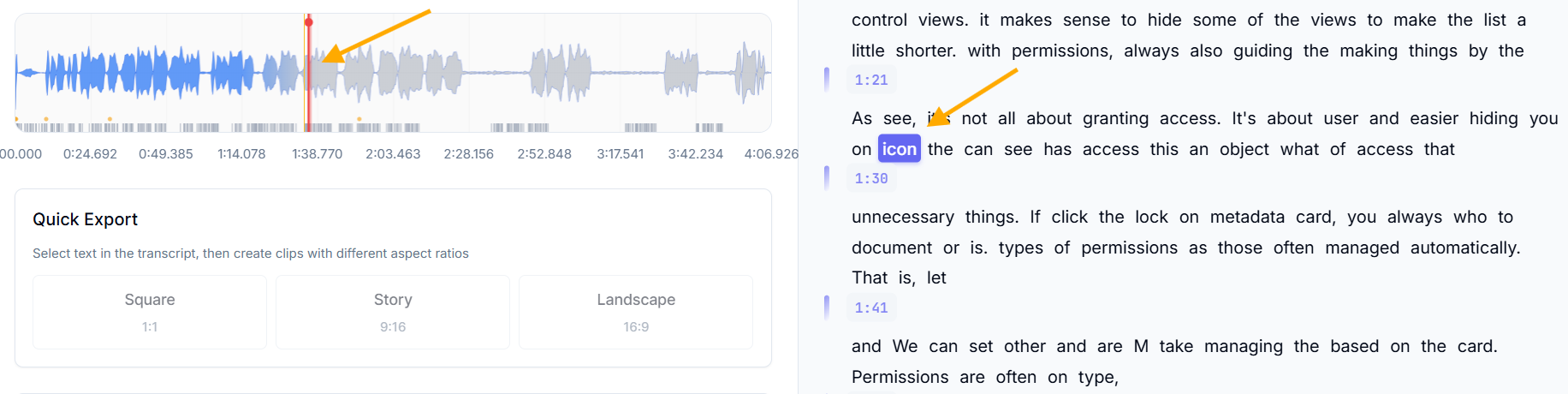
- What it does: As you play the video, the corresponding transcript text will automatically highlight in real-time. The cursor jumps to the active segment, and the timeline scrolls smoothly to keep everything in view.
- Why use it: Perfect for proofreading, listening to the audio while reading to catch mishearings, filler words (like “um” or “you know”), or pacing problems. It ensures edits align perfectly with the spoken content.
- Play and observe the sync: Click the play button (▶️) on the video player. Watch as:
- The waveform pulses in sync with the audio.
- Transcript lines light up sequentially.
- Toggle additional modes for enhanced viewing:
- Focus mode: Turn this on to highlight the active transcript lines, hiding surrounding text for distraction-free editing.
- Jump to Current: Manually sync if playback drifts by clicking this during pauses.
- Zoom: Use the zoom controls (magnifying glass icons: 🔍) next to the timeline to zoom in or out on the waveform. Zooming in reveals finer audio details, helping you align edits with subtle audio cues.
- Adjust Precision: Adjust the play head incrementally by clicking the left/right arrows (⏮️ ⏭️) for frame-by-frame precision.


