
This guide walks you through dadan’s advanced transcript-editing tools, designed to help you focus, refine, and export your video content with precision. From isolating specific text using Focus Mode to cleaning up silences, trimming transcripts, and creating shareable clips, each step enhances your editing workflow.
You’ll also learn how to keep selected text, generate clips, and export your finalized edits directly to dadan for collaboration. These tools streamline the editing process, saving time while improving clarity and accuracy.
Using focus mode for targeted editing #
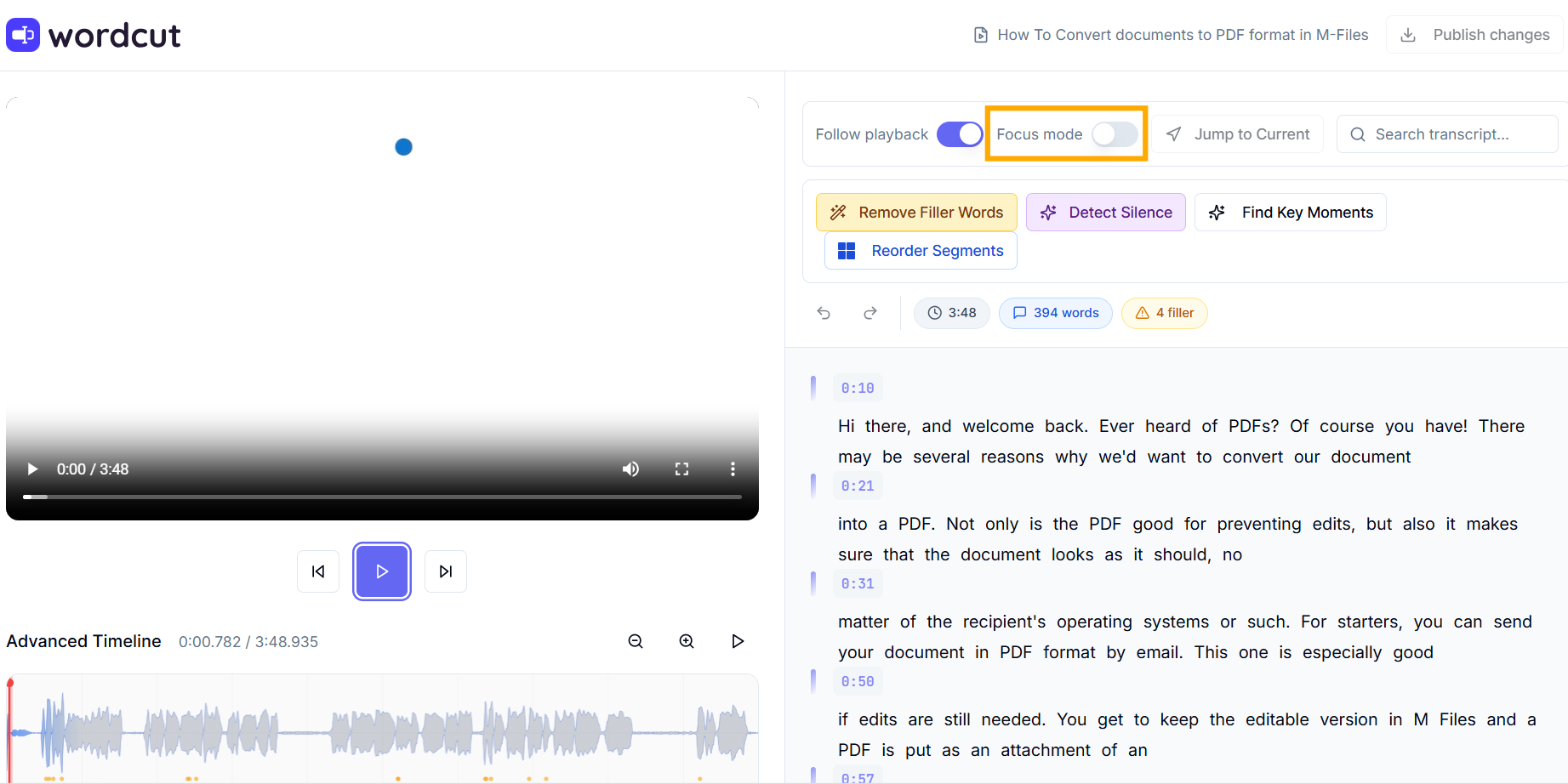
Focus Mode in dadan’s Transcript Editor enhances your editing experience by isolating the active transcript segment, making it easier to concentrate on specific text without distractions.
- Enable Focus Mode:
- In the playback controls at the top of the Transcript Editor, locate the Focus Mode toggle.
- This narrows the transcript panel to highlight only the current paragraph around the play head.
- The surrounding text fades, keeping your attention on the active content.
- Navigate with the Playhead:
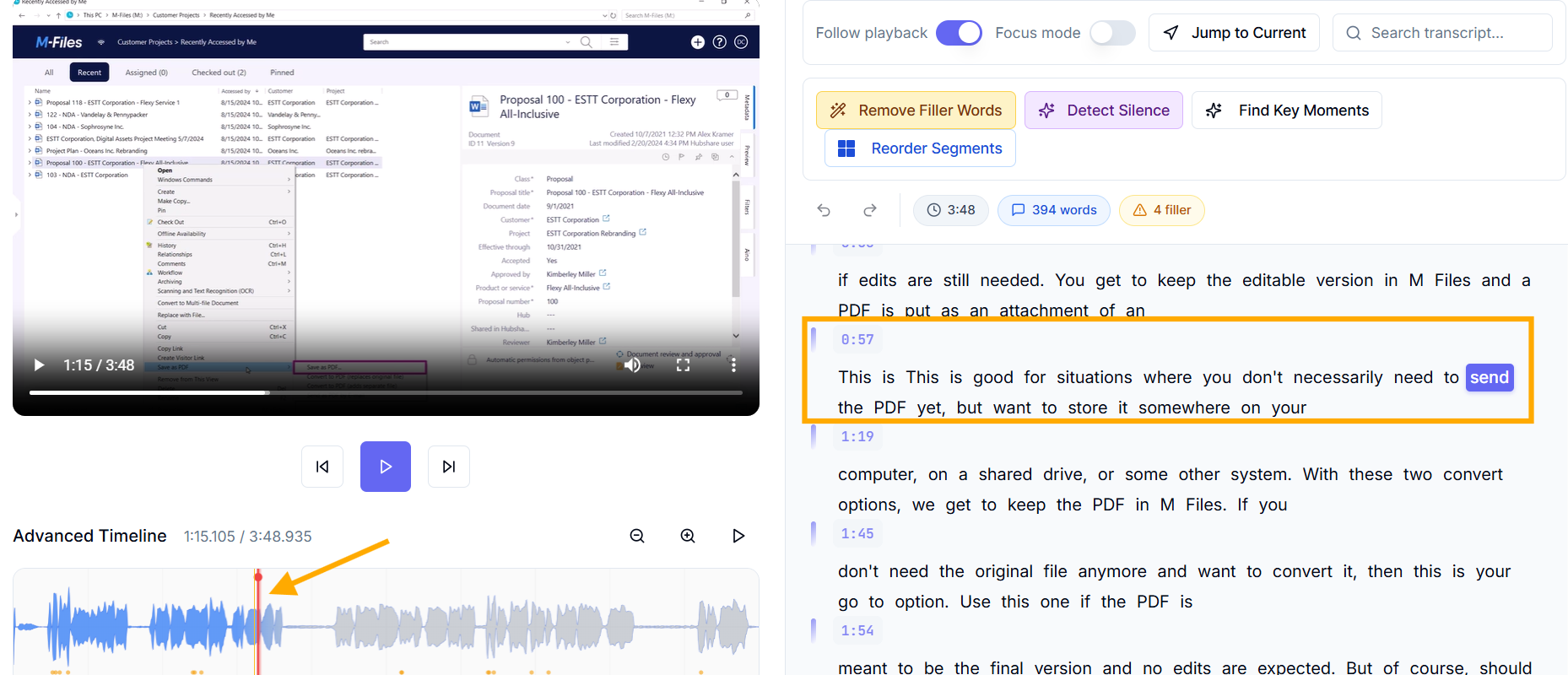
- Use the Advanced Timeline to move the red playhead to different parts of the video.
- Focus Mode dynamically updates to highlight the corresponding paragraph.
- It emphasizes the three paragraphs, making it simple to edit or verify those sections individually.
- Edit within focus:
- With the desired paragraphs highlighted, type directly in the transcript panel to make changes.
- Adjustments sync with the video, and the waveform helps confirm audio alignment.
- Disable Focus Mode by toggling it off to return to the full transcript view when needed.
Pro Tip: Combine Focus Mode with Jump to Current to quickly shift to the next editing segment, ensuring a smooth workflow.
Detecting and removing silence #
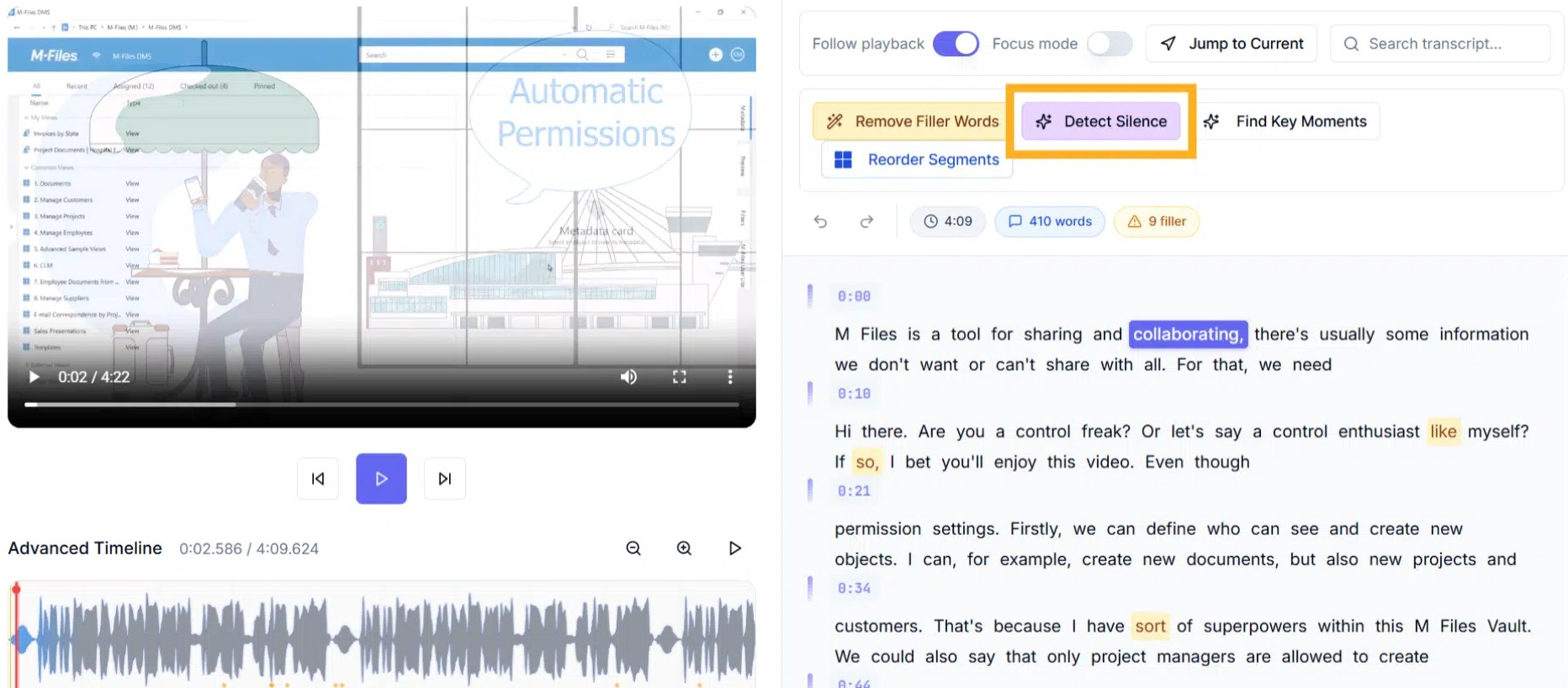
Dadan’s Transcript Editor includes a Detect Silence feature to identify and remove unwanted silent segments, improving your video’s pacing.
- Access Detect Silence:
- In the AI Assist toolbar at the top of the Transcript Editor, click the Detect Silence button.
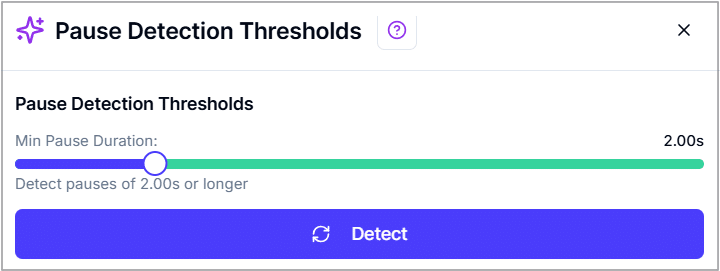
- This opens a panel; click Detect to display detected silent segments.
- Review silent segments:
- The panel lists each silence duration and timestamp, allowing you to manually preview them by clicking the play button next to each timestamp.
- Use the Advanced Timeline to zoom in and confirm the silence aligns with the transcript.
- Adjust the sensitivity slider if needed to catch shorter pauses.
- Remove silence:
- Select the silent segments you want to remove, then click Process & Remove x Silences.
- The tool trims the video and updates the transcript and timeline accordingly.
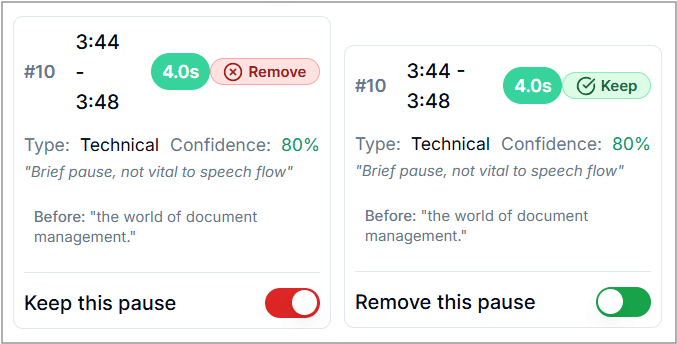

Tip: Combine with Follow Playback to hear the flow after removal and use Focus Mode to check transcript alignment post-edit.
Create a clip from your transcript selection #
You can generate a new video segment directly from the transcript for easier sharing or focused editing.
- Select text in the transcript that corresponds to the part of the video you want to capture.
- Once you highlight the text, a toolbar will appear. Click Create Clip.
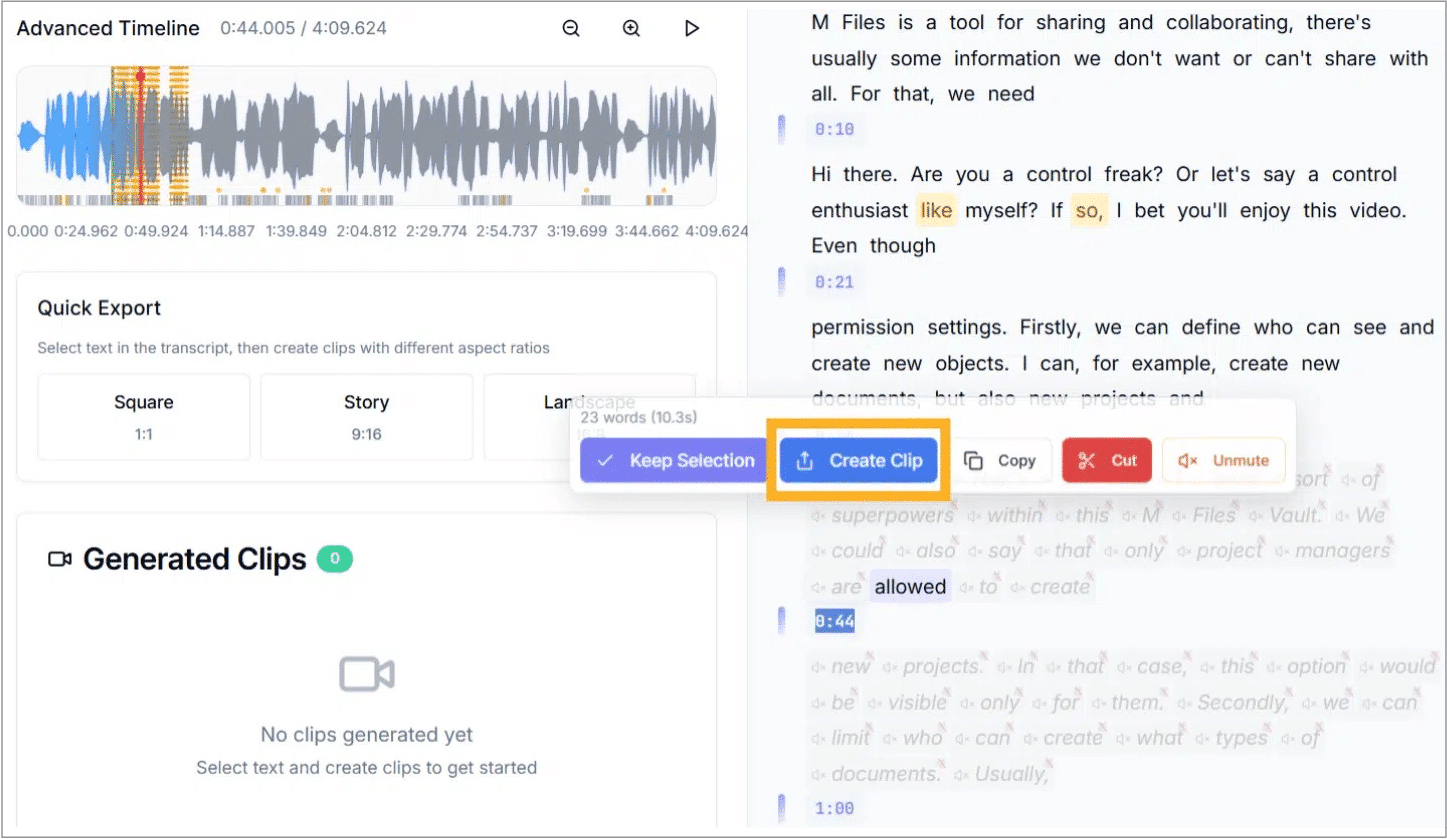
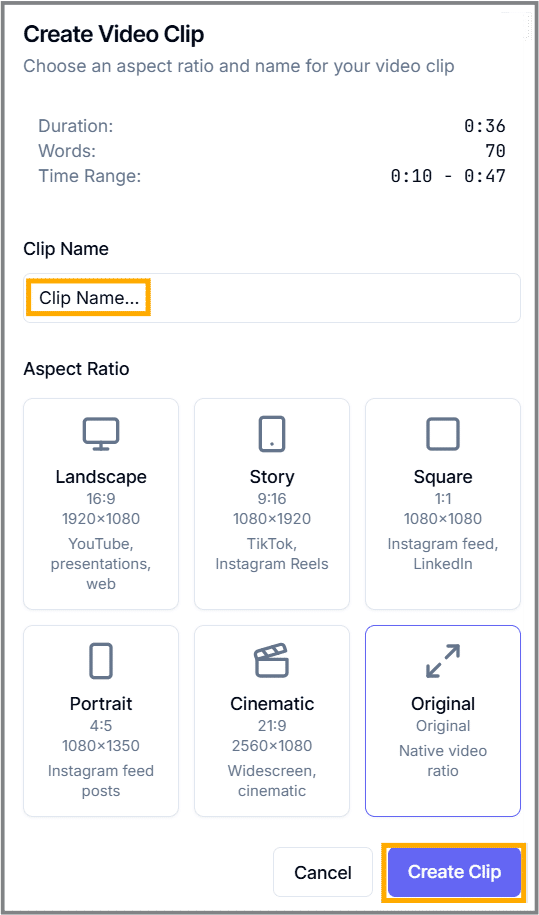
- Choose your preferred clip aspect ratio: Square (1:1), Story (9:16), or Landscape (16:9).
- Add the clip name in the box, click Create Clip.
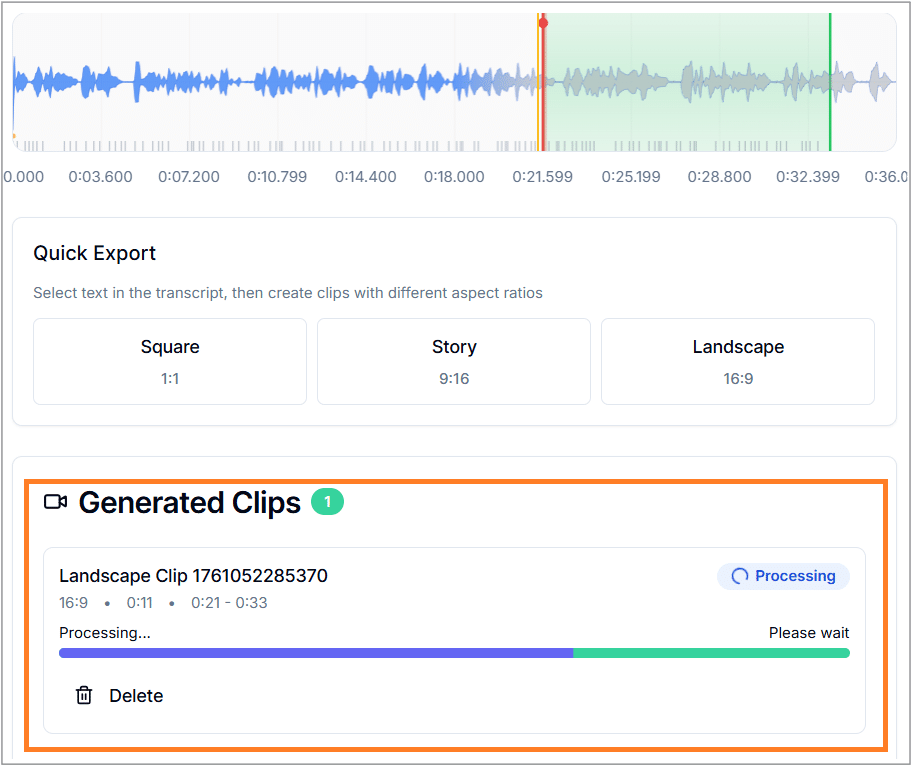
The clip appears under Generated Clips for Publish Changes.
Finding Key Moments #
The Find Key Moments feature automatically identifies the most engaging parts of your video transcript, ideal for creating highlight clips or social media content. It analyzes engagement cues to suggest 5–10 impactful segments.
- Click Find Key Moments in the AI Assist toolbar to open the KeyClips panel.
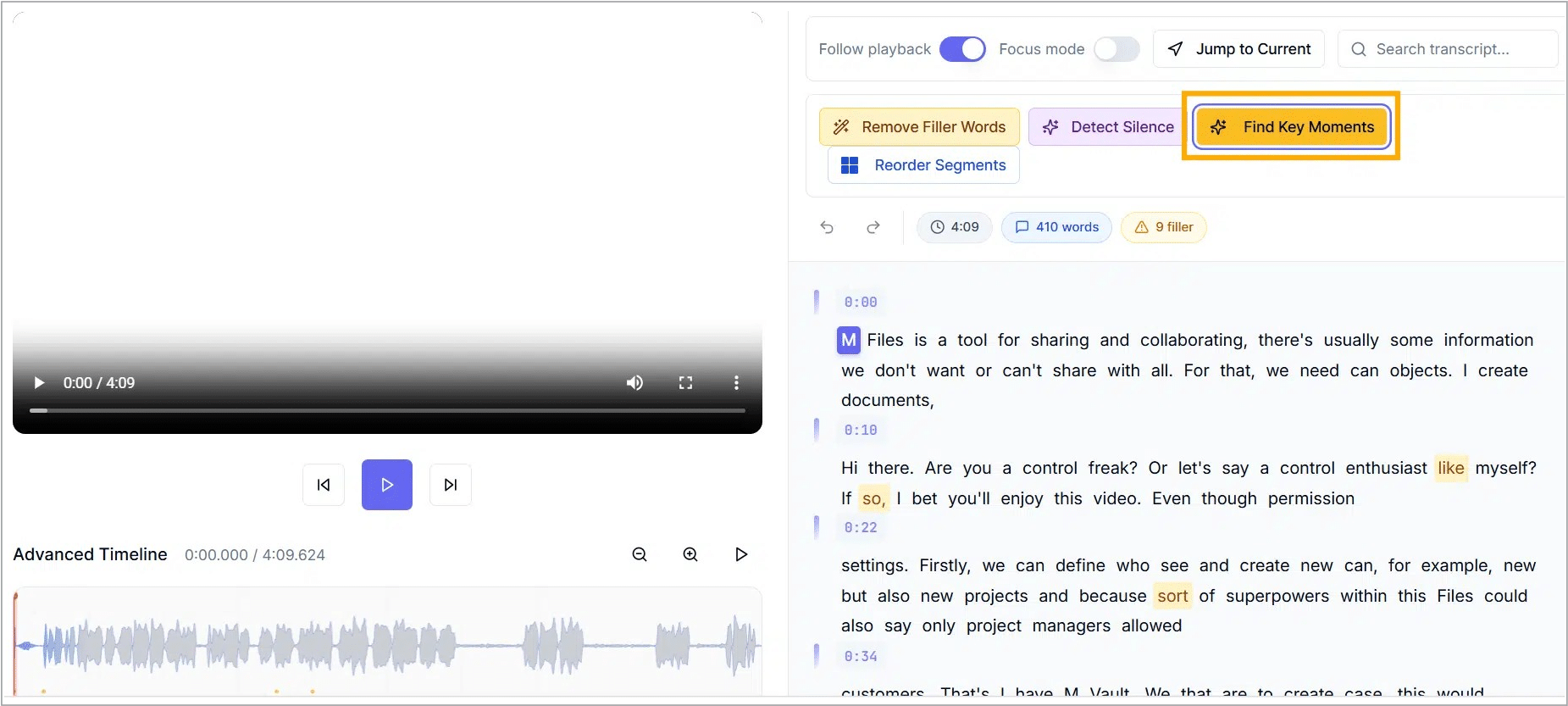
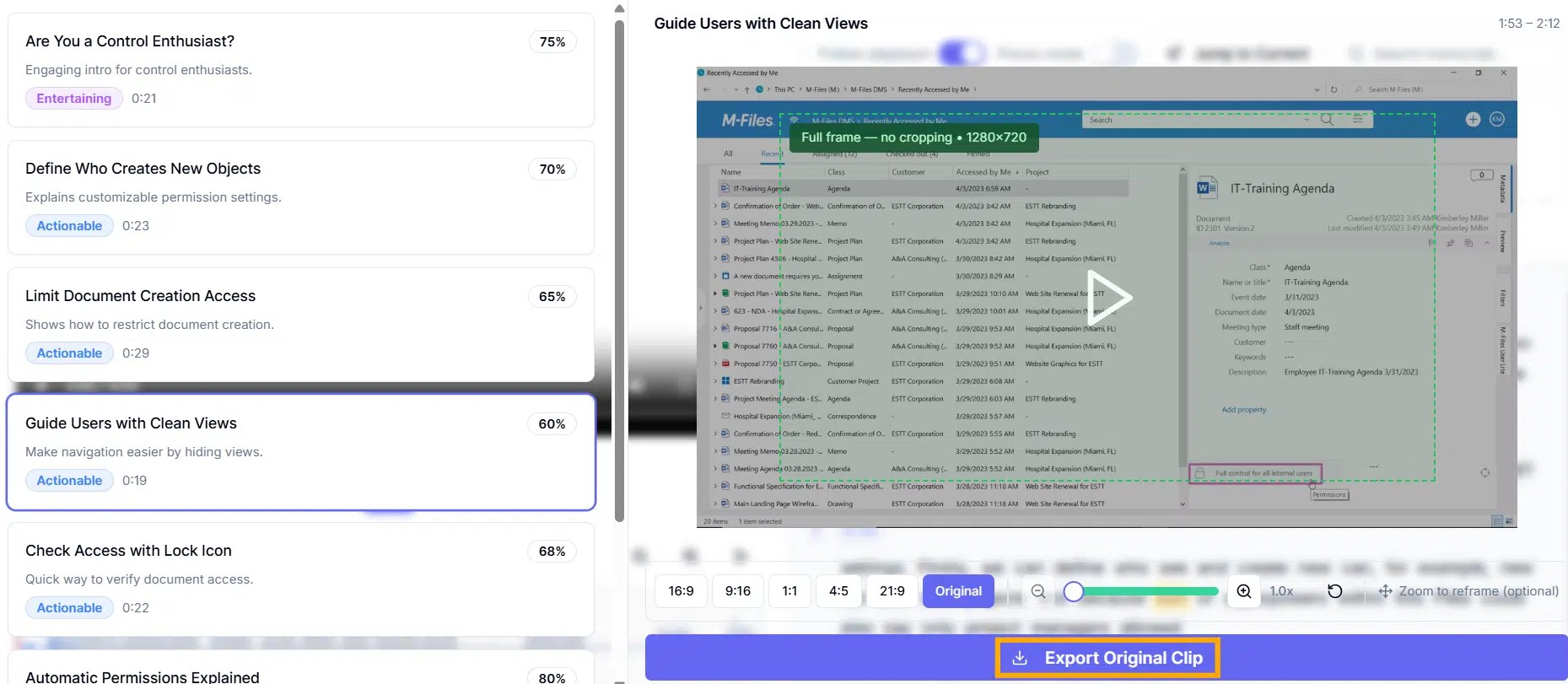
- Review the suggested segments with timestamps and engagement ratings.
- Click any moment to preview it in the video player.
- Highlight a moment’s text to create a clip and choose its aspect ratio (16:9, 9:16, 1:1, 4:5, 21:9, Original).
- Click Export Original Clip as needed, or re-run analysis for updated results.
- The Key Moments clips will be in the Generated Clips box.
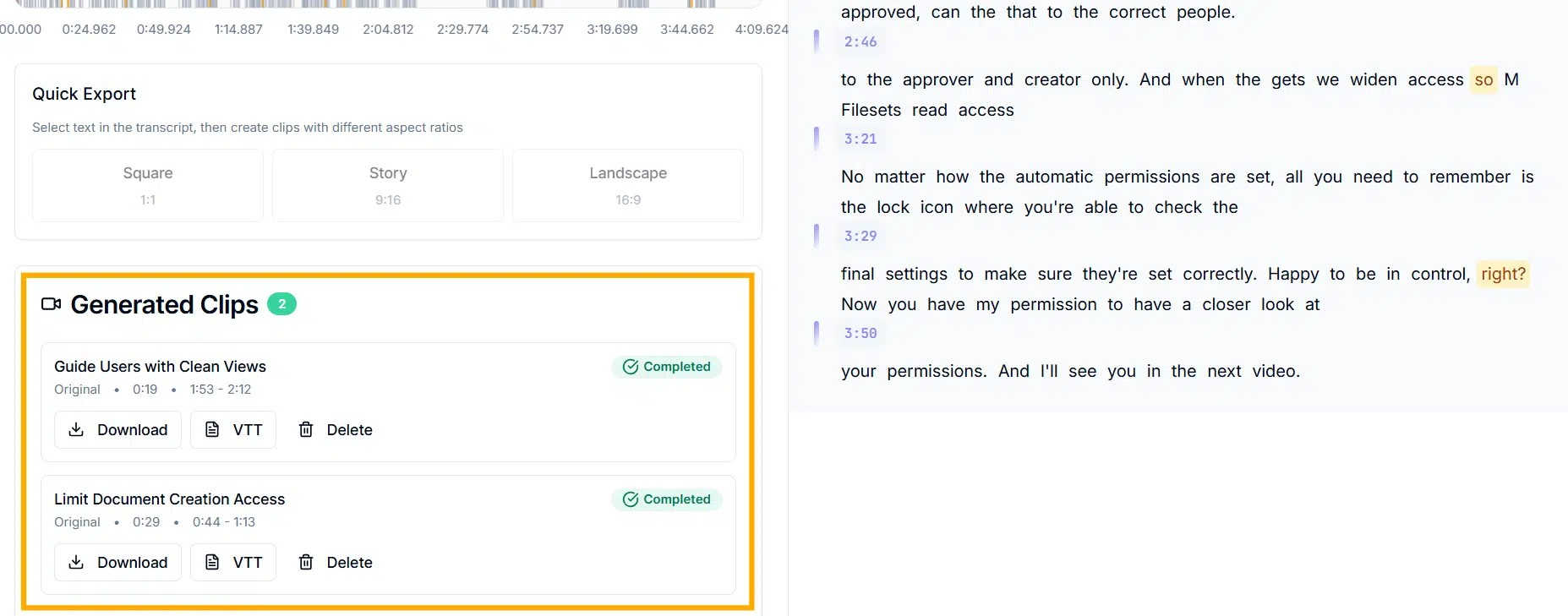
Tip: Focus on high-engagement moments (75%+), use Focus Mode for fine-tuning, and ensure the transcript is complete before analysis for best accuracy.
Keeping selected text in the transcript #
The Keep Selection feature lets you retain only the selected portion of your video transcript while permanently removing all unselected content. It’s ideal for focusing on key moments, shortening videos, or creating clips.
- Select the text you want to keep; everything else will be trimmed.
- Click Keep Selection in the toolbar to preview the result.
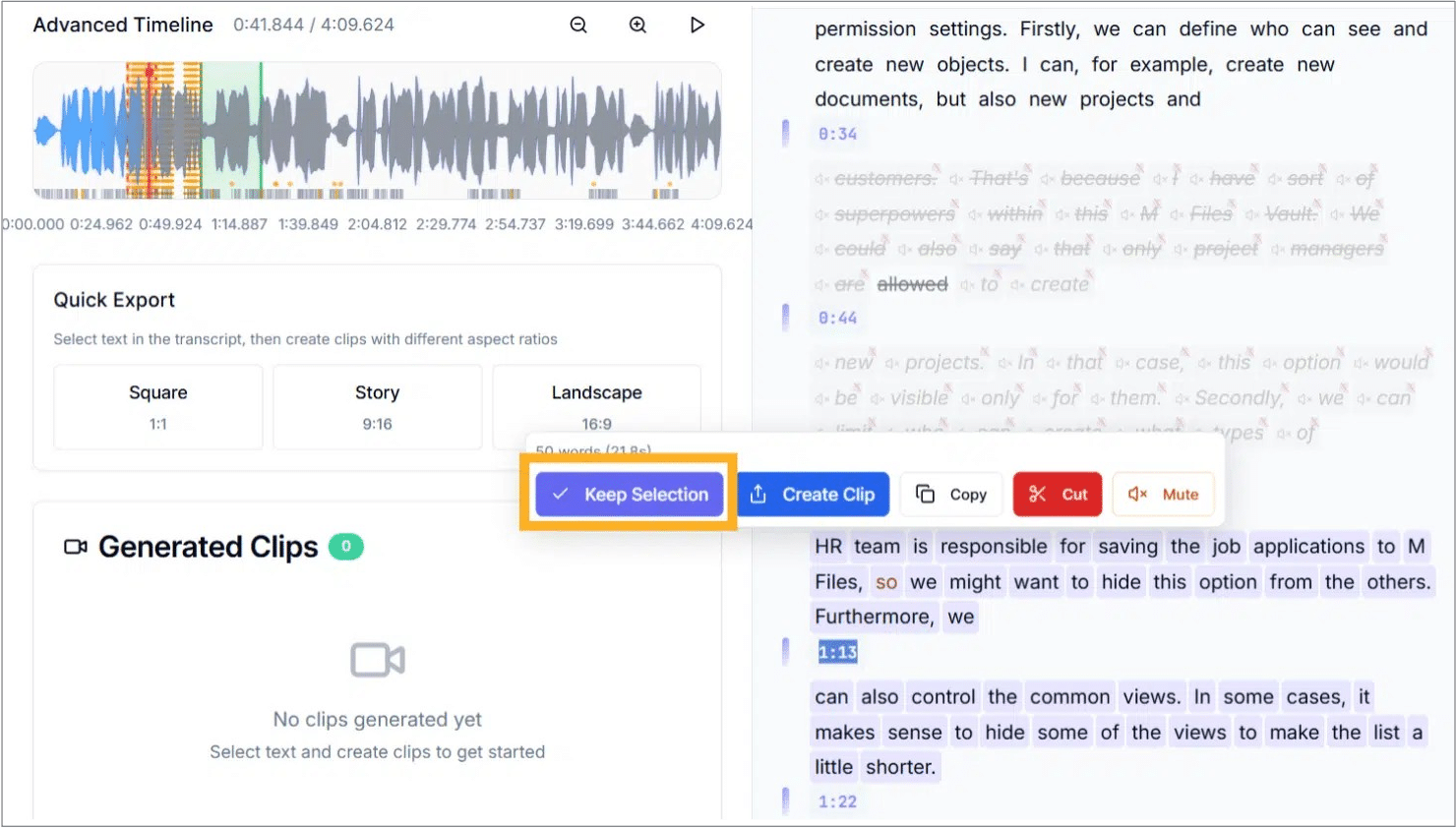
- Review the preview to confirm that only the desired content remains.
- Confirm the action to finalize the trim; the video timeline updates automatically.
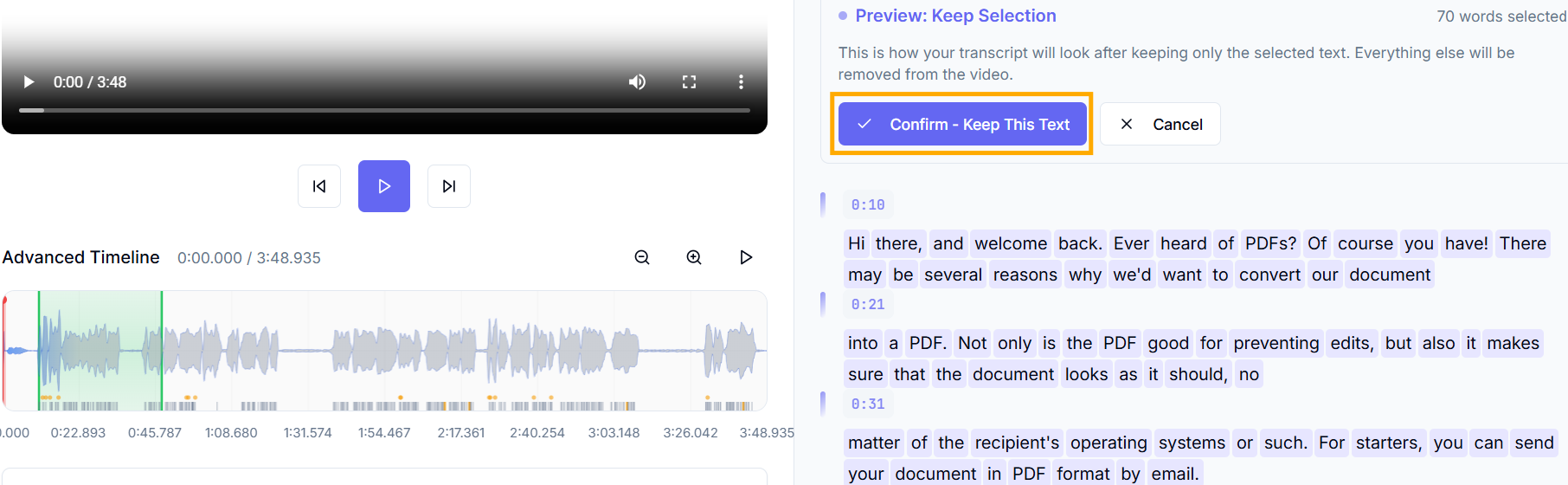
- Select Cancel in the preview dialog to discard changes and retain the full transcript intact.
Tips:
- Use Undo (Ctrl+Z / Cmd+Z) if you make a mistake.
- Back up your original file before trimming.
- Use it to condense tutorials, hide sensitive data, or generate short clips.
Publishing changes to dadan #
Publishing changes feature lets you upload your edited video, along with muted regions, subtitle updates, and generated clips, to your dadan video library for sharing or further editing. All pending edits are applied during export.
- Click Publish changes: Open the export dialog from the toolbar after completing your edits.
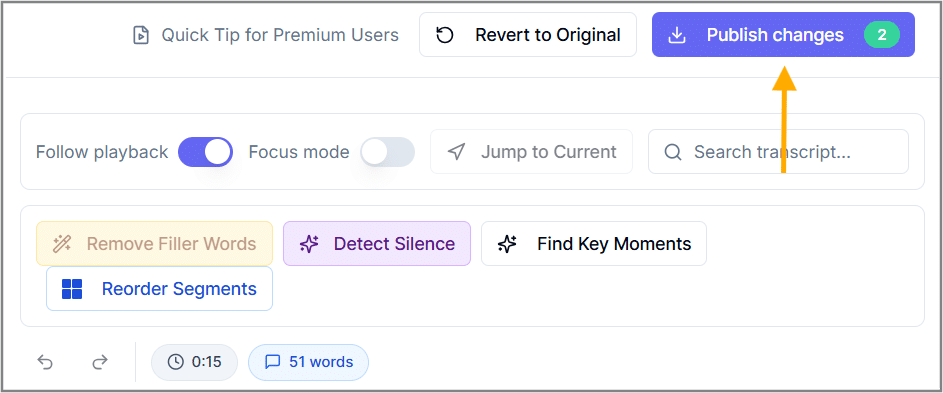
- Select items to publish: Choose from main video, updated subtitles, and clips, or use Select All to include everything.
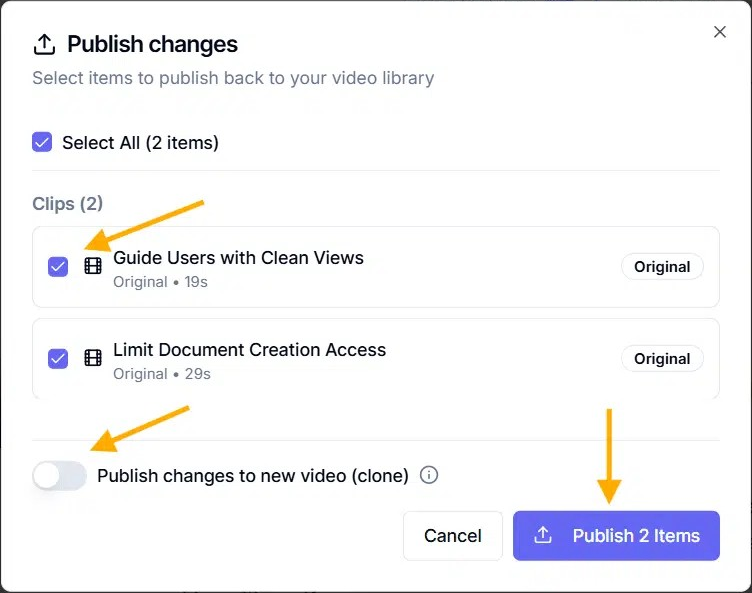
- Confirm publish: Click Publish x Items to start uploading; monitor progress through status messages.
- Completion: A notification confirms the export once uploads begin.
- You can select Cancel in the export dialog to stop the process. No files will be uploaded.
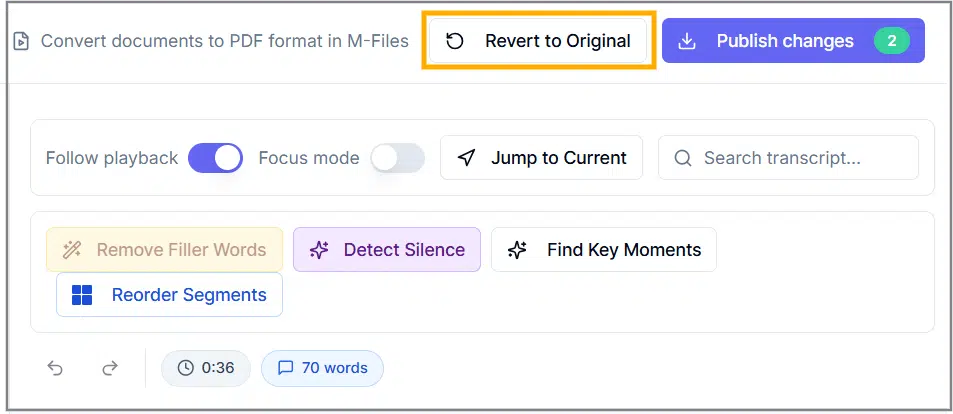
Note: You can click Revert to Original to undo all changes in the video.
Tips:
- Review edits before exporting to ensure muted regions and subtitles are correct.
- Include only the needed files to optimize upload time.
- Back up originals since exports apply all edits.
- Use case: Share finalized content for team review or integration with M Files.


