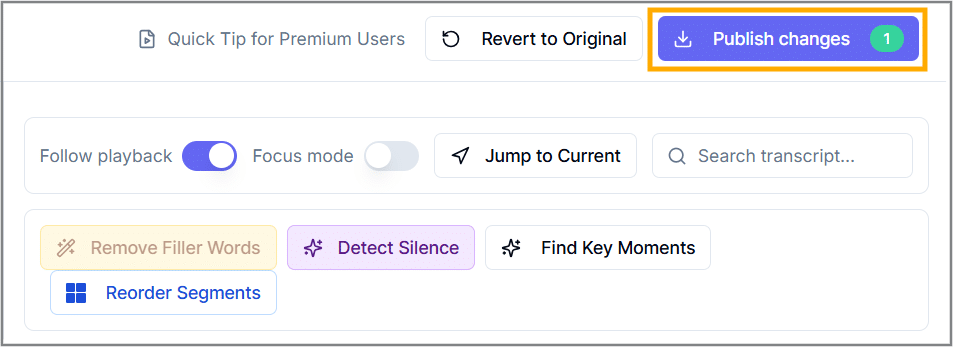
Enhance your video editing experience with dadan’s Transcript Editor, a powerful tool designed to refine and optimize your content. This document covers advanced features, including removing filler words with AI assistance, reordering segments, selecting text to mute audio, and exporting clips with quick export.
Follow the steps below to master each functionality and achieve professional results.
- Read before: Getting started with dadan Transcript Editor.
Removing filler words with AI assistance #
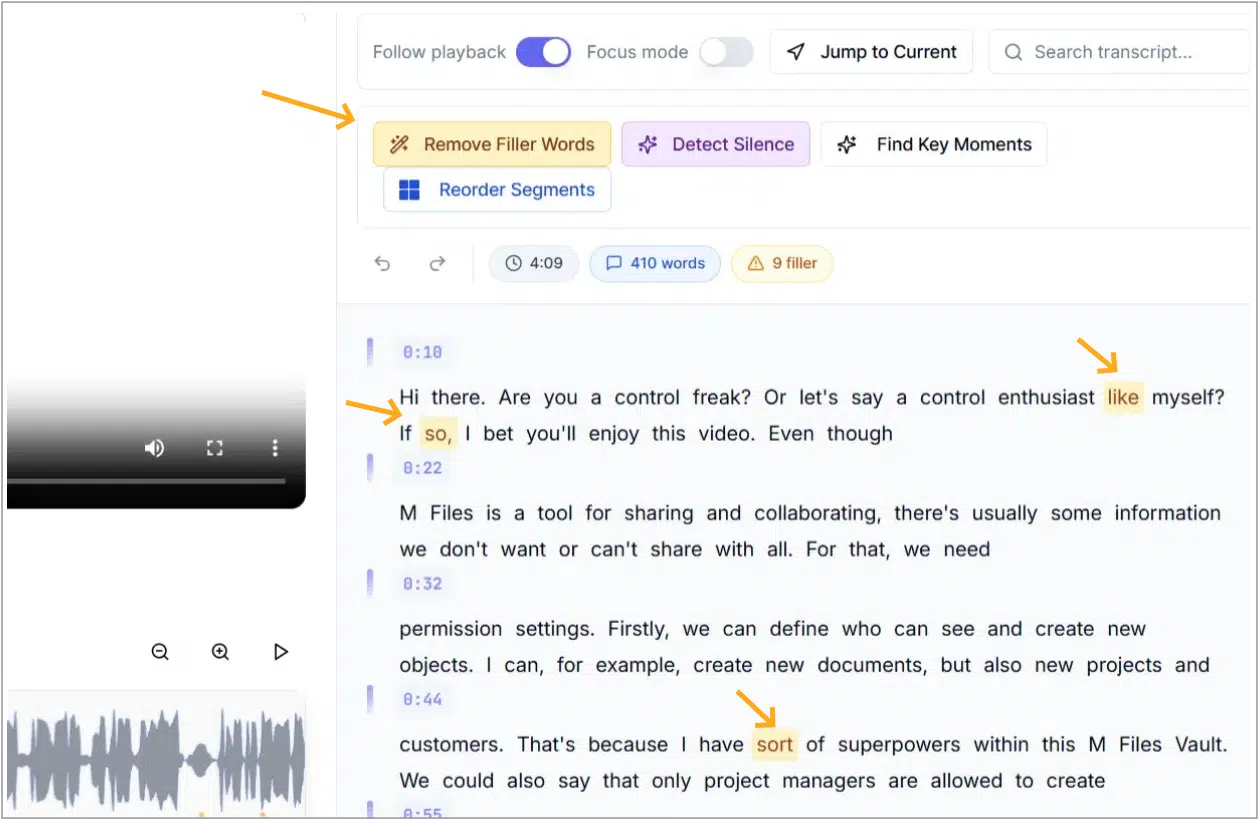
Dadan’s Transcript Editor offers a handy Remove Filler Words tool to clean up your transcript by eliminating common verbal fillers like “you know.”
- Review the Changes:
- The tool automatically detects filler words and displays the number of filler words identified.
- Scroll through the transcript to see highlighted fillers and ensure the context remains intact.
- Access the Remove Filler Words tool:
- In the AI Assist toolbar at the top of the Transcript Editor, click the Remove Filler Words button.
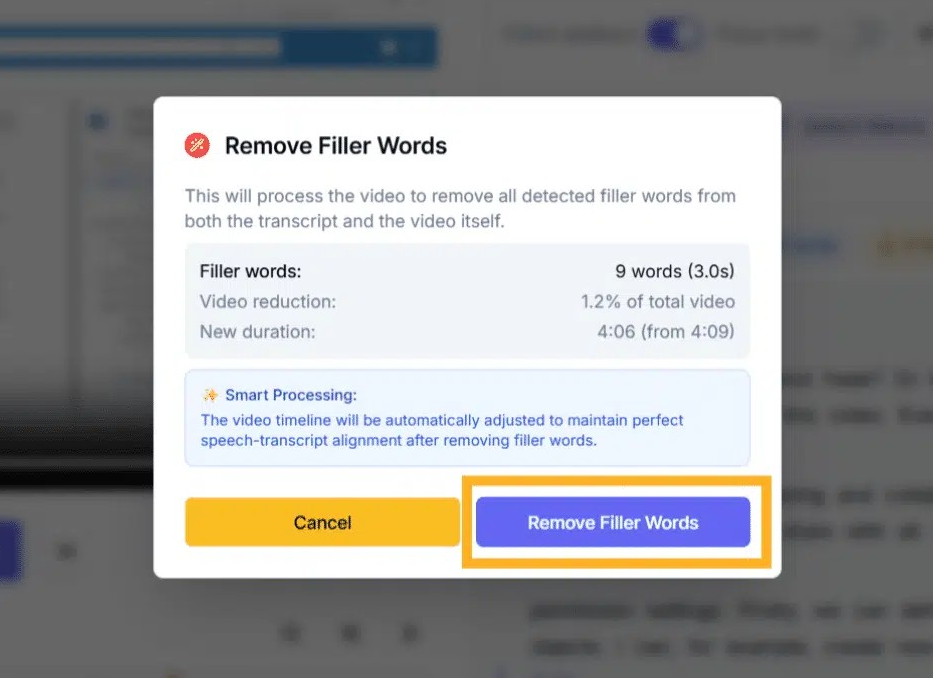
- It provides a preview of the changes and the video reduction.
- It will automatically adjust the video timeline and speech-transcript alignment.
- Apply the removal:
- If you are satisfied with the preview, click the Remove Filler Words button in the pop-up.
- The tool processes the video, removing the detected fillers from both the transcript and audio, and updates the timestamps.
Reordering segments #
This feature allows you to easily reorganize video segments to suit your needs. Follow these simple steps to get started:
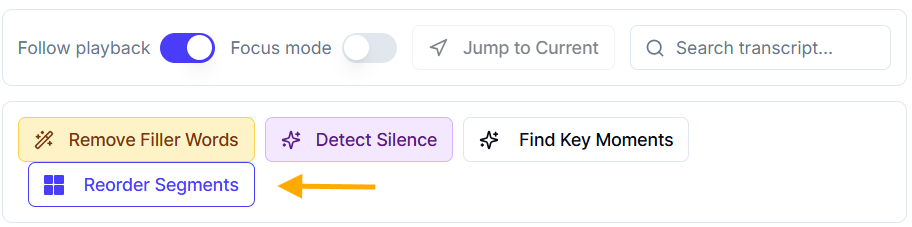
- Click on Reorder Segments to activate Reorder Mode.
- Drag and drop paragraphs to rearrange them in the order you desire.
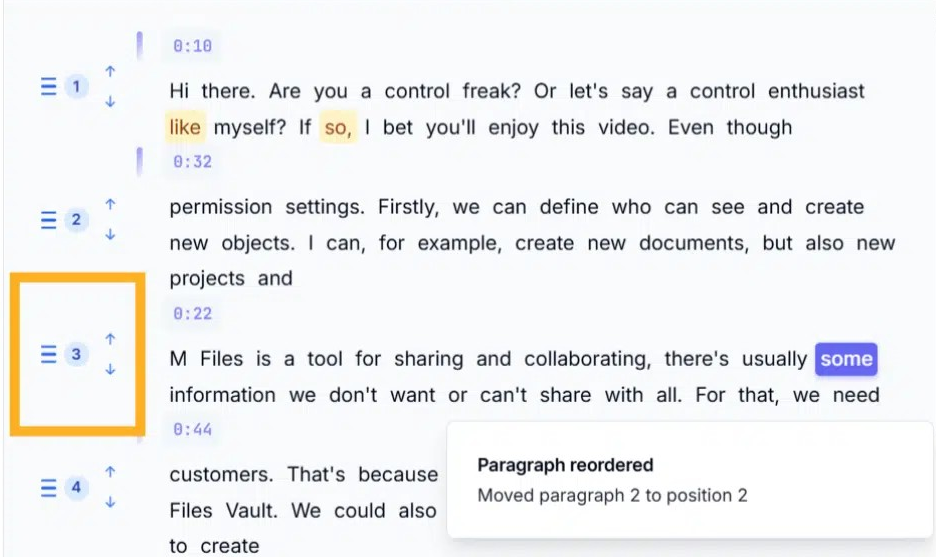
- Preview the reordering changes by clicking Preview Reorder.
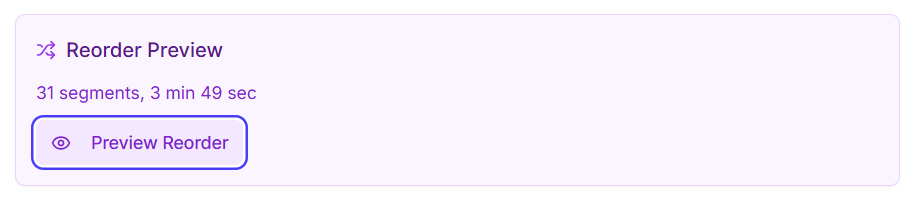
- Adjust the segment order if needed, then click Apply Reorder to confirm.
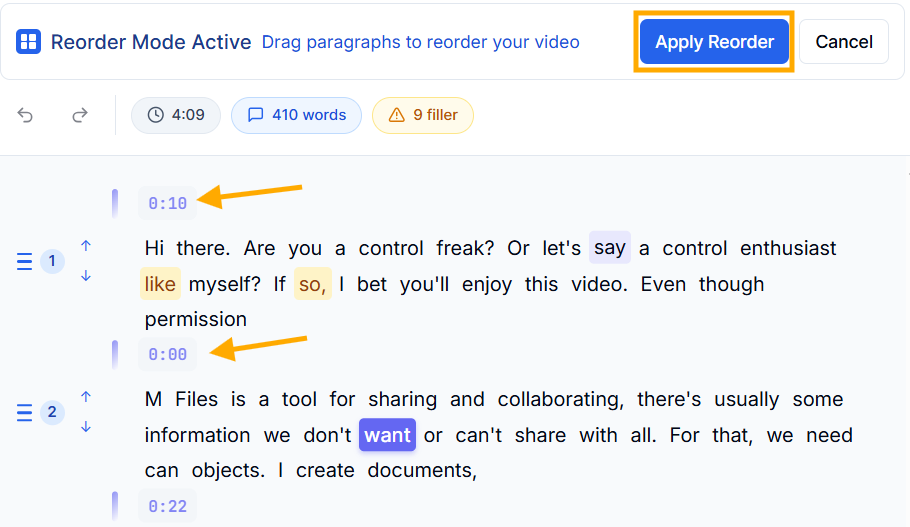
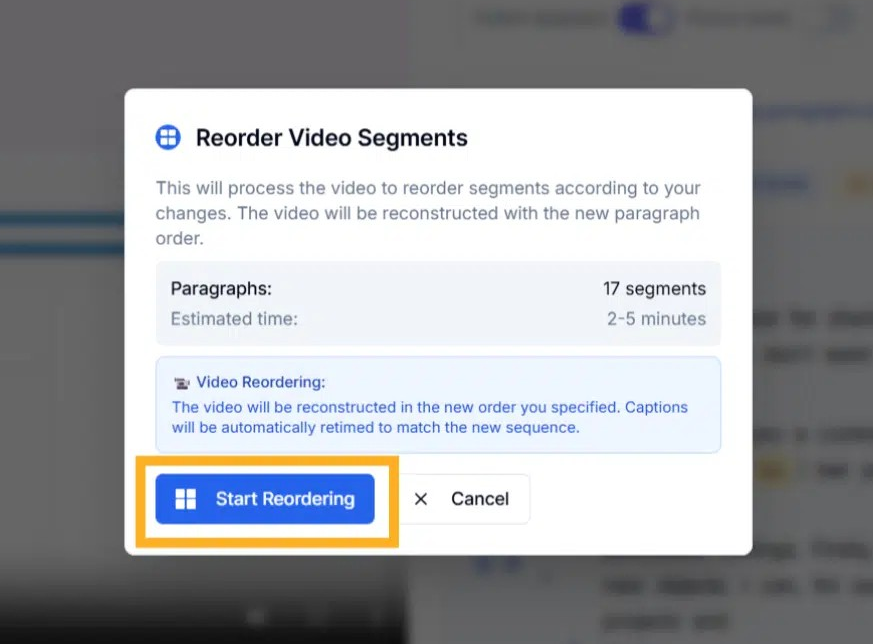
- In the pop-up, review the change details and click Start Reordering to reconstruct the video with the new paragraph sequence.
- Wait for the reordering process to complete and check the updated video with the new order.
Selecting text and muting audio #
Dadan’s Transcript Editor allows you to select specific text and mutes the corresponding audio, perfect for removing sensitive or unwanted dialogue. This step guides you through the process.
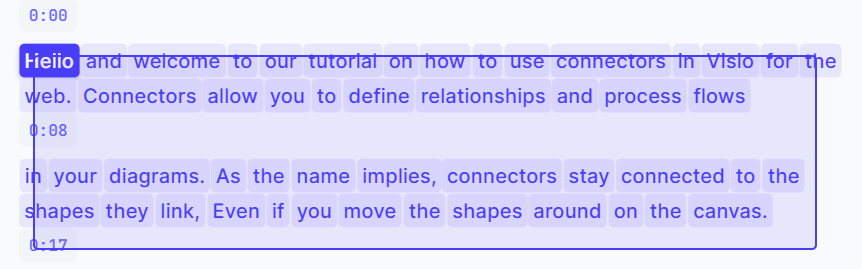
- Select the text: In the transcript panel, highlight the text you want to mute. The selected area will be outlined, and the Advanced Timeline will show the corresponding waveform segment.
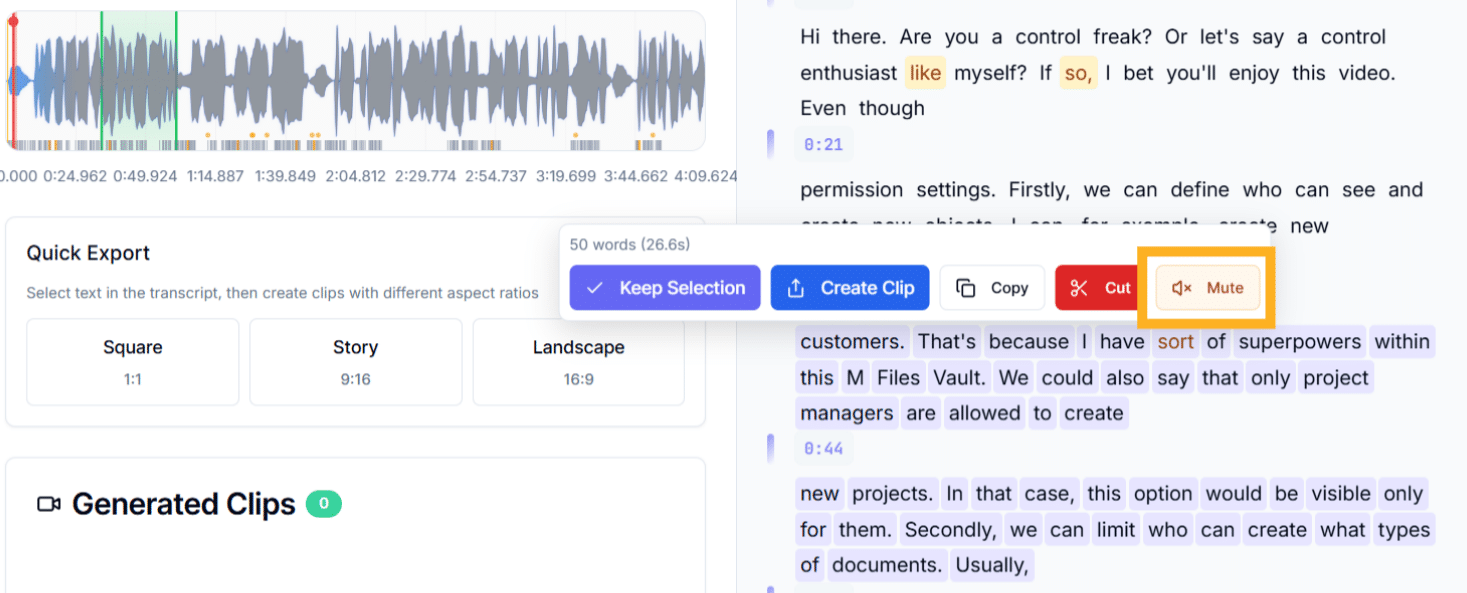
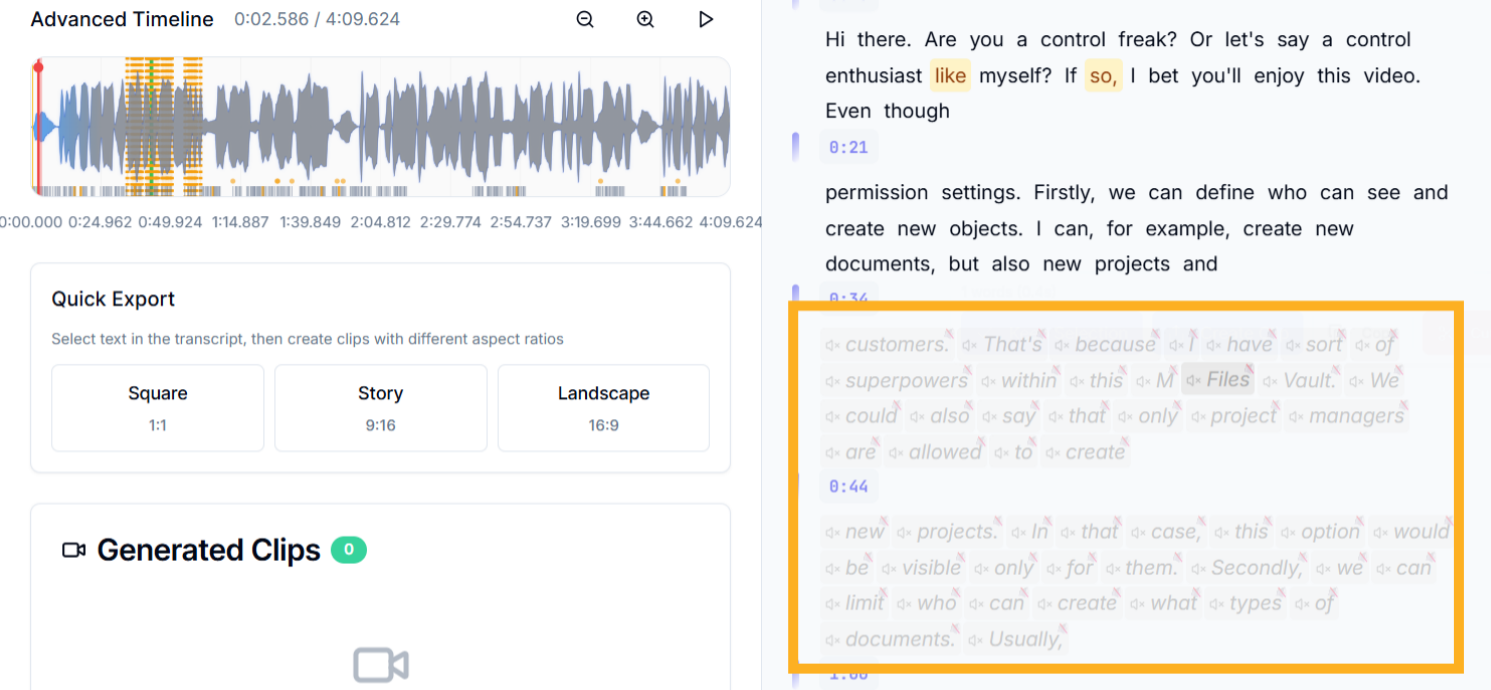
- Mute the audio: Click the Mute button in the editing toolbar. The tool mutes the audio for that segment, updates the waveform to a flat line, and marks the transcript text as muted.
- Verify and adjust: Play the video using Follow Playback to ensure the muted section is silent while the rest plays normally.
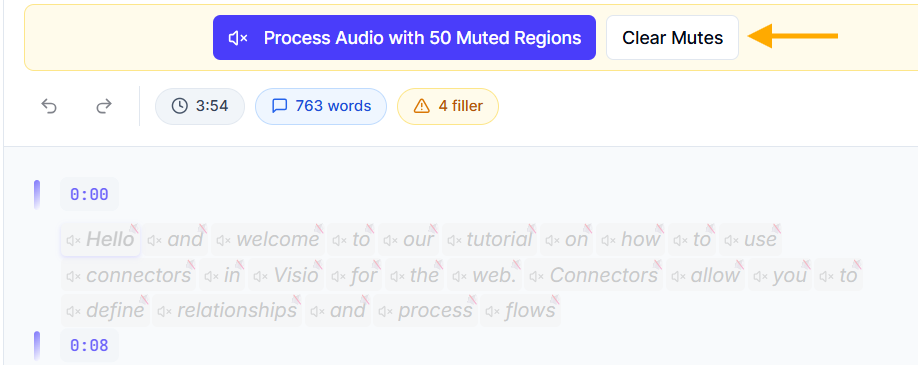
- To undo muting, click Clear Mutes.
Pro Tip: Use Focus Mode to isolate the muted segment for precise editing and check the transcript alignment to maintain context.
Exporting clips with quick export #
Once your transcript is polished, dadan’s Quick Export feature lets you create video quick clips in various aspect ratios for different platforms. Here’s how to use it:
- Select text for clipping: In the transcript panel, highlight a portion of text. Click and drag over the lines to select multiple non-consecutive segments.
- Find the Quick Export section: It displays options for different aspect ratios: Square (1:1), Story (9:16), and Landscape (16:9).
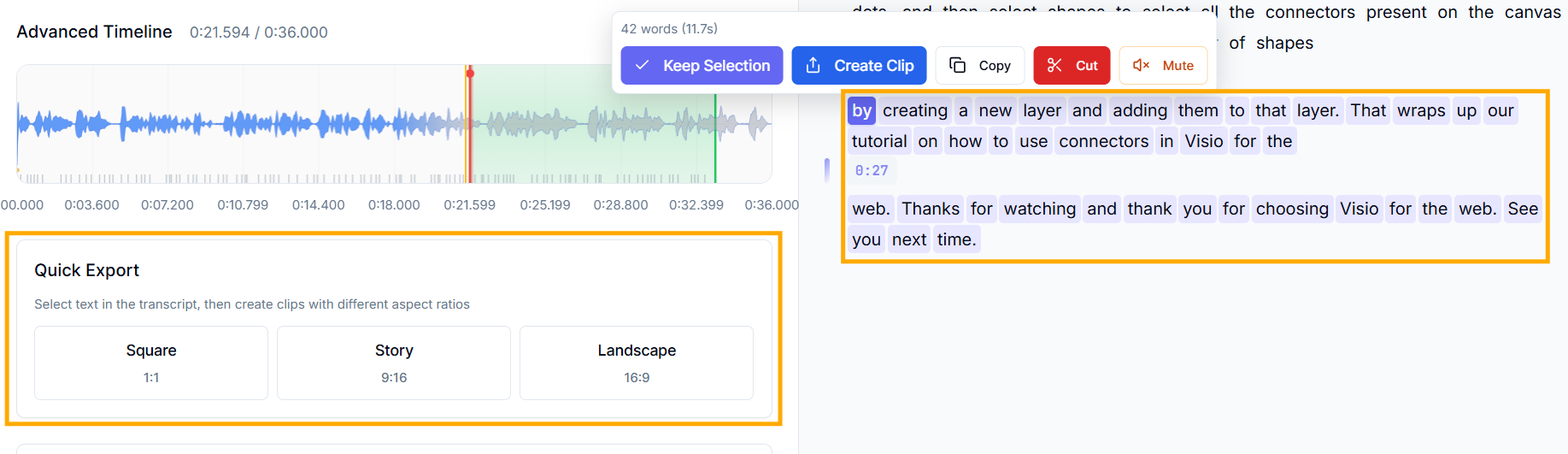
- Create clips: Click the desired aspect ratio. Dadan automatically generates a video clip based on the selected transcript text, trimming the video to match the audio duration.
- The clip appears under Generated Clips with a green status indicator.
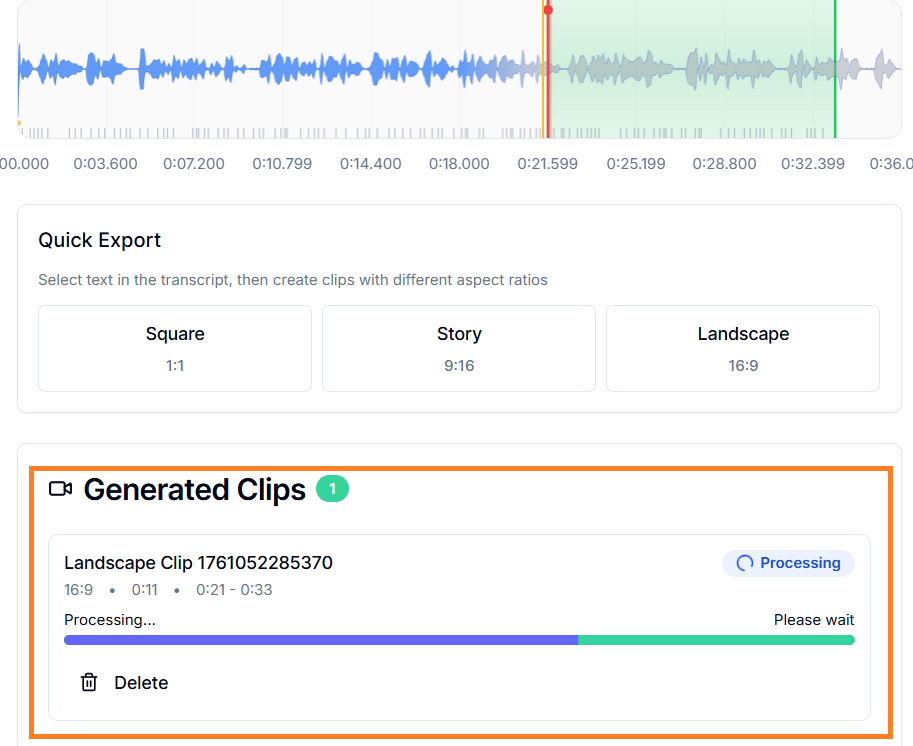
- Review and export: Preview the generated clip by clicking its thumbnail. If satisfied, click Publish changes to save it to your library or download it directly.
- Adjust selections and retry if the clip length or content needs tweaking.