
Dadan on desktop provides a seamless way to record videos, collaborate, and work asynchronously (without real-time interaction). Whether you’re creating tutorials, sharing updates, or giving feedback, it offers the tools needed for efficient video communication.
In this guide, we’ll show you how to set up the desktop app, explore its features, and make the most of dadan’s desktop experience.
Installation and sign in #
To use dadan on your desktop, you’ll need to install the dadan app. For a detailed step-by-step Installation guide, visit our dadan desktop app installation guide.
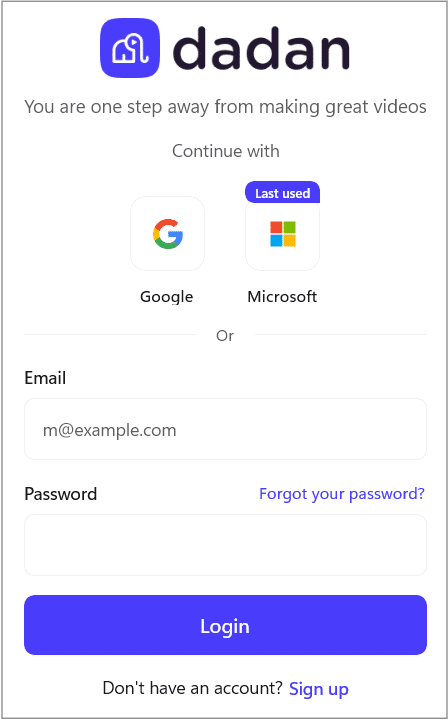
- After installing dadan, open the app from your desktop or applications menu and sign in to your account using your dadan-registered email and password, or use your Google or Microsoft account.
Navigate the dadan desktop interface #
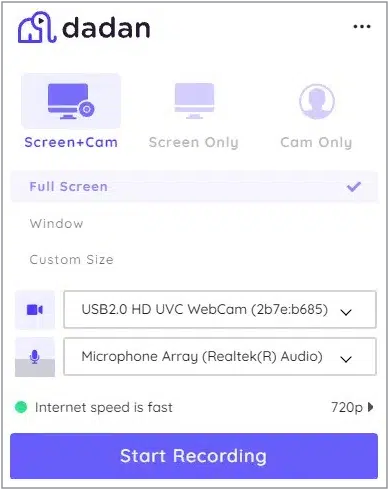
The dadan desktop app provides a user-friendly interface with all your key features accessible right from a simple screen:
- Start recording: Quickly start recording a new screen, webcam, or combined recording.
- Advanced settings: Adjust advanced preferences, such as 4K quality or recording part of the screen.
- Navigate your local recordings: View your previously recorded videos stored locally for offline use.
Recording a video #
With the dadan desktop app, recording videos is simple and efficient. Follow these steps to create your first video:
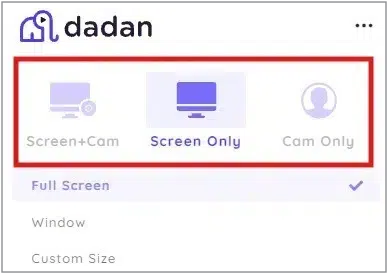
- Choose your preferred recording mode:
- Screen Only: Capture your entire screen or a specific window.
- Cam Only: Record a personal video using your webcam.
- Screen + Cam: Combine screen recording with your webcam overlay.
- Adjust recording settings:
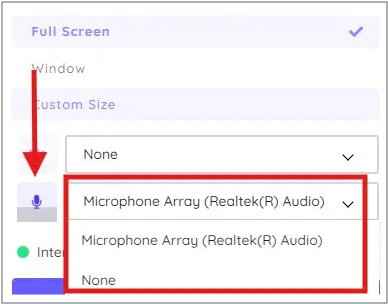
- Audio Source: Select the microphone you want to use for clear audio.
- System audio: Enable or disable recording your computer’s audio using dadan preferences.
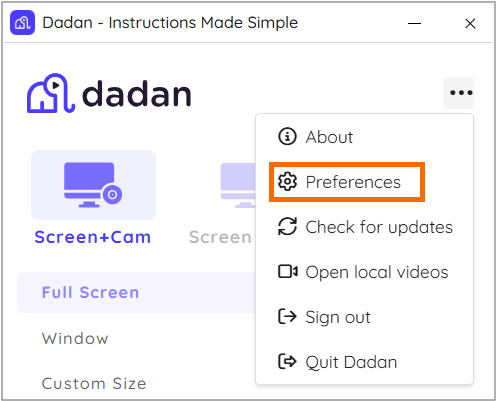
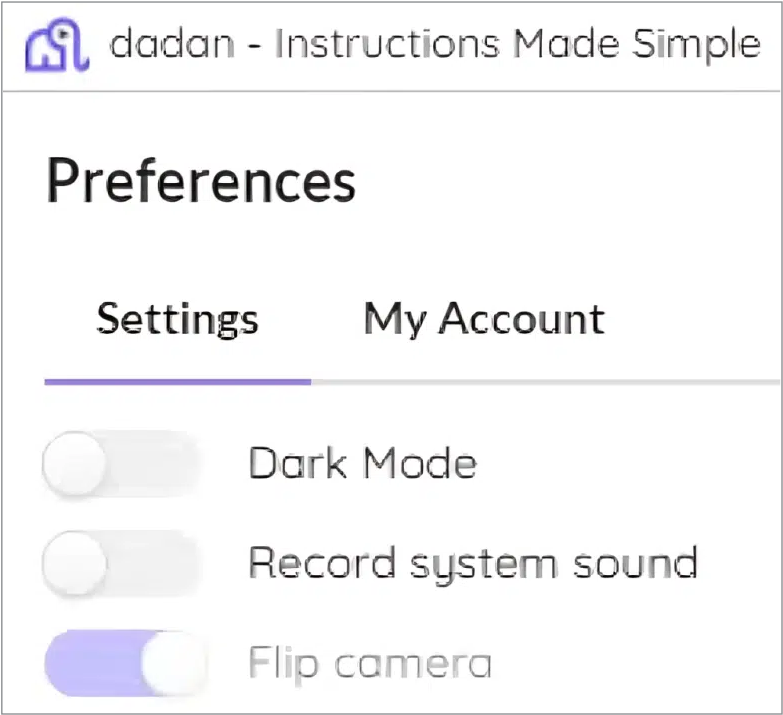
- Video quality: Choose between 240p, 1080p, or 4K, if your screen or camera supports it.

- Select what to record:
- Choose what part of your screen you want to capture:
- Full Screen.
- Window.
- Custom Size.
- Choose what part of your screen you want to capture:
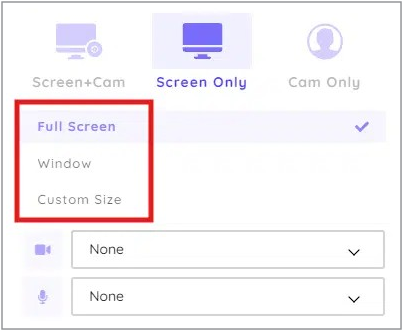
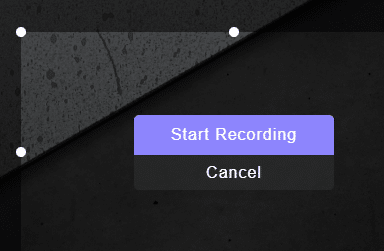
- The Custom Size option lets you drag to select the desired recording area and then prompts you to confirm before starting recording.


- Start recording:
- Once you select what to record, the recording will start automatically.
- Or click the Start Recording button to begin.
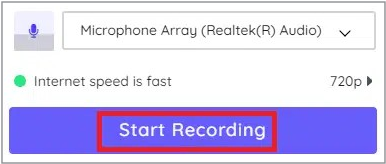
- A countdown will appear, giving you three seconds to prepare your screen.

- Use the recording toolbar:
- Offers additional controls to enhance your video, like:
- Pause/resume: Temporarily stop and restart recording as needed.
- Drawing tools: Highlight, draw, or write on your screen to emphasize key points.
- Timer: Keep track of the recording duration.
- Reset recording: Cancel the current recording and start over from the beginning.

- Stop and save:
- When you finish, click the red stop recording button in the toolbar.
Managing your videos #
You can manage your videos using My Local Recording and the dadan web app.
In the dadan web app, you can:
- Preview the video to ensure it’s ready to share.
- Download the video for offline use.
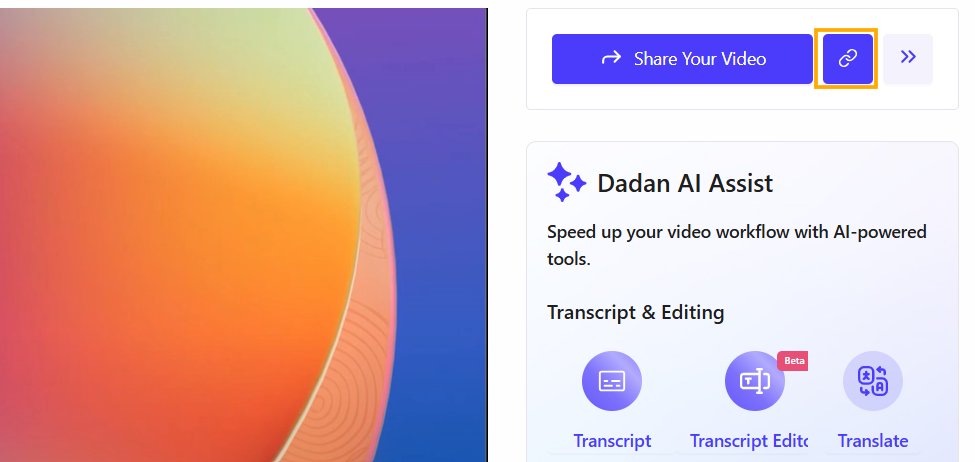
- Copy the link to share it via email or social media.
- In My Local Recordings, you can manage your local videos offline by playing, downloading, or deleting them.
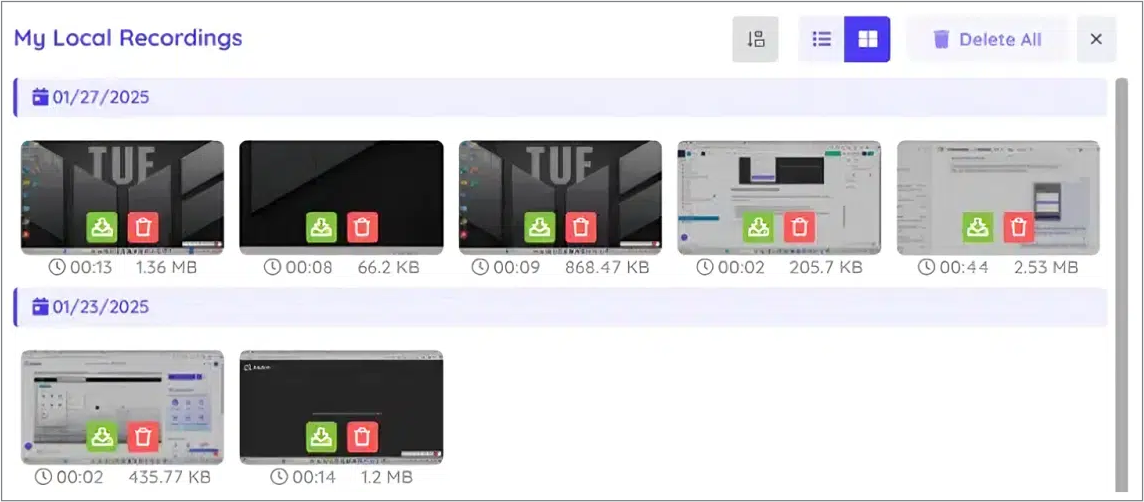
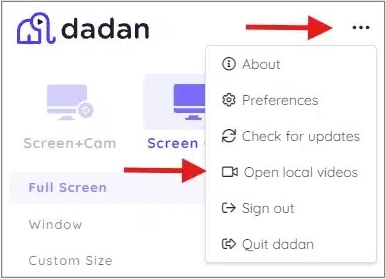
- To Access My Local Recordings:
- From the Dadan app, click the three dots […], and a submenu will open.
- Choose Open local videos to open the My Local Recordings window.
Dadan Personal Library #
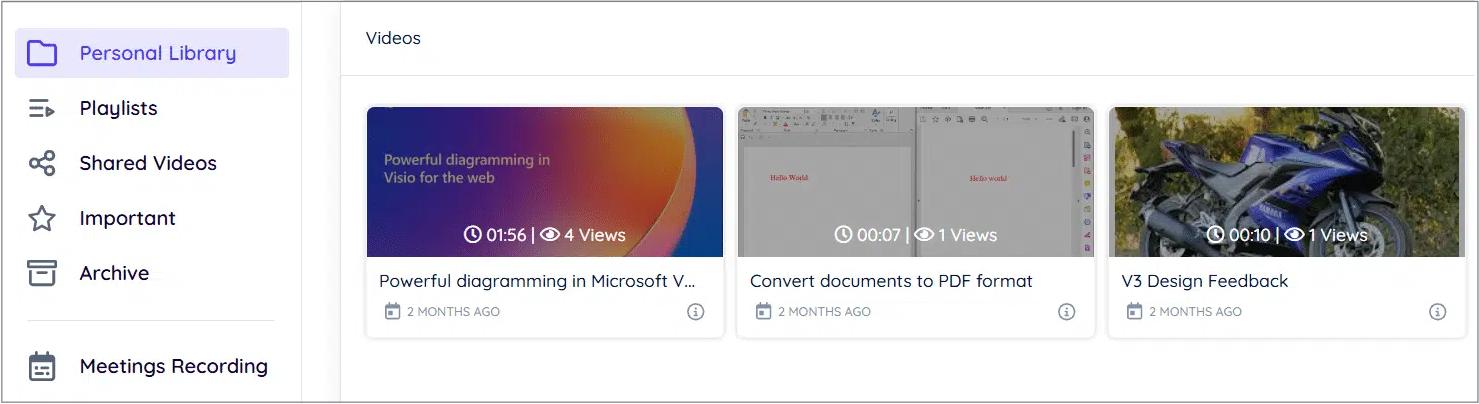
In the dadan app web, the Personal Library lets you manage your videos in the dadan web app, where all saved videos are listed. Visit app.dadan.io to open it in your browser.
Here’s what you can do:
- Play: Click on any video to open it and play it back.
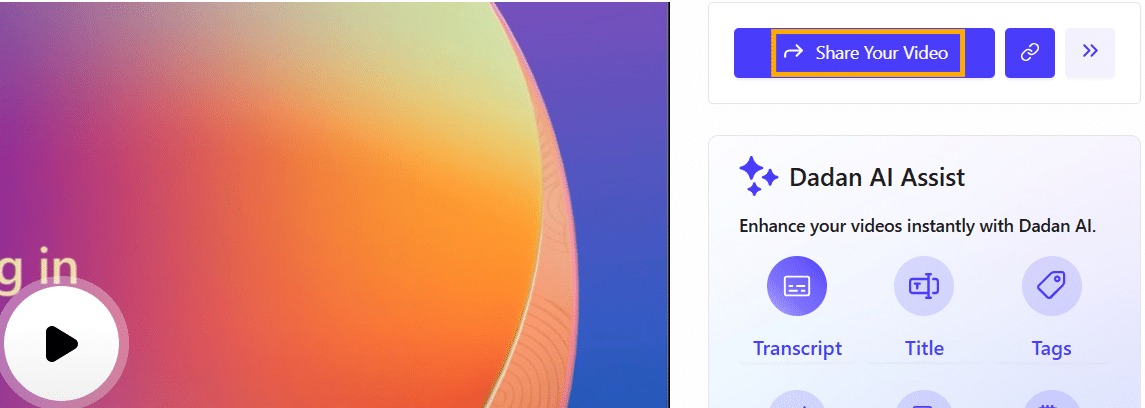
- Share: Use the Share Your Video button on the video playback page to get a link to the video.
- You can send this link via email, social media, or any other platform.
- Note: Open this guide if you need more details about sharing video links.
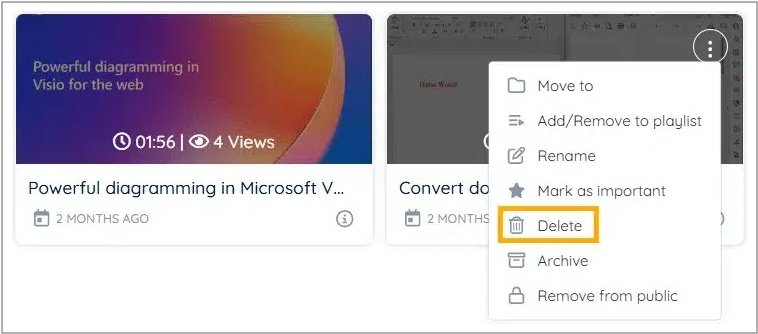
- Delete: If you no longer need a video, in the Personal Library, click the Delete option in the three-dot “…” submenu to remove it from your library.
- Note: Open this guide for more details about Personal Library.


