
This page lists the messages and problems people run into with the Dadan plugin for WordPress, what they mean and how to fix them. It also explains what data the plugin and Dadan handle.
Most recording problems come from one of three things: the App ID, the allowed origins in Dadan, or the page not using HTTPS. Start with Recording does not start if you are not sure.
Quick checks
Link to section: Quick checks| Symptom | Most likely cause | Fix |
|---|---|---|
| The studio says “Couldn’t start recording” | Your site’s origin is not allowed in Dadan | Recording does not start |
| The button is missing for some visitors | Who can record or Hide on phones | The record button is missing |
| The instance shows Needs App ID | No valid App ID saved | Paste the App ID |
| “That value looks like a secret API key” | An API key was pasted instead of the App ID | Secret API key message |
| A video does not show | The link is not a share link | A video does not embed |
| “Destination folder already exists” | An older Dadan plugin is still installed | Installation stops |
Recording does not start
Link to section: Recording does not startThe record button opens the studio, but it shows “Couldn’t start recording” and asks you to check that the page origin is allowlisted.
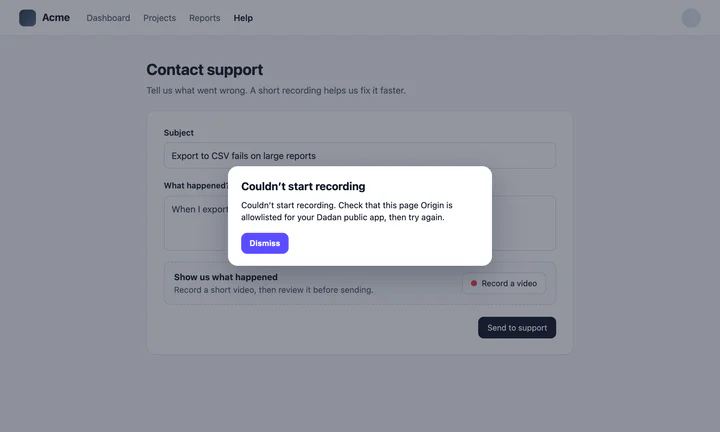
Dadan only accepts recordings from the origins listed on the public app. To fix it:
- In WordPress, open Dadan, or the instance’s Connection tab, and copy the origin shown in the steps, for example
https://www.example.com. - In Dadan, go to Account & Settings › Developers › Public Apps and edit the app whose ID you pasted in WordPress.
- Under Allowed Origins, add the origin exactly as shown and save.
- Reload your WordPress page and try again.
The origin must match exactly. http:// and https:// are different, and so are example.com and www.example.com. If your site works at both addresses, add both, or redirect one to the other.
If the button does nothing at all, check these too:
- The page uses HTTPS. Browsers block camera and screen access on pages served over
http://, except onlocalhost. - The browser can reach
app.dadan.io. The studio loads from there after the first click. Ad blockers, security plugins and a Content Security Policy can block it. See Allow Dadan in a Content Security Policy. - The instance is ready. In Dadan › Instances, its status must be Ready.
- Caching. If you changed the instance but the page still behaves the old way, clear your caching plugin and CDN cache.
The browser console usually names the problem. Origin and App ID errors mention the origin or authorization.
That value looks like a secret API key
Link to section: That value looks like a secret API keyYou see this message after saving an instance:

The value you pasted is a secret key, which must never appear in a web page. The plugin did not save it. Paste the Public App ID from Account & Settings › Developers › Public Apps instead. It starts with app_.
If the secret key was shared somewhere it should not be, for example in a chat or a screenshot, replace it in Dadan.
Public App ID must start with app_
Link to section: Public App ID must start with app_
The value is not a public App ID. Copy it again from Dadan with the copy button, and check that no space or extra character came with it. A valid ID starts with app_ and contains only letters, numbers, underscores and hyphens.
The record button is missing
Link to section: The record button is missing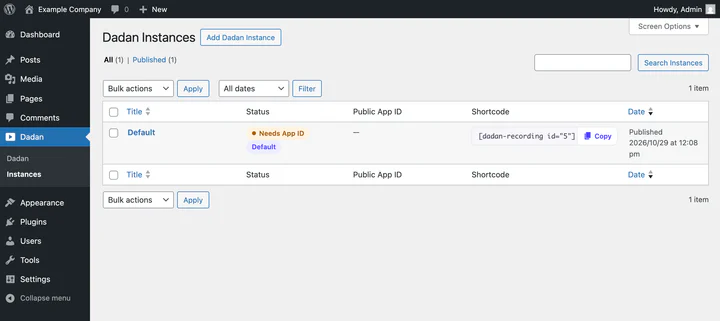
Check, in this order:
- The instance has an App ID. In Dadan › Instances, the status must be Ready, not Needs App ID.
- Who can record. On the instance’s Access & advanced tab, Logged-in users and Editors and above hide the button from everyone else. Check while signed out, or in a private window, to see what visitors see.
- Hide on phones. On the Record button tab, this hides the button on screens narrower than 782 pixels. It is on by default.
- The right instance. The block’s Connection panel, or the
idin the shortcode, must point to the instance you edited. - The shortcode is spelled right.
shows a button. Text that appears as is on the page means a typo, or the plugin is not active.
Finish or close the current recording first
Link to section: Finish or close the current recording firstA recording is already in progress in this browser tab: it is recording, in review or uploading. Finish or close that take in the studio, then click the button again.
Camera, microphone or screen access is blocked
Link to section: Camera, microphone or screen access is blockedIf the visitor, or the browser, blocked access, the studio cannot record. Click the lock or settings icon in the address bar, allow the camera, microphone or screen, and click the record button again.
On a Mac, macOS must also allow the browser to record the screen: open System Settings › Privacy & Security › Screen & System Audio Recording, turn on the browser and restart it.
Phones do not support screen recording in the browser. Only camera recording is available there. The Record SDK errors page lists every camera, microphone and screen problem.
A video does not embed
Link to section: A video does not embed- Use the share link. It looks like
https://app.dadan.io/video/share/followed by a code. The link in the address bar while you edit a video,https://app.dadan.io/video/followed by a long ID, cannot be embedded. See Copy the share link of your video. - Check the video’s sharing settings in Dadan, as described in How to share or embed your dadan videos.
- The player area is blank. A security plugin or a Content Security Policy may block frames from
app.dadan.io.
Installation stops with Destination folder already exists
Link to section: Installation stops with Destination folder already existsAn older Dadan plugin, Dadan Video Embed or Dadan for Elementor, or a previous copy of this plugin, is still installed. Go to Plugins › Installed Plugins, deactivate and delete the old Dadan plugin, then upload the zip again.
To update the plugin itself, upload the new zip and click Replace current with uploaded. See Update the plugin.
The studio looks wrong on my site
Link to section: The studio looks wrong on my siteSome themes change buttons, fonts or spacing for every element on the page, including the studio. On the instance’s Access & advanced tab, set Style isolation to Isolated, save, and reload the page.
Allow Dadan in a Content Security Policy
Link to section: Allow Dadan in a Content Security PolicyIf your site, a security plugin or your host sends a Content Security Policy, allow:
| Directive | Hosts |
|---|---|
script-src, style-src | https://app.dadan.io |
frame-src | https://app.dadan.io |
connect-src | https://app.dadan.io, https://upload.dadan.io, https://video.bunnycdn.com |
The Record SDK production checklist explains each host.
Privacy and data
Link to section: Privacy and dataDadan is a third-party service. When people watch an embedded video or record, their browser connects to Dadan directly. The plugin makes no requests to Dadan from your server.
| What | When | What Dadan receives |
|---|---|---|
The video player from app.dadan.io | A page with a Dadan video is viewed | The video’s share code and standard request data, such as the IP address, browser and page address |
The recording studio from app.dadan.io | Someone clicks a record button | Standard request data for the download |
| The recording session | Someone starts recording | The public App ID, your site’s origin, the folder, team and title set in the instance, the IP address and browser |
The upload to upload.dadan.io | A recording is finished | The video and audio, which can include the person’s camera, microphone and screen |
WordPress stores only the public App ID and the display settings, never a secret key and never the videos. If Recover unsent takes is on, an unfinished take can stay in the visitor’s browser for up to 24 hours.
The plugin suggests text for your privacy policy under Settings › Privacy in WordPress. If the law where you operate requires it, mention Dadan embeds and recordings in your privacy policy. Dadan’s own terms are in the Terms of Service and the Privacy Policy.
Still stuck?
Link to section: Still stuck?Contact Dadan support from this Help Center. Include your site’s address, the plugin version (2.1.3), the exact message you see, your browser and operating system, and your public App ID. Never send a secret API key.
))

))