
This guide adds a working Record button to a web page using the built-in Dadan studio. You will install the SDK, connect it to your own button and save the link to each finished video.
The examples use plain TypeScript and Vite, so they work with any framework. If you use React, Vue or Angular, the framework guides show the same steps with ready-made components.
Before you start
Link to section: Before you start- A public app ID with your development origin allowlisted, for example
http://localhost:5173. See Get a public app ID. - Node.js and a bundler. This guide uses a Vite project. Any bundler that supports package
exportsworks. - A Dadan folder for the recordings (optional). Without one, recordings go to the default location for your app.
Step 1: Install the packages
Link to section: Step 1: Install the packagesnpm install @dadan-io/record-sdk-ui react@^18 react-dom@^18The studio interface is built with React, so it needs react and react-dom even if your app does not use React. npm 7 and later install them automatically, but it picks React 19 unless you pin a version. React 18 is smaller and is the version the studio is tested with. Yarn and pnpm (without auto-install-peers) never install them for you, so keep them in the command above.
Step 2: Store your public app ID
Link to section: Step 2: Store your public app IDPut the ID in an environment file so it is easy to change per environment:
# .env.local
VITE_DADAN_PUBLIC_APP_ID=app_your_public_id
The public app ID is not a secret: it identifies your app, and Dadan only accepts it from the origins on its allowlist. Never put your Dadan API key here.
Step 3: Add a button to your page
Link to section: Step 3: Add a button to your page<button id="record-button" type="button" disabled>Record a video</button>
<p id="record-status" role="status"></p>The button starts disabled and is enabled once the SDK has checked that the browser can record. The status paragraph uses role="status" so screen readers announce the result.
Step 4: Connect the studio
Link to section: Step 4: Connect the studioimport { createInstance, isSupported } from "@dadan-io/record-sdk-ui";
const button = document.querySelector<HTMLButtonElement>("#record-button")!;
const status =
document.querySelector<HTMLParagraphElement>("#record-status")!;
async function setUpRecorder() {
const support = await isSupported();
if (!support.supported) {
status.textContent =
"Video recording is not available in this browser.";
return;
}
const studio = await createInstance({
mode: "custom",
publicAppId: import.meta.env.VITE_DADAN_PUBLIC_APP_ID,
videoTitle: "Support request",
folderId: "123456",
});
studio
.configureButton({ element: button })
.on("insert-click", (video) => {
status.textContent = "Thanks, your video was uploaded.";
void saveRecording(video.id, video.sharedUrl);
})
.on("cancel", () => {
status.textContent = "";
})
.on("error", (error) => {
console.error(error.code, error.message);
status.textContent = "Something went wrong. Please try again.";
});
button.disabled = false;
}
async function saveRecording(videoId: string, sharedUrl: string) {
await fetch("/api/recordings", {
method: "POST",
headers: { "Content-Type": "application/json" },
body: JSON.stringify({ videoId, sharedUrl }),
});
}
void setUpRecorder();A few things to know about this code:
mode: "custom"is the integration mode, not the recording type. Keep it as"custom"when you supply your own button.configureButtonmakes your button open the studio on click. The studio is only added to the page the first time it opens.insert-clickfires once the upload has finished and the studio has closed. Its argument is aDadanVideowith the video’sid,sharedUrlandembedUrl.saveRecordingstands for your own backend call. Store at least the videoidandsharedUrl.- Replace
"123456"with your folder, or removefolderId. See Save recordings to a folder.
Step 5: Try it
Link to section: Step 5: Try it- Start your dev server with
npm run devand open the page at the origin you allowlisted. - Click Record a video. The studio’s control bar appears at the bottom of the page.
- Pick a mode (screen and camera, camera only or screen only), check the camera and microphone, then click Record. Your browser asks for permission the first time.
- After the 3, 2, 1 countdown, record a few seconds. Use the controls to pause, mute the microphone, delete the take or stop.
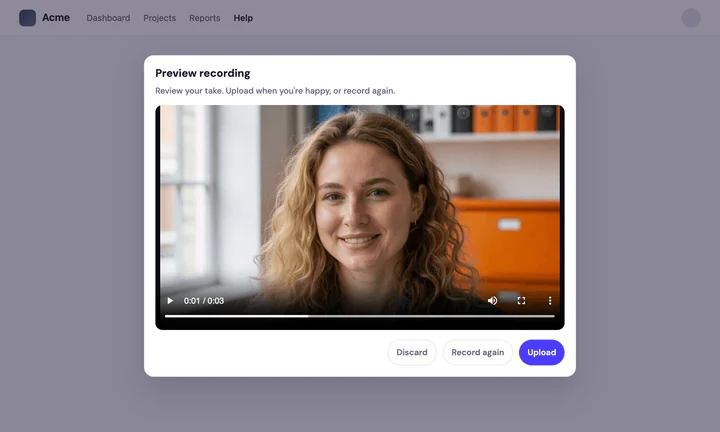
- Click Stop recording. The preview screen lets you Discard, Record again or Upload.
- Click Upload. When the upload finishes, the studio closes and your
insert-clickhandler runs.
If the studio shows “Couldn’t start recording. Check that this page Origin is allowlisted for your Dadan public app”, the origin in your address bar is not on the allowlist yet. http://localhost:5173 and http://127.0.0.1:5173 count as different origins.
Save recordings to a folder
Link to section: Save recordings to a folderfolderId decides where recordings are saved in your Dadan library. It accepts the folder’s numeric ID or the folder’s address: open the folder in Dadan and copy the URL from your browser.
const studio = await createInstance({
  mode: "custom",
  publicAppId: import.meta.env.VITE_DADAN_PUBLIC_APP_ID,
  folderId: "https://app.dadan.io/files/all?folder=123456",
});
To save to a team space instead, pass teamId with the team’s ID or library URL. When both are set, folderId wins.
Use the video
Link to section: Use the videoThe DadanVideo you receive has these fields:
| Field | What it contains |
|---|---|
id | The video ID. Use it to fetch download links later |
sharedUrl | The share page for the video. Link to it or store it |
embedUrl | The player URL, ready for an iframe |
title | The video title, when one was set |
thumbnailUrl | A thumbnail image, when available |
duration | The length in seconds, when available |
To show the video on a page, see Embed and download recordings.
Open the studio from code
Link to section: Open the studio from codeYou do not have to use configureButton. Call open() from any event, and pass a mode to skip the mode picker:
studio.open({ mode: "screen" });
studio.close();
Clean up
Link to section: Clean upIf the recorder lives in a view that can be removed, such as a route in a single-page app, release the camera, microphone and listeners when the view goes away:
studio.teardown();Next steps
Link to section: Next steps- Framework guides: React, Vue and Angular.
- Customize the recording studio: brand colors, modes and controls.
- Record SDK errors and troubleshooting: every error code and how to handle it.
))

))