
The built-in studio works without any configuration, but most apps want it to match their brand and offer only the recording types that make sense. This guide covers every option you can pass when you create the studio, plus the <dadan-recorder> web component.
All options go in the object you pass to createInstance (or to the sdk prop of the React and Vue components, or to init() in Angular). Interface options live under config.
import { createInstance } from "@dadan-io/record-sdk-ui";

const studio = await createInstance({
  mode: "custom",
  publicAppId: import.meta.env.VITE_DADAN_PUBLIC_APP_ID,
  videoTitle: "Product feedback",
  recordingQuality: "1080p",
  mount: "shadow",
  config: {
    theme: {
      primary: "#0F766E",
      appearance: "light",
      borderRadius: "14px",
    },
    features: { modes: ["both", "camera", "audio"], backdrop: false },
    countdownSeconds: 3,
  },
});
Match your brand
Link to section: Match your brandconfig.theme sets the studio’s colors, font and corner radius. Every field is optional.
| Option | What it changes |
|---|---|
primary | Accent color for the main buttons and highlights |
appearance | "light" or "dark" |
fontFamily | Font used in the studio, as a CSS font-family value |
borderRadius | Corner radius of panels and buttons, for example "12px" |
surface | Background of the control bar, menus and chips |
surfaceMuted | Subtle fills such as the mode selector |
ink | Main text color |
inkSoft | Secondary and label text |
inkMuted | Icon and control color |
border | Hairline borders |
borderStrong | Stronger borders and switch tracks |
danger | Destructive actions and errors |
success | Success states |
shadow | Shadow of the control bar, as a CSS box-shadow value |
Check contrast when you change primary and ink: text on the primary color should stay readable for everyone.
Choose recording modes
Link to section: Choose recording modesconfig.features.modes controls which recording types appear in the mode picker:
const studio = await createInstance({
  mode: "custom",
  publicAppId: import.meta.env.VITE_DADAN_PUBLIC_APP_ID,
  config: {
    features: { modes: ["camera", "audio"] },
    defaultMode: "camera",
  },
});- The default list is
both,cameraandscreen. Audio-only recording appears only when you addaudio. defaultModeopens the studio straight in that mode and skips the picker.- With a single mode, the picker is hidden automatically.
- On phones and tablets, only
cameraandaudioare available because mobile browsers cannot capture the screen. Check withisModeSupported(mode)if you want to hide a choice in your own UI.
You can also choose the mode when you open the studio: studio.open({ mode: "screen" }).
Show or hide controls
Link to section: Show or hide controlsEvery flag under config.features defaults to true. Set one to false to hide that control:
| Flag | Controls |
|---|---|
modePicker | The recording mode selector |
cameraPicker | The camera selector |
micPicker | The microphone toggle and selector |
systemAudio | The system or tab audio toggle in screen modes |
backdrop | The background color picker |
deckGrip | The handle used to drag the control bar |
closeButton | The close button on the control bar |
restorePendingTake | The offer to restore an unsent recording after a reload |
Countdown and quality
Link to section: Countdown and qualityconfig.countdownSecondssets the countdown before recording starts. The default is3. Use0to start immediately.recordingQuality(a top-level option) sets capture quality:"720p","1080p"(default) or"2k". Lower quality means smaller files and faster uploads on slow connections.
Screen sharing options
Link to section: Screen sharing optionsconfig.screenCapture passes hints to the browser’s screen picker:
| Option | Effect |
|---|---|
surfaces | Which surfaces to offer: "monitor" (entire screen), "window" and "browser" (a tab) |
preferredSurface | The surface selected first |
surfacePicker | Show an Entire screen, Window or Tab choice in the studio. Off by default |
preferCurrentTab | Suggest the current tab first (Chrome and Edge) |
selfBrowserSurface | "include" or "exclude" the current tab from the list (Chrome and Edge) |
surfaceSwitching | Allow switching the shared surface while recording (Chrome and Edge) |
monitorTypeSurfaces | "include" or "exclude" entire screens (Chrome and Edge) |
Browsers treat these as hints, so people may still be able to pick another surface.
Light or shadow mounting
Link to section: Light or shadow mountingmount decides how the studio’s markup relates to your page’s CSS:
"light"(default): the studio is part of your page, so your stylesheets can reach it. Useful when you want to fine-tune its look with your own CSS."shadow": the studio renders inside a shadow root and your CSS cannot affect it. Choose this when global styles (such as a CSS reset or a utility framework) change how the studio looks. Style it throughconfig.theme.
Replace individual screens
Link to section: Replace individual screensYou can keep the SDK’s capture and upload logic and replace single screens with your own components. The slots are React render functions, so they fit best in React apps:
| Slot | Replaces | Props you receive |
|---|---|---|
renderSetup | The control bar before recording | Mode, devices, toggles and onRecord |
renderRecording | The controls while recording | Elapsed time, pause, mute and onStop |
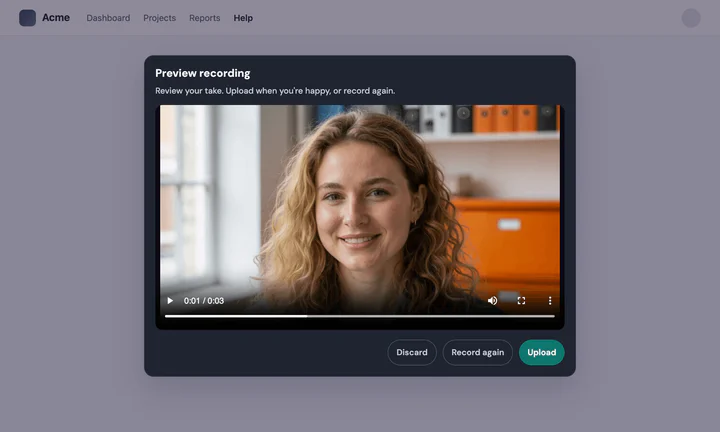
renderReview | The preview after recording | objectUrl, durationSeconds, onConfirmUpload, onRedo, onDiscard |
renderUploading | The upload progress screen | percentage |
renderUploadFailed | The upload error screen | message, onRetry, onDiscard |
renderError | The error message | message, recoverable, onDismiss |
countdownComponent | The 3, 2, 1 countdown | value, durationSeconds, onCancel |
For example, a review screen with your own design system:
import {
  DadanRecordButton,
  type CreateInstanceArgs,
} from "@dadan-io/record-sdk-react";
import type { SdkReviewUiProps } from "@dadan-io/record-sdk-ui";

function ReviewScreen({
  objectUrl,
  durationSeconds,
  onConfirmUpload,
  onRedo,
  onDiscard,
}: SdkReviewUiProps) {
  return (
    <div
      className="review-panel"
      role="dialog"
      aria-label="Review your recording"
    >
      <video src={objectUrl} controls playsInline />
      <p>{Math.round(durationSeconds)} seconds</p>
      <button type="button" onClick={onConfirmUpload}>
        Send video
      </button>
      <button type="button" onClick={onRedo}>
        Record again
      </button>
      <button type="button" onClick={onDiscard}>
        Discard
      </button>
    </div>
  );
}

const sdk: CreateInstanceArgs = {
  mode: "custom",
  publicAppId: import.meta.env.VITE_DADAN_PUBLIC_APP_ID,
  config: { renderReview: (props) => <ReviewScreen {...props} /> },
};

export function FeedbackRecorder() {
  return <DadanRecordButton sdk={sdk} />;
}
SdkReviewUiProps and the other slot types come from @dadan-io/record-sdk-ui, which the React package installs. With pnpm, add @dadan-io/record-sdk-ui to your own dependencies before importing from it.
If you need to replace most screens, a fully custom recorder is simpler. See Build a custom recorder with DadanRecorder.
Change settings after creation
Link to section: Change settings after creationupdateConfig changes interface options or the video title without recreating the studio:
studio.updateConfig({
  config: { theme: { appearance: "dark" } },
  videoTitle: "Feedback from the pricing page",
});
Use the <dadan-recorder> web component
Link to section: Use the <dadan-recorder> web componentThe web component puts the studio in your HTML and configures it with attributes. Add the element where it makes sense in your page:
<dadan-recorder
  public-app-id="app_your_public_id"
  video-title="Interview answer"
  folder-id="123456"
  mount="shadow"
  theme='{"primary":"#0F766E"}'
></dadan-recorder>
<button type="button" id="open-recorder">Record your answer</button>
Then register the element once in your JavaScript bundle and open it from your button:
import { defineDadanRecorder } from "@dadan-io/record-sdk-ui/wc";

defineDadanRecorder();

const recorder = document.querySelector("dadan-recorder");
document
  .querySelector("#open-recorder")
  .addEventListener("click", () => recorder.open());
recorder.addEventListener("dadan-insert", (event) => {
  console.log("Uploaded", event.detail.sharedUrl);
});
recorder.open({ mode: "camera" }) opens a specific mode and recorder.close() closes the studio.
| Attribute | Meaning |
|---|---|
public-app-id | Your public app ID |
video-title | Title saved with the recording |
folder-id, team-id | Where the recording is saved |
recording-quality | 720p, 1080p or 2k |
mount | light or shadow |
theme | Theme options as JSON |
config | Interface options (the same as config above) as JSON |
auto-open | Open the studio as soon as the element is ready |
nonce | Your Content Security Policy nonce |
The element dispatches these events, which bubble and cross shadow boundaries: dadan-insert (upload finished, event.detail is the DadanVideo), dadan-upload-complete, dadan-cancel, dadan-error (event.detail.code), dadan-backdrop-change and dadan-lifecycle. Removing the element from the page tears the studio down.
))

))