
The Dadan Record SDK lets people record their screen, camera or voice inside your web app. When they finish, the video is uploaded to your Dadan account and you get back a share link and an embed URL to store, show or send.
Everything runs in your page. There is no iframe, no pop-up window and no browser extension to install. The SDK is published on npm as a set of packages for plain JavaScript, React, Vue and Angular.
What you can build
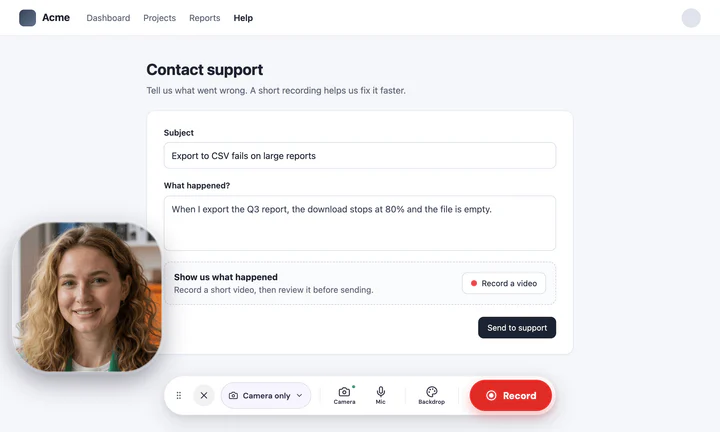
Link to section: What you can build- A Record button in a support or bug report form, so customers can show the problem instead of describing it.
- Video answers in hiring, onboarding, survey or feedback flows.
- Async video replies inside a CRM, help desk or project tool.
- Voice notes, with audio-only recording.
Each recording is saved to your Dadan library, in the folder you choose.
How it works
Link to section: How it works- Your page loads the SDK with your public app ID.
- When someone clicks Record, the SDK requests a short-lived upload token from Dadan with your public app ID. Dadan only issues it when the page’s origin is on the app’s list of allowed origins.
- The browser records locally. With the built-in studio, the person can watch the take and record again before uploading.
- The SDK uploads the file in resumable chunks and returns a
DadanVideoobject with the video’sid,sharedUrlandembedUrl.
The public app ID is all the page needs. Your Dadan API key is never used in the browser.
Choose an integration
Link to section: Choose an integrationThere are two ways to add recording to your app:
- Built-in studio. Dadan’s recording interface opens on top of your page: a control bar to pick the mode, camera and microphone, a 3, 2, 1 countdown, recording controls, a review screen and upload progress. You provide the button and handle the result. This is the fastest path and the right choice for most apps.
- Headless.
DadanRecorderhandles capture, events and upload, and you build every screen yourself. Choose it when the recorder must match a custom design or live inside an existing UI.
Install the package that matches your stack:
| Package | Use it when |
|---|---|
@dadan-io/record-sdk-react | You use React 18 or 19, including Next.js |
@dadan-io/record-sdk-vue | You use Vue 3, including Nuxt |
@dadan-io/record-sdk-angular | You use Angular 15 to 22 |
@dadan-io/record-sdk-ui | You use plain JavaScript, TypeScript or another framework. It also provides the <dadan-recorder> web component |
@dadan-io/record-sdk | You build your own recorder UI on top of DadanRecorder |
@dadan-io/embed | You want to show a recorded video on a page |
A seventh package, @dadan-io/sdk-protocol, holds the shared TypeScript types. It is installed automatically and you rarely import it yourself.
Recording modes
Link to section: Recording modes| Mode | What it records | Where it works |
|---|---|---|
both | Screen, with the camera in a bubble | Desktop browsers |
screen | Screen only | Desktop browsers |
camera | Camera only | Desktop and mobile browsers |
audio | Microphone only | Desktop and mobile browsers |
The studio offers both, camera and screen by default. Audio-only recording appears when you add audio to the list of modes. Video is recorded at 1080p unless you choose 720p or 2k.
Get a public app ID
Link to section: Get a public app IDYou create public app IDs yourself in Dadan. Public apps are included on the Lite, Pro and Business plans. On other plans, the section shows Upgrade Plan instead.
- Open Account & Settings from the dropdown menu, then select Developers.
- In the Public Apps section, click Create Public App.
- Enter a Name you will recognize later, for example “Support portal”. Only you see it.
- Under Allowed Origins, add every origin that will load the recorder and press Enter after each one, for example
https://app.example.com,https://staging.example.comandhttp://localhost:5173for local development. Paths and wildcards are not accepted. - Set the Session Length, how long each recording session lasts. The screen shows the allowed range.
- Optionally, add a Webhook URL. Dadan calls this HTTPS endpoint when a recording is ready. Copy the signing secret when it appears.
- Click Create, then copy the Public App ID from the list.
To add or remove origins later, edit the app from the same section. Disabling an app stops new recording sessions until you enable it again, and deleting it cannot be undone.
An origin is the scheme, host and port, without a path. https://example.com and https://www.example.com are two different origins, and so are http://localhost:5173 and http://localhost:3000. If a page’s origin is missing from the list, the studio shows “Couldn’t start recording” and the SDK reports an auth_failed error.
Requirements
Link to section: Requirements- A public app ID with your origins allowlisted.
- A secure page: HTTPS, or
http://localhostwhile you develop. Browsers only allow camera, microphone and screen capture on secure pages. - A current version of Chrome, Edge, Firefox or Safari on desktop for screen recording. Mobile browsers can record camera and audio, but not the screen.
- A bundler that supports package
exports, such as Vite, webpack 5, Next.js or the Angular CLI. In TypeScript, setmoduleResolutiontobundler,node16ornodenext.
What the SDK does not cover
Link to section: What the SDK does not coverThe SDK records and uploads. It does not include transcripts, AI summaries, video editing, analytics or share link management, and it does not change how videos behave once they are in your Dadan library.
License and versions
Link to section: License and versionsThe packages are distributed under the Dadan SDK License, included in each package as the LICENSE file. Using them requires a Dadan account and is subject to the Dadan Terms of Service. This documentation covers version 1.0 of every @dadan-io package.
Next steps
Link to section: Next steps- Record SDK quickstart: add a working Record button to a page.
- Framework guides for React, Vue and Angular.
- Record SDK production checklist: what to check before you launch.
))

))