
Once your Team space is set up, you can personalize it to better suit your team’s needs. Dadan allows you to rename your space, adjust collaboration settings, and track your team’s activity with detailed statistics, including video views and member activity.
This section will guide you through updating your Team Space settings and explain how to permanently delete a Team Space if it’s no longer needed.
See also:
Customize your team space #
You can customize your Team space by renaming it and adjusting its settings. In the settings panel, you can:
- Edit the Team space name: Update the name to match your team’s purpose.
- Enable/Disable viewer comments: Control whether viewers can leave comments.
- View Team stats: Track the number of videos, folders, views, and members in your workspace.
Steps to customize your Team Space #
To open Manage team space settings:
- Click the Team Settings button and select Team Settings from the dropdown menu.
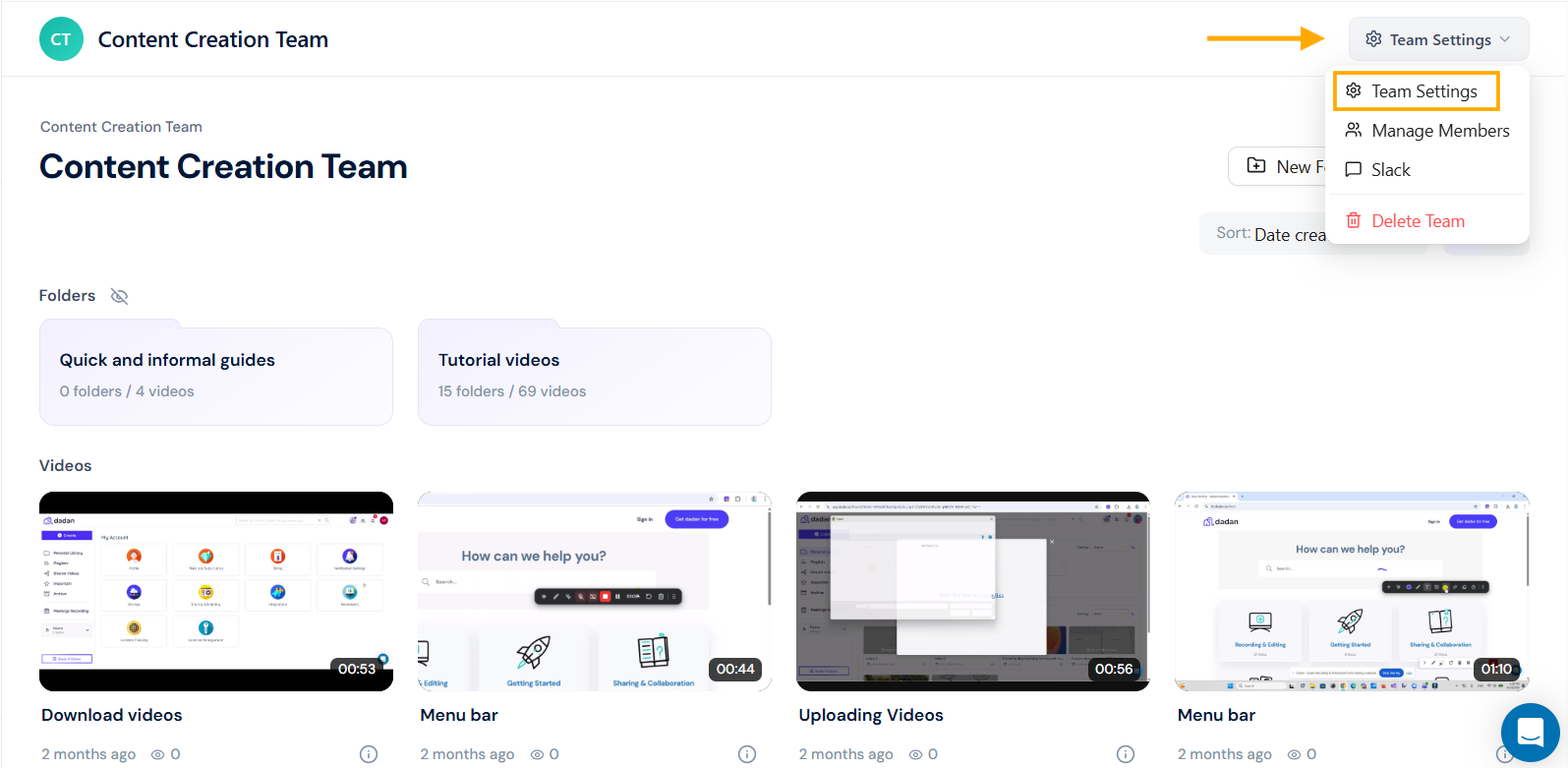
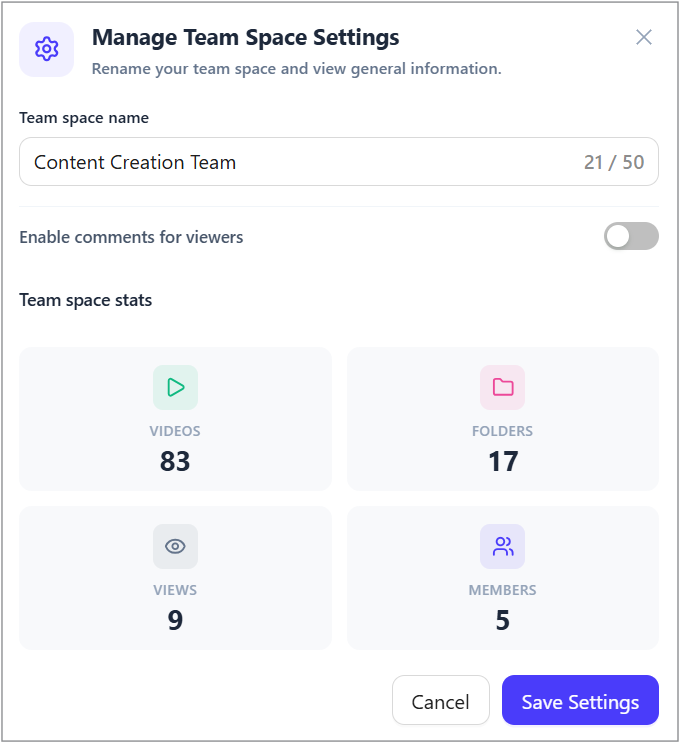
- In the Manage Team Space Settings pop-up, you can:
- Edit the team space name.
- Preview the team space stats.
- Number of videos, folders, views, and members.
- Click Save Settings to apply changes.
Adding videos to your team space #
To add videos to your team space, you can:
- Record new videos.
- Upload videos from your device.
- Import videos from other platforms.
- Move videos and folders from your Personal Library to a team space.
Delete your team space #
You can delete it permanently if you no longer need a Team Space.
To delete a Team Workspace:
- From the Team Settings list, select Delete Team from the dropdown menu.
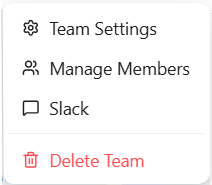
- Click Yes, delete it! to confirm the deletion or click No, cancel! if clicked by mistake.

⚠️Warning: Deleting a Team Workspace will remove all its videos, folders, and data. This action cannot be undone.


