
Dadan makes video recording fast and easy, helping you communicate without needing live meetings. Whether you’re walking through a project, providing clear instructions, or showcasing your work, dadan has everything you need to capture and share your message effortlessly.
In this guide, you’ll learn, in detail, how to record your screen, camera, or both, plus tips to ensure your videos look great.
Getting started with your first recording #
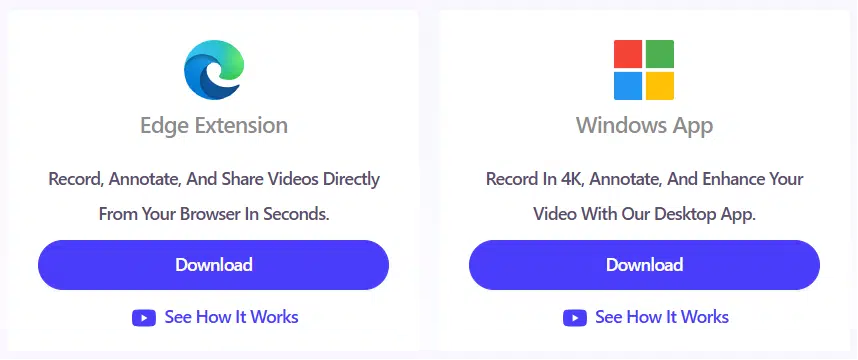
Before you start recording, you’ll need to install the necessary tools. Dadan offers a browser extension and a desktop app to fit your preferences.
Installing and signing up for dadan video recording #
Follow the steps below to get everything set up:
- Sign up for dadan:
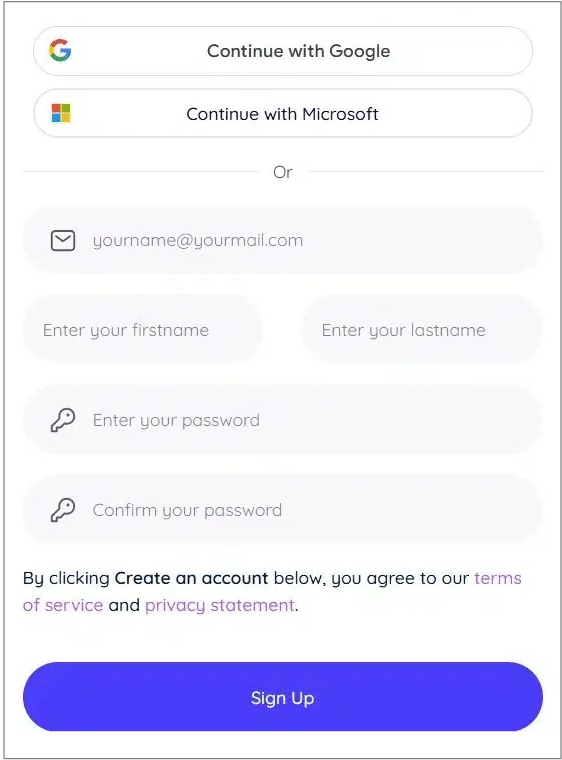
- Sign up for a dadan account using Google, Microsoft, or by entering your email, name, and creating a password.
- Click Sign Up.
- Install the dadan browser extension:
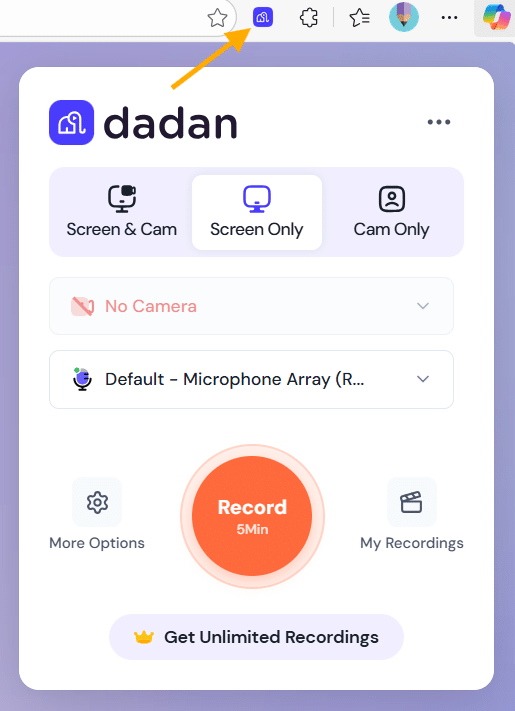
- Click here for the step-by-step installation guide for the browser extension.
(Works with Chrome and Edge.)
- Click here for the step-by-step installation guide for the browser extension.
- Install the dadan desktop app:
- Click here for the step-by-step installation guide for the desktop app.
(For high-performance experience.)
- Click here for the step-by-step installation guide for the desktop app.
Now, you’re ready to start recording!
Setting up your dadan recording settings #
It’s time to set up your recording environment. Following these simple steps will help ensure you’re ready to start creating high-quality videos.
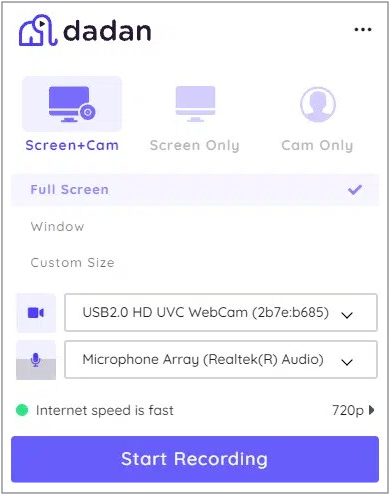
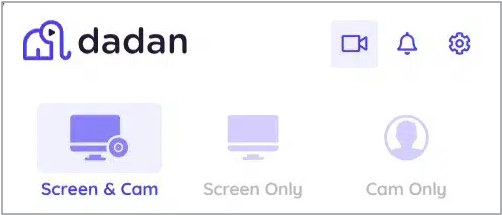
- Choose your recording mode:
- Screen + Cam: Combine both for a picture-in-picture experience.
- Screen Only: Select this mode to capture your screen.
- Cam Only: Use this to record only from your camera.
- Select camera and microphone:
- Ensure your camera and microphone are correctly connected and selected.
- You can choose which device to use for each input.
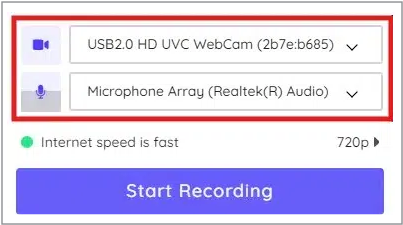
- Test your setup and choose recording quality: Before you start recording, take a moment to check your setup to ensure the best video and audio quality.
- Test your audio & video: Ensure your microphone and camera are working properly by previewing your setup in dadan. Adjust the microphone volume as needed.
- Choose recording quality: Select the appropriate video resolution based on your needs; higher resolutions provide better clarity but may result in larger file sizes.
- Check lighting & background: Ensure you have good lighting and a clean background for a more professional appearance.
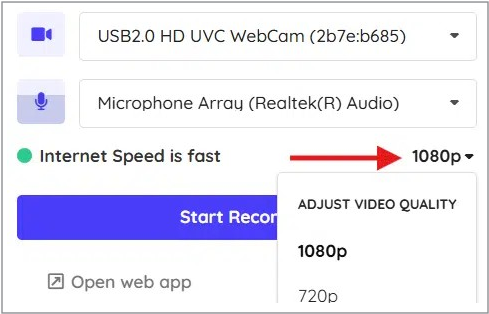
Once everything looks and sounds great, you’re ready to start recording!
Recording with dadan: browser extension vs. desktop app #
Both the dadan browser extension and dadan desktop app let you record your screen, webcam, or both, but they have some key differences:
- Dadan browser extension:
- Best for quick recordings directly from Chrome or Edge.
- Lets you capture your entire screen, a specific window, or a browser tab.
- Has limitations on screen and camera recording due to browser restrictions.
- The camera bubble won’t appear when viewing a PDF in Chrome or switching to other apps.
- The camera bubble may disappear and reappear when switching between tabs.
- Dadan desktop app:
- Offers higher video quality and more recording options.
- Allows seamless screen and camera recording with custom area selection.
- Needs a download and an installation process.
| Feature | Browser Extension | Desktop App |
|---|---|---|
| Setup | Quick setup via Chrome extension | Requires download and installation |
| Performance & Stability | Depends on browser capabilities | More stable and performs better for long or high-res recordings |
| Best Use Case | Quick recordings in browser, tab walkthroughs | Detailed, high-quality recordings with more control |
In short, if you need speed and convenience, go with the browser extension. The desktop app is the better choice if you want more control and higher-quality recordings.
Recording a video using the dadan browser extension #
To record using the dadan browser extension, follow these steps:
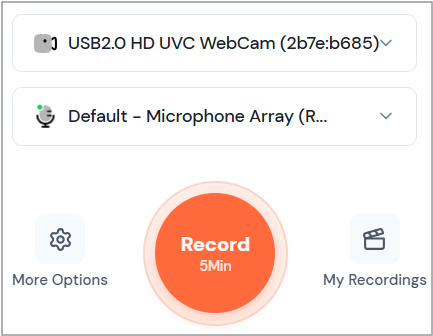
- Start recording:
- Once you’re ready, click Record.
- Choose what to record:
- Select the part of your screen you want to capture:
- A Tab in your browser.
- A Window.
- The Entire Screen.
- Select the part of your screen you want to capture:
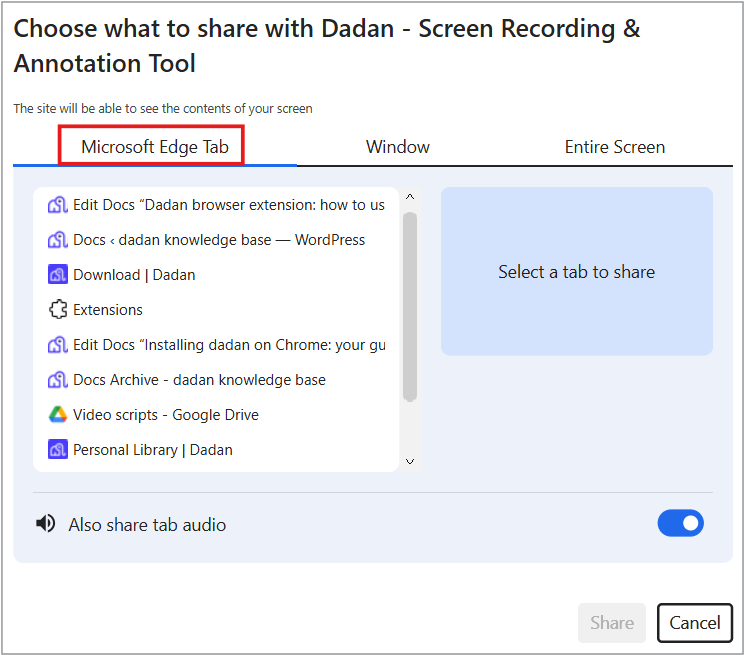
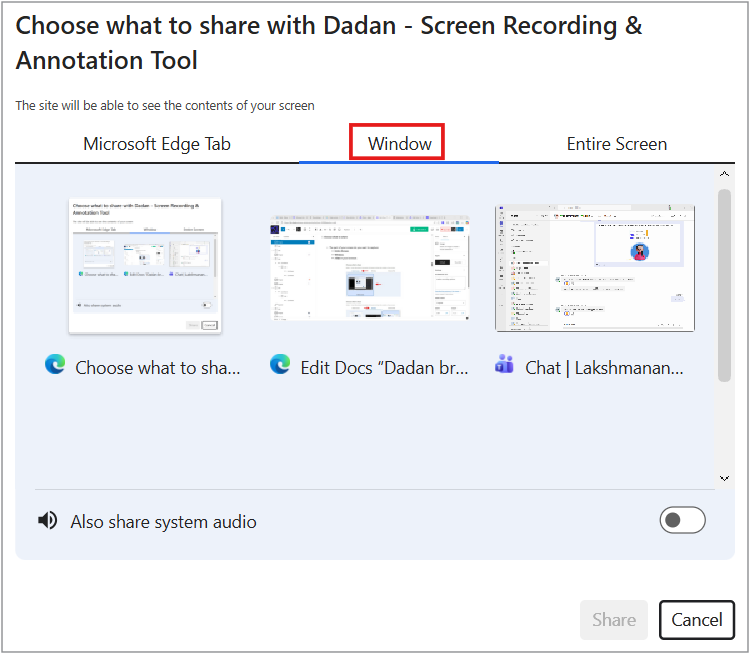
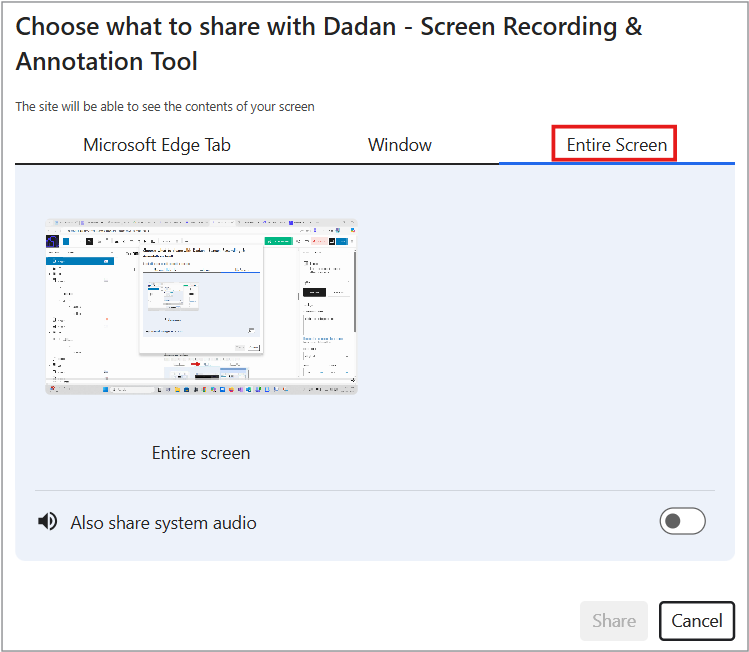
- Choose the preferred option and click Share.
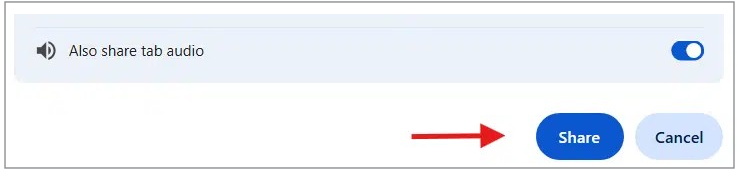
- Record system or browser tab audio:
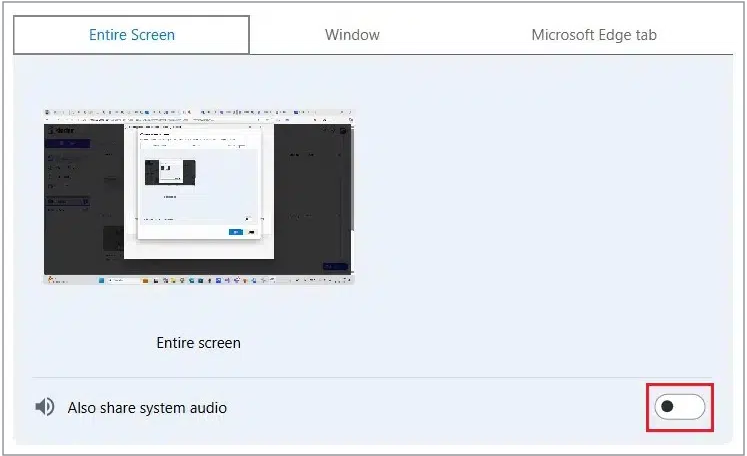
- In the Entire Screen mode, toggle on the Also share system audio option if you want to include computer audio in your recording.
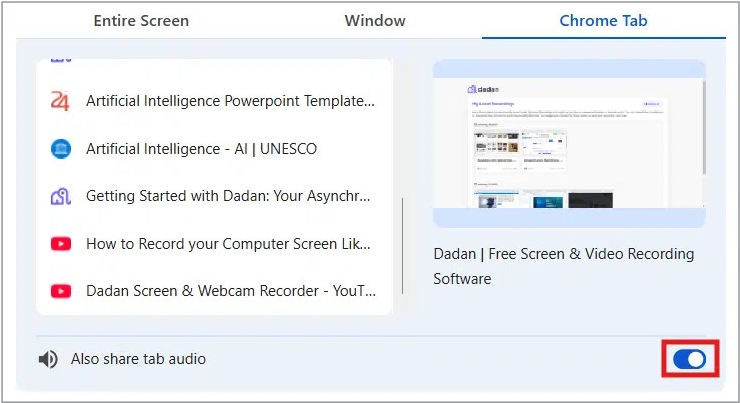
- In the Tab mode, toggle off the Also share tab audio option if you don’t want to include the browser tab audio in your recording. It’s checked on by default.
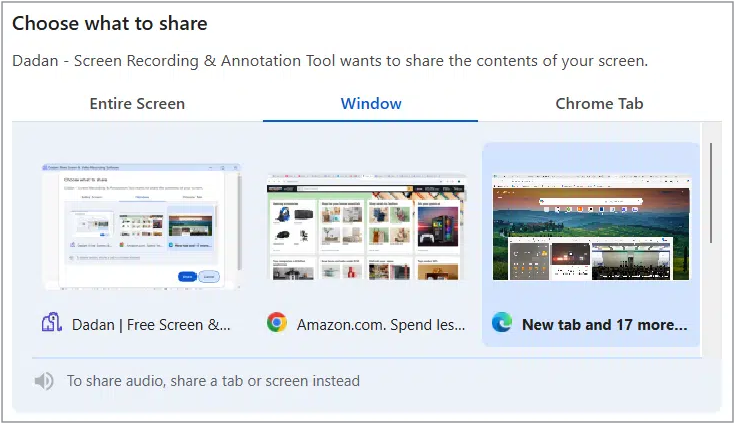
- In the Window mode, sharing the system and tab audio is not supported.
- Wait for the countdown:
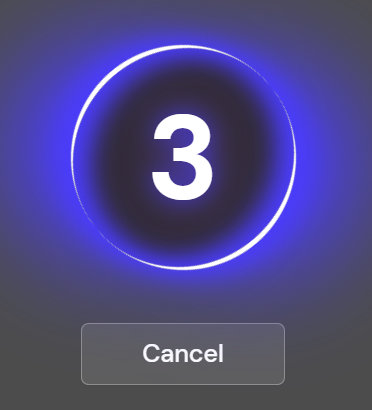
- After clicking Start Recording, you’ll see a three-second countdown before the recording begins.
- Stop recording:
- When finished, click the Stop sharing button below. By default, your video will be saved and ready to be shared!

Additional recording bar options #
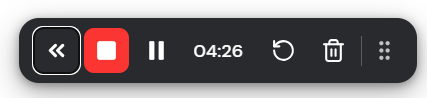
While recording, the dadan recording tool bar provides more useful options to enhance your video. These options ensure flexibility and control over your recording process, helping you create polished, professional videos effortlessly.
- Pause/Resume: Temporarily pause and resume your recording as needed.
- Annotation Tools: Highlight or draw on your screen to emphasize key points.
- Cancel Recording: Stop and discard the recording if you need to start over.
- Timer: Displays how long you’ve been recording.
To view these options:
- Click on the double arrow button.
- The extended recording bar options will appear, giving you more control over screen recording, such as enabling/disabling the mic and camera.

- The pencil button lets you draw shapes, write text, and add emojis to your screen recording.

- The mouse pointer button lets you customize your mouse pointer appearance with several options to suit your needs.
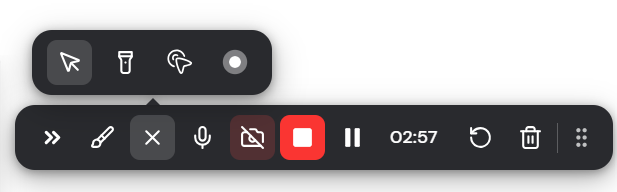
- To cancel the recording, click the trash button. To restart, click the recycle button.
Recording a video using the dadan app on a desktop #
With the dadan desktop app, recording videos is simple and more efficient.
Follow these steps to create your first video:
- Adjust settings before recording:
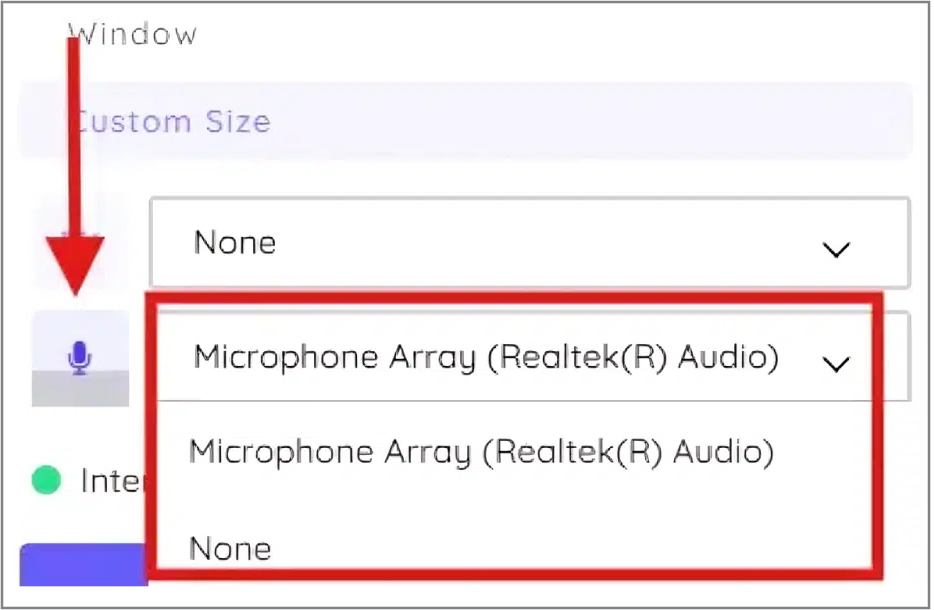
- Audio Source: Select the microphone you want to use for clear audio.
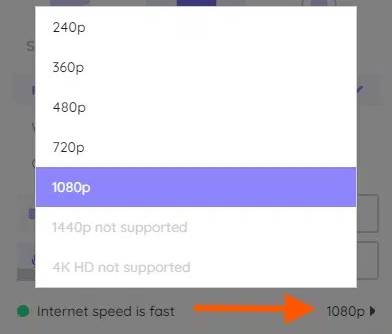
- Video Quality:
- Choose between 144p and 1080p or 4K if your screen or camera supports it.
- System audio and flip the camera options:
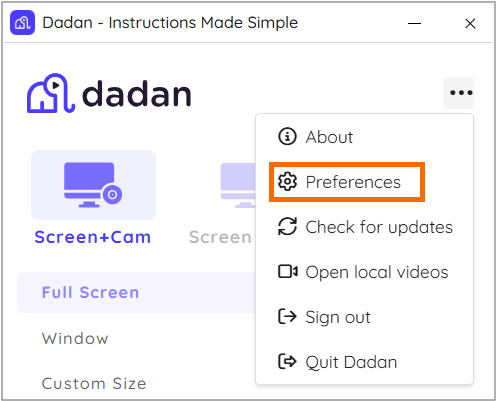
- To include them, open the dadan app settings, click the three dots […].
- Select Preferences from the submenu.
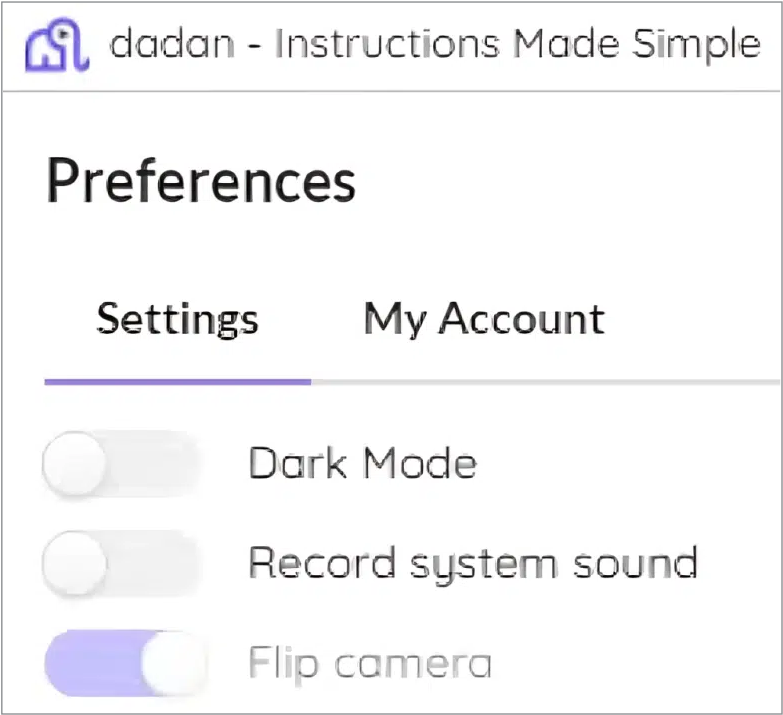
- Enable or disable Record system audio.
- Enable or disable the Flip camera option to mirror or unmirror the camera.
- Select what to record:
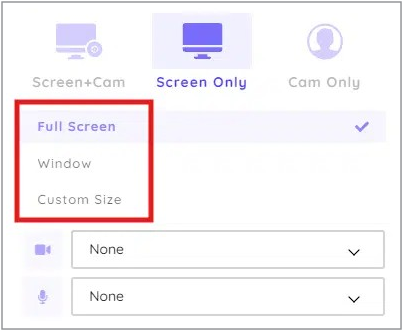
- When recording your screen, choose what part of your screen you want to capture:
- Full Screen: To record everything on your screen.
- Window: To record a specific window.
- Custom Size: To record only a selected area of your screen.
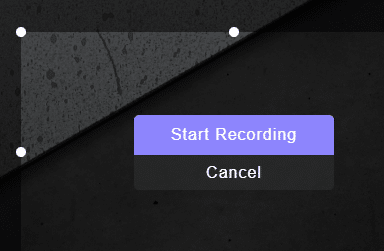
- When using the Custom Size option, drag to select the desired recording area, then confirm before starting the recording.


- Start recording:
- After selecting what to record, the recording will start automatically.
- Or you can click the Start Recording button to begin.
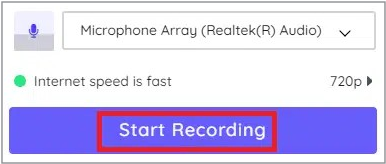
- A three-second countdown will appear, giving you time to prepare your screen.

- Use the recording toolbar:
- The dadan desktop app includes a toolbar with additional controls to enhance your video recording, such as:
- Pause/Resume: Temporarily stop and restart recording as needed.
- Drawing Tools: Highlight, draw, or write on your screen to emphasize key points.
- Timer: Keep track of the recording duration.
- Cancel Recording: Discard the recording.
- Reset Recording: Cancel the current recording and start over from the beginning.
- The dadan desktop app includes a toolbar with additional controls to enhance your video recording, such as:

- Stop and save:
- When done, click the red stop recording button in the toolbar.
Troubleshooting using the dadan browser extension #
You may encounter some problems, follow these troubleshooting steps:
- A window located outside your browser: You’ll need to manually switch to that window immediately after starting the recording. Otherwise, the recording will capture only a static image of the selected window.
- A different browser tab than your current one: You’ll need to manually switch to that tab immediately after starting the recording. Otherwise, the recording will capture a static image of the selected tab. However, if you select the wrong tab to record, you can click the Share This Tab Instead button to switch the recording to your current tab.

- Recording the camera using the dadan extension: It will not work outside the browser, even when selecting the entire screen. Also, when selecting a specific tab, the cam will not work in another tab.
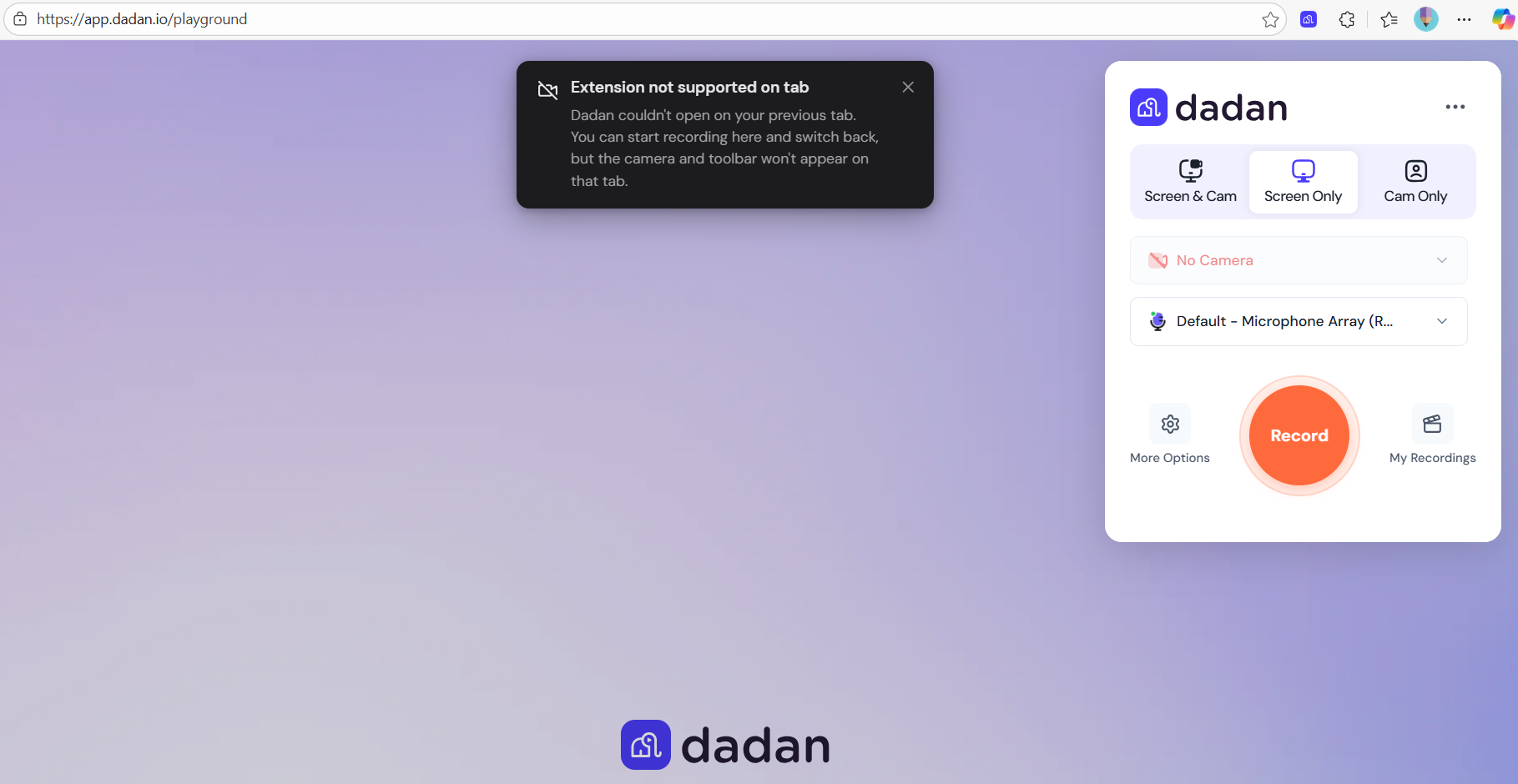
- Some websites, empty tabs, and PDF files: It cannot be recorded using the dadan extension. Instead, it will open a new tab labeled dadan Playground.
Start recording in dadan with confidence! 🚀


