
Easily upload videos to your dadan Library or Team Space to store, manage, and share your content. Currently, dadan supports MP4 and WebM files, with more formats coming soon. You can upload up to 5 GB per file and up to 5 files at once. Your upload limits depend on your subscription plan.
Looking for the full guide on video management? Check out the complete video management guide.
Steps to upload videos to your dadan account #
To upload a video, follow these steps:
- Go to the Personal Library or Team Space where you want to upload the video.
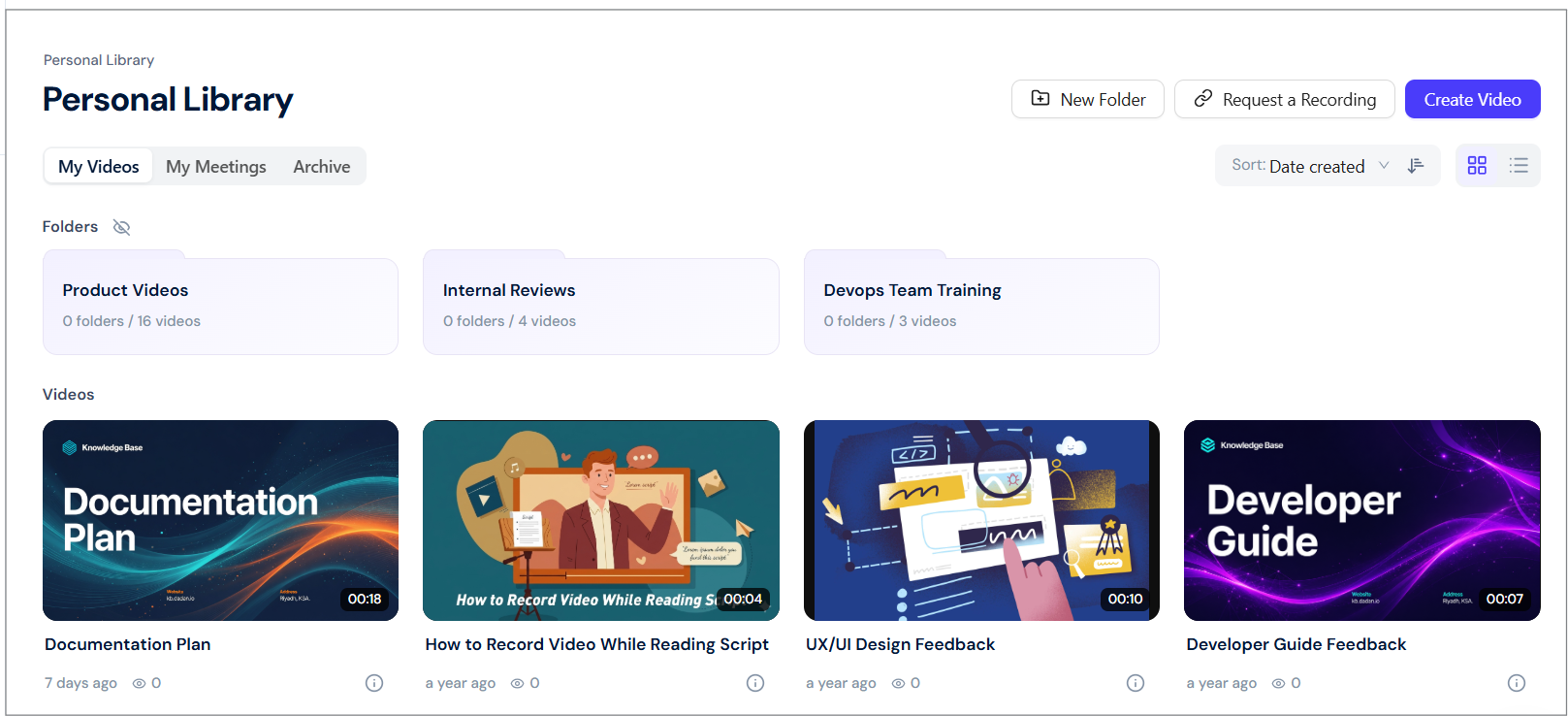
- Find and click the + Create button.
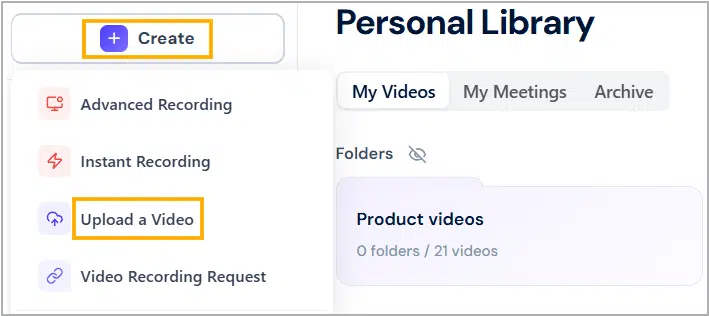
- A dropdown menu will expand. Click Upload a video.
- The Upload Videos popup will appear.
- You can drag and drop the video or click browse from your computer to select the video file manually.
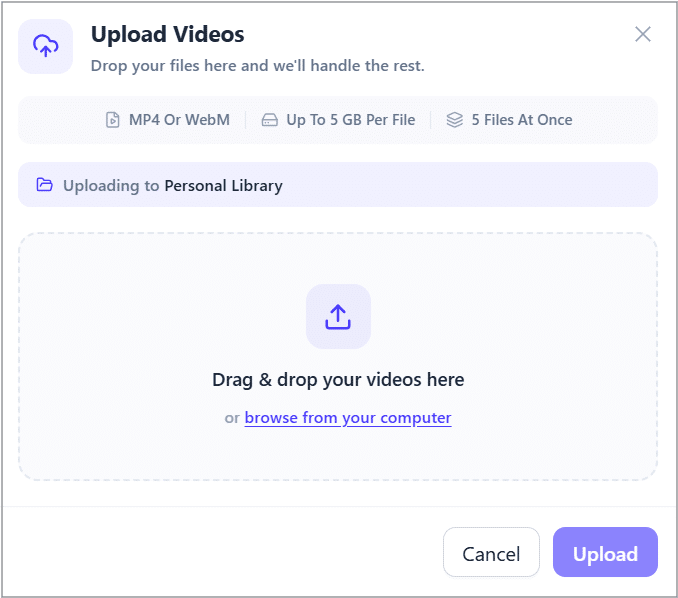
- The selected file will appear in this window. You can add more videos and continue uploading the selected video by clicking the Upload button.
- Once the upload is complete, click the Done button.
Your video will now appear in your selected space, ready for sharing or editing.
Tip: For easier video management, consider uploading directly into a folder or organizing your content right after upload.


