
As your video library grows, keeping everything organized is key. dadan makes it simple to move videos between your Personal Library, Team Space, or folders, so your content stays structured and easy to find.
Looking for the full guide on video management? Check out the complete video management guide.
Steps to move videos #
Follow these steps to move a video to a different location:
- Go to the Personal Library or Team Space where you want to upload the video.
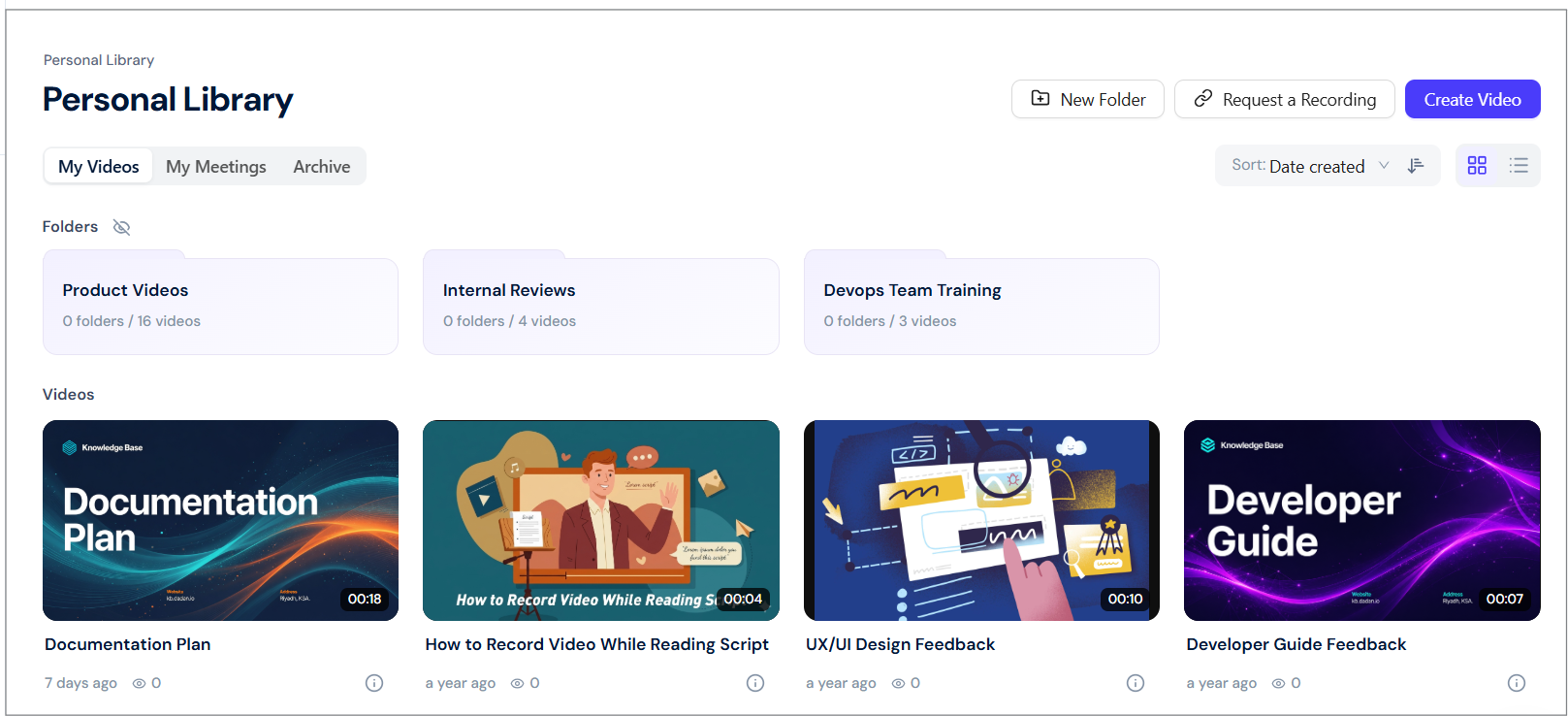
- Go to the Personal Library or Team Space where the video was uploaded.
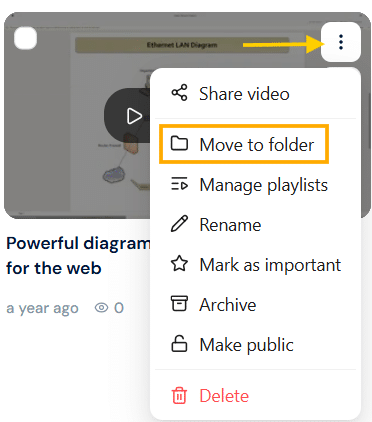
- In the Videos section, find the video and click the three-dots [⋮] button.
- A dropdown menu will expand. Click Move to folder.
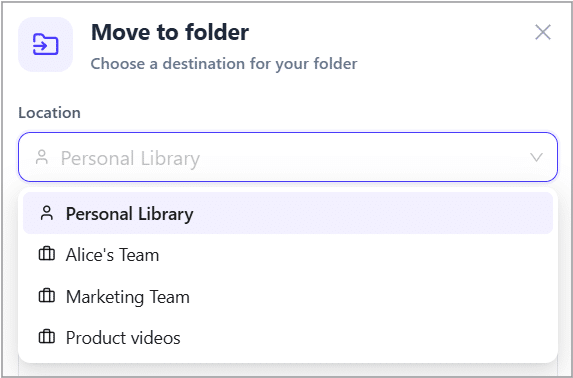
- In the Move to folder popup, select the new Location. You can choose the Personal Library or a specific Team Space.
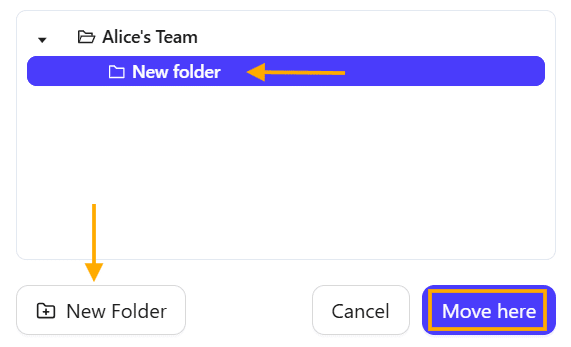
- In the location, select the desired designation folder.
- You can click New Folder to create a new folder during the move (Optional).
- Click the Move here button to complete the action.
Your video will instantly appear in the new location.
Tip: Moving videos is especially useful when organizing by project, team, or content type. Regularly tidying up helps everyone find what they need faster.
Move multiple videos #
You can move several videos at once to keep your workspace organized.
To move multiple videos:
- Click the checkmark on each video you want to move.
- Select Move To from the bottom action bar.
- Choose the target folder or workspace, then confirm.
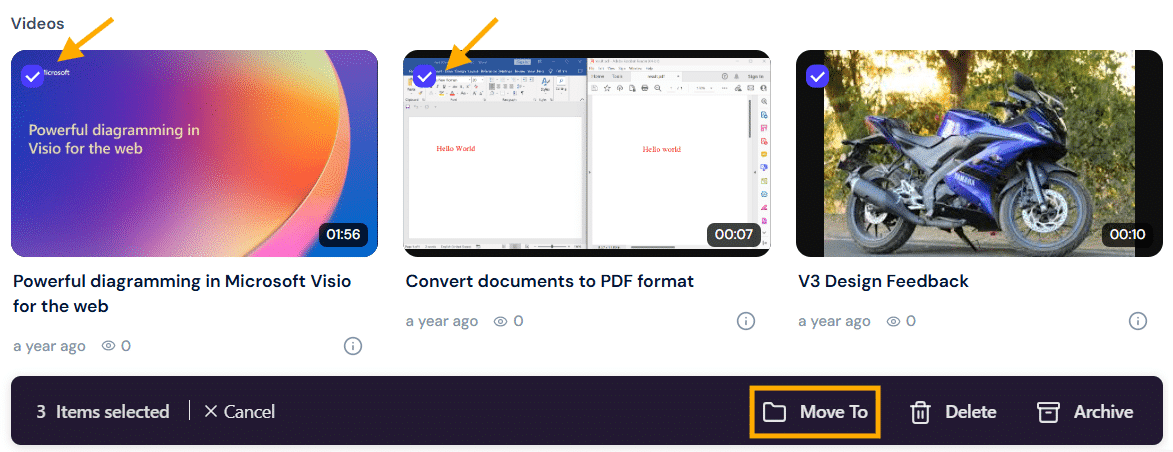
All selected videos will be instantly moved to the new location.
Tip: You can cancel the selection at any time by clicking Cancel in the control bar.


