
Archiving lets you keep your dadan Library and Team Spaces tidy without losing important content. Archived videos are hidden in your main views but still stored safely in your account.
Looking for the full guide on video management? Check out the complete video management guide.
Steps to archive videos #
To archive a video:
- Go to the Personal Library or Team Space where the video was uploaded.
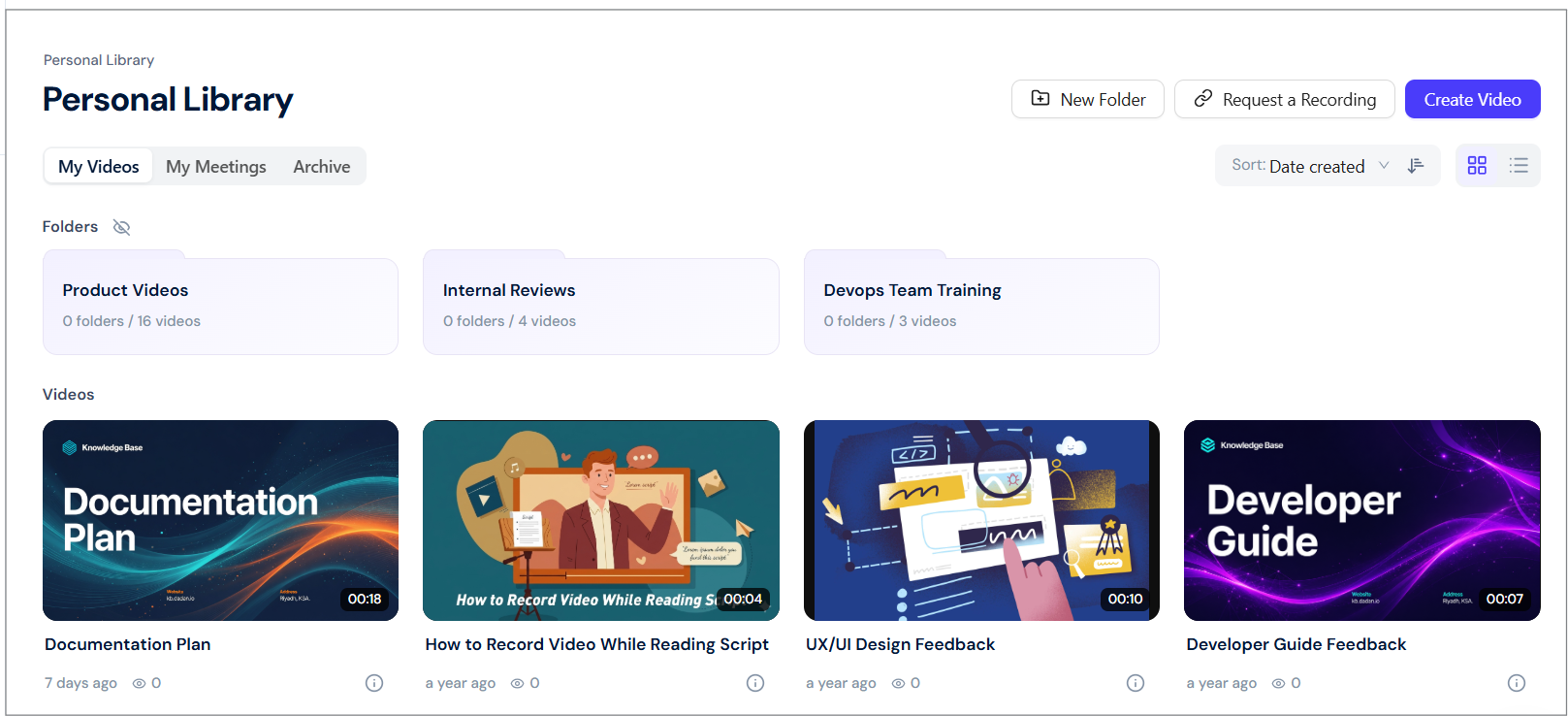
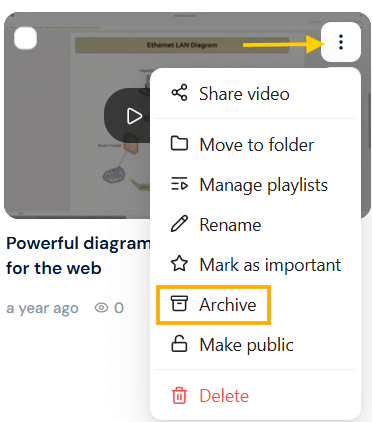
- In the Videos section, find the video and click the three-dots [⋮] icon.
- A dropdown menu will appear. Click Archive.
- A confirmation dialog box will appear. Click the Yes, archive it! button to continue sending the selected video into the Archive menu.

Archived videos are moved to the Archive menu and no longer show in your Personal Library, Team Spaces, or folders.
Tip: You can always restore an archived video later if you need it again.
Archive multiple videos #
Archiving helps you keep your main dashboard tidy without losing your content.
To archive multiple videos:
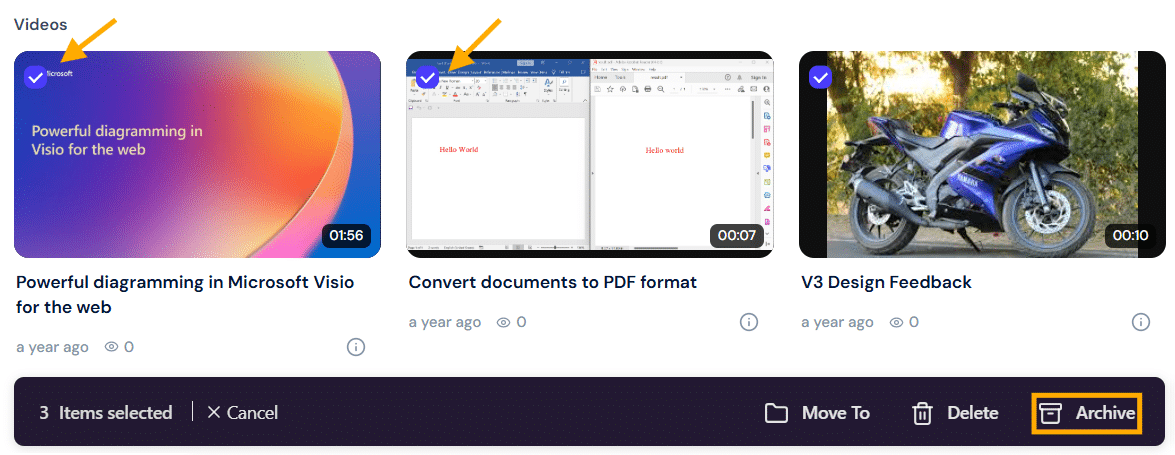
- Click the checkmarks on the videos you want to archive.
- Select Archive from the bottom bar.
- The videos will move to your Archived tab, where you can restore them later if needed.
Note: Archived videos remain private and accessible only to you until restored.


