
Sharing your dadan recordings is quick and easy, whether you want to send a link, post on social media, or embed your video. In this guide, we’ll walk you through the different sharing options available, including public and team-sharing methods. If security is a concern, you’ll also learn how to add extra protection to your recordings.
How to share your dadan video #
You can share your dadan video with anyone in the blink of an eye. Here are a few ways you can share your recording:
- Copy and paste the shareable link.
- Share on social media.
- Embed (only for Pro plan).
- Share with team members (only for Pro plan).
Copy and paste the shareable link #
You can use the auto-generated link to quickly share your recording with anyone, anywhere.
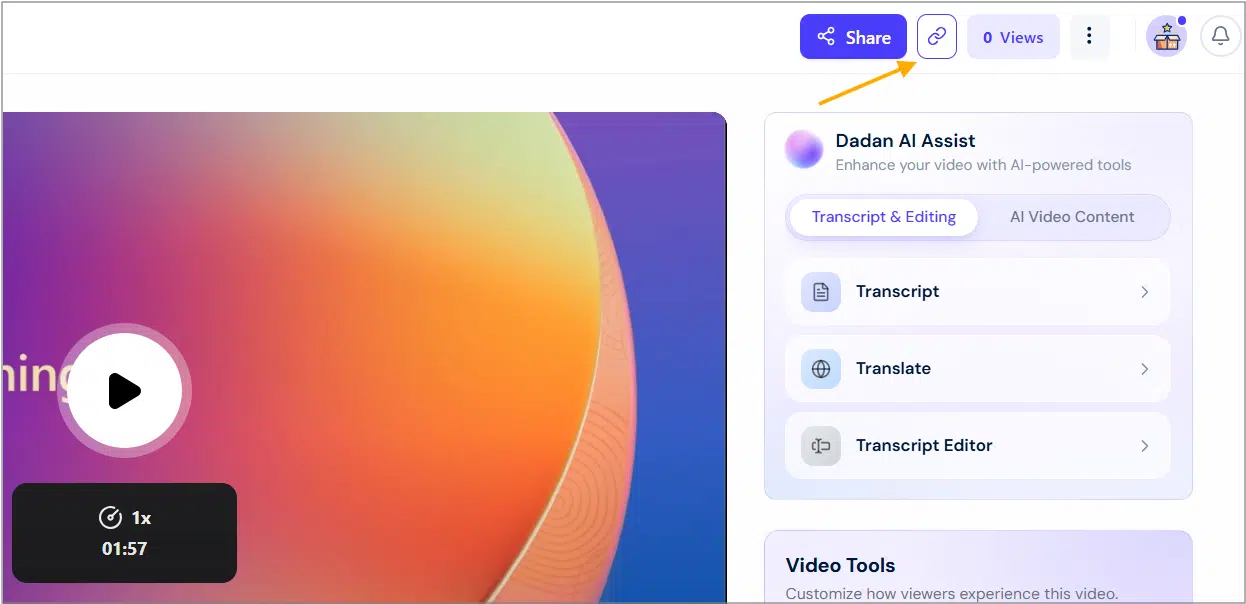
- Click the quick copy link button on the video playback screen to copy the video URL.
Share on social media #
With dadan, easily share your recording on social media with just a few clicks.
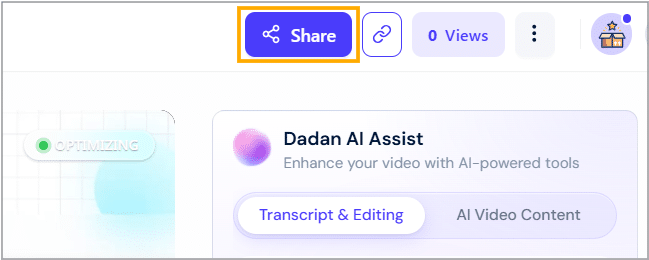
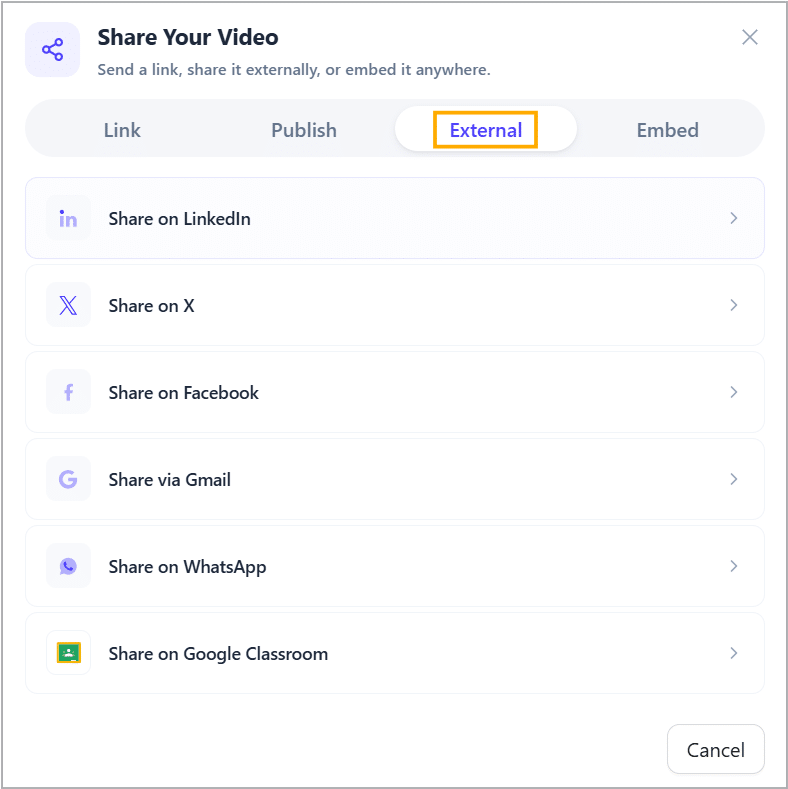
- Click the Share button, then select the External tab to post your video directly.
- Select your preferred social media platform.
- This will automatically copy the video URL to paste into a new social media post or conversation.
💡 TIP: Use the shareable link to post your video on other social media platforms that are not on the list.
Embedding #
Dadan also lets you grab the embed link to include your video in a blog article, an online course, an email campaign, a social media post, or any documentation.
To embed a video:
- Select the Embed option.
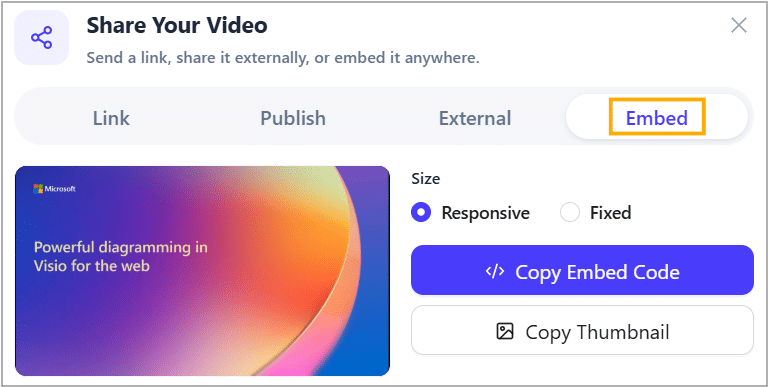
- Keep the Responsive size option to make the embedded video size adaptable with the embedding platform, or choose the Fixed size option (e.g., 640 * 360) to determine specified dimensions.

- Keep the Light Embed option enabled to simplify the video embed process and reduce the page load time.
- The thumbnail is loaded first, and when you click play, the video is loaded.
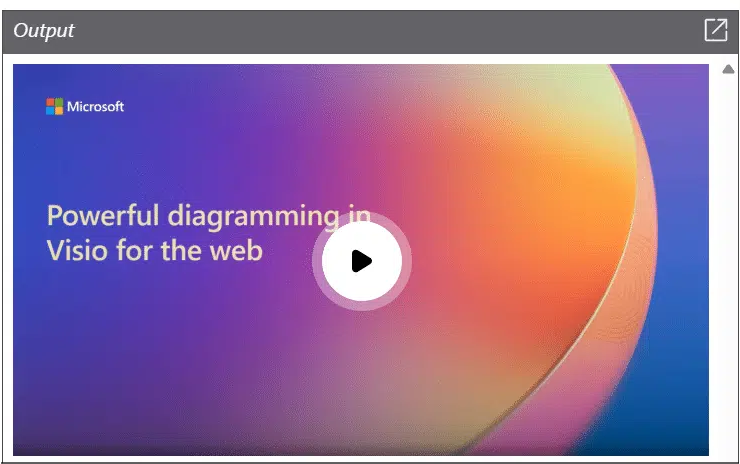
- Or choose the Full Embed option for full-featured embedding, including play speed, captions, and more.

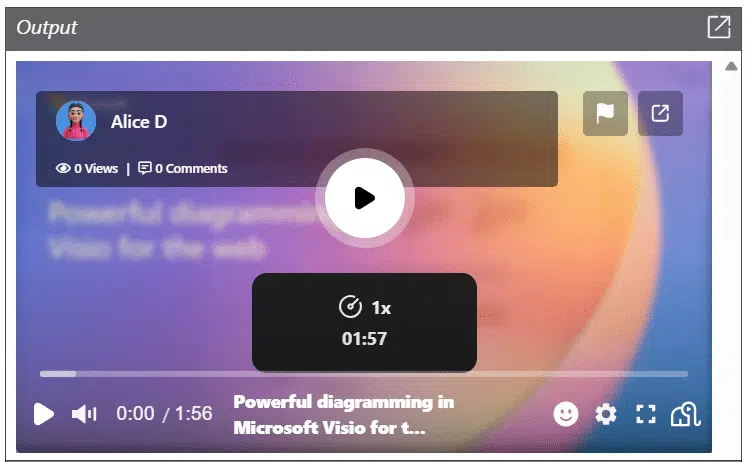
- Choose from the options below to customize the video’s embed code easily.
- Toggle on your preferred options and click </> Copy Embed Code.
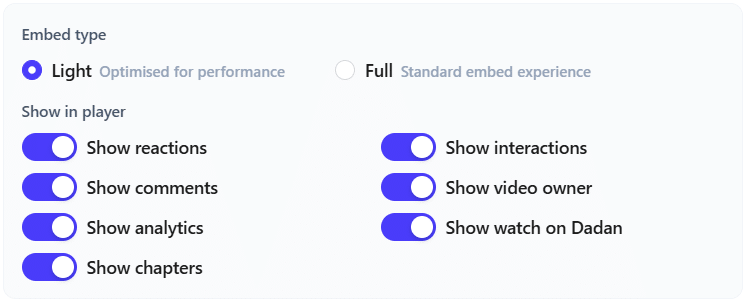
Note: To include the video thumbnail in email sharing, click Copy Thumbnail (For Email Sharing) and paste it in your email text body.
Share with a team member #
Dadan recordings are usually saved to your Personal Library. To share a video with your team members, you move it to one of the team space folders:
- Click the three dots in the top-right corner of the video you want to move, then select the Move to option from the dropdown menu.
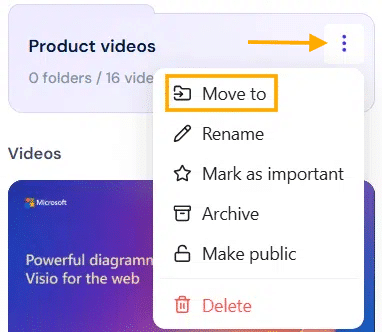
- Select the target team folder, then click Move here.
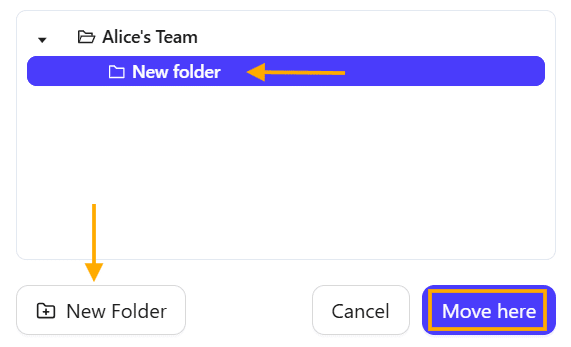
The video is now shared with your team space.
Your shared videos #
All videos you share remain accessible in your Personal Library. You can revisit them anytime, track engagement, or adjust sharing settings.
To open your shared videos:
- Select the Shared Videos section in the left bar at the Personal Library.
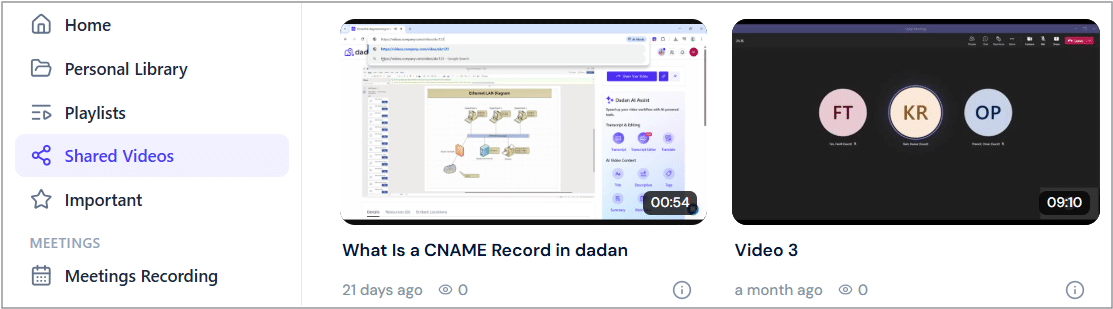
Note: To stop video sharing links, follow this guide section: How to stop video sharing links.
Video share page #
All videos you share have a video share page that is different from the playback page.
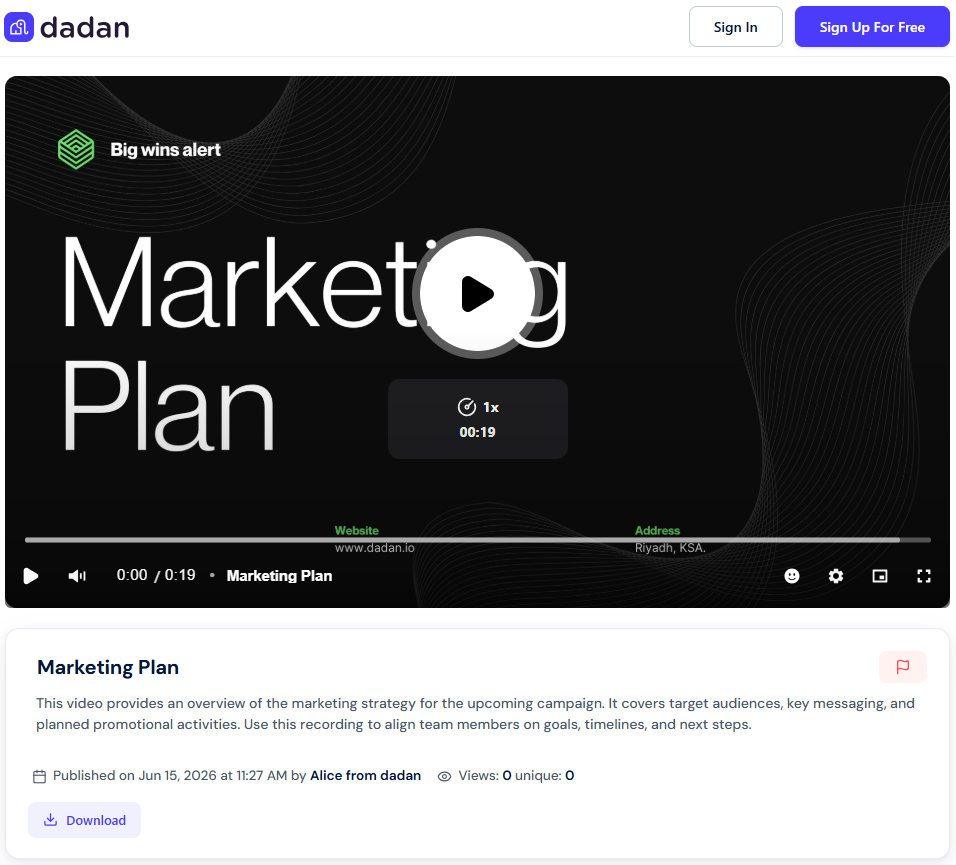
The Video share page has these features:
- Show download button: Allows viewers to download the video directly from the page.
- Show report button: Enables viewers to report any issues or inappropriate content.
- Show transcript tab: Provides access to a text version of the video content.
- Show resources tab: Offers additional materials or links related to the video.
- Show author name: Displays the creator’s name for transparency and credit.
- Show views count: Shows the number of times the video has been viewed.
- Show sign-in/sign-up buttons: Prompt viewers to log in or create an account to access enhanced features.
Notes:
- To customize your Video Share Page in general, follow the Managing appearance settings and video share logo in the dadan guide.
- To customize these sharing page settings for a specific Video Share Page, follow the How to control the share settings of the dadan video and comments guide.


