
A standout feature of dadan is its Slack integration, which lets you instantly share recorded videos in Slack channels or direct messages. This is perfect for team updates, quick feedback, async communication, onboarding, or sharing demos without leaving the dadan platform.
Videos shared via this integration appear as native links or uploads in Slack (depending on setup), making them easy for your team to view, comment on, and react to right in the conversation.
Prerequisites #
- A dadan account (paid plan; integration requires a Pro plan or higher).
- A Slack workspace where you have permission to add apps/integrations or post to channels.
- Admin access in Slack may be needed for initial app installation in some cases.
Connect dadan with Slack #
To connect dadan to Slack, follow these steps:
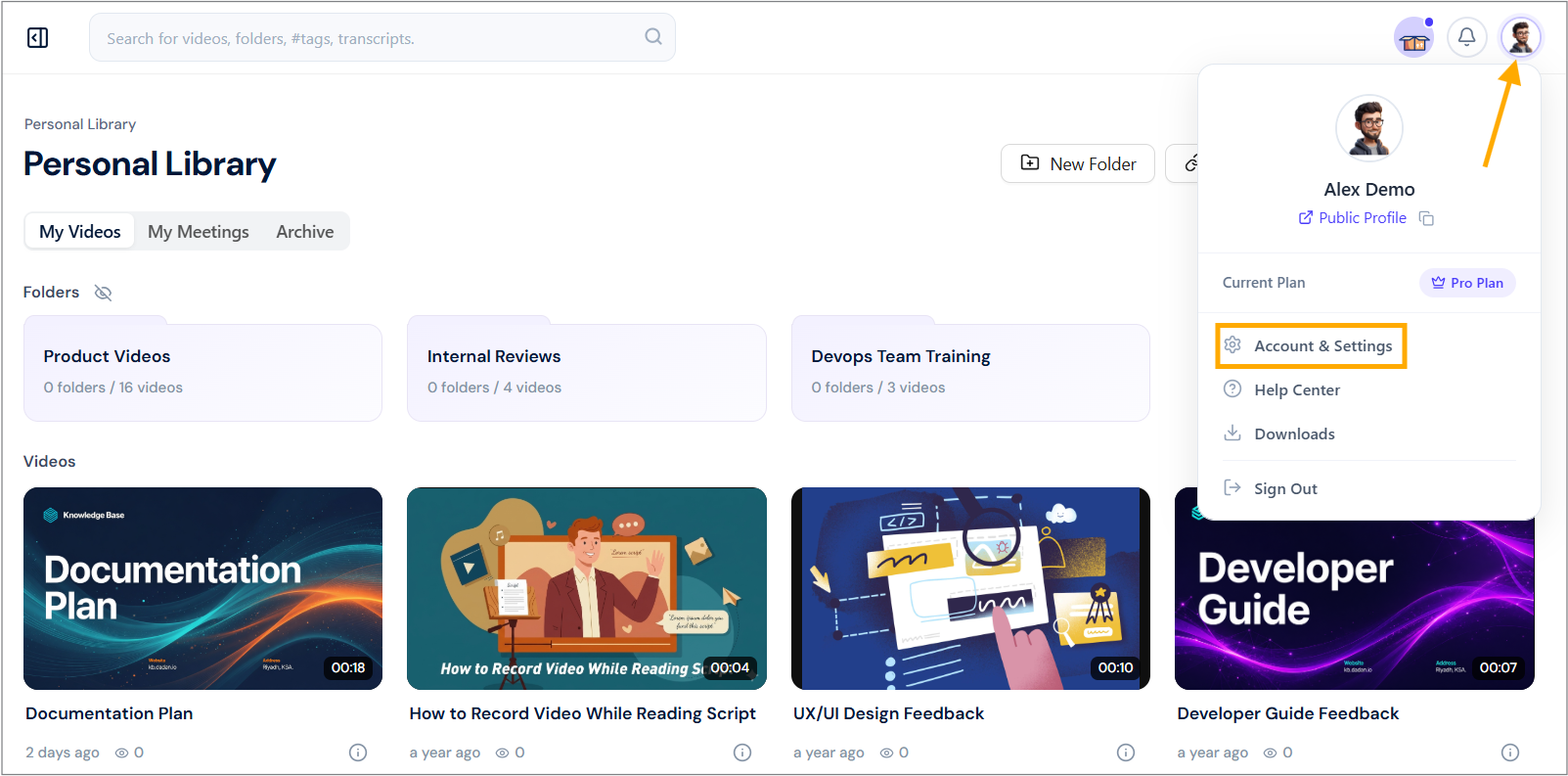
- Navigate to your dadan account and click your profile icon in the top right corner.
- Select Account & Settings from the dropdown menu.
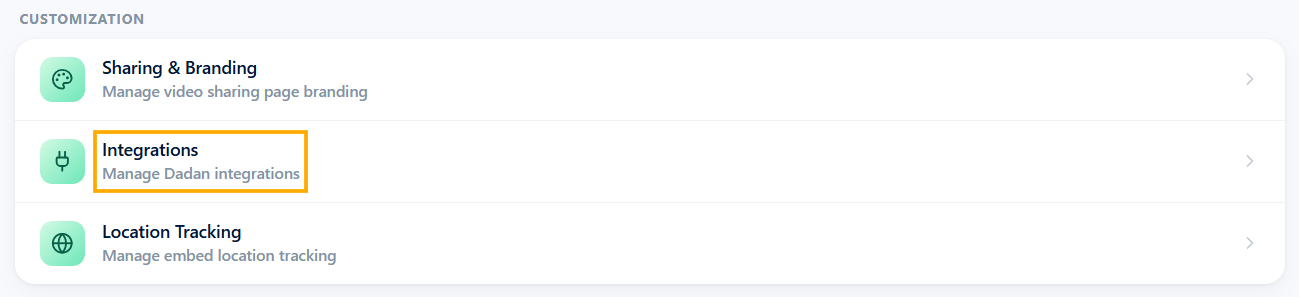
- In the Customization box, click the Integrations section.
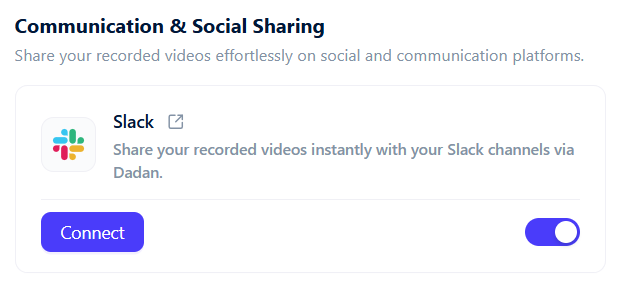
- Under the Communication & Social Sharing section, locate the Slack integration option.
- Click Connect, and a pop-up will appear prompting you to enter your Slack details.
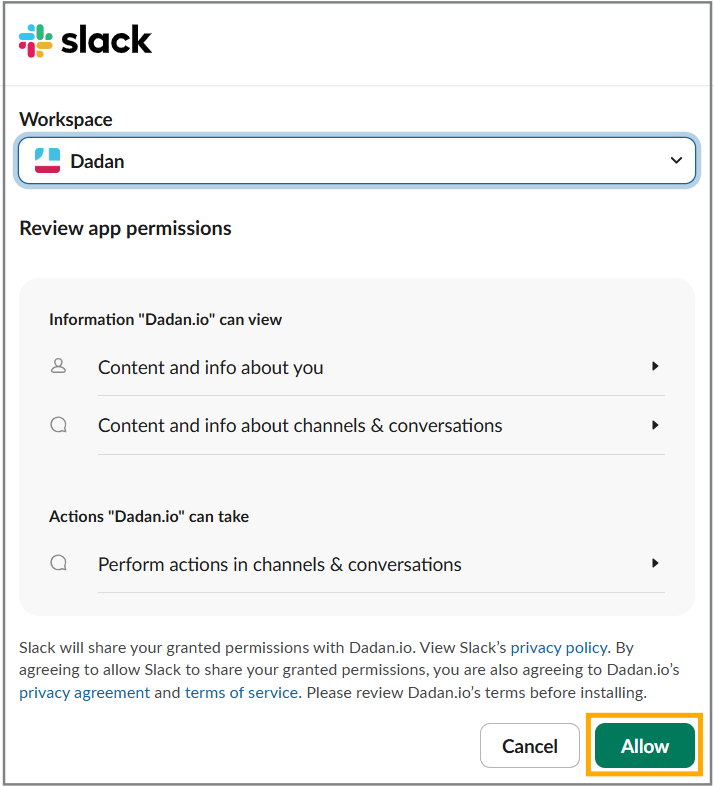
- You will be redirected to Slack for authorization.
- Review the permissions requested by dadan.io (e.g., Content and info about you, Content and info about channels & conversations, and perform actions in channels & conversations).
- Make sure you understand that Slack will share your granted permissions with Dadan.io, and that you are also agreeing to Dadan.io’s privacy agreement and terms of service.
- Click Allow to grant access. Once connected, the status will change to Connected.
Publish to Slack #
To publish the dadan video to your Slack company page, follow these steps:
- Open your video in your dadan library.
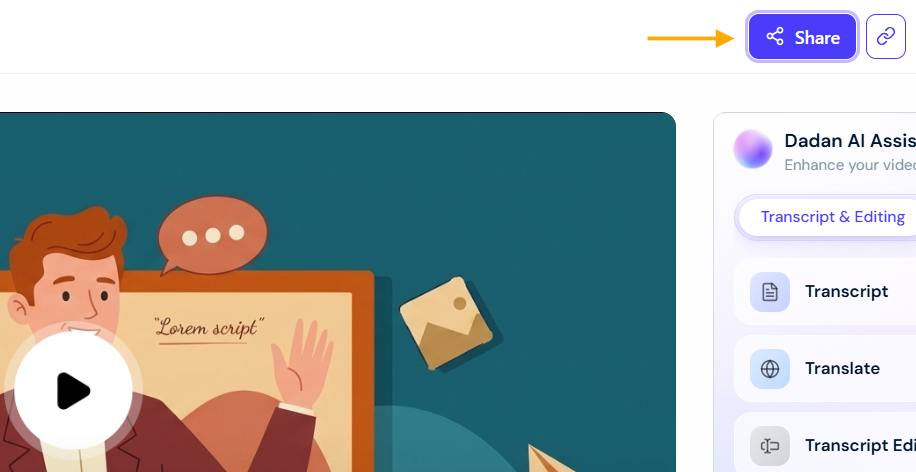
- Click the Share button (usually in the top-right corner).
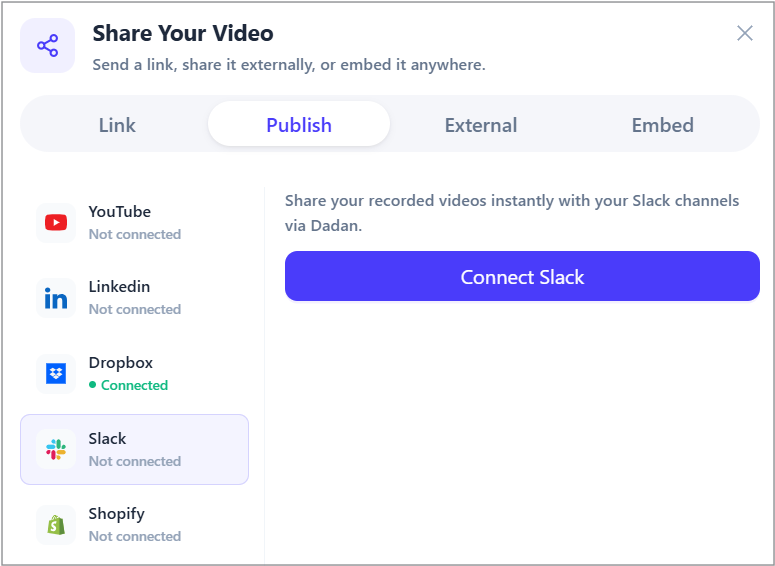
- In the Share Your Video pop-up, select the Publish tab.
- Slack will appear in the list of connected platforms (along with others such as YouTube, Dropbox, etc.).
- If not already connected, click Connect Slack here and follow the authorization steps.
- Toggle Include description to add a custom caption or AI-generated description (Optional).
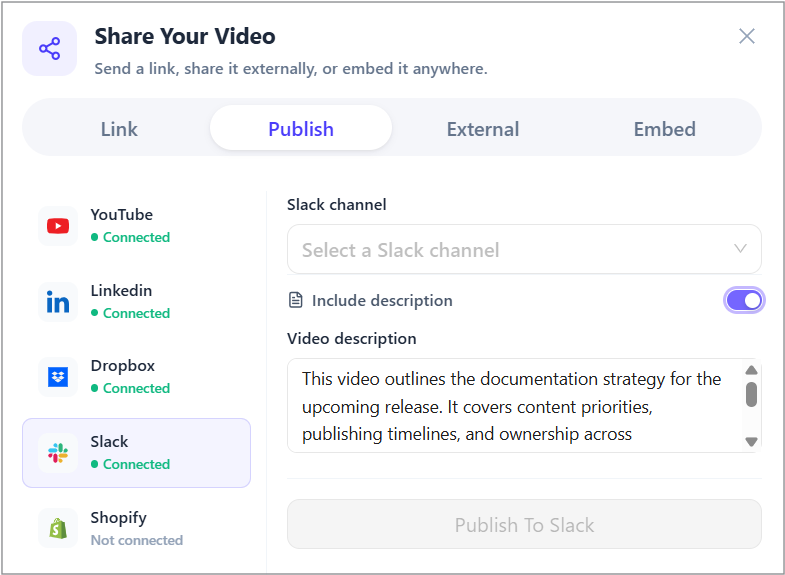
- In the Slack Channel box, select your Slack channel you want.
- Click Publish To Slack.
- The video will upload/posts directly to your Slack channel or DM as a shareable video message.
Tips #
- After sharing, team members can reply with threaded comments, reactions, or even request follow-up videos in Slack.
- Use this for async standups, bug reports, quick wins, or training snippets to reduce meeting fatigue.
- Manage or revoke the connection at any time in dadan Integrations settings or in your Slack workspace apps section.
- For team spaces in dadan, Slack notifications can also alert you about interactions (views, comments) on shared videos.
- Videos shared this way often appear with previews, transcripts (if enabled), and play directly in Slack for seamless viewing.
This Slack integration streamlines team communication, making video a first-class citizen in your daily workflow. Happy sharing! 🚀
See also:


