
If clicking Start Recording has no effect, the issue is usually related to browser permissions, extension conflicts, or session sync. Try the fixes below in order.
Quick fixes #
- Reset the dadan extension:
Openextensionsin your browser, disable the dadan extension, then re-enable it.
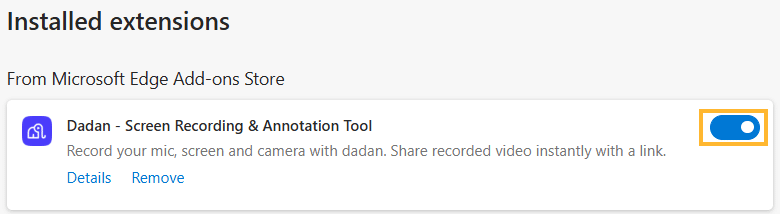
- Reinstall the extension:
Remove the dadan extension and install the latest version from the Chrome or Edge Web Store.
- Check your login session:
Make sure you are logged into your dadan account in the same browser profile where the extension is installed.
- Disable ad blockers:
Temporarily turn off ad-blocking extensions.
Note: Adblock Plus is known to interfere with recording start and uploads.
- Verify system permissions:
Ensure your browser and operating system allow access to:- Microphone.
- Camera (if enabled).
- Screen recording.
- Try Incognito (InPrivate) mode:
Open an Incognito window, enable the dadan extension, and try recording again. This helps rule out conflicts with other extensions.
If the issue persists after trying these steps, restarting the browser often resolves hidden permission or memory issues.


