
When one input works and the other does not, the problem is usually caused by mismatched permissions, incorrect device selection, or interference from virtual devices. Follow the steps below to align the two inputs correctly.
Quick fixes #
- Reset microphone and camera permissions:
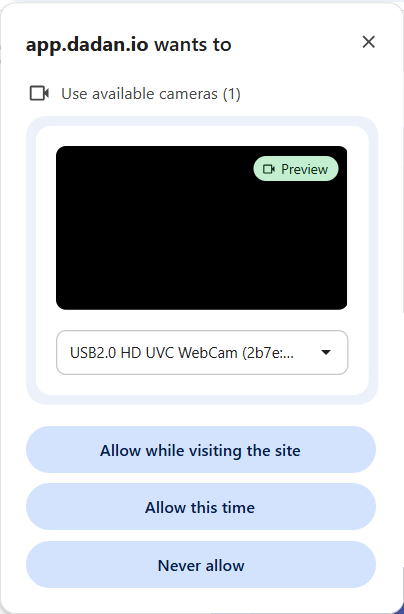
Click the site settings icon to the left of the address bar and reset permissions for both the microphone and camera. Reload the page and allow access again when prompted.
- Restart the browser:
Close all browser windows completely, then reopen the browser to clear locked device sessions.
- Select the correct device in the recorder:
Open the device drop-down menus in the recorder and verify that the correct microphone and camera are selected.
- Disable virtual audio or camera tools:
Turn off virtual mic or camera software (such as OBS virtual devices or similar tools), as they can override or block physical devices.
These steps usually resolve partial input issues and ensure both audio and video are captured correctly.


