
If your audio is missing or not detected during recording, the issue is commonly related to browser restrictions, blocked permissions, or microphone conflicts. Follow the steps below to restore audio capture.
Quick fixes #
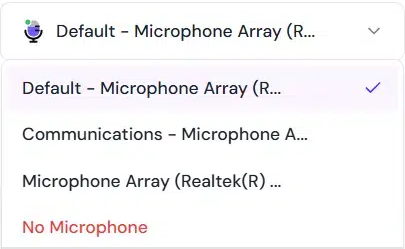
- Confirm the correct input device:
In the recorder settings, make sure the intended microphone is selected from the input device drop-down.
- Disable ad blockers:
Temporarily turn off all ad-blocking extensions, as they can prevent audio capture or interrupt recorder initialization.
- Restart the browser:
Fully close the browser and reopen it to release any locked audio devices.
- Close other apps using the microphone:
Shut down applications such as Zoom, Microsoft Teams, or Google Meet that may be using the microphone in the background.
- Use the browser recorder:
If the issue persists with the extension, switch to the dadan browser recorder for more reliable audio detection.
These steps resolve most audio capture issues and help ensure your voice is recorded clearly.


