
Dadan now records your meetings for you through the Meetings Hub. Connect your calendar (or paste a meeting link), and Dadan joins the call, records it, and turns it into an AI-powered recap — a searchable workspace with a summary, transcript, decisions, and action items. This guide walks you through setting it up and getting the most out of every recording.
In this guide
Link to section: In this guide- Meeting Settings — connect a calendar and control what gets recorded
- Meeting Recaps — review recordings and pull out insights
- FAQ
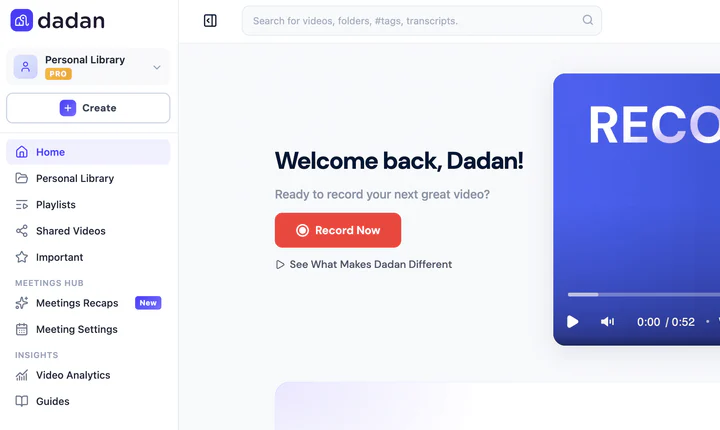
When you log in, you’ll find both under Meetings Hub in the left-hand menu.
Meeting Settings
Link to section: Meeting SettingsMeeting Settings is where you connect your calendar, decide which meetings to record, and keep an eye on your recording time.
Connect your calendar
Link to section: Connect your calendarConnecting a calendar lets Dadan see your upcoming meetings and record them automatically.
- Go to Meeting Settings.
- Click Manage Calendars.
- Choose Connect Google Calendar or Connect Outlook Calendar.
- Sign in to your account and grant access when prompted.
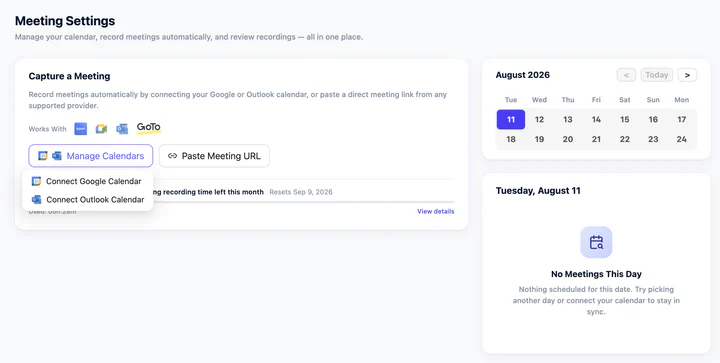
Note: Dadan supports Google and Microsoft calendars. You can connect one calendar per provider.
Record a meeting that isn’t on your calendar
Link to section: Record a meeting that isn’t on your calendarFor ad-hoc calls that aren’t on your connected calendar, you can point Dadan straight at the meeting link.
- Click Paste Meeting URL.
- Paste the meeting link.
- Confirm to schedule the recording.
Supported platforms: Google Meet, Microsoft Teams, GoTo Meeting, and Zoom.
Check your remaining recording time
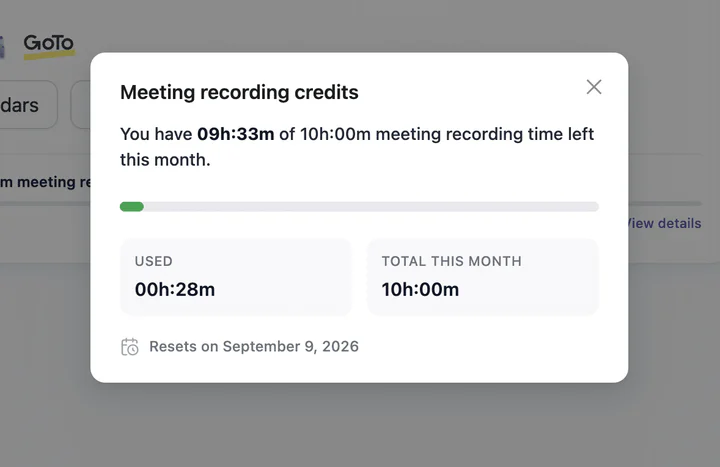
Link to section: Check your remaining recording timeYour plan includes a set amount of recording time each month. To see where you stand, click View details. You’ll see how much you’ve used, your total for the month, and the date your allowance resets.
Choose which meetings to record
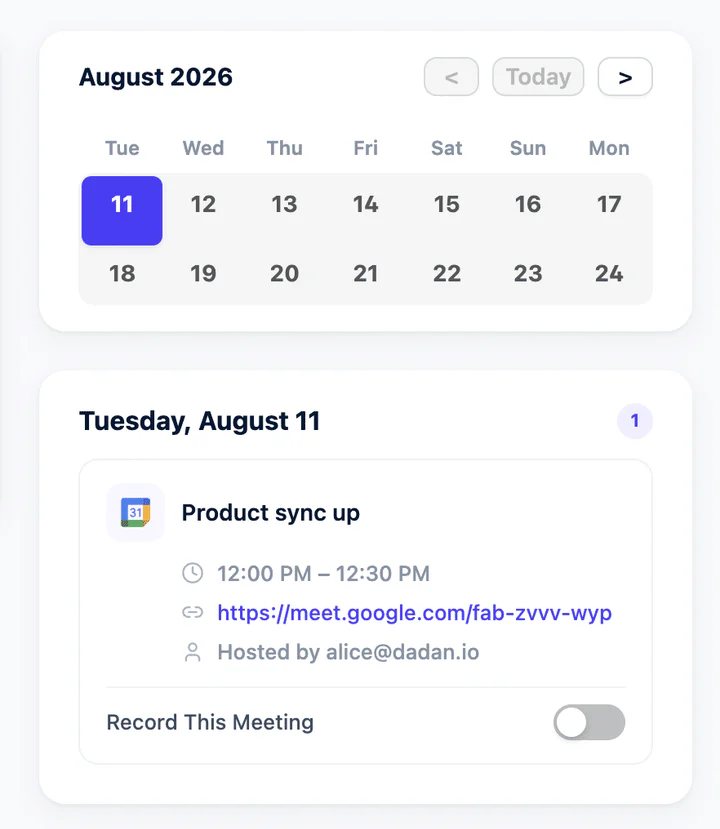
Link to section: Choose which meetings to recordYour upcoming meetings appear in the calendar on the right. Recording is controlled per meeting, so you decide exactly what Dadan captures.
- Find the meeting in the calendar panel.
- Use the Record This Meeting toggle to turn recording on or off for that meeting.
Meeting Recaps
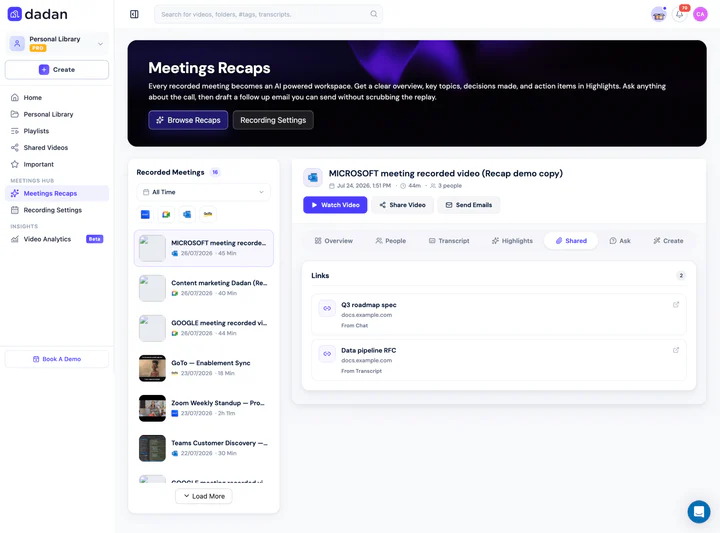
Link to section: Meeting RecapsEvery recording becomes a Meeting Recap — an AI-powered workspace where you can read the summary, search the transcript, review decisions and action items, and follow up, all without rewatching the call.
Open a recap
Link to section: Open a recap- Go to Meeting Recaps to see your list of recorded meetings.
- Click any meeting to open its recap.
What’s inside a recap
Link to section: What’s inside a recapEach recap is organized into tabs:
| Tab | What you’ll find |
|---|---|
| Overview | Meeting duration, host, how many people spoke, and how many turns each took. |
| People | Participant details, including how long each person spoke and their email address. |
| Transcript | The full transcript, with the meeting language detected automatically. Filter by person to see one participant’s contributions. |
| Highlights | A high-level summary, action items, an outline, the decisions made, and the overall sentiment of the discussion. |
| Shared | Any files or links shared in the meeting chat. |
| Ask | Chat with the Meeting AI to pull information from the call — ask for a summary or details in a specific format. Answers include timestamps to where each point was discussed. |
| Create | Generate different versions of the meeting summary. Preview, export, or copy them into your emails, and regenerate if the result isn’t quite right. |
Note: Participant emails (in the People tab and in follow-up emails) are only available when the meeting was recorded through a calendar invite. If you recorded by pasting a meeting URL, Dadan can’t provide attendee email addresses.
Watch, share, or follow up
Link to section: Watch, share, or follow upFrom the top of a recap you can:
- Watch Video — open the video player, where you can translate the subtitles or send the recording to the editor.
- Share Video — copy the video link or share it by email.
- Send Emails — send a follow-up to attendees (see below).
Send a follow-up email
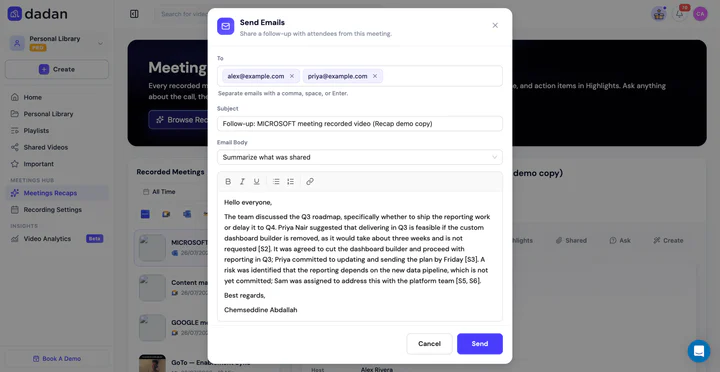
Link to section: Send a follow-up emailDadan can draft and send a recap email to attendees for you.
- Click Send Emails to open the email window.
- Review the recipients. If attendee emails are available, they’re prefilled — add or remove addresses as needed.
- Check the subject and body, which come prefilled with the meeting highlights and summary.
- Edit anything you’d like, then click Send.
Frequently asked questions
Link to section: Frequently asked questionsWhich meeting platforms does Dadan support?
Link to section: Which meeting platforms does Dadan support?Google Meet, Microsoft Teams, GoTo Meeting, and Zoom.
Can I connect more than one calendar?
Link to section: Can I connect more than one calendar?You can connect one calendar per provider — one Google calendar and one Microsoft calendar.
Why don’t I see participant email addresses?
Link to section: Why don’t I see participant email addresses?Emails are only available when the meeting is recorded through a calendar invite. If the recording was started by pasting a meeting URL, attendee emails aren’t available.
What language does the transcript support?
Link to section: What language does the transcript support?Dadan automatically detects the meeting language and generates the transcript in it.
How do I know how much recording time I have left?
Link to section: How do I know how much recording time I have left?In Meeting Settings, click View details to see your used and remaining time for the month, plus your reset date.
))

))