
The dadan Chrome extension lets you record your screen, webcam, or both directly from your browser. It is suitable for creating tutorials, client presentations, or team updates without extra software.
Follow this guide to install the dadan extension on Chrome and begin recording quickly.
Dadan Chrome extension installation steps #
To install dadan Chrome extension:
- Visit the dadan website:
- Sign up for a dadan account.
- Open the dadan download page and click Download under the Chrome Extension icon.
- Alternatively, visit the dadan Chrome extension page directly.

- Add the extension to Chrome:
- Click the Add to Chrome button on the extension page.
- Confirm by selecting Add Extension in the pop-up window.

- Wait for the installation:
- The extension will automatically install and appear as a dadan icon on your browser toolbar.

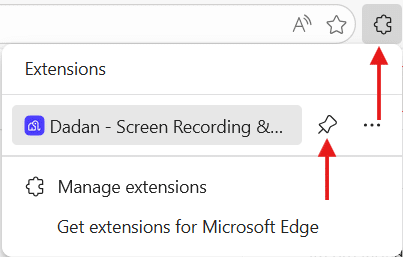
- Pin the dadan icon:
- Click on the browser extensions icon to pin the dadan icon and add it to your extensions bar.
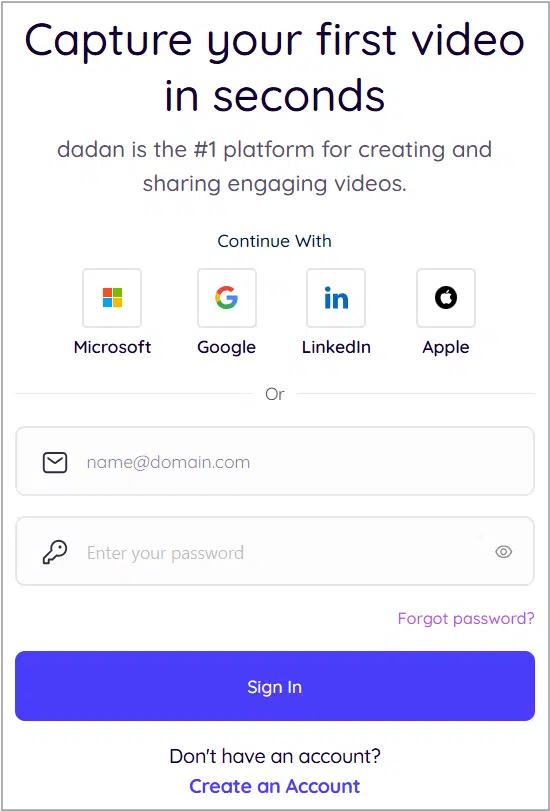
- Log in to dadan:
- Click the dadan icon in the toolbar.
- Sign in using your dadan credentials, Google, or Microsoft account for seamless access.

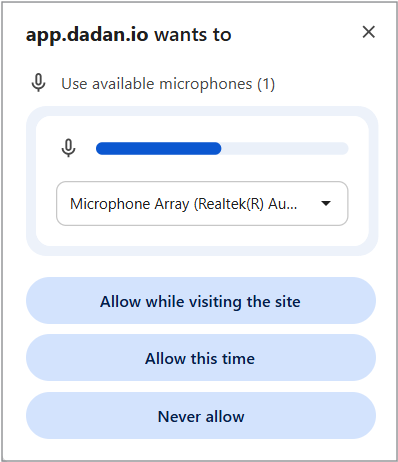
- Allow microphone and camera access:
- Two pop-up windows will appear asking for permission to use your microphone and camera.
- Click Allow while visiting this site to grant dadan permanent access to your microphone and camera for video recording.
- For more details about the microphone and camera permissions, or if you need to reset permissions:
- Start using dadan:
- Once you have given permission, you can begin recording directly from your browser by clicking the dadan icon and selecting your recording preferences.
Notes:
- To install dadan on Windows, please visit Installing dadan on Windows: step-by-step guide.
- For a more detailed guide about using dadan in a browser extension, visit dadan browser extension: How to use dadan for video recording.


