
Call-to-Action (CTA) buttons in dadan videos help drive engagement by encouraging viewers to take actions such as subscribing, visiting a link, or exploring more content.
This guide provides step-by-step instructions on creating and customizing CTAs, including selecting button styles and integrating them seamlessly into your videos. Learn how to effectively use CTAs to increase conversions and direct viewers to additional resources.
- Note: The dadan CTA feature relies on the video AI Transcript. You’ll need to generate the transcript first, as it provides the foundation for other tools, such as AI Titles and Summaries. Otherwise, it will create the video AI Transcript before proceeding.
How to add a CTA to your dadan video #
Add a compelling CTA with precision using the steps below:
- In the dadan app (app.dadan.io), select the video where you want to add a CTA. The video playback screen will open.
- Click the Call To Action icon in the Video Tools box.
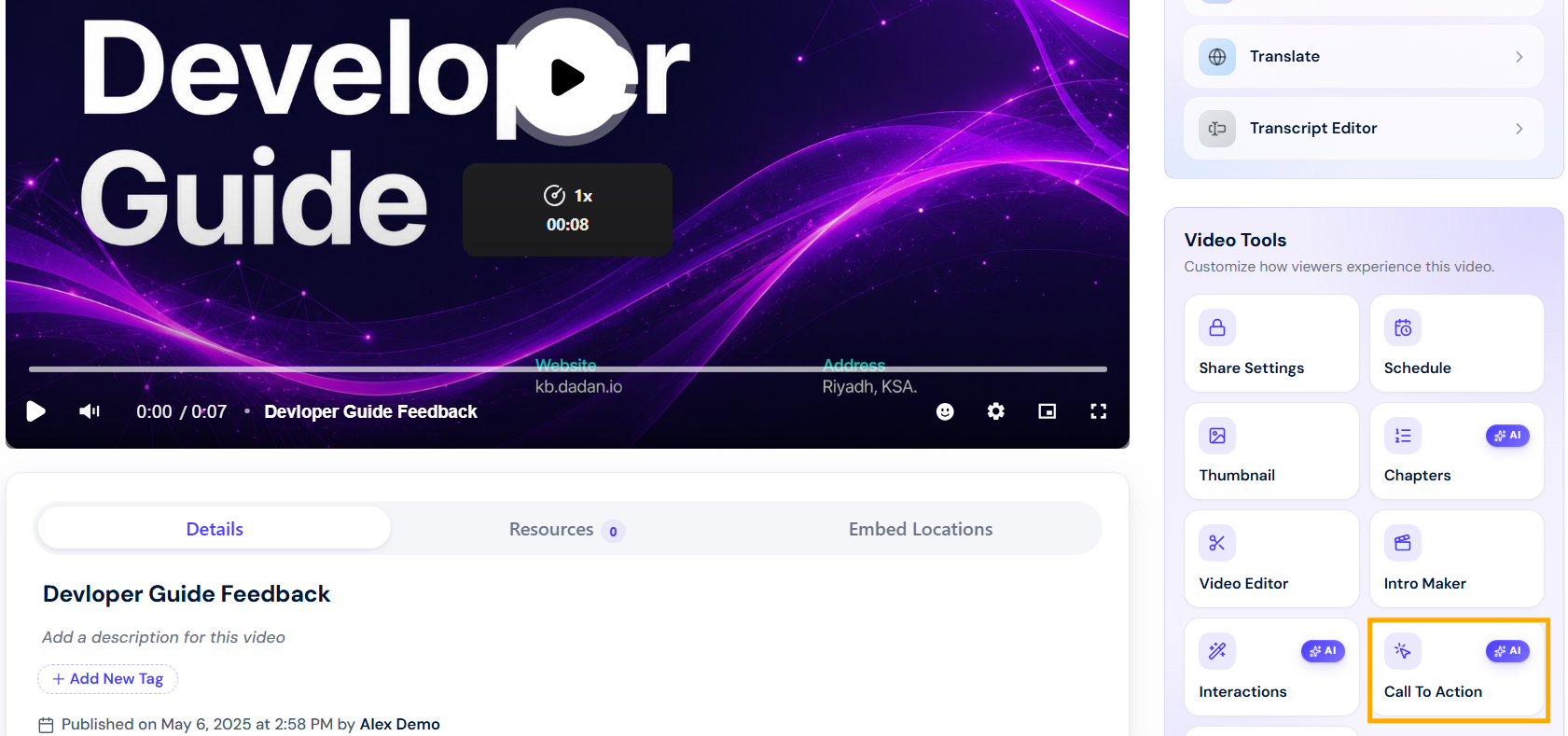
- The Call-To-Action box will open.
- Enable it to start adding a CTA.
- In the Action box, select the Link Type.
- Enter the button link in the Button URL field.
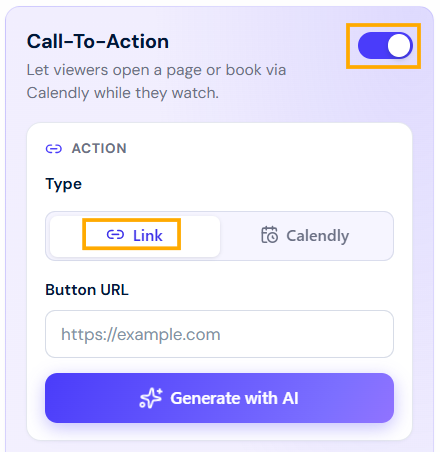
Note: For the Calendly CTA option, read How to integrate dadan with Calendly.
- A blue Call-to-Action rectangle button will appear in the video.
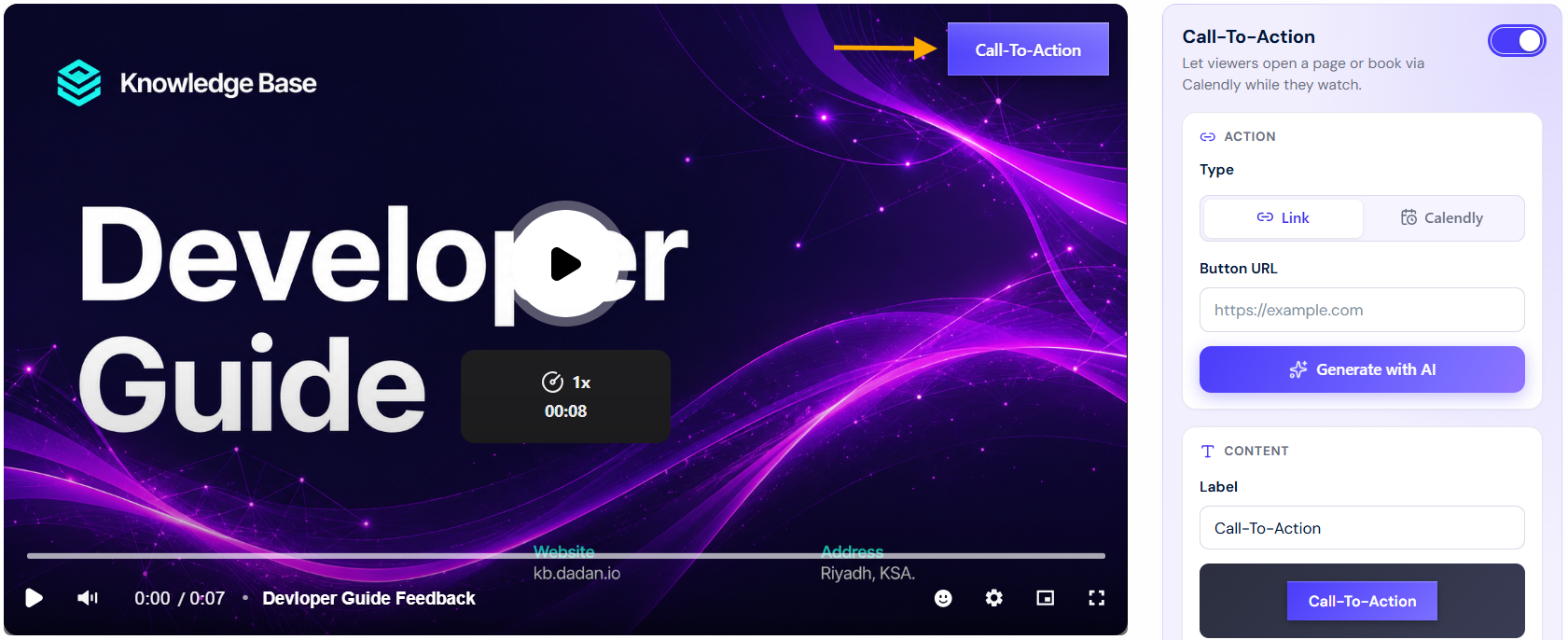
- You can enter the Button Text and Button URL manually, or click the Generate with AI button to customize your CTA using dadan Assistant.
- A message box will prompt you to transcribe your video. Click the Transcribe Your Video? button.

Note: If you have already created a transcript for your video, the CTA will be generated directly.
- Choose the transcript language and click Generate Transcript.

- Both your video transcription and CTA are ready. Click Use This CTA to apply it to your video.
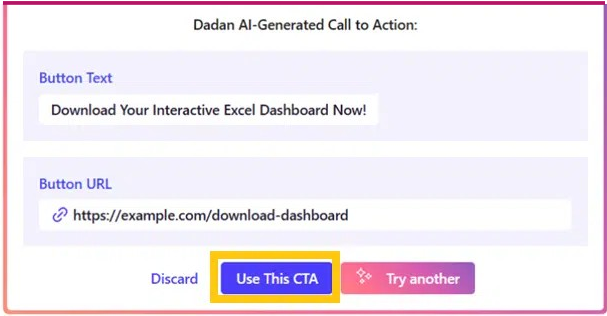
Note: If the Button URL doesn’t match your requirements, change it manually to the one you need.
Customizing your CTA button #
You can customize your CTA button in dadan to match your brand and enhance visibility. Adjust colors, text, style, and position to create a button that stands out and encourages viewer interaction.
Here’s how to do it:
- In the Appearance box, select the color and shape of the CTA button.
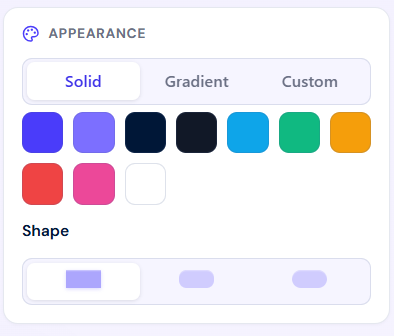
- In the Custom option, open the Text color selection menu to choose the CTA text color.
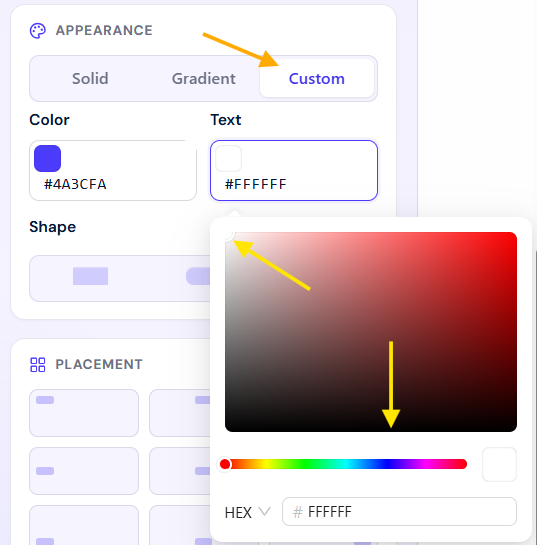
Note: To set the text color to white again, select the upper-left corner, regardless of the current color bar setting. For the black color, select the bottom line area.
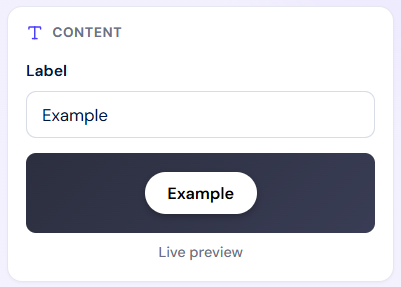
- In the Content box, there is a live preview of the CTA button.
- In the Label field, you can change the button text.
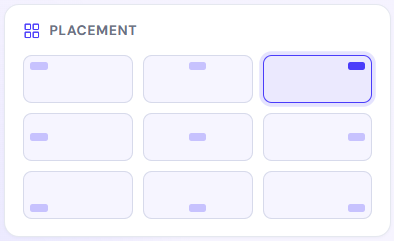
- In the Placement box, choose where you’d like to place the CTA button in your video.
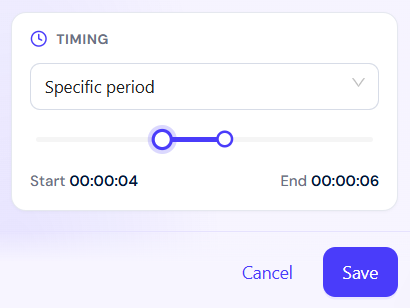
- In the Timing box, click the drop-down menu to select when the CTA button should appear:
- Entire video.
- Specific period (select the start and end time period from the time bar).
- Last 5 Seconds.
- Finally, click Save to keep the changes you made.
Congratulations! Your CTA has been successfully saved.


