When editing videos, precision matters. Whether you’re removing unwanted pauses or protecting sensitive information, dadan gives you the tools to trim and blur video segments with ease. These features help refine your recordings, maintain viewer focus, and ensure your content is both polished and secure.
This guide covers trimming sections of your video to eliminate distractions and applying blur effects to specific areas. You’ll also learn how to adjust their position, duration, size, and intensity directly from the timeline and control panel.
- Note: Read the How to edit videos with dadan guide before proceeding.
How to trim part of a video #
Mistakes like stuttering or pauses can be easily removed. dadan’s video editor allows you to trim your recording easily.
To trim part of a video:
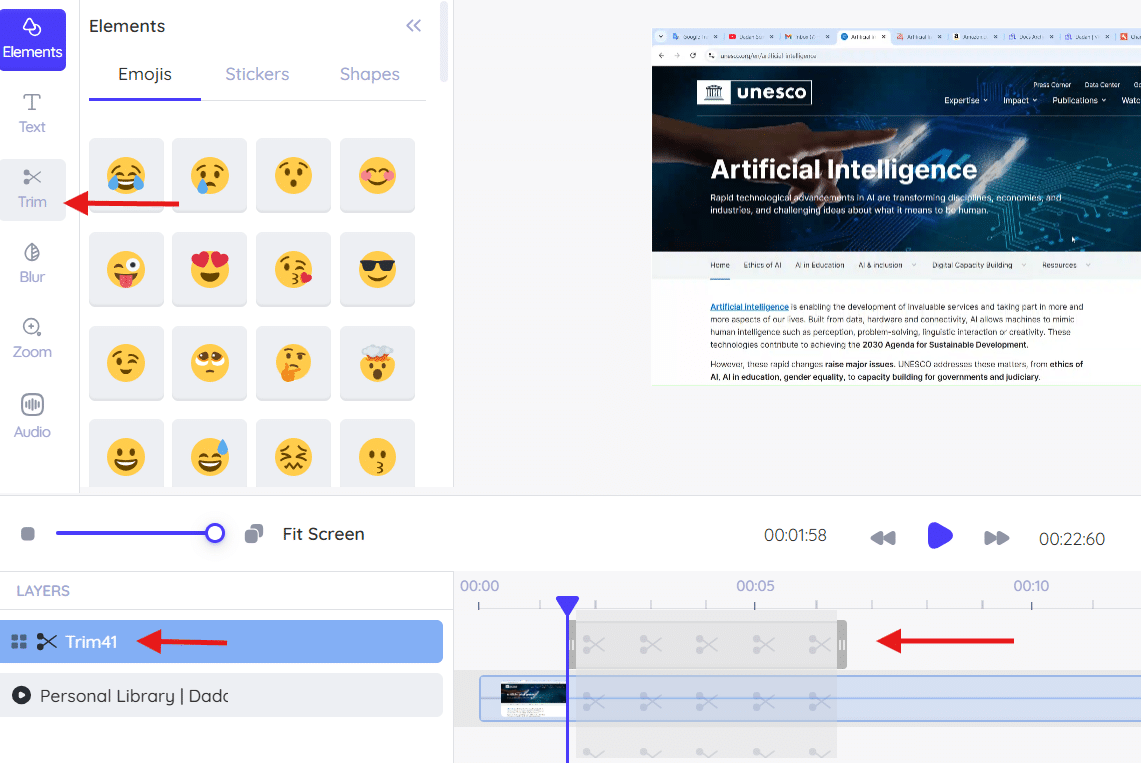
- Place the Play head where you want to cut the video on the timeline.
- Adjust the clip’s position, drag it, and drop it within the timeline.
- Click Trim from the tools panel. This will automatically add a trim layer to the timeline.
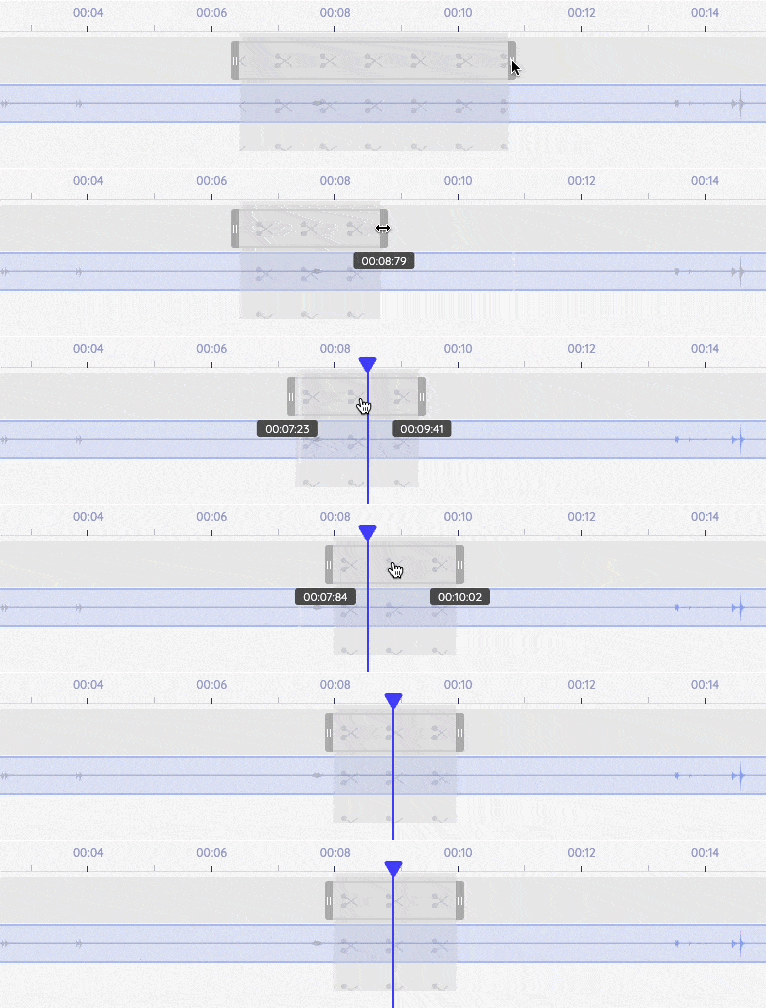
- To change the length of the clip, grab the left or right end and drag it to the desired length. You can also modify the Time settings from the control panel.
How to add blur to a video #
Adding blur can be useful for hiding sensitive information, focusing attention on specific areas, or creating a stylistic effect in your video.
To add a blur to a video:
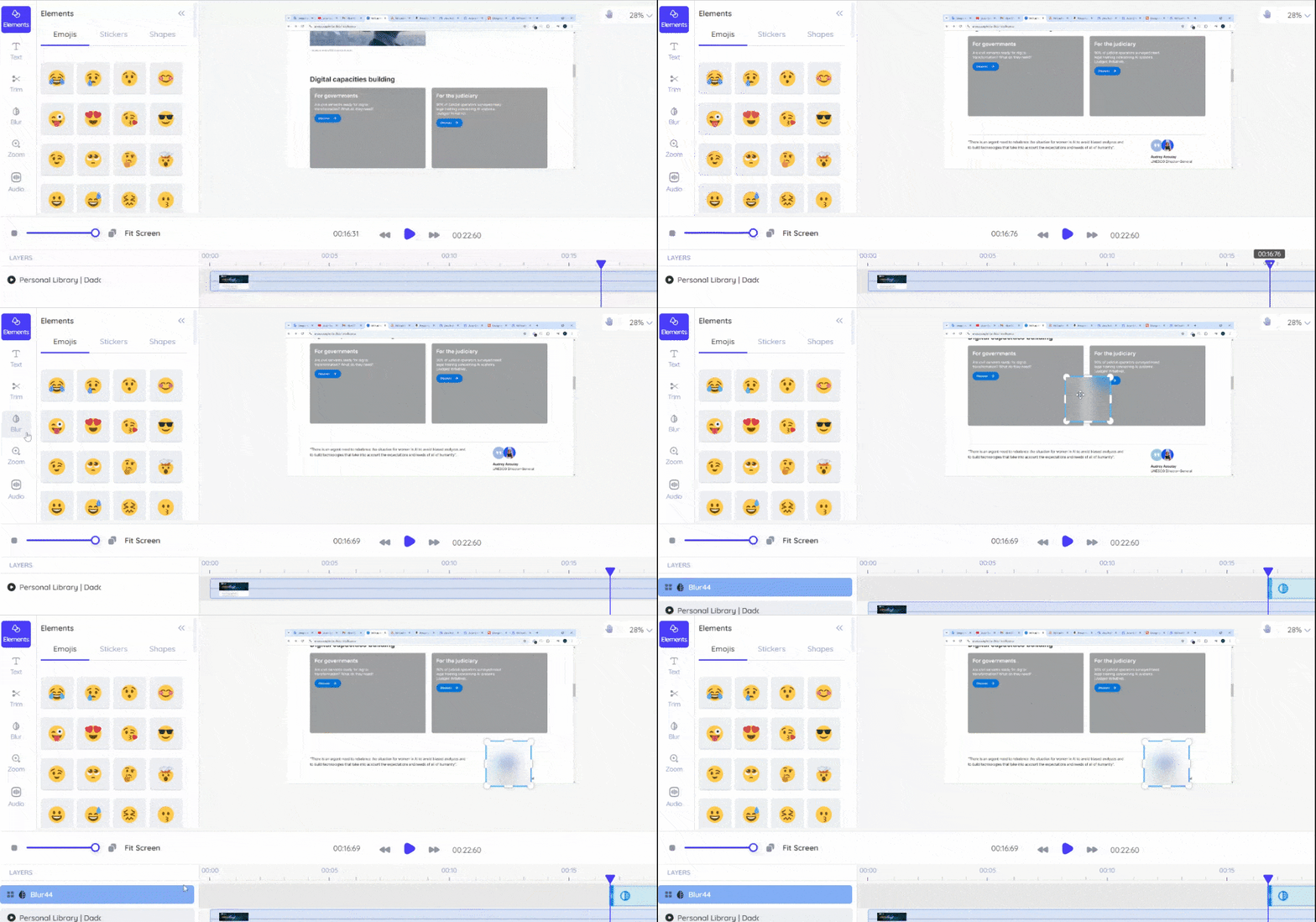
- Place the Play head on the timeline at the point where you want the blur effect to begin.
- Click Blur from the tools panel. A blur layer will be automatically added to the timeline.
- Position the blur box over the area you want to blur in the video.
Blur length and position #
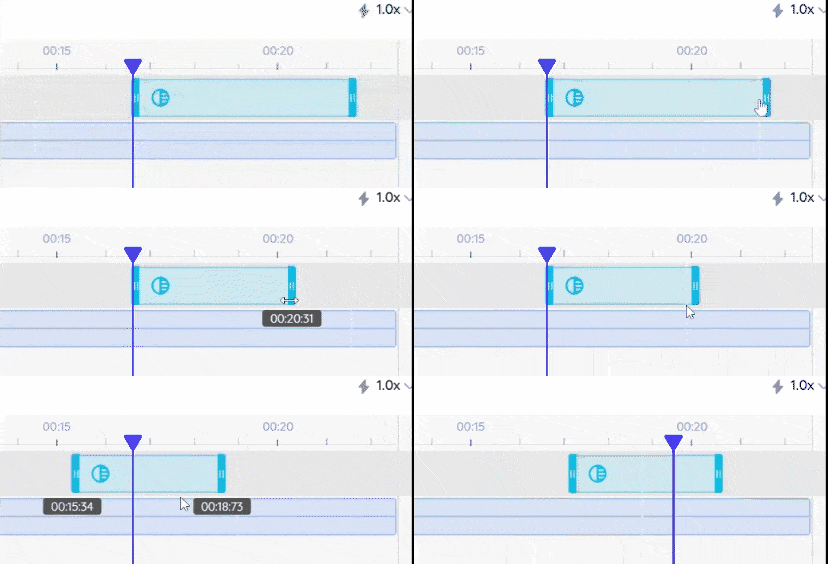
To adjust the position of the blur clip:
- Drag and drop it within the timeline.
- Grab the left or right end and drag it to the desired length to change the length of the clip. Or modify the Time settings from the control panel.
Blur size #
To adjust the size of a blur element, select either a vertex or an edge and drag it. You have two options:
- Vertex: This option maintains the current aspect ratio of the element.
- Edge: This option allows you to expand or shrink the selected side without maintaining the aspect ratio.
Level of blurriness #
To adjust the level of blurriness:
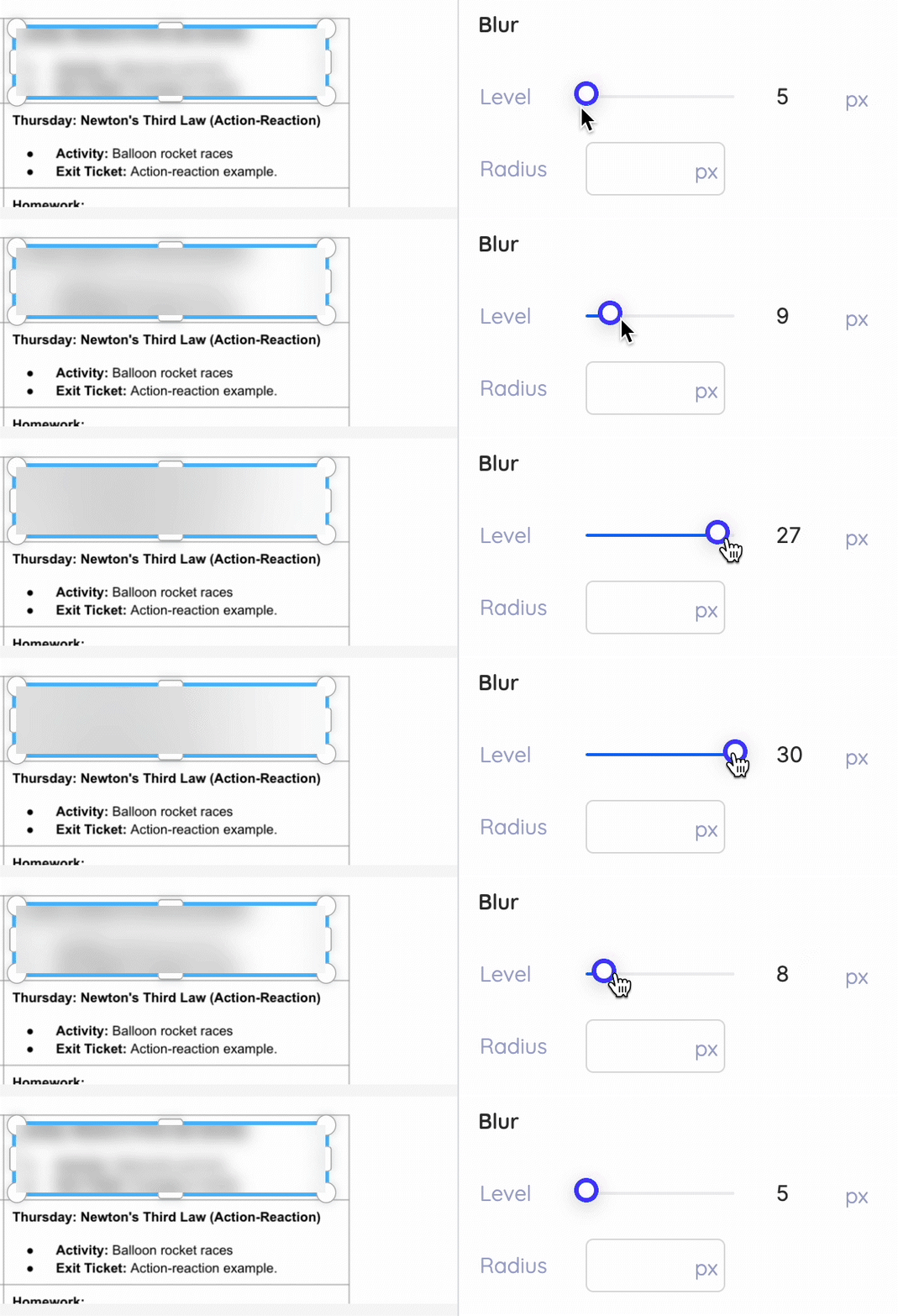
- Navigate to the Blur section of the control panel.
- Drag the circle along the Level scale to find the best setting for your video. A lower pixel value will result in less blur, while a higher pixel value will increase the amount of blur.