
Adding a true or false question to your dadan video is a simple and effective way to engage your audience and enhance their learning experience. This guide walks you through the step-by-step process to seamlessly integrate this interactive element into your video content.
Whether you prefer to create the question manually or utilize the dadan AI Assistant for automated generation, the process is designed to be user-friendly. Follow the instructions below to customize your true-or-false question and maximize the available options.
How to add a true or false question to your dadan video #
Follow these steps to integrate a true or false question into your dadan video:
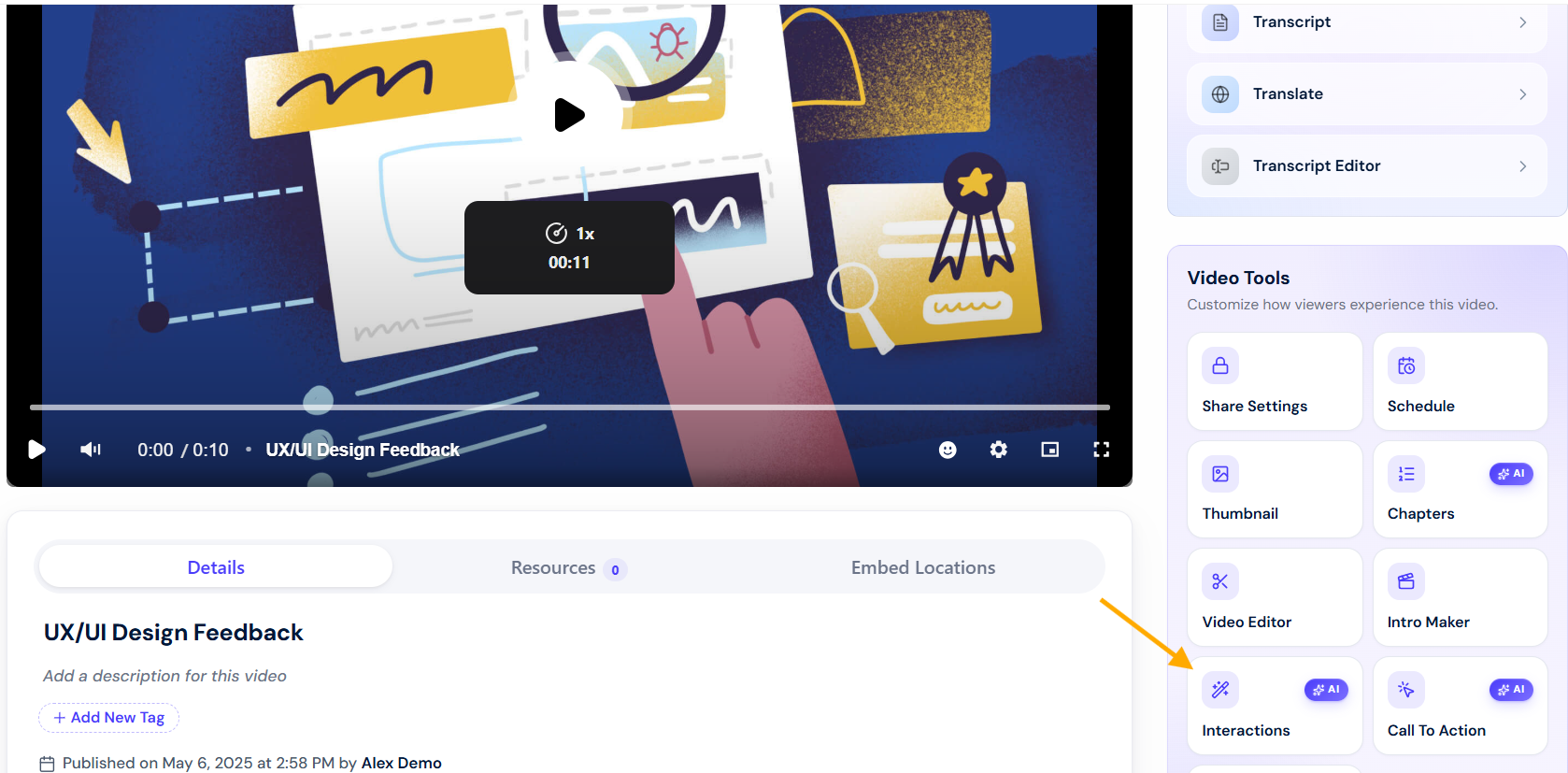
- In the playback video screen, under the Video Tools box, select the Interactions button.
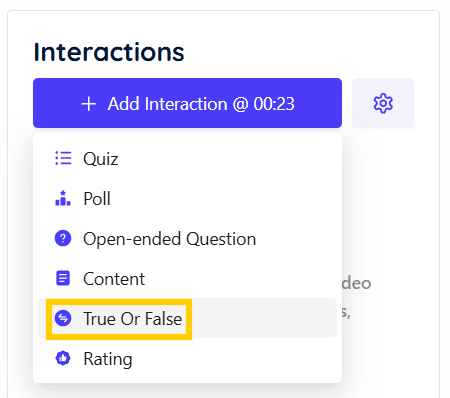
- In the Interaction panel, select True Or False to access the content feature.
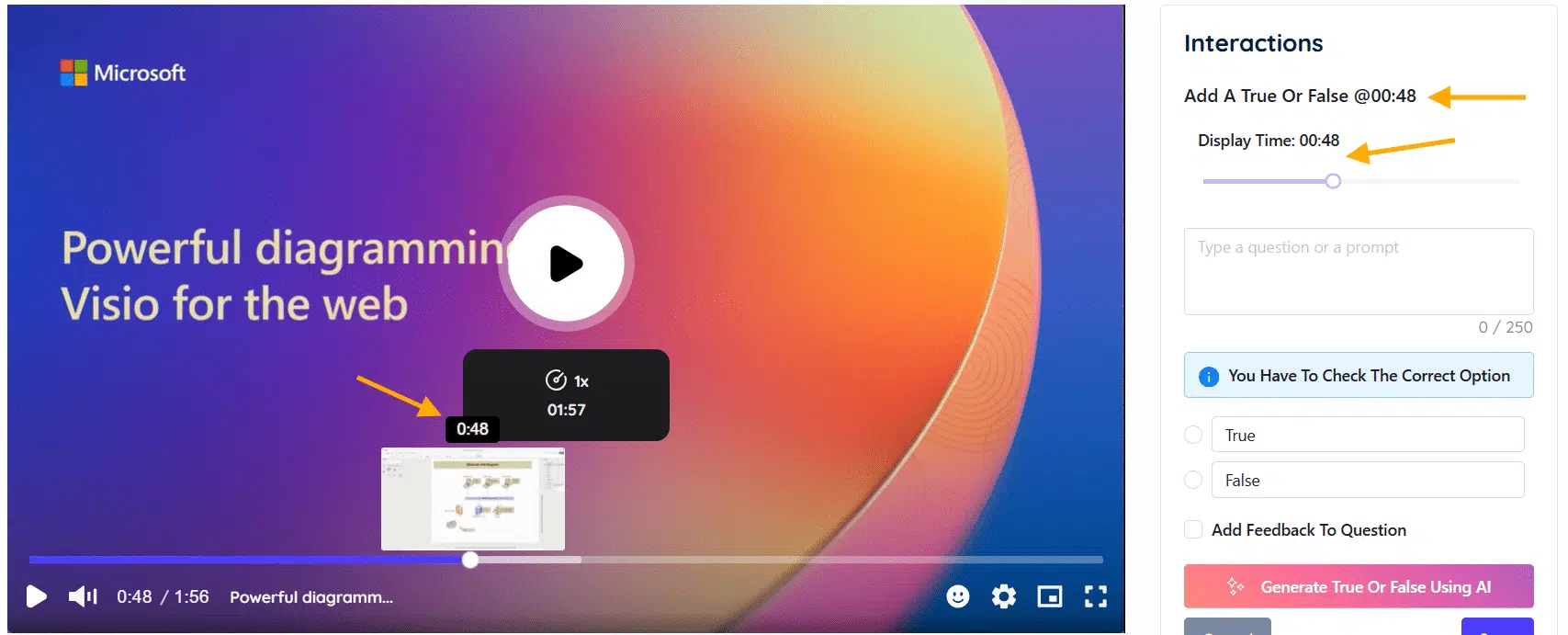
- Specify the exact time (minute and second):
- Use the interaction timeline slider or the video timeline slider at the point where you want to insert the True or False question.
- Create the true or false question:
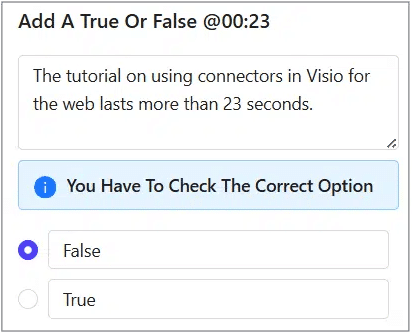
- You can enter your true or false question manually in the writing box.

- Prompts the user to select the correct answer (False or True):
- False is one of the two possible answer choices for the question.
- True is the other possible answer to the question.
Use AI to generate a true or false question #
To use dadan AI Assistant to generate a true or false question:
- Click Generate True or False Using AI to have the system create a true or false question based on your video’s content.
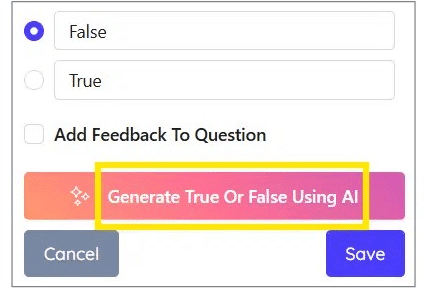
- If you’ve already transcribed the video, the AI will create a true or false question directly.
- Click Use This True or False.
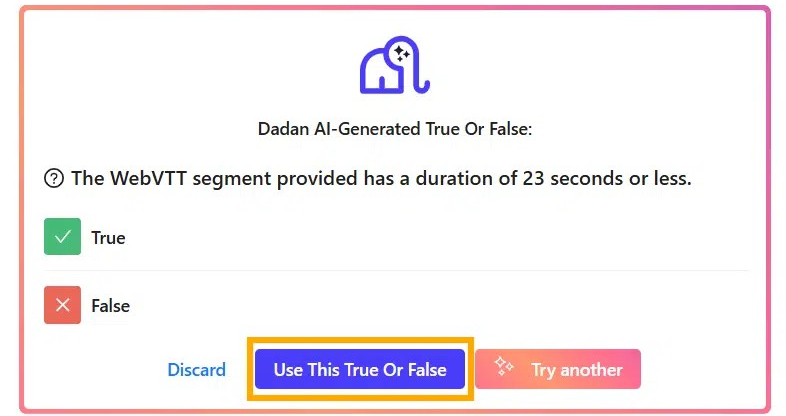
- If the transcript has not been created previously, a message will prompt you to transcribe your video. Click the Transcribe Your Video? button.

- Choose the transcript language and click Generate Transcript.

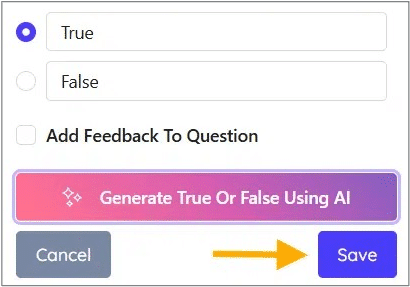
- After creating the quiz, click Save to save your progress.
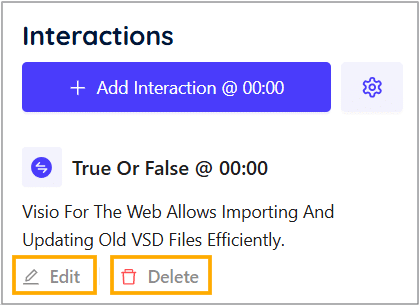
- To make changes, click Edit.
- To remove the quiz, click Delete, then confirm by selecting Yes, delete it!.
True or false question options #
The true or false question settings in the interactions interface provide options to customize the question and provide feedback, as outlined below:
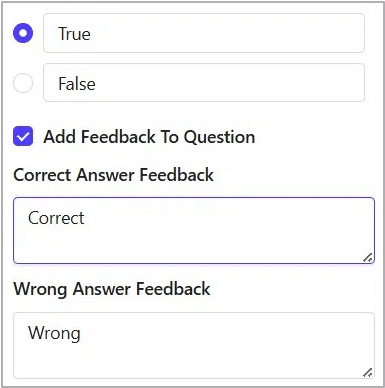
- Add Feedback To Question: enables the inclusion of feedback for the answers.
- Correct Answer Feedback: allows users to enter feedback for correct answers.
- Wrong Answer Feedback: allows users to enter feedback for incorrect answers.
Dadan true or false question example #
Here is how a real True or False Question example appears in a dadan video:
- True or false marker on timeline.
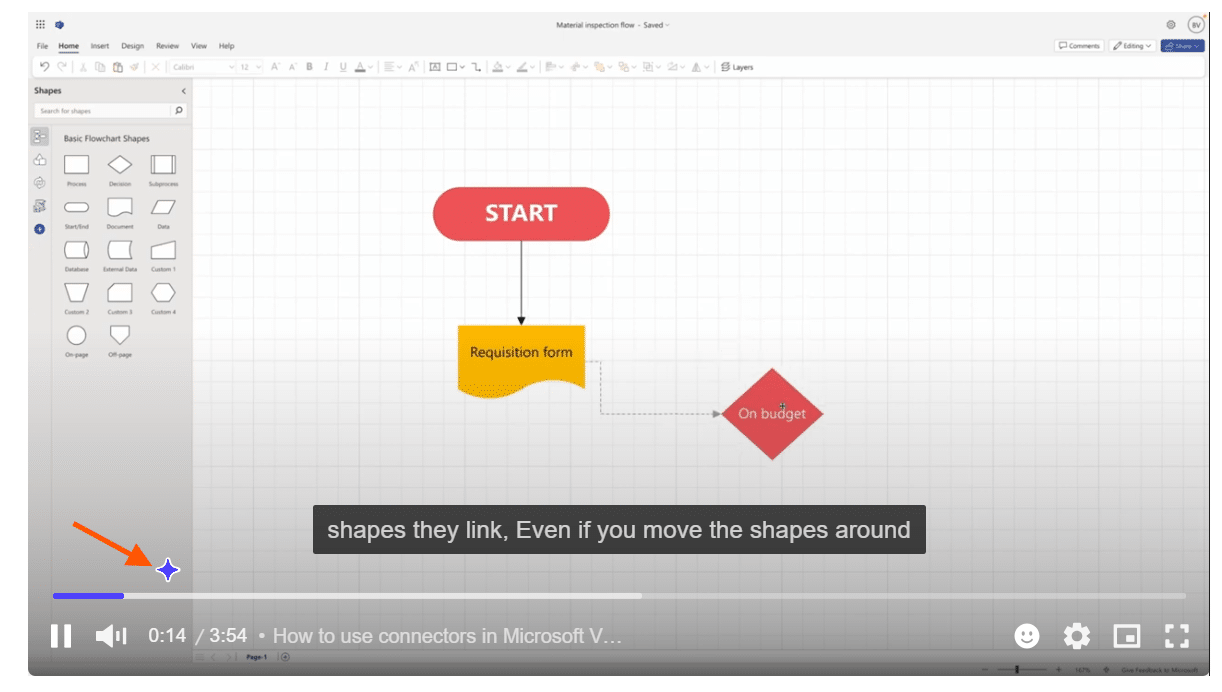
- True or false question pop-up.

- Correct answer feedback.
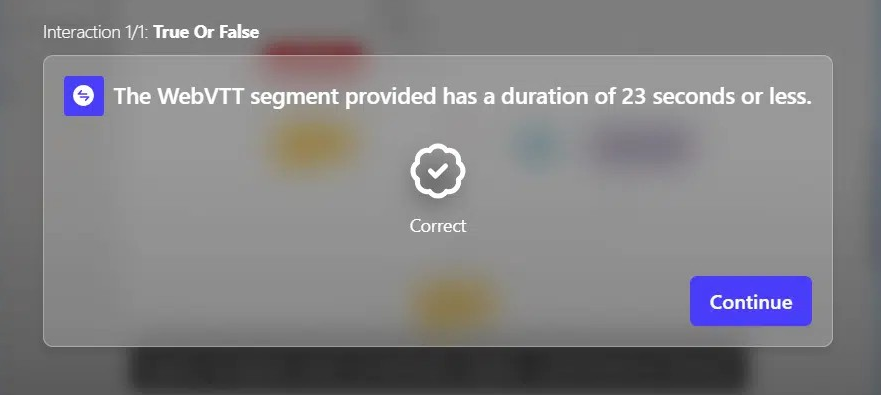
- Incorrect answer feedback.


