
Use the Instant Recording feature in dadan to quickly capture and share your ideas. This guide will walk you through the steps to start a recording, customize your settings, and troubleshoot common issues.
Follow along to create a seamless video in just a few clicks.
Steps to instant record a video in dadan #
To quickly record a video in dadan:
- Access and select Instant Recording:
- Open the dadan web app.
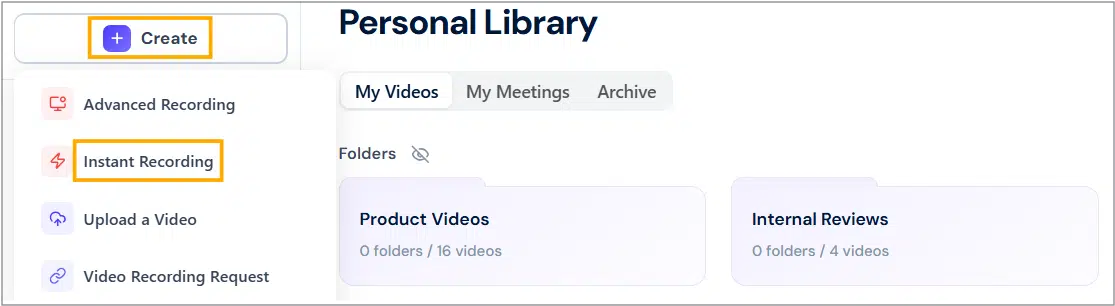
- Click the + Create button on the left-hand sidebar:
- From the dropdown menu, select Instant Recording.
- A new window will appear with the recording setup screen.
- Configure recording settings:
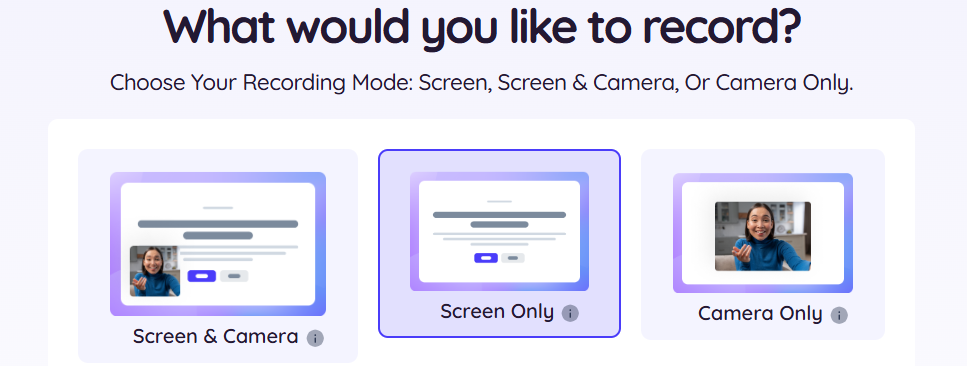
- Choose the Recording Mode based on the requester’s settings. If customization is allowed, adjust it as needed before starting:
- Screen Only: Record your screen without a camera.
- Camera Only: Record yourself using your webcam.
- Screen & Camera: Record both your screen and webcam.
- Configure camera, microphone, and audio settings (optional):
- If you select a mode that uses the camera (e.g., Screen & Camera or Camera Only), you can configure your camera settings.
- Click the Settings (gear icon) next to the recording mode options.

- Choose your preferred camera and microphone from the drop-down lists in the settings menu:
- Camera: Select your preferred camera.
- Microphone: Select your preferred microphone.
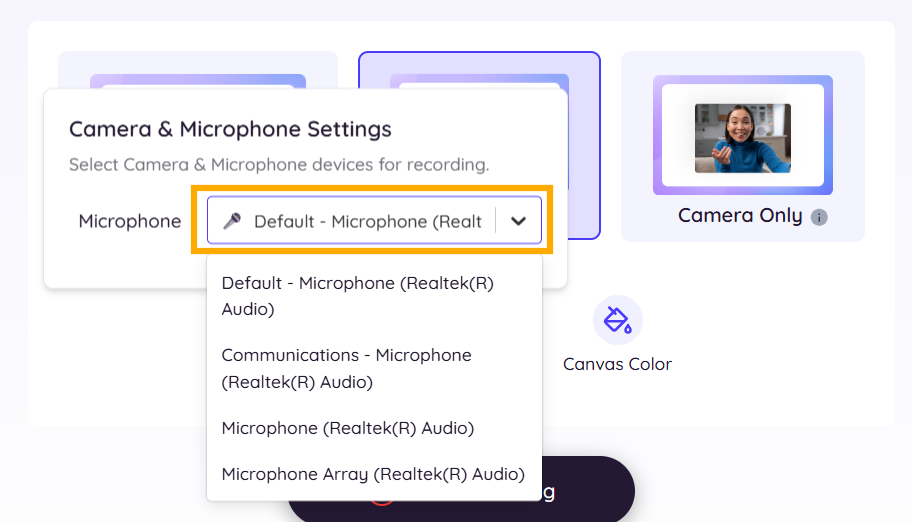
- Click outside the settings menu to close it.
- If you do not want to record audio, click the Mic button (microphone icon) to toggle it off.
- A red message will appear stating, Microphone audio won’t be recorded.

- Choose a Canvas Color (optional):
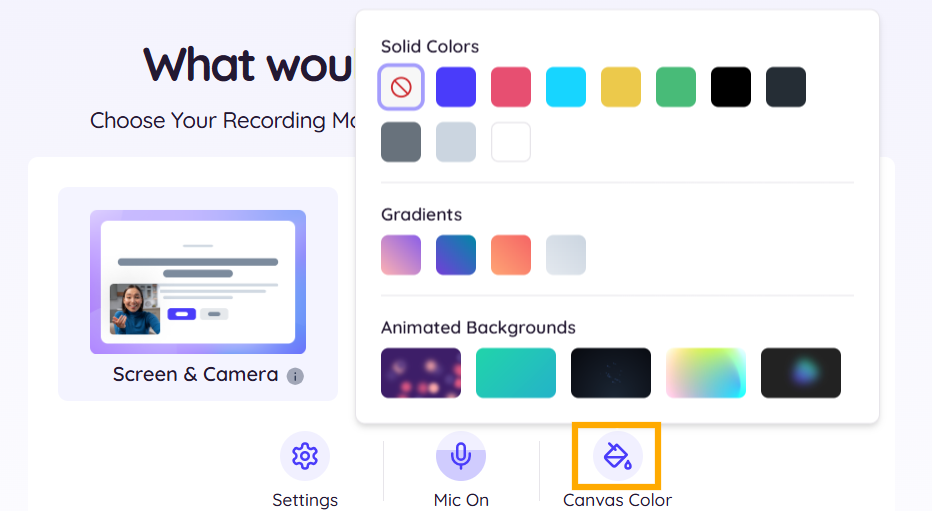
- To customize the background color of during recording, click the Canvas Color button (paint palette icon):
- A color selection menu will appear with options for Solid Colors, Gradients, and Animated Backgrounds.
- Select a color or background. For example, choose a solid color like peach.
- The background of your recording preview will update to reflect your selection.
- Start recording:
- Once you have configured your settings, click the Start Recording button at the bottom of the screen. The button is red with a timer indicating the maximum recording length.

- Choose what to record:
- Select the part of your screen you want to capture:
- The Entire Screen.
- A Window.
- A Tab in your browser.
- Select the part of your screen you want to capture:


- Choose the preferred option and click Share.

- Record system or browser tab audio:
- In the Entire Screen mode, toggle on the Also share system audio option if you want to include computer audio in your recording.

- In the Tab mode, toggle off the Also share tab audio option if you don’t want to include the browser tab audio in your recording. It’s checked on by default.

- In the Window mode, sharing the system and tab audio is not supported.

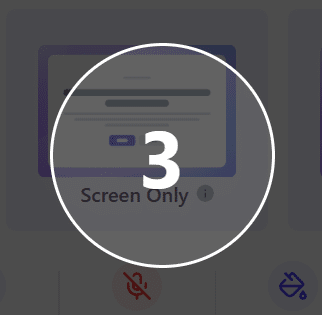
- Wait for the countdown:
- After clicking Start Recording, you’ll see a three-second countdown before the recording begins.
- Use the recording toolbar:
- The dadan Instant Recording feature includes a toolbar with basic controls for your video recording:
- Timer.
- Choose a Canvas Color.
- Mute / unmute mic.
- Pause/Resume.
- Reset Recording.
- Delete Recording.
- Stop Recording.
- The dadan Instant Recording feature includes a toolbar with basic controls for your video recording:

- Stop recording:
- When finished, click the Stop sharing button below. By default, your video will be saved and ready to be shared!

Your recordings are automatically saved to your Personal Library for easy access and management.
Troubleshooting tips #
- Camera or / and Microphone not working:
- Ensure your camera and microphone are correctly connected and selected in the settings menu.
- Check your device’s privacy settings to allow dadan access if issues persist.
- Recording fails to start:
- Verify your internet connection and ensure you have sufficient storage space in your dadan account.
- Need more recording time:
- Upgrade your plan for unlimited recordings by clicking “Get unlimited recordings. Upgrade now!” at the top of the screen.
If you require advanced features beyond the basic Instant Recording functionality, consider exploring dadan’s extensions and desktop app. Refer to: Dadan screen and video recording: the ultimate guide.


