
Skip links

Dadan video Details section

The Video Details section in dadan provides essential information about your recorded video. This section, located on the video playback page, helps you manage and organize your content efficiently.

The Video Details provide essential information about your video, making it easier to manage and track engagement. It allows you to view key metadata, including title, publication date, author, and engagement metrics.

Title & video information #

The video’s title is displayed at the top, helping you quickly identify the content. Below the title, you can find details such as:

  • Publication date & time: When the video was uploaded or recorded.
  • Author: The user who created or uploaded the video.
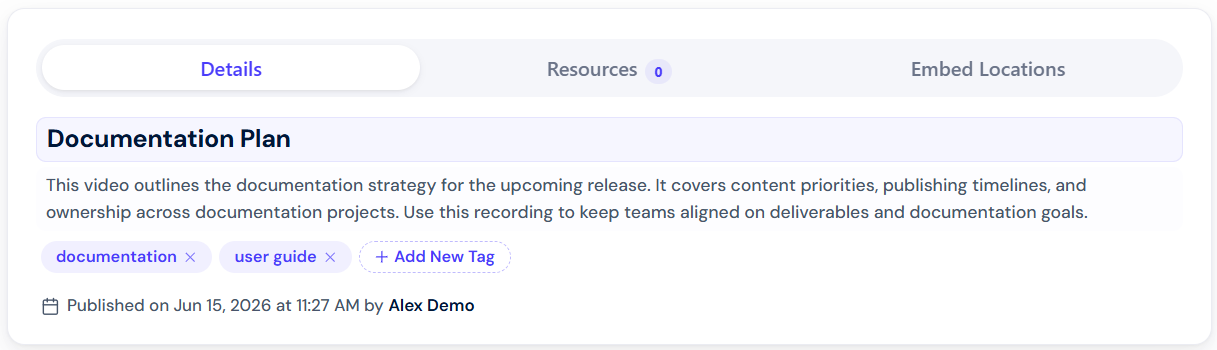
Video details

Video location & views #

Video location & views provide more data about your video:

  • Open Video Location: This option allows you to access the video’s saved location within the dadan app video library.
  • Views: Displays the total number of views and unique viewers.
Open Video Location and Views

Video additional actions #

The action buttons under the video Details section allow you to perform additional actions on the video. These options allow you to download, duplicate, archive, or move your video within dadan.

image

Download a video #

Clicking the Download button provides options to save the video in different formats:

  • Download Video (MP4): Saves the video file in MP4 format.
  • Download Audio (MP3): Extracts and downloads only the audio from the video.
Download button

Duplicate a video #

The Duplicate button creates an exact video copy, making it easy to reuse or modify without affecting the original file.

  • After clicking the Duplicate button, you need to confirm duplicating the video.
Confirm box

Archive a video #

The Archive option moves the video to an archived state, keeping it accessible but removing it from the active workspace. This is useful for organizing content without deleting it permanently.

  • After clicking the Archive button, you need to confirm that you want to archive the video.
Confirm box

Move a video #

The Move button allows you to transfer the video to a different folder or workspace within dadan, helping you organize your content more efficiently.

  • In the Move to window, select the new Location. You can choose the Personal Library or a specific Team Space.
    • Click New Folder to create a new folder during the move (Optional).
Select the new location
  • Select the desired Folder and click the Move button to complete the action.
Select the desired Folder

Note: For more details on moving and archiving videos, refer to Managing videos in your dadan account.

Description & Tags #

Adding a description helps viewers understand the content of your video at a glance, while tags make it easier to categorize and search for related videos.

  • Description: You can manually add a description to summarize the video’s content or use AI-generated suggestions for quick and effective descriptions.
  • Tags: Tags help categorize your video, making searching and organizing related content easier. You can add tags manually or let AI suggest relevant ones based on the video’s content.
Description and Tags

Manage Video Playlists #

You can also manage your Video Playlists from here, add videos, or remove them from any Video Playlists. You can even create a new Video Playlist directly here.

  • Click Manage Playlists and follow the pop-up instructions. Then, click Save to keep changes or Cancel to reject them.
Manage Playlists

Note: The dadan AI Assistant provides more details on using AI to generate descriptions and tags.

Are you still facing issues? Reach out to our support team for further assistance. You can reach us at [email protected] or via our website chat.