
Installing dadan on your Windows device is the first step in using the online video creation platform. The dadan desktop app offers features like screen recording, editing tools, and sharing options, allowing you to create and manage videos efficiently.
Follow this guide to set up dadan on your Windows computer and record your videos.
Dadan installation steps #
To install dadan on your Windows device, follow these steps:
- Download the dadan installer:
- Sign up for a dadan account.
- Visit the dadan download page.
- Click on the Download button under the Windows App icon.
- Run the installer:
- Open the downloaded file (dadan-Setup
.exe) from your Downloads folder. - If prompted, click “Yes” to allow the app to apply changes to your device.
- Open the downloaded file (dadan-Setup

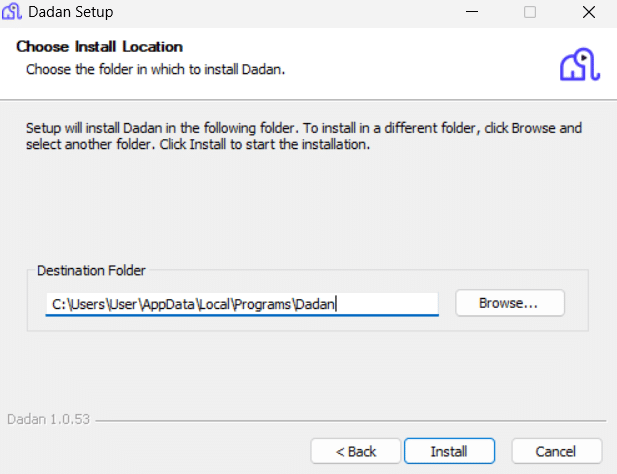
- Follow the installation wizard:
- Select if you want to install dadan for anyone (all users) or only for you and click Next.

- Select the installation folder.
- Click Install to start the process.
- Complete the installation:
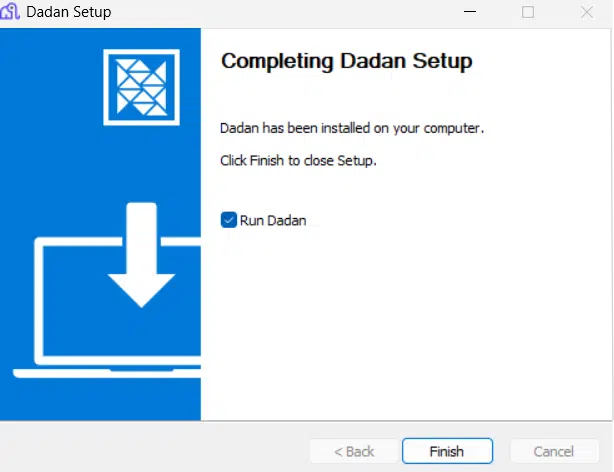
- Once the installation is complete, click Finish.
- dadan will launch automatically; alternatively, you can open it from your desktop shortcut.
- Sign in to your account:
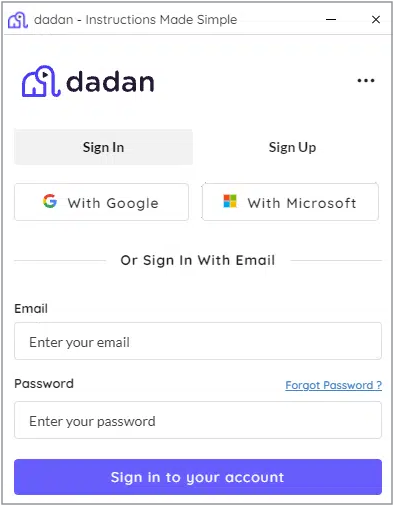
- Use your dadan credentials to Sign in.
- Alternatively, you can choose to sign in with your Google or Microsoft account.
- If you don’t have an account yet, click Sign Up directly from the app.
You’re all set!
dadan will now open automatically, and you will be ready to start recording. Discover its powerful features, including screen recording and seamless video editing, and elevate your communication to the next level. Happy recording!
Notes:
- To install dadan on Chrome, please visit Installing dadan on Chrome: your guide to the browser extension.
- For a more detailed guide about using dadan on desktop, visit Using dadan on desktop: your complete guide to effortless video communication.


