Your profile photo personalizes your dadan experience, making it easier for teammates to recognize you. This guide walks you through how to update, change, or remove your profile picture in a few simple steps. Whether you’re adding a new image or updating an existing one, follow these steps to keep your profile up to date.
Upload your profile photo #
To upload your profile photo:
- Open the dadan web app.
- Click on your Profile icon in the top-right corner.
- Select Account & Settings from the dropdown menu.

- In the My Account page, click the Profile section or the Edit Profile icon.
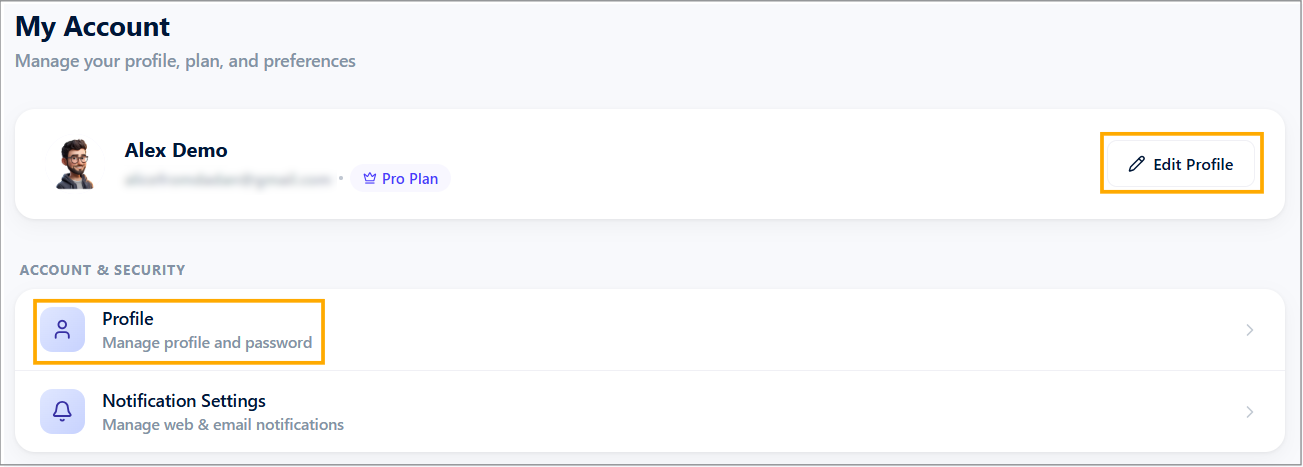
- The Profile Settings page will open.
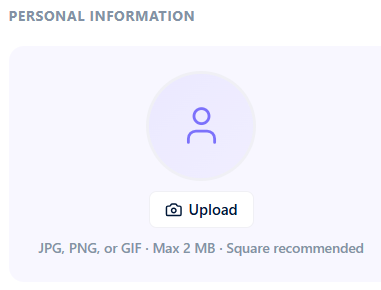
- In the Personal Information section, click the Upload button to upload your profile picture.
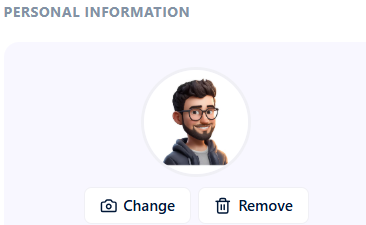
- If you want to change it, click the Change button.
- To remove it, click the Remove button.
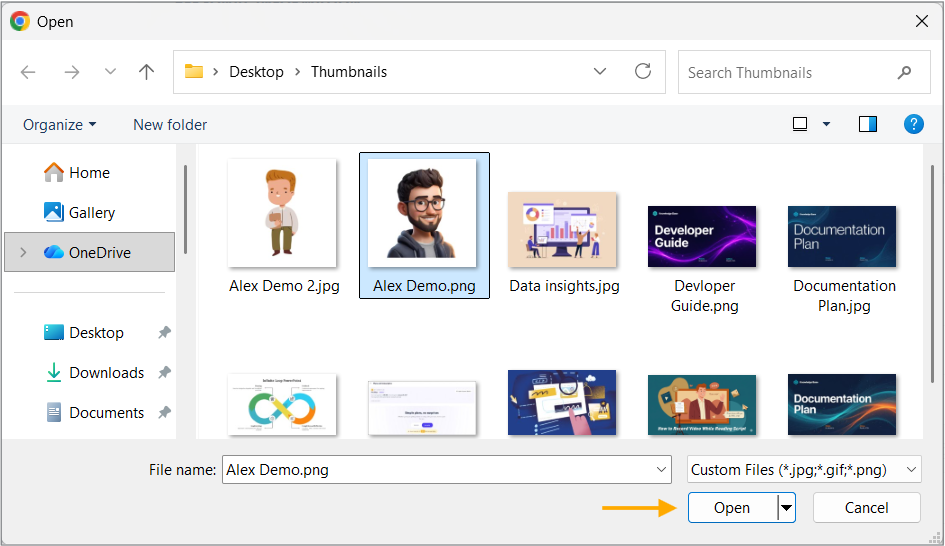
- The file location window will appear.
- Select the profile photo you want to upload, then click Open to continue.
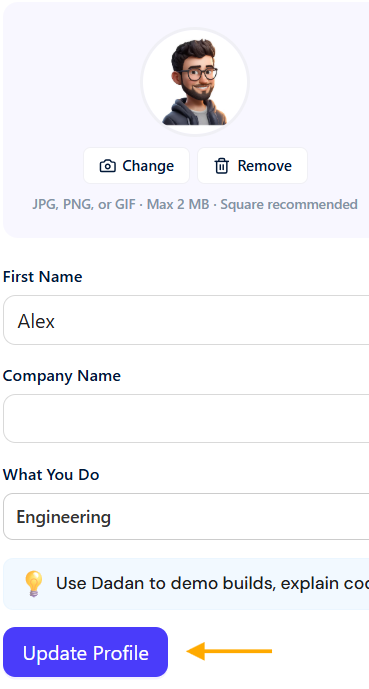
- Click the Update Profile button to save the changes.