When you share a video in dadan, you can choose which features appear on the video sharing page. This helps you create the right viewing experience for your audience, whether you want to make the page more interactive, provide supporting resources, or keep things simple.
Accessing Share Page options #
To manage your Video Sharing Page settings, follow these steps:
- Open the dadan web app.
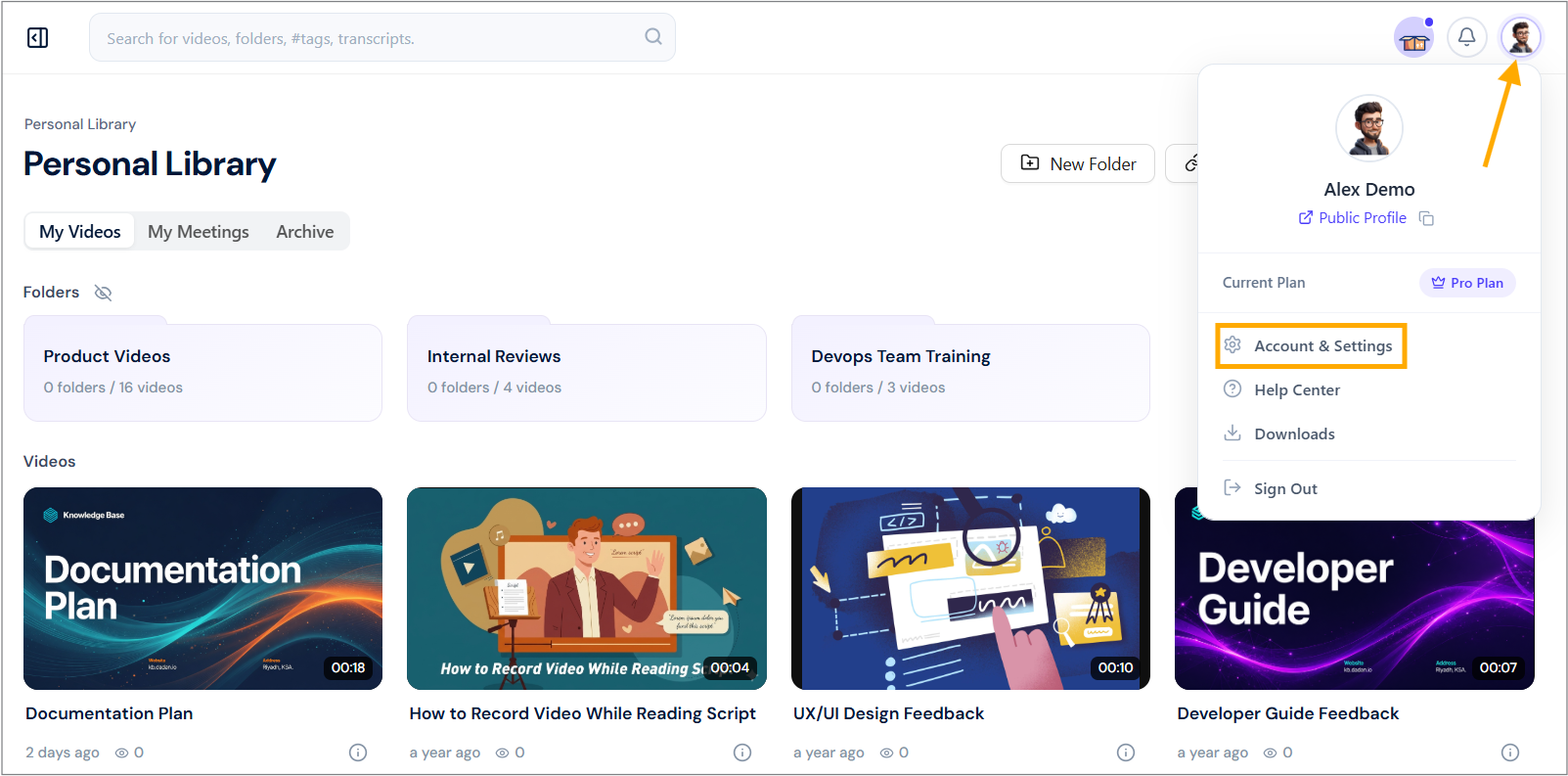
- Click on your profile icon in the top-right corner.
- Select Account & Settings from the dropdown menu.
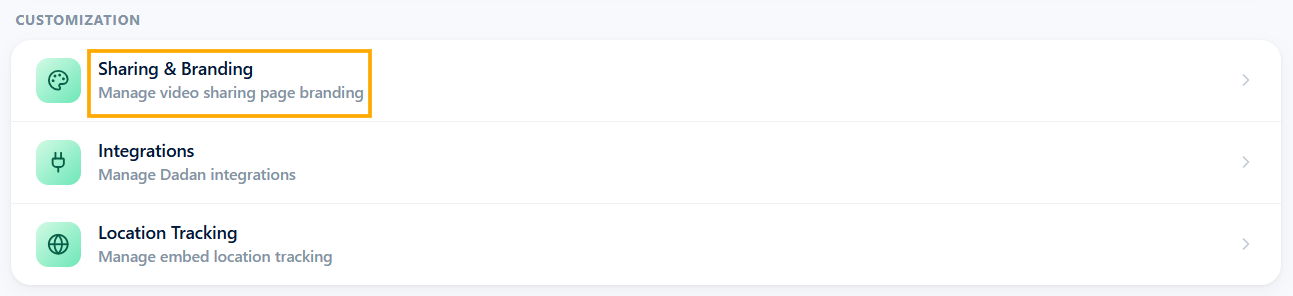
- Navigate to the Customization section. It includes several sections.
- Click the Sharing & Branding option.
- The Sharing & Branding page will open.
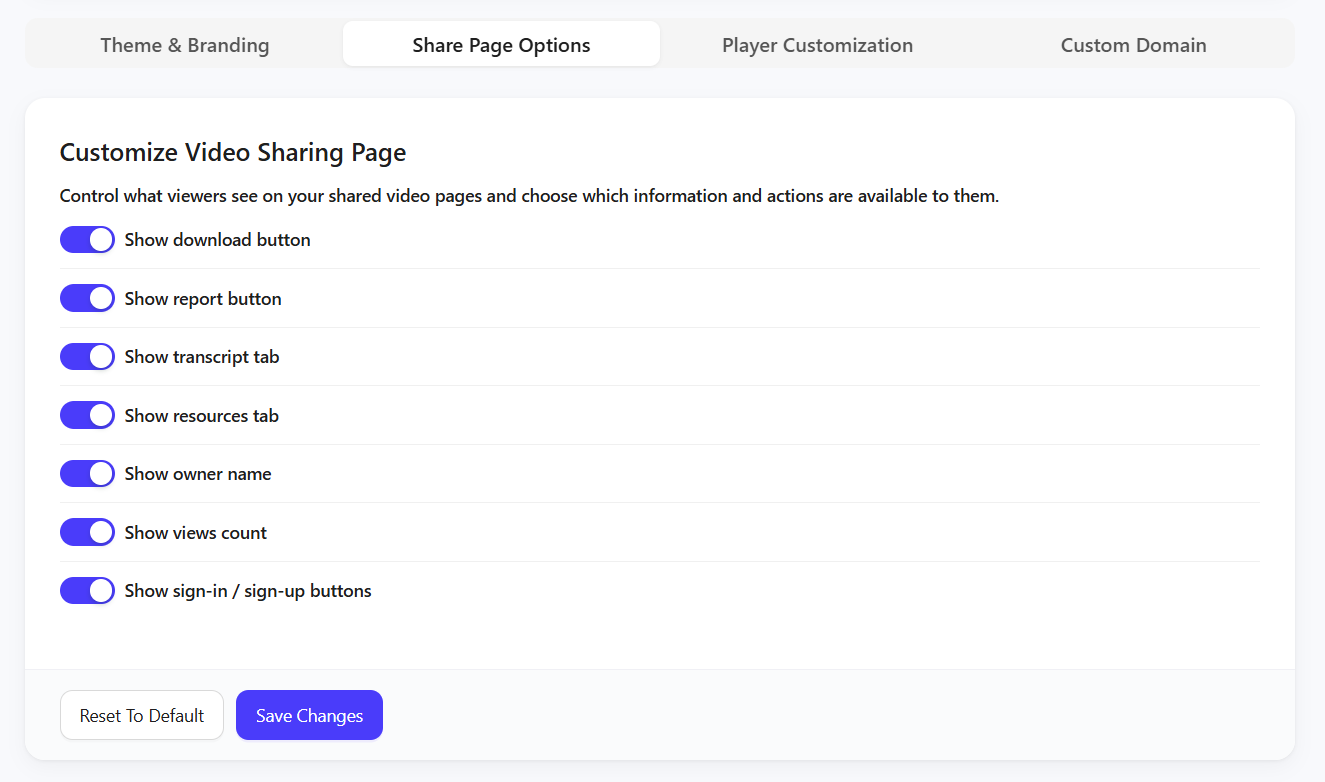
- Select the Share Page Options tab.
Options you can enable #
In the Share Page Options, you’ll find options to control what shows on your video page.
Here’s what each option does:
- Show download button: Lets viewers download the video directly.
- Show report button: Allows viewers to report issues or inappropriate content.
- Show transcript tab: Displays a text transcript of the video content.
- Show resources tab: Provides extra links, files, or reference materials related to the video.
- Show author name: Displays the creator’s name for transparency and credit.
- Show views count: Shows how many times the video has been viewed.
- Show sign-in / sign-up buttons: Prompt viewers to log in or create an account to unlock enhanced features.
Click Save Changes to save.
Tip: You can mix and match these options to design the exact experience you want for your viewers.
Restoring dadan default Share Page options #
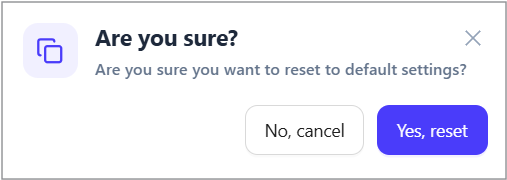
If you’d like to undo your customizations and return to the original dadan Share Page Options, you can reset to default settings.
- Click Reset To Default.
- Confirm your choice by selecting Yes, reset it!