
If you want your viewers to send you feedback directly from a video share page, you can configure options for them to respond. For instance, they can record a video, send audio, comment, or leave a text message.
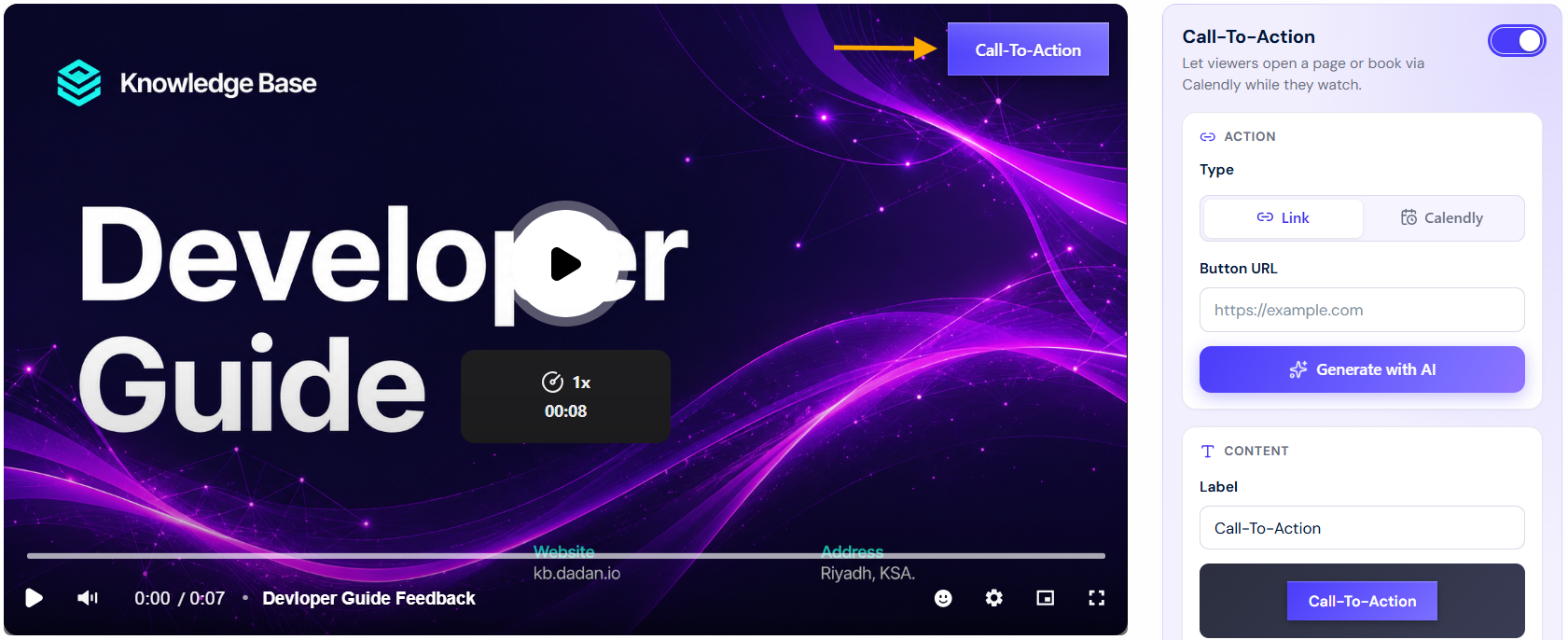
You can request that your viewers write feedback directly on a shared video page using a CTA (Call to Action). This allows them to respond with a video, audio, or text message.
You can also add the link to the resource section and use the display content interaction to pause the video, displaying a message that uses the link in the resources to share the video.
Before you begin #
- Ensure your video is published and accessible through a shareable page.
- Verify that the CTA (Call to Action) feature is included in your plan.
Add a request feedback option #
- Go to your video playback page.
- Use the CTA function to add a “Request Video” button.
- (Optional) Add a link in the Resources section of the video page.
- Add direct Feedback interaction to your video.
- Configure a display content interaction to pause the video and show a message. In the message, direct viewers to use the link in the Resources section to share their feedback.
Alternative: use a form #
If you prefer, you can create a form that allows viewers to choose how they want to respond:
- Record a video.
- Record audio.
- Write a text message.
Embed this form link in your video share page’s Resources section for a more structured way of collecting feedback.


