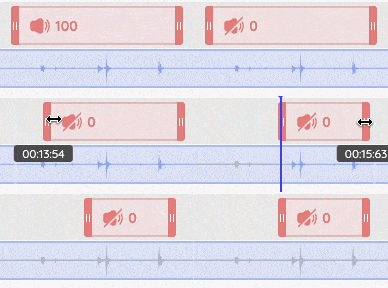
Enhancing your video with zoom and audio adjustments can significantly improve clarity and viewer engagement. The zoom-in effect helps highlight key visuals, ideal for tutorials, product demos, and storytelling moments. At the same time, adjusting audio lets you control volume levels, mute distractions, or emphasize key parts of your recording.
This guide shows you how to add and customize the zoom-in effect and how to fine-tune your video’s audio using dadan’s editing tools. You’ll learn how to control zoom level, focus points, volume percentage, and clip duration, all directly within the timeline and control panel.
- Note: Read How to edit videos with dadan before proceeding.
Steps to add a zoom-in effect #
The zoom-in effect is a powerful video-editing tool that can elevate your production by emphasizing key visuals and enhancing viewer engagement. This technique is particularly useful for:
- Highlighting details: Focus on specific elements during product demonstrations to showcase features like buttons or menu options.
- Clarifying instructions: Zooming in on text or graphics makes it easier for viewers to read and follow along in tutorial videos.
- Enhancing visual storytelling: Drawing attention to a subject’s facial expressions or actions can enrich the emotional impact.
To add a zoom-in effect to a video:
- Place the play head where you want to insert a zoom-in effect within the timeline.
- Click Zoom from the tools panel. A zoom layer will be automatically added to the timeline.
Adjust focus point #
After adding the zoom layer, you will notice a focus point appear in the video monitor panel. The position of this focus point indicates where the video will zoom in.
Note: The size of the focus point does not affect the zoom level.
Zoom level #
To adjust the level of zoom:
- Navigate to the Zoom Level section of the control panel.
- Drag the circle along the Level scale to find the ideal setting for your video.
- A lower percentage value will result in less zoom, while a higher percentage value will result in more zoom.

Zoom length and position #
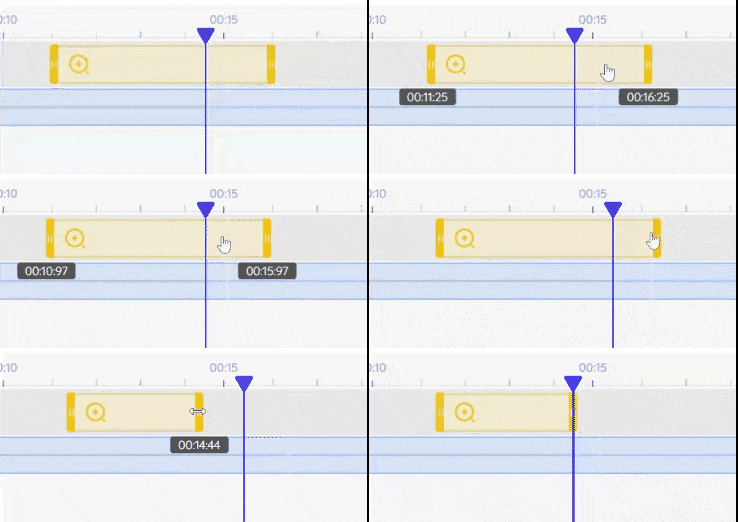
To adjust the position of the clip:
- Drag and drop it within the timeline.
- Grab the left or right end and drag it to the desired length to change the length of the clip or modify the Time settings from the control panel.
How to adjust the audio #
You may want to mute or lower the volume for a specific section of your recording. This is where dadan’s volume control feature comes in handy.
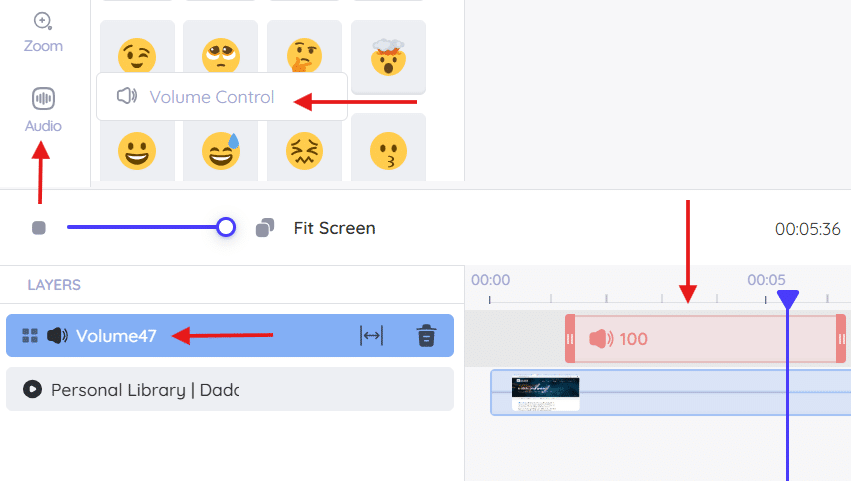
To adjust the audio, from the tools panel:
- Click Audio > Volume Control. This will automatically add a volume layer to the timeline.
- Position the volume clip at the point in the timeline where you would like the adjustment to take place.
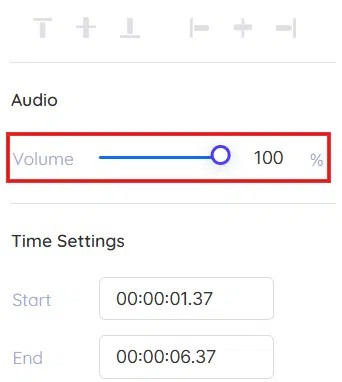
- From the control panel:
- Drag the circle along the Volume scale.
- The 100% mark represents the original volume of the recording.
- A lower percentage indicates reduced volume; for example, 50% means the volume will be half the original.
- Drag the circle along the Volume scale.
Adjust audio length and position #
To adjust the position of the clip:
- Drag and drop it within the timeline.
- Grab the left or right end and drag it to the desired length to change the length of the clip or modify the Time Settings from the control panel.