
Text is a vital element in video communication. Whether you’re labeling steps, adding captions, or reinforcing your message, well-placed text enhances clarity, accessibility, and engagement. dadan provides intuitive tools to insert and customize text in your videos, making it easy to align with your purpose, brand, and audience.
This guide walks you through how to add, format, align, and style text in your video using dadan’s editing interface. You’ll also learn how to adjust duration and placement to ensure your message appears exactly where and when it’s needed.
- Note: Read How to edit videos with dadan before proceeding.
Steps to add text to a dadan video #
To add text to a video:
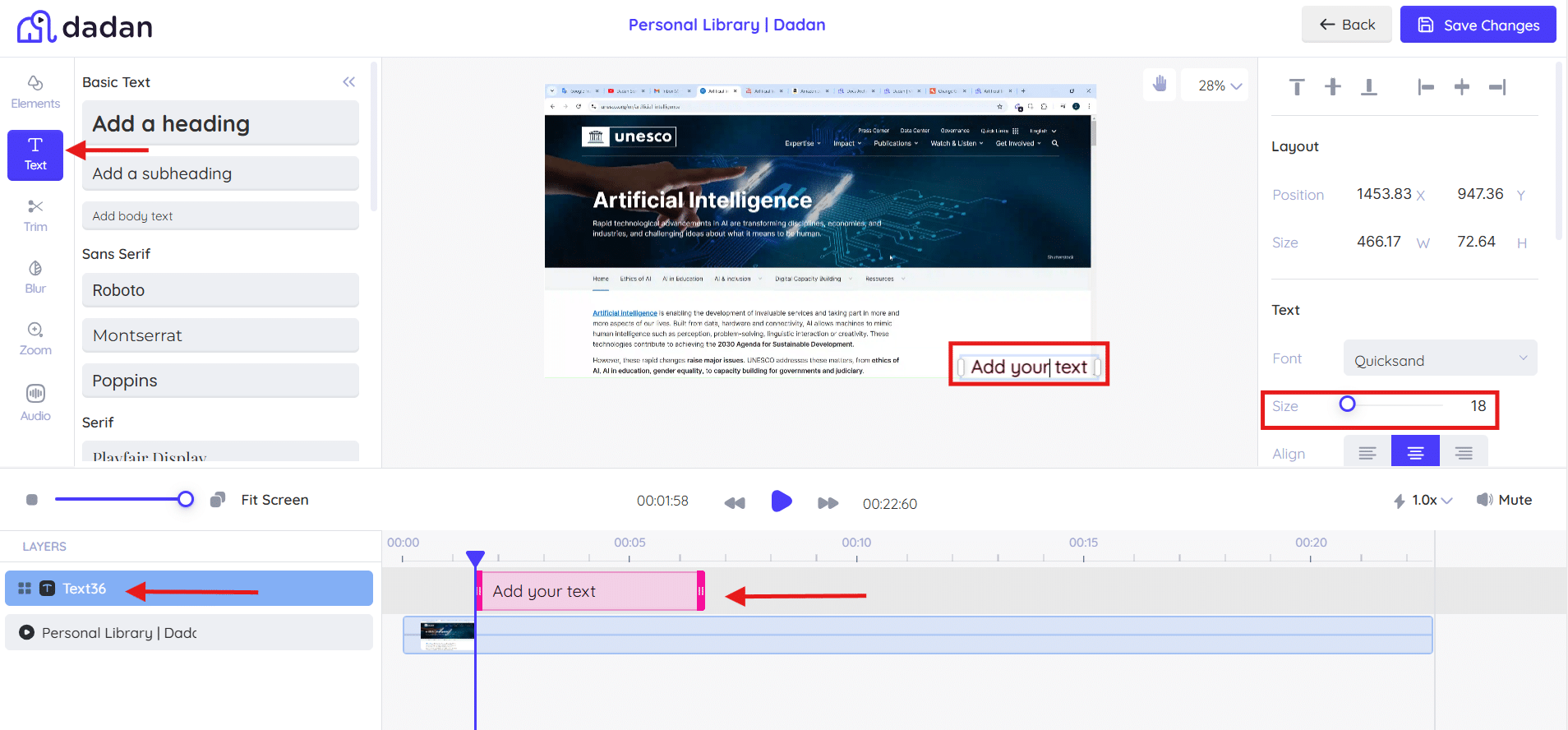
- Open the Tools panel and select a text type.
- Click on the text option to create a new layer in the timeline panel.
- The text will be placed at the current playhead location.
- The Control panel will display the settings for the selected text element.
Text size and font #
When selecting a font and size, consider the purpose of your video to enhance readability and aesthetics:
- Larger fonts: For tutorials or presentations for better readability.
- Formal fonts: For corporate videos or reports to maintain a professional look.
- Playful fonts: When creating casual content, add a fun touch.
To customize the text in your video, follow these steps to edit the font, style, and size:
- Select the text clip to edit.
- From the control panel, navigate to the Text section.
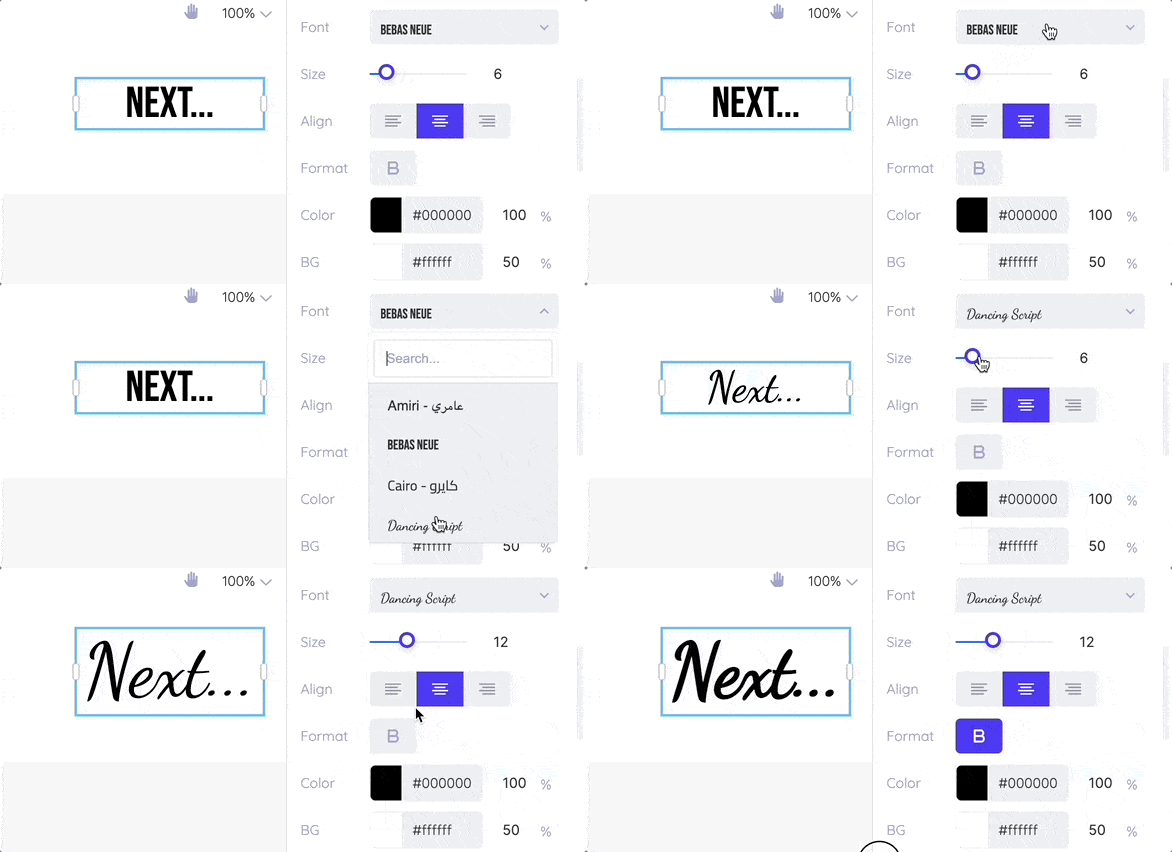
- To change the font, click the dropdown menu and choose a font style.
- To make the font bold, click the B icon next to Format.
- To change the size, drag the circle on the Size scale.
Textbox options #
To prevent unwanted line breaks, you can increase the text box’s width. To do that, follow these steps:
- Select the text clip to edit.
- Click and drag the white oval icon located on the far left or right of the textbox to expand it as needed.
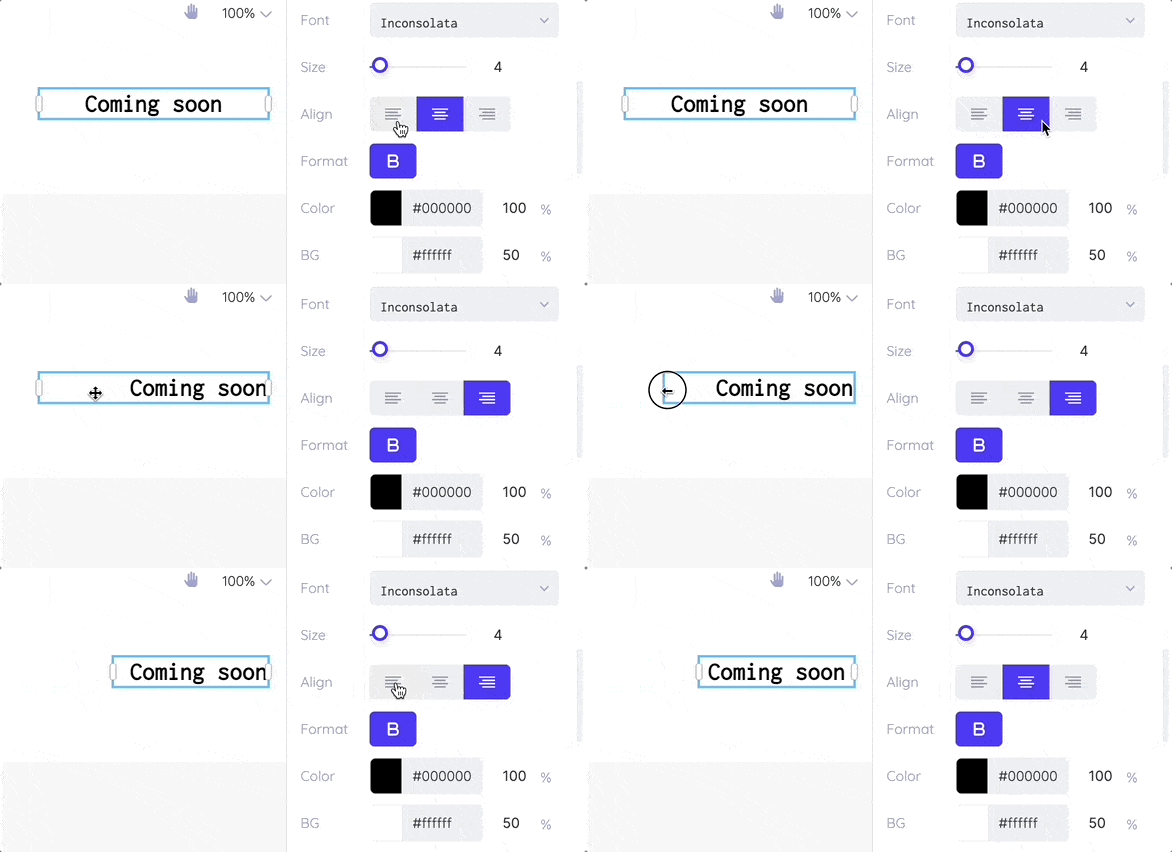
- Adjust text alignment:
- From the Control panel and go to the Text section.
- Find the Align option.
- Choose left, center, or right alignment based on your preference.
Text color and stroke #
Customize your text appearance by adjusting the color, background opacity, and stroke to match your video’s style and clarity needs.
- Color: To change the color, click the color icon in the Text section of the control panel. This will open the color panel.
- This will open the color panel, where you can select a color or enter a HEX code.
- To use an exact color from your monitor, utilize the eyedropper tool by clicking anywhere on the screen.
- Opacity: By default, the new text has a white background set to 50% opacity.
- To change the opacity, click the color icon next to BG in the Text section, open the color panel, and drag the circle on the second scale.
- Stroke: To add a stroke, select the desired stroke type, color, and width from the Stroke section.
Note: You can only change the opacity of the background color for text.
Text alignment #
When it comes to alignment, you have two choices:
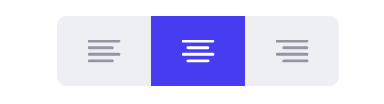
- Aligning within the Text box:
- Navigate to the Text section of the control panel.
- Choose your alignment option: left, center, or right, next to the Align setting.
- Aligning within the Video Frame:

- Navigate to the top of the control panel.
- You’ll find three vertical alignment icons and three horizontal alignment icons:
- Top
- Vertical center
- Bottom
- Left
- Horizontal center
- Right
💡 Tip: To center an element or text, first click the vertical center icon, followed by the horizontal center icon.
Text length and position #
To adjust the position and length of a text clip, follow these simple steps:
- To adjust the position of the clip, you can drag and drop it within the timeline.
- To change the length of the clip, grab the left or right end and drag it to the desired length or modify the Time settings from the control panel.


