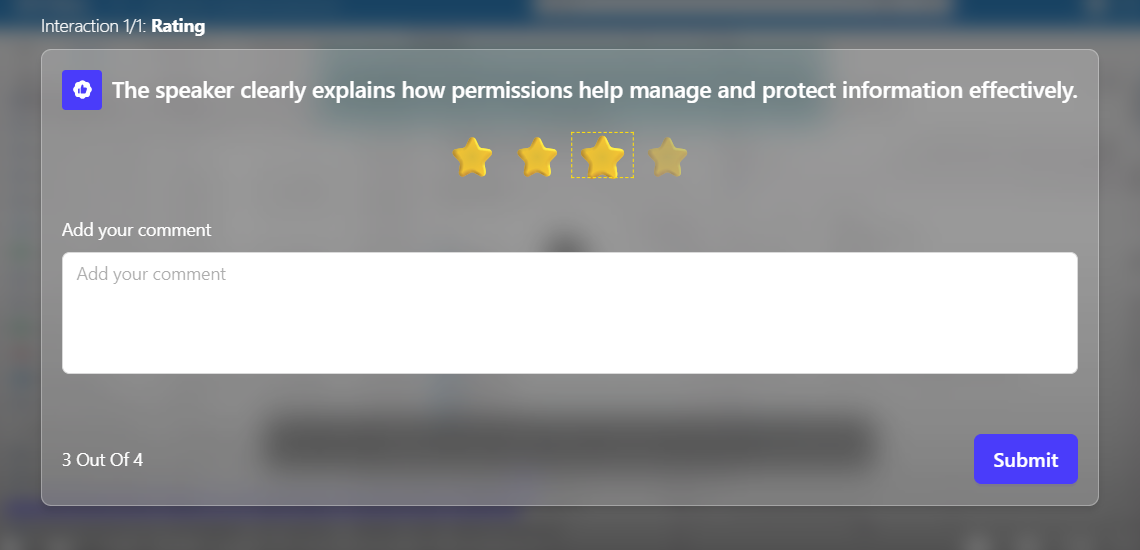
Adding video rating feedback to your dadan video is an excellent way to gather viewer opinions and enhance engagement. This guide provides a straightforward, step-by-step process for seamlessly integrating rating feedback into your content.
Whether you create the rating manually or use the dadan AI Assistant to generate it automatically, the instructions are straightforward. Follow the steps below to customize your video rating and utilize the available options effectively.
How to add video rating feedback to your dadan video #
Follow these steps to integrate video rating feedback into your dadan video:
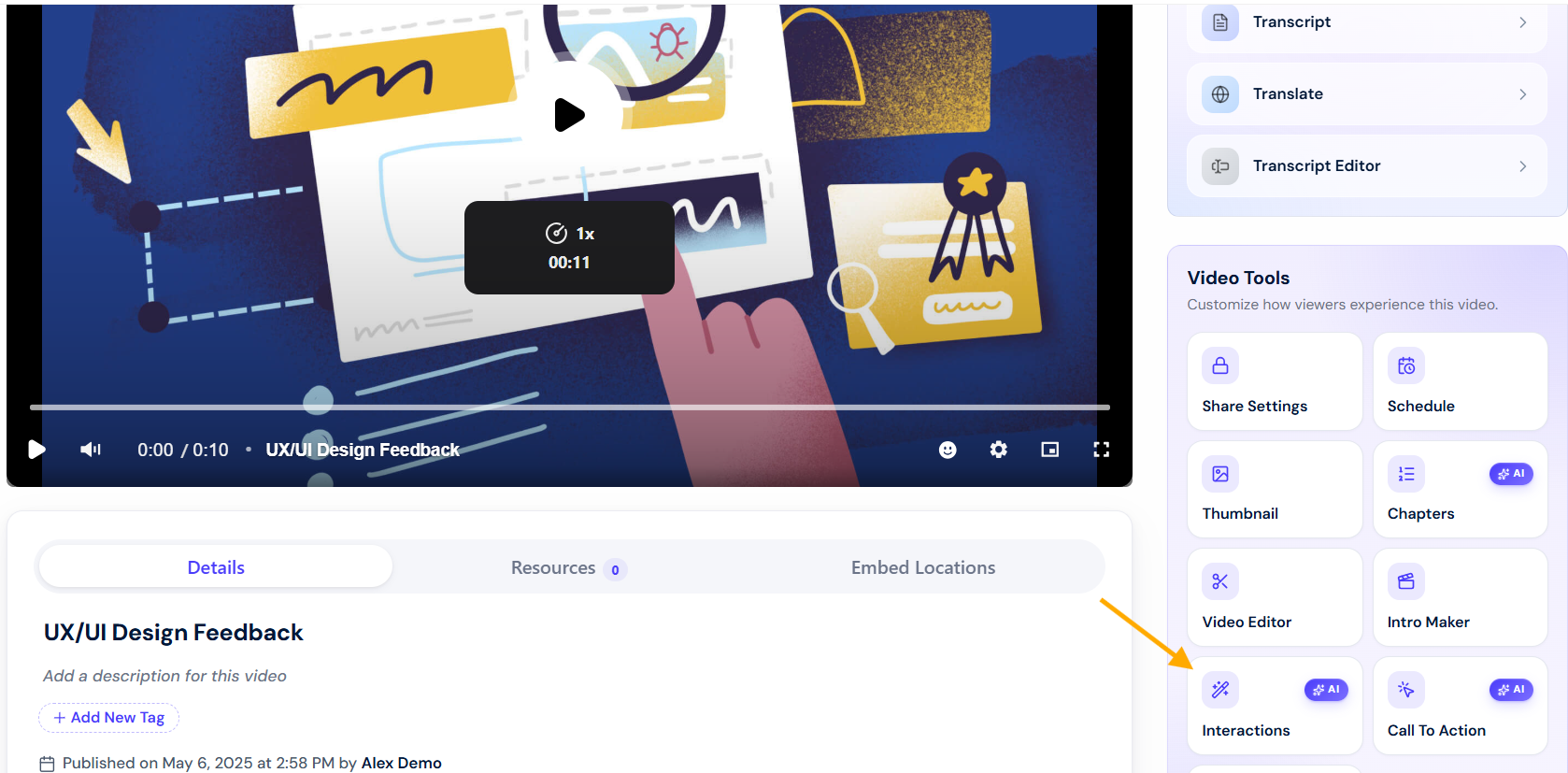
- In the playback video screen, under the Video Tools box, select the Interactions button.
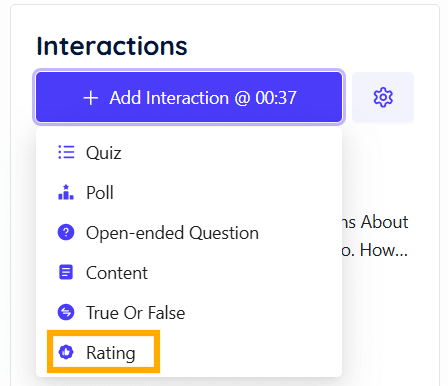
- In the Interaction panel, select Rating to access the content feature.
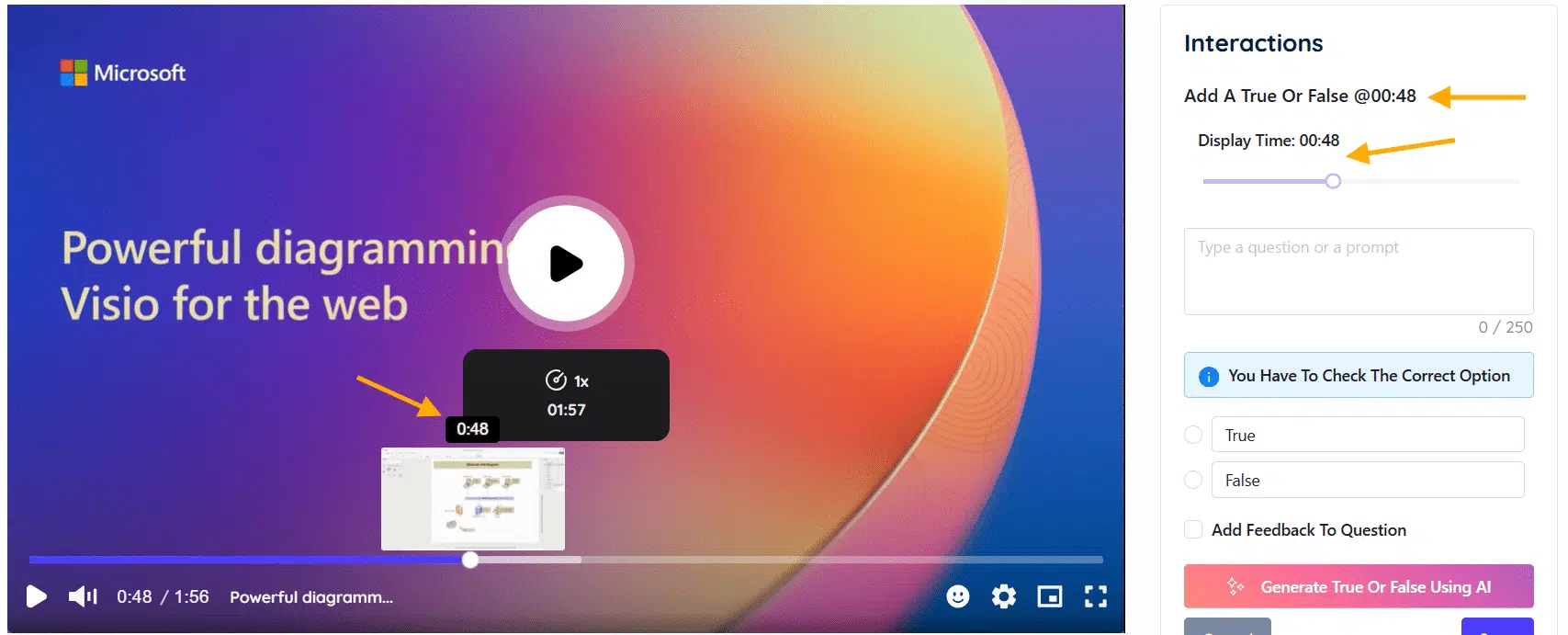
- Specify the exact time (minute and second):
- Use the interaction timeline slider or the video timeline slider at the point where you want to insert the True or False question.
- Create the Rating question or prompt:
- You can manually enter your Rating in the writing box.
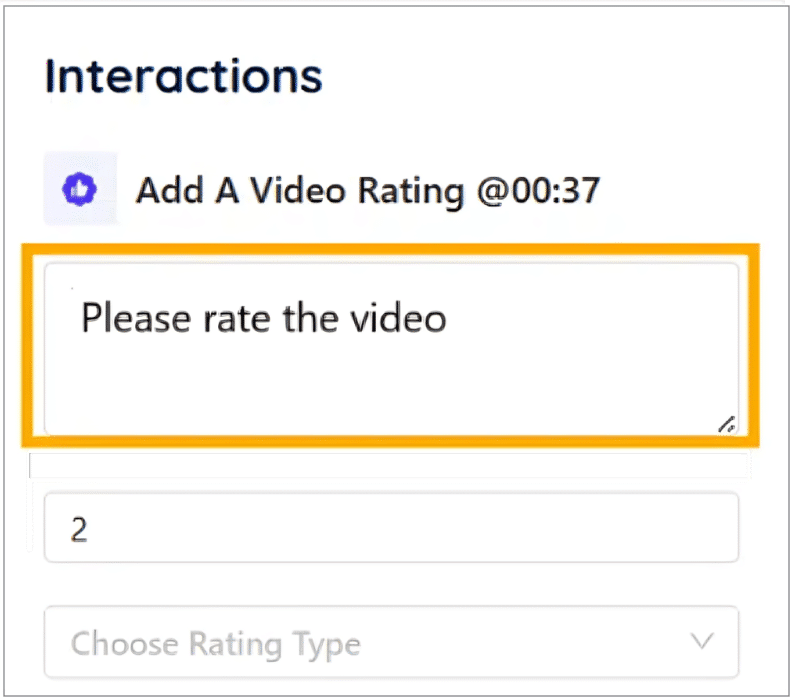
- Set the number of rating options:
- A minimum of 2 and a maximum of 10 by adjusting the range in the rating settings before saving your changes.
- Choose Rating Type:
- Select a rating type from the dropdown menu (e.g., Heart, Smiley, Star) to determine the style of the rating viewers will use.
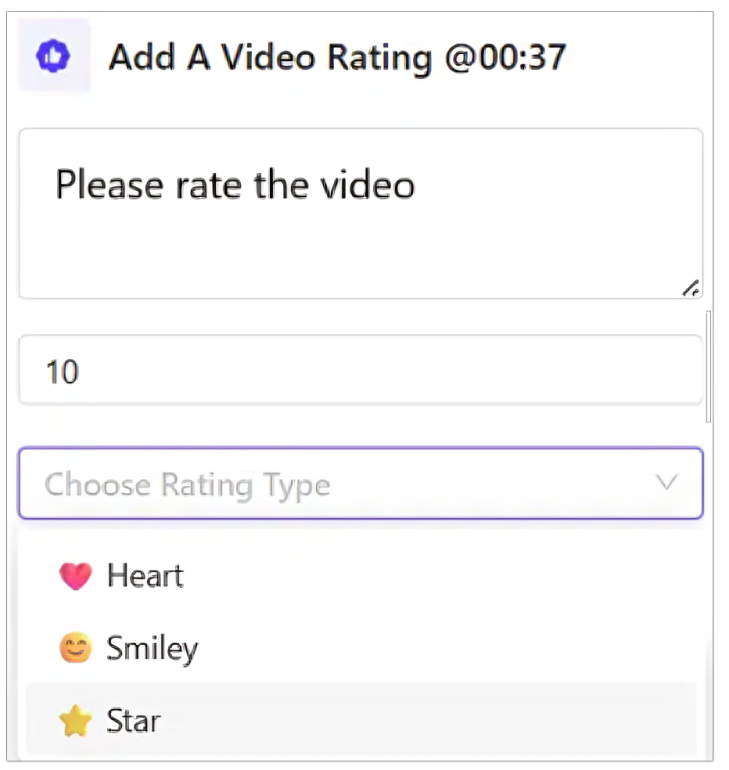
Use AI to generate a Rating question #
To use dadan AI Assistant to generate a Rating question:
- Click Generate Rating Using AI to have the system create a true or false question based on your video’s content.
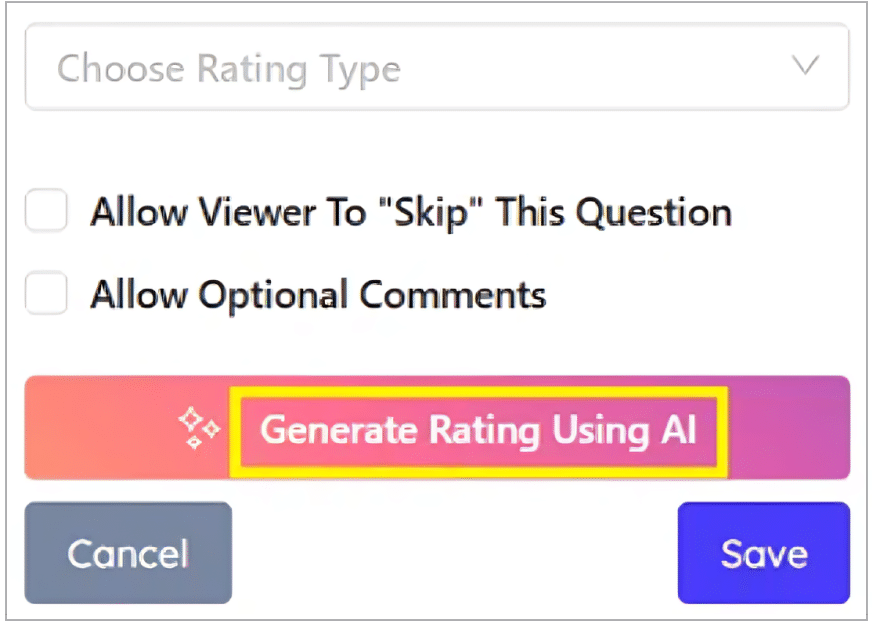
- If you’ve already transcribed the video, the AI will create a true or false question directly. Click Use This Rating.
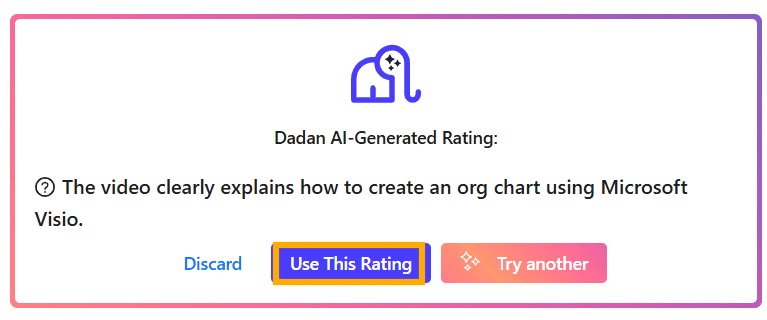
- If the transcript has not been created previously, a message will prompt you to transcribe your video. Click the Transcribe Your Video? button.
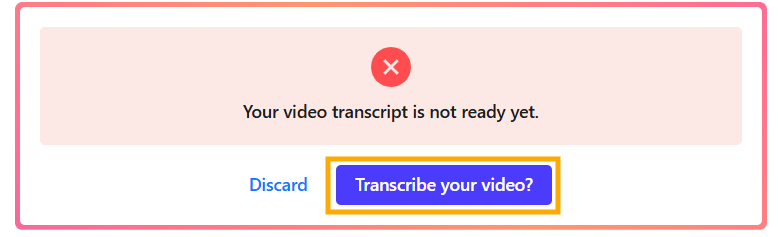
- Choose the transcript language, click Generate Transcript.

- After creating the Rating, click Save to save your progress.
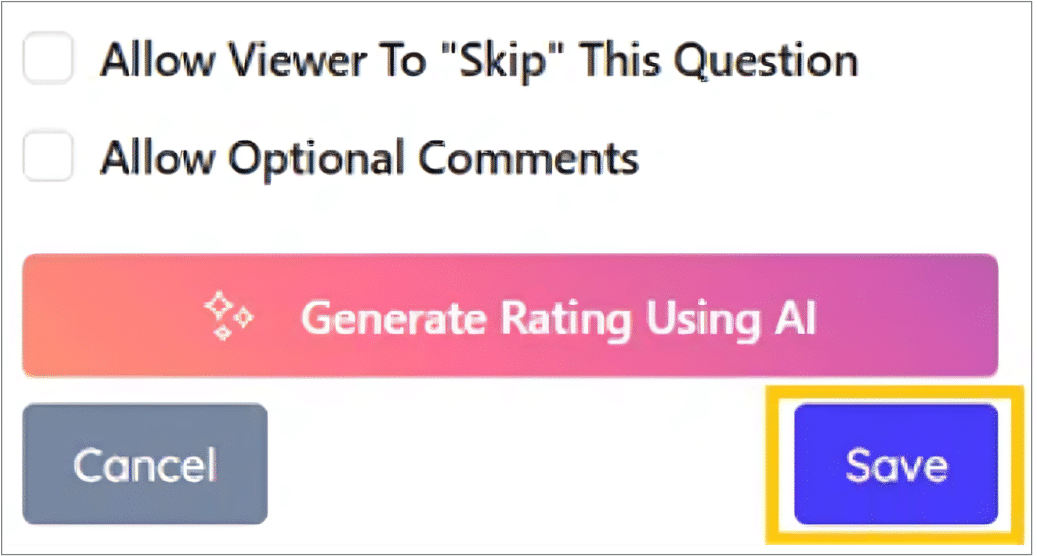
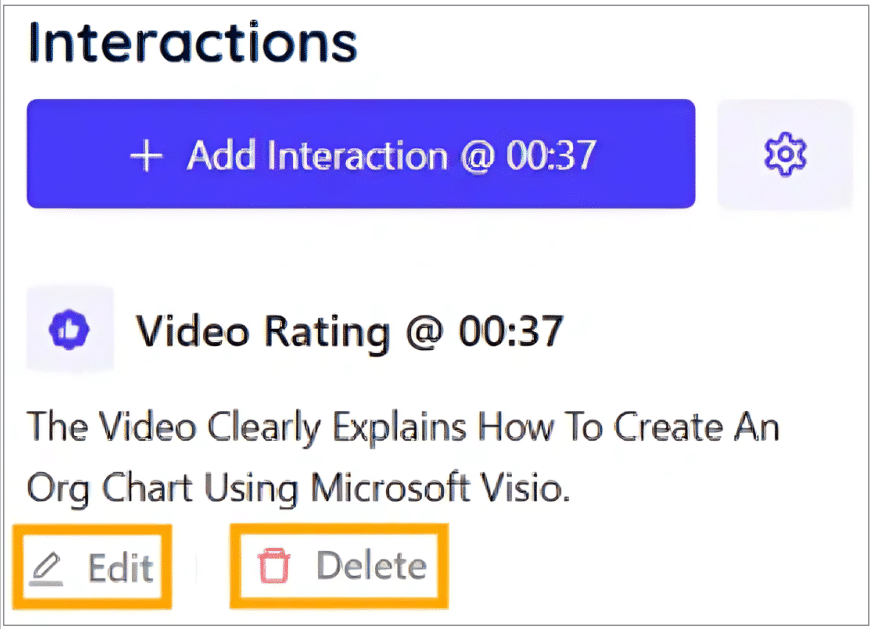
- To make changes, click Edit.
- To remove the rating, click Delete, then confirm by selecting Yes, delete it!.
Rating options #
The rating options in the interactions interface allow you to customize the rating experience for your video, with the following features available:
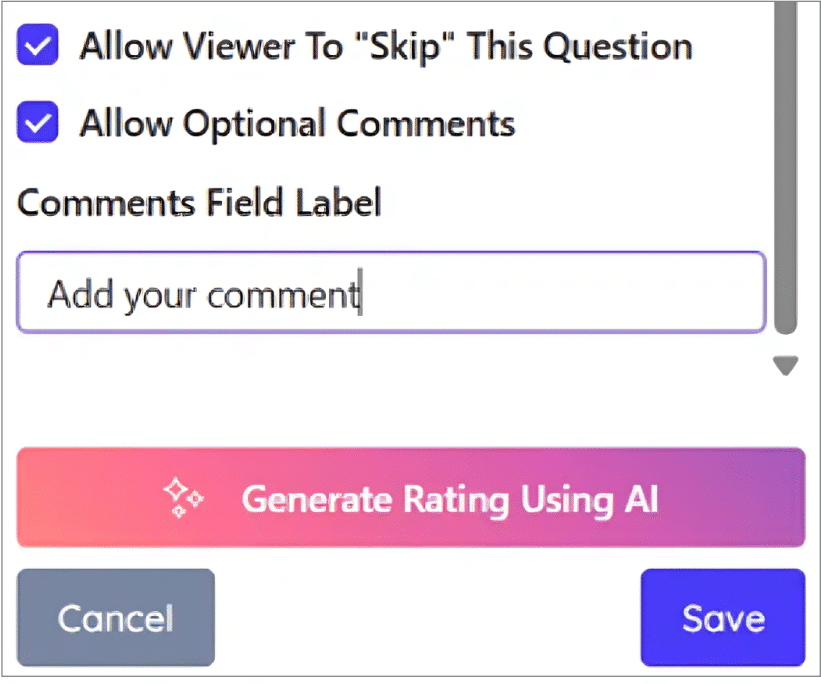
- Allow Viewer To ‘Skip’ This Question: permits viewers to bypass the rating if desired.
- Allow Optional Comments: enables viewers to add optional comments alongside their rating.
- Comments Field Label: allows you to set a custom label (e.g., “Add your comment”) for the comments field.
Dadan rating example #
Here is how a real Rating example appears in a dadan video:
- Rating marker on timeline.
- Rating pop-up.