
Managing who can view and interact with your dadan videos is essential for maintaining privacy and protecting sensitive information, giving you complete control over video access at every stage.
This guide provides step-by-step instructions on how to:
- Enable password protection.
- Use link expiration.
- Schedule video publishing.
Video password protection #
To set a password protection for your video:
- Click the Share button in the video playback screen.
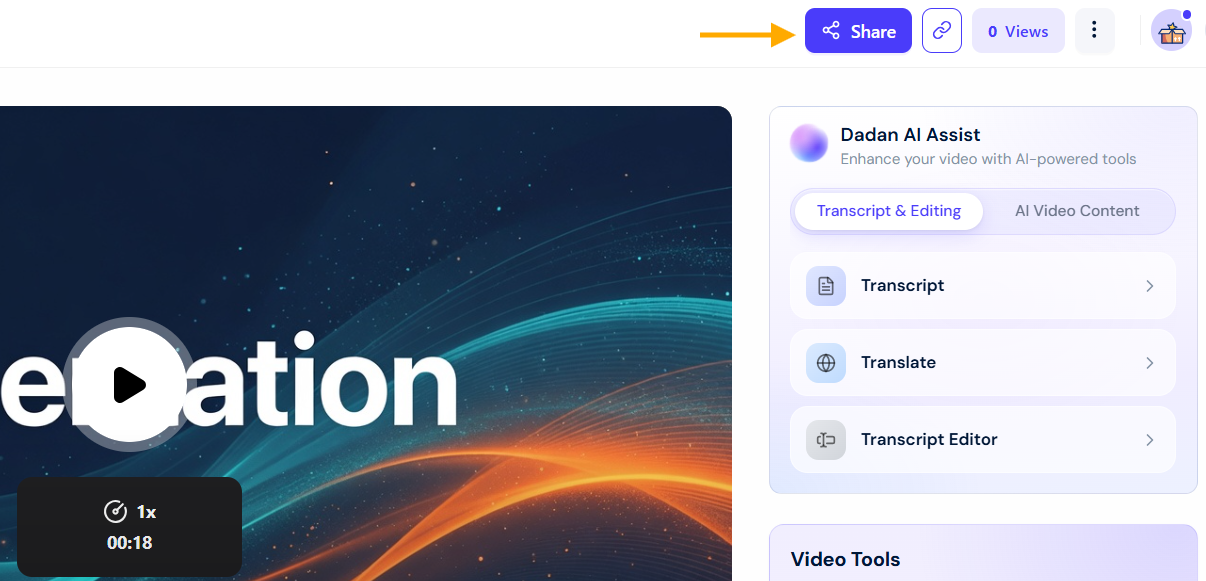
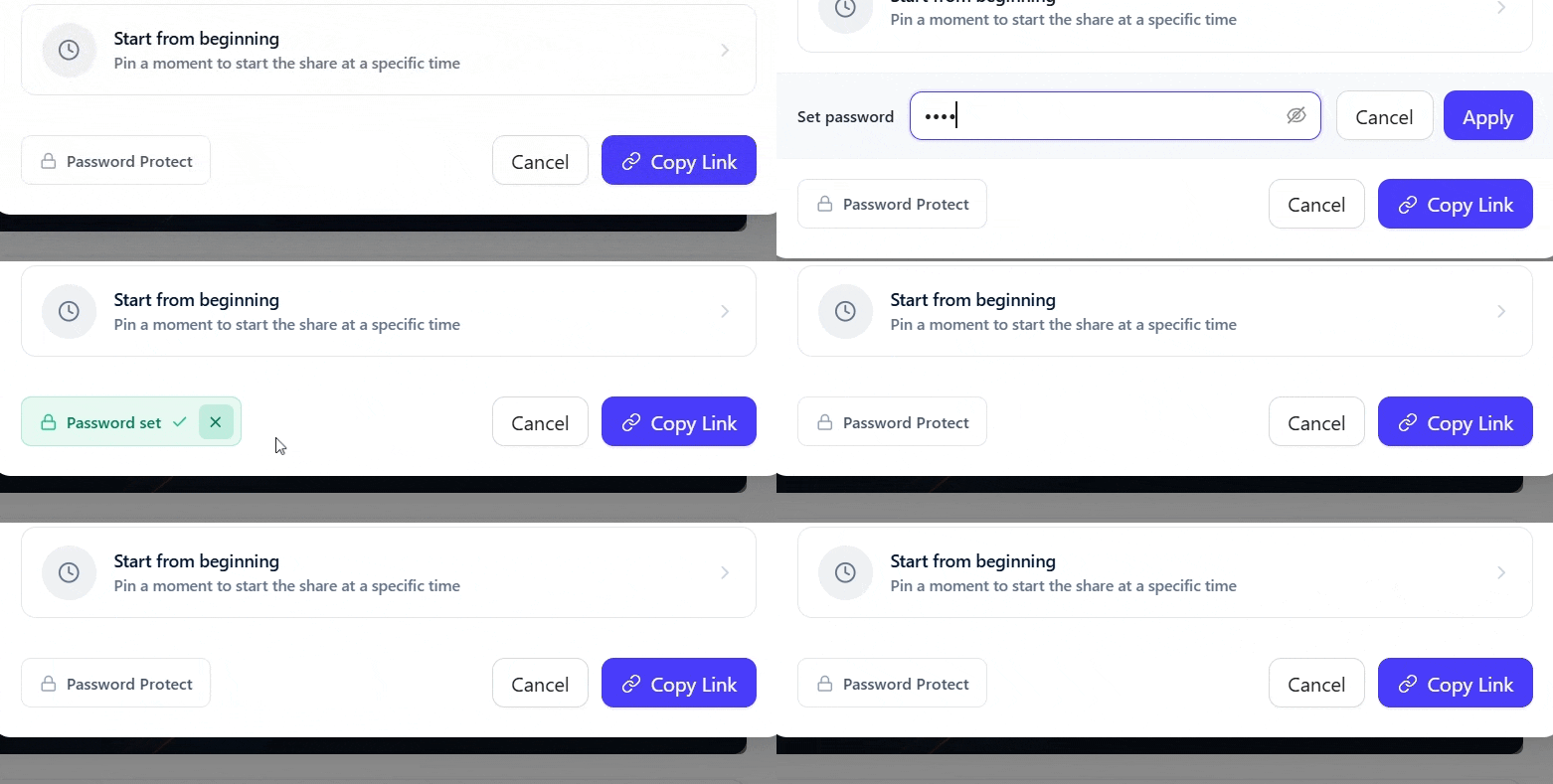
- Click the Password Protect button.
- Click the Apply button to save the password.
- To erase the password, click the X button.
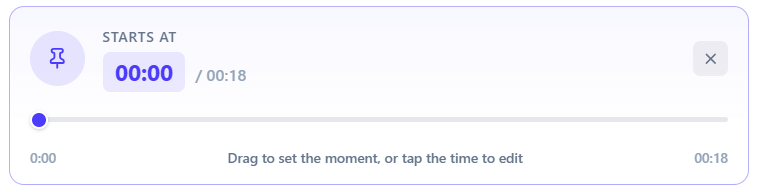
Note: You can share the video at a specific time. To do this, select the Start from beginning option and set the time you want to share the video.

Setting video link expiration #
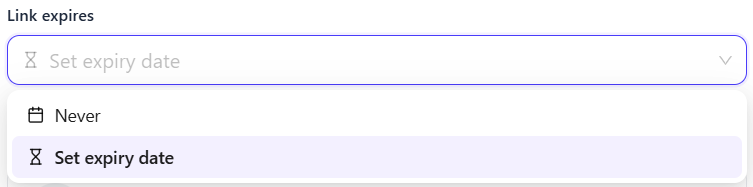
You can control how long your shared video link remains accessible using the Link expires dropdown menu options:
- Never: The video link will remain active indefinitely unless manually deleted.
- Set expiry date: Choose a specific date to deactivate the link once it expires automatically.
- Click Copy Link to share the video with the selected expiration date.
Once the expiry date is reached, the link will no longer be accessible.
Schedule a video #
Sometimes you only need to share a video for a limited time, whether it’s a project update, a feedback session, or a lesson for your students. With dadan, you can schedule exactly when your video becomes available and when access ends. For example, teachers can publish class recordings for a specific week, then automatically unpublish them once the lesson is over.
To schedule publishing a video:
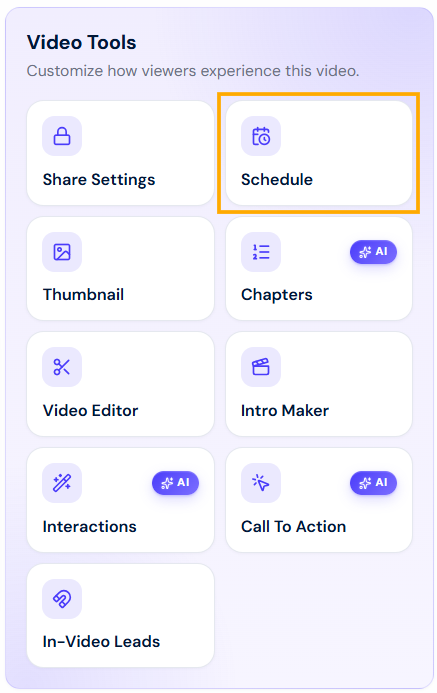
- Go to the Video Tools section and click the Schedule icon.
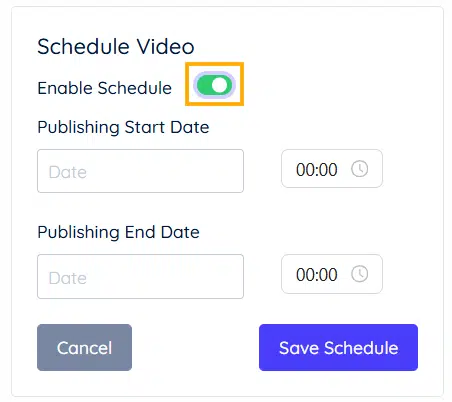
- Choose the Enable Schedule option.
- Select Publishing Start Date and Publishing End Date.
- Click Save Schedule.
See also: How to control the privacy of dadan video and comments.


