
Accidentally archived a video or need it back? No worries, restoring a video from the archive is quick and easy.
Looking for the full guide on video management? Check out the complete video management guide.
Steps to restore archived videos #
To bring a video back from the archive:
- Go to the Personal Library or Team Space where the video was uploaded.

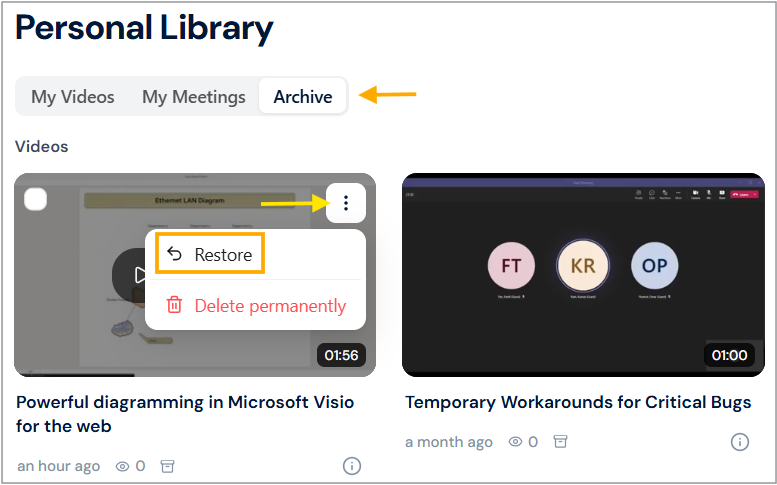
- Find and click the Archive menu.
- In the Videos section, find the video you want to restore and click the three-dots [⋮] icon.
- A dropdown menu will expand. Click Restore.
- A confirmation box will appear, click the Yes, restore it! button.

The video will return to its original location in your Personal Library or Team Space.
Tip: Only archived videos can be restored; if a video is permanently deleted, it cannot be recovered.
Restore multiple archived videos #
Do you want to bring your archived videos back to your main workspace? You can restore multiple videos in one simple step.
To restore multiple videos:
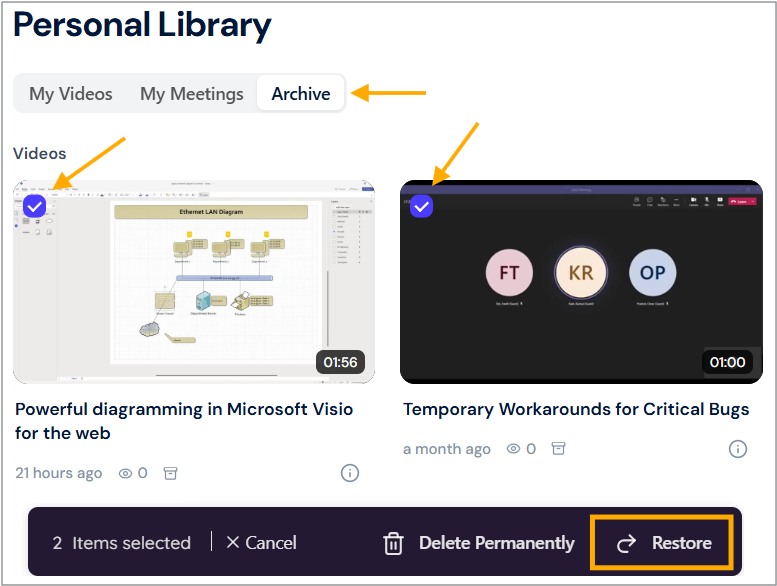
- In the Archive menu, select the videos by clicking the checkmarks on their thumbnails.
- Click Restore in the action bar.
- The selected videos will instantly reappear in your main video list.
Restored videos keep their original titles, views, and descriptions, just as you left them.


