
Sync your meetings and recordings with dadan to streamline your workflow effortlessly. dadan lets you publish your dadan-created videos directly to leading e-commerce platforms, such as Shopify, enhancing product visibility and driving sales with ease.
This guide provides a step-by-step process for integrating dadan with Shopify to upload your videos.
- Note: Your Shopify account shouldn’t be a free trial; it doesn’t completely support this integration.
Connect dadan to Shopify #
To connect dadan to Shopify, follow these steps:
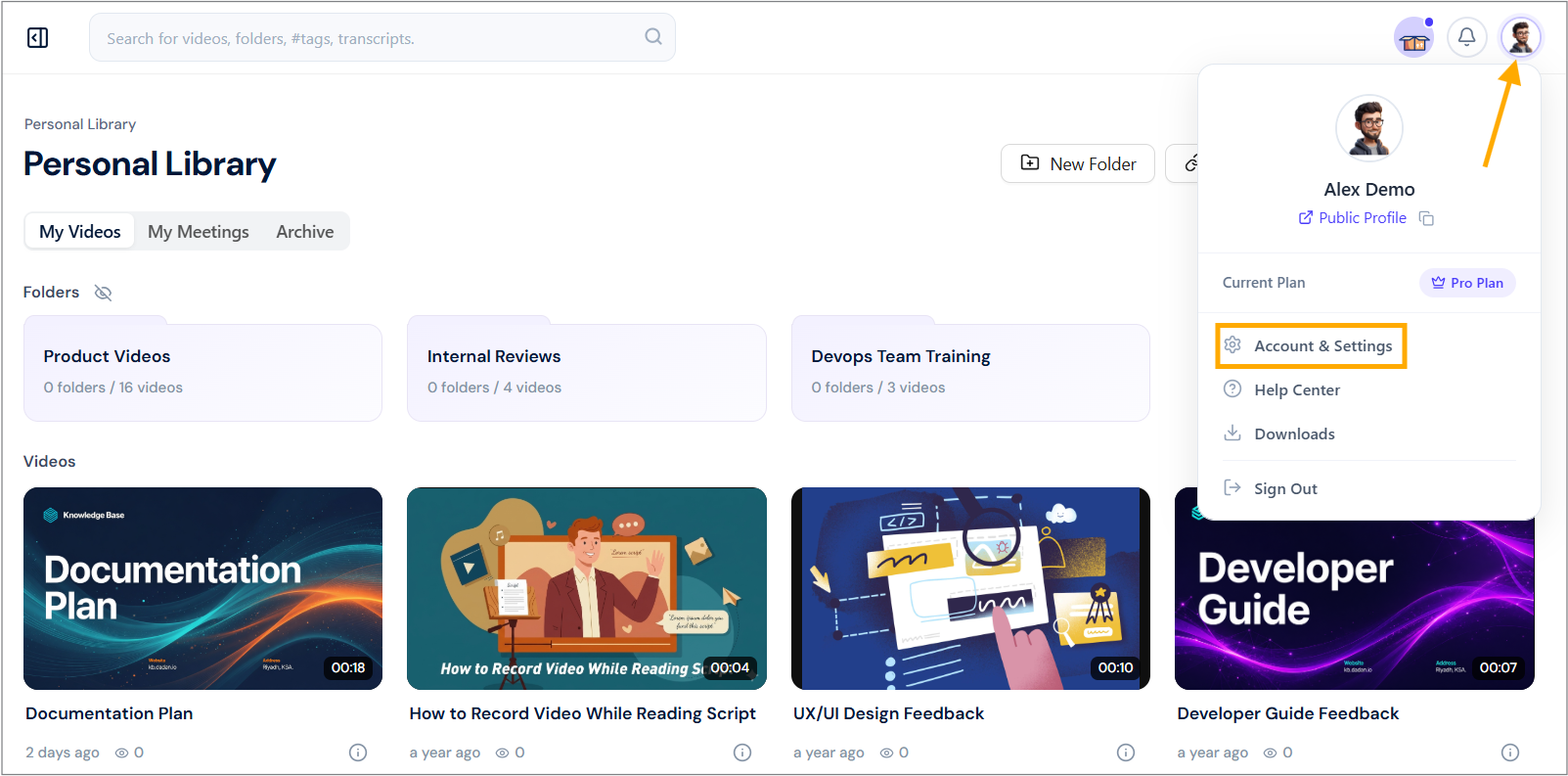
- Navigate to your dadan account and click on your profile icon in the top right corner.
- Select Account & Settings from the dropdown menu.
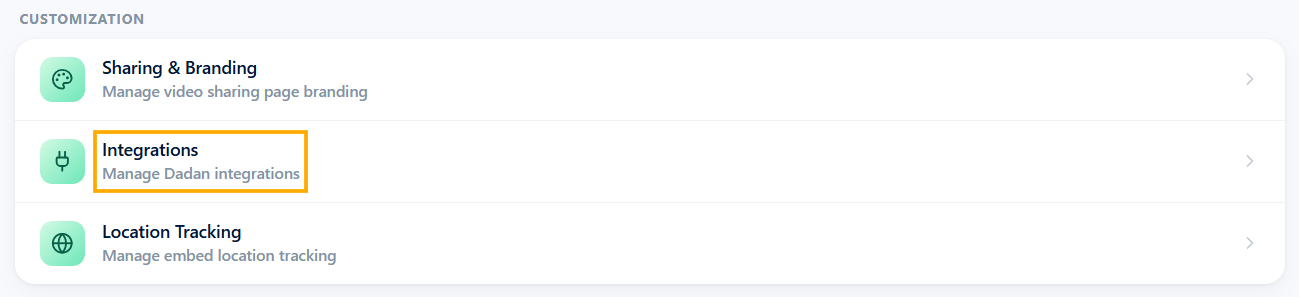
- In the Customization section, click the Integrations option.
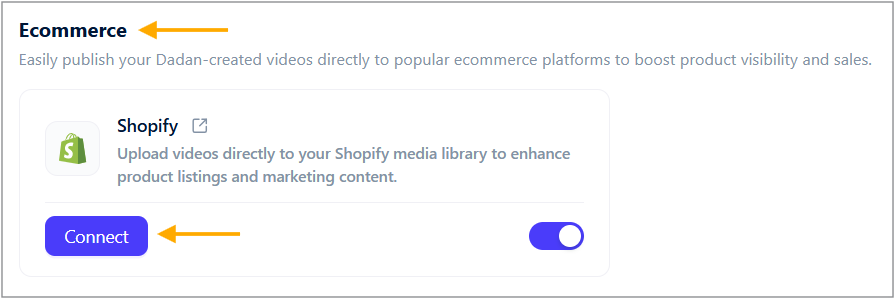
- Under the Ecommerce box, locate the Shopify integration option.
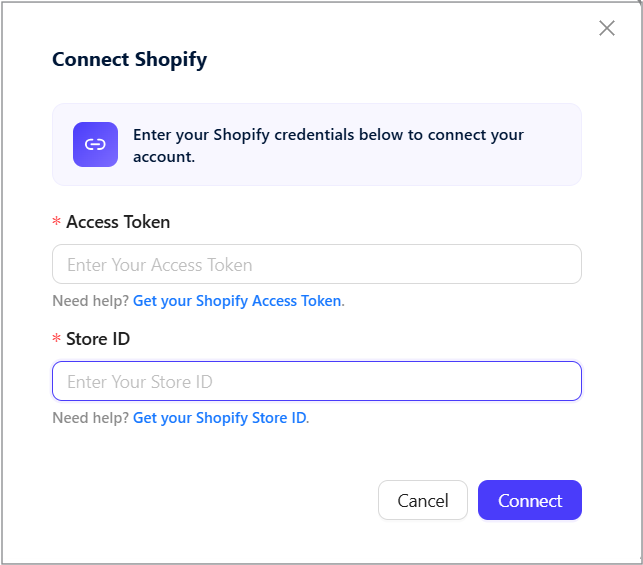
- Click Connect, and a pop-up will appear prompting you to enter your Shopify details.
- To connect your Shopify store to dadan, you need your Store ID and Access Token ready.
Get your Shopify Store ID #
To get your Shopify Store ID:
- Log in to your Shopify account.
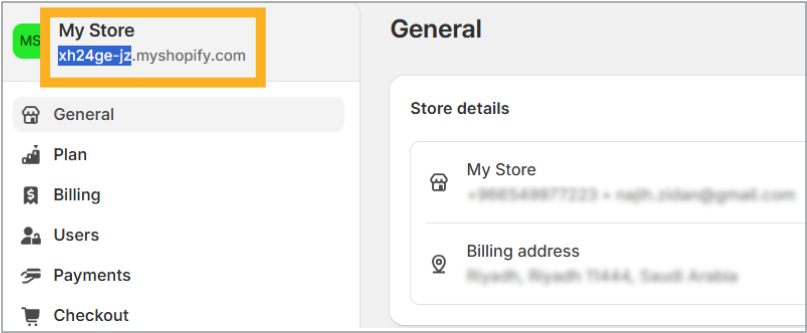
- Once logged in, go to Settings on the Shopify homepage.

- In the General settings screen, copy your Store ID (e.g., StoreID.myshopify.com) for the next steps.
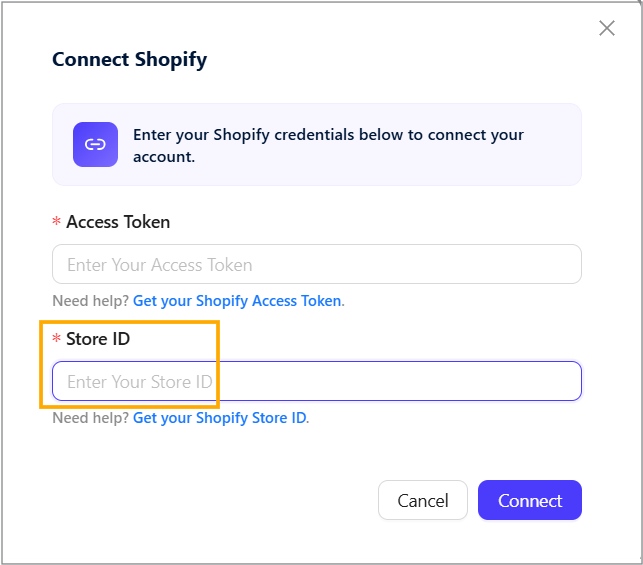
- Back in dadan, enter your Shopify Store ID in the Connect Shopify pop-up, now let’s see how to get the access token.
Generate a Shopify access token #
To complete the integration, you still need a Shopify access token. To generate it, follow these steps:
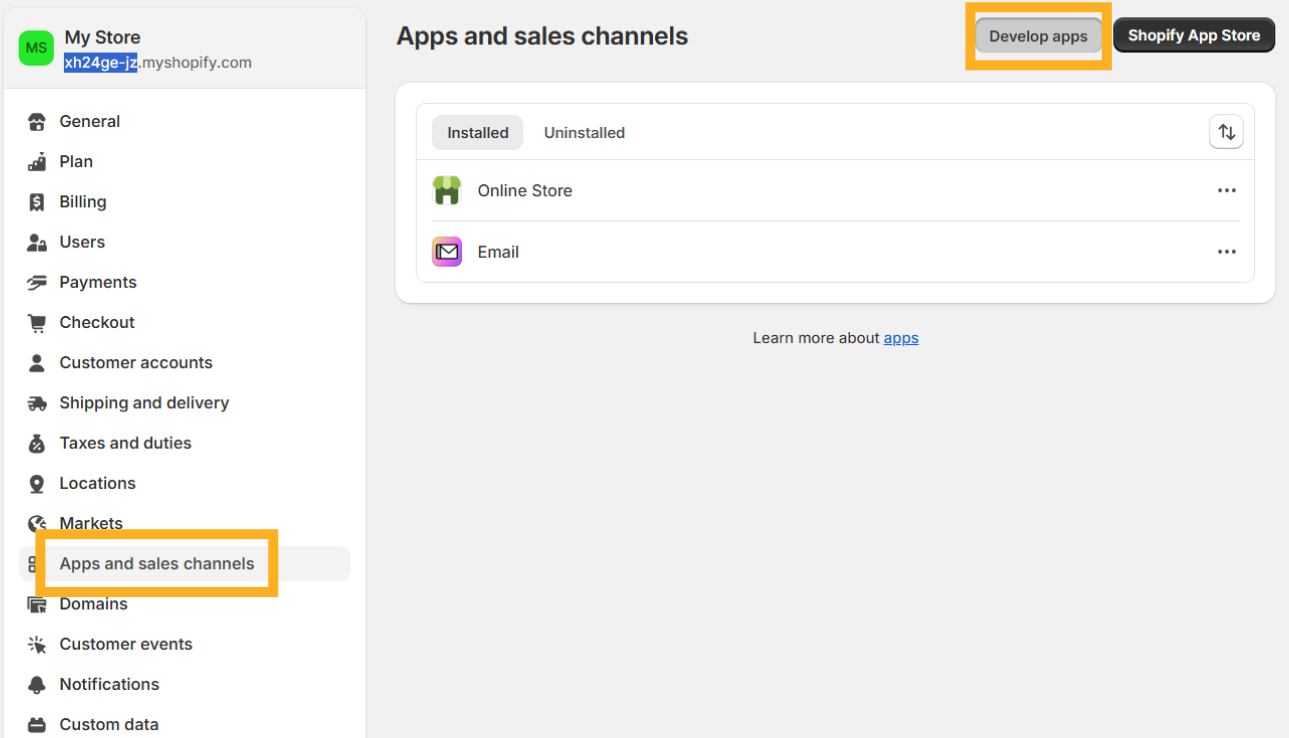
- From the Shopify Settings (General) screen, select Apps and sales channels from the left sidebar.
- Click on Develop apps at the top right corner of the page.
Create an app #
In the App development:
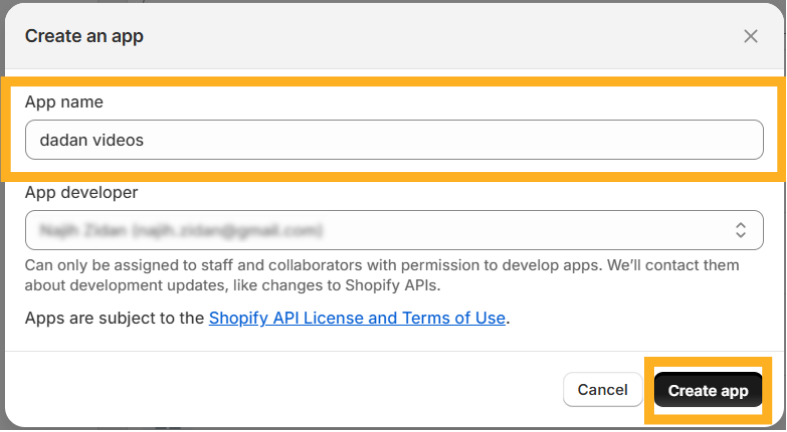
- Click the Create an app button.

- In the pop-up, enter the App name (e.g., “dadan videos”) and click Create app.
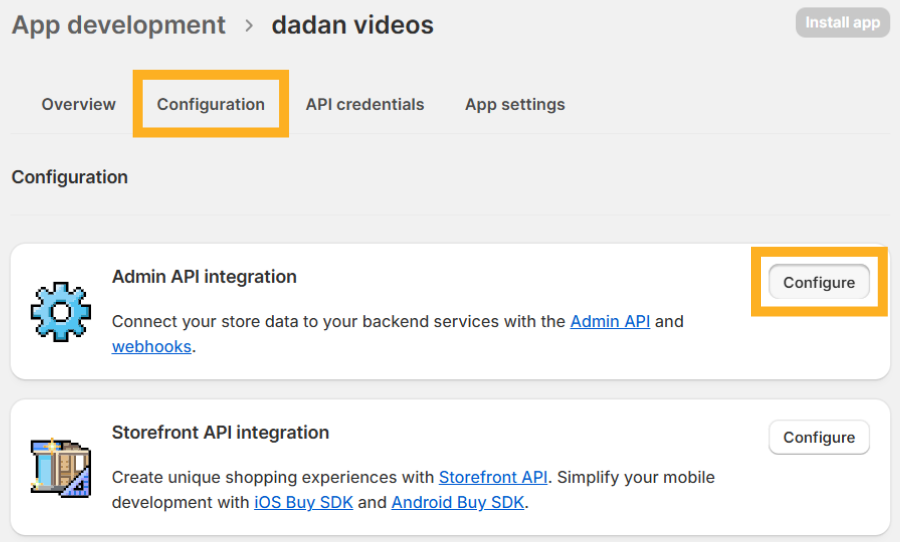
- Go to the Configuration tab on the app page and click Configure in the Admin API integration section.
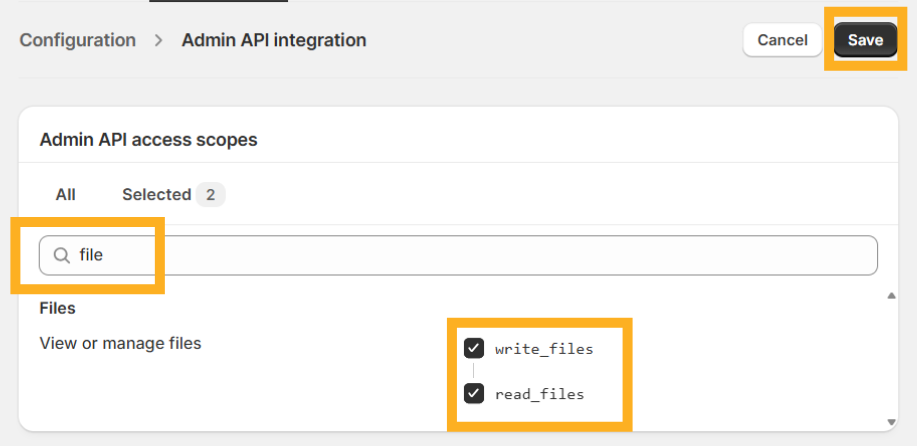
- In the Admin API access scopes section, search for “file” and select the “write_files” and “read_files” scopes under the Files category.
- Click Save to apply the changes and generate the necessary permissions for the app.
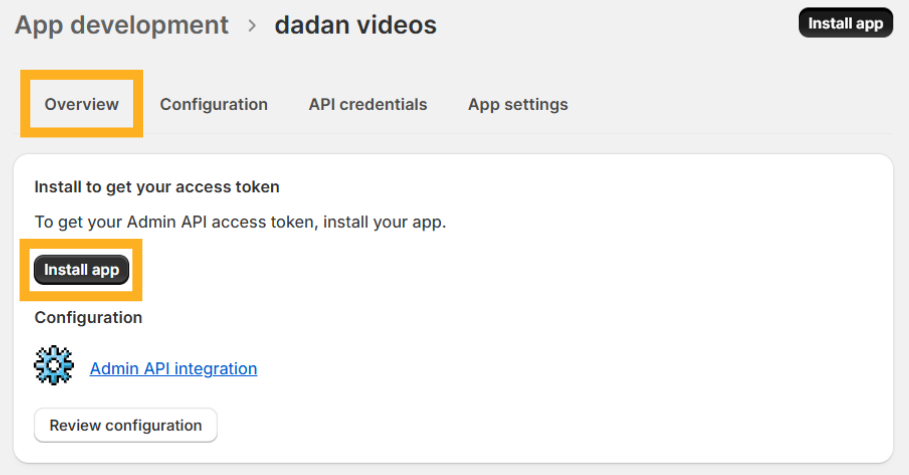
- Navigate to the Overview tab of the app page and click Install app to proceed with the installation.
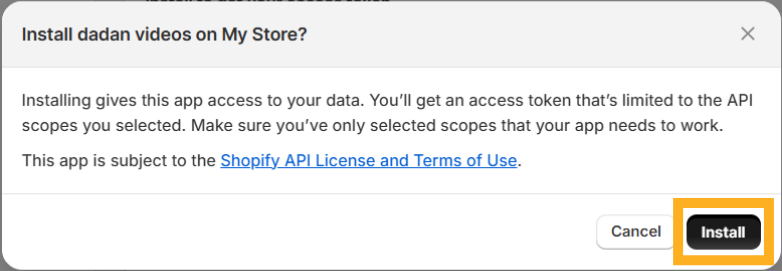
- A confirmation pop-up will appear; click Install to confirm the installation on your Shopify store.
Getting the Admin API access token #
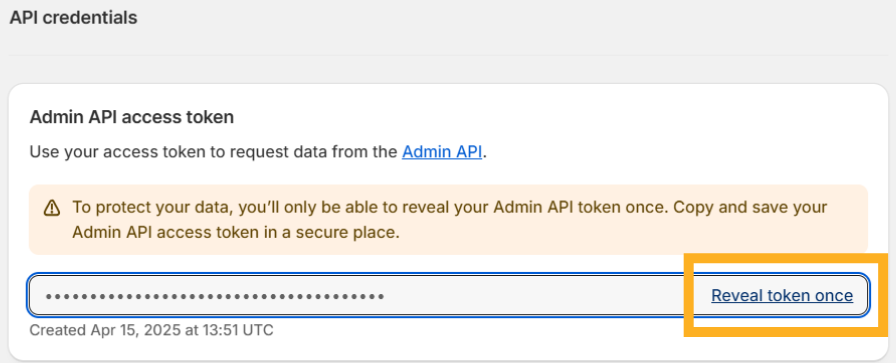
After installation, the API credentials tab opens, displaying the Admin API access token:
- Click Reveal token once to display the token.
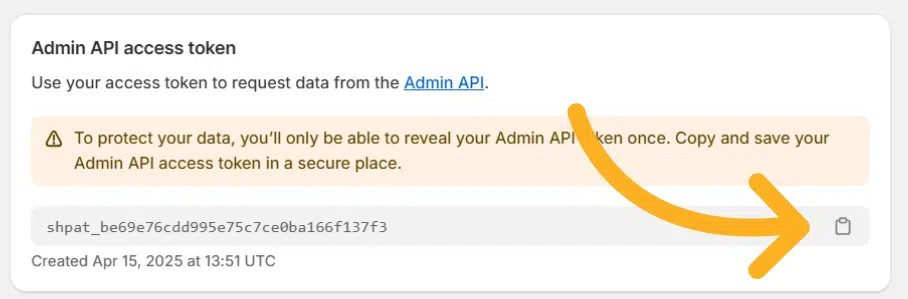
- Copy the token by clicking the copy button.
- Return to the dadan popup, paste the copied Admin API access token into the Access Token field.
- Click Connect to complete the integration.
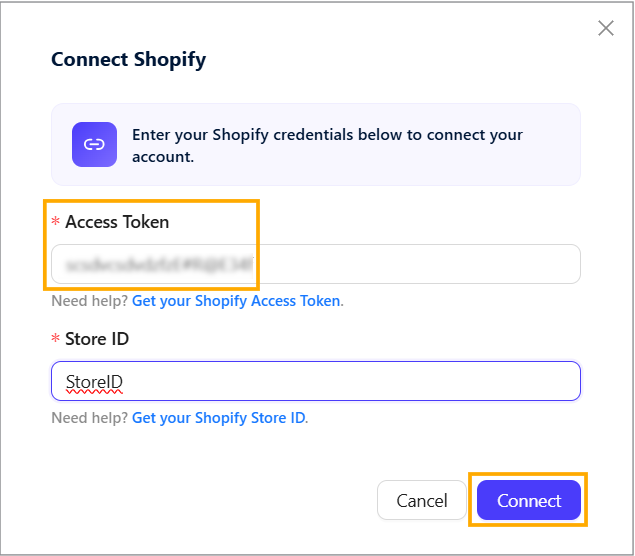
A message will appear confirming, “Shopify has been connected successfully!”


