Now that your dadan calendar is connected, you can schedule a meeting directly in your Google Calendar or Outlook Calendar, and it will automatically sync with dadan. Let’s walk through scheduling a meeting.
Scheduling a meeting in Outlook Calendar #
To schedule a meeting in Outlook Calendar:
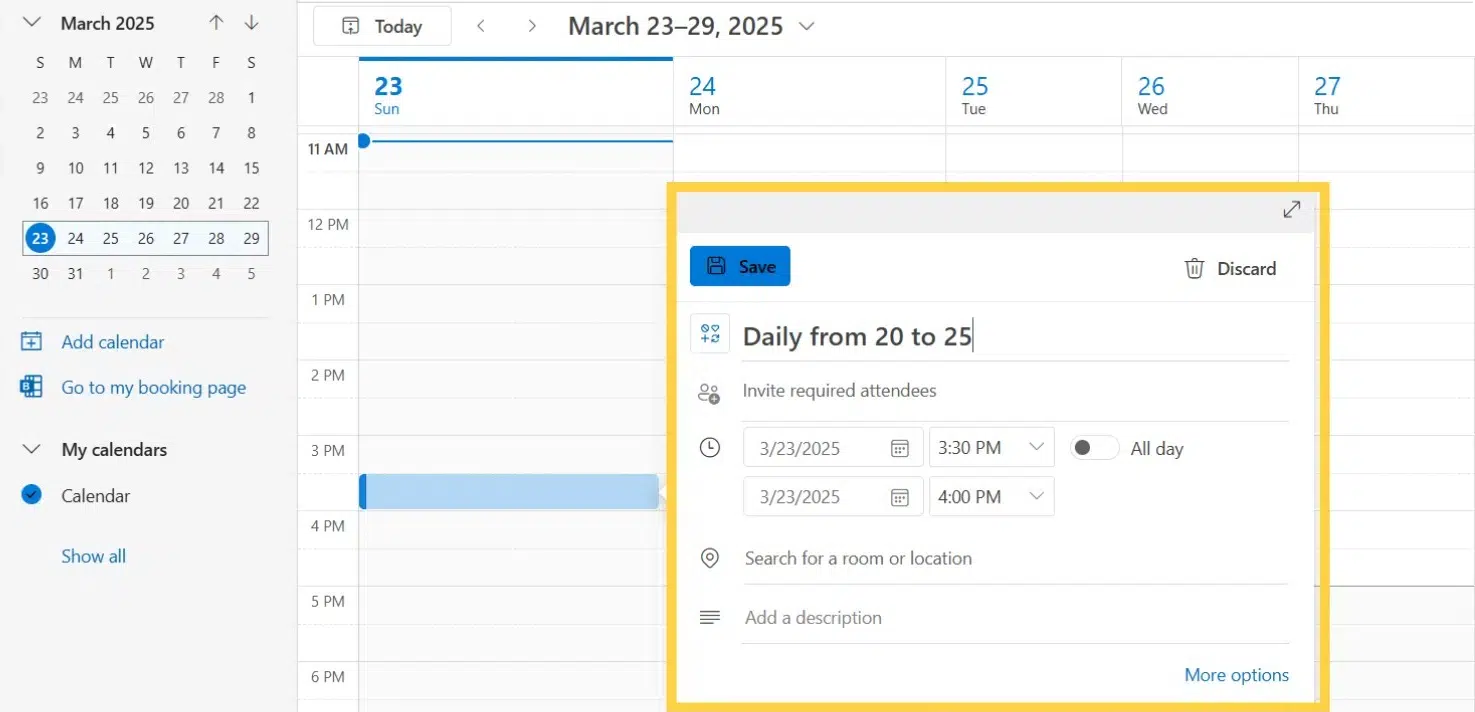
- Open your Outlook Calendar and click New event to create a new meeting.
- Enter the meeting details, such as the title and time.
- Click Save.
Scheduling a meeting in Google Calendar #
To schedule a meeting in Google Calendar:
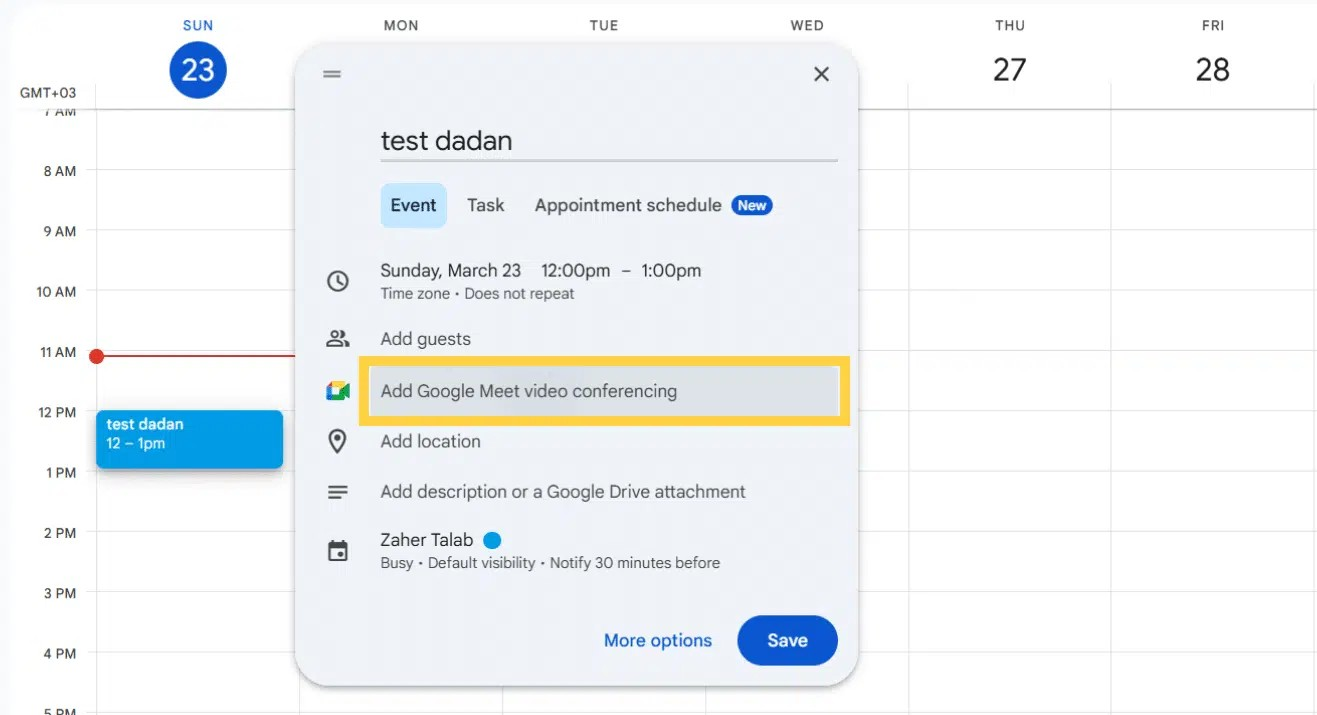
- Open your Google Calendar and click Create or select a specific date and time.
- To enable video conferencing, click on Add Google Meet video conferencing. This will generate a Google Meet link that dadan bot can use to join and record the session.
- Click Save to add the meeting to your Google Calendar.
Enable the Meeting Recording feature in dadan #
Once your meeting is scheduled in your calendar, it will automatically appear in the Meetings Recording section of dadan.
Now, you can enable recording for the meeting as needed:
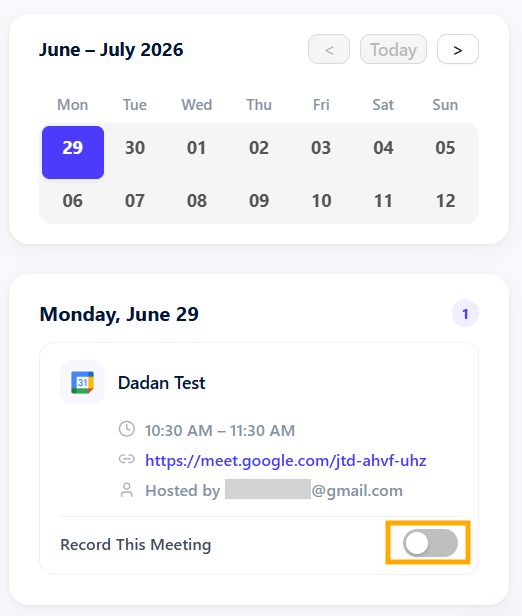
- On the Meetings Recording page, locate the scheduled meeting.
- Toggle the Enable Meeting Recording switch to ON to ensure dadan records the meeting.
- Note: If the meeting includes a Google Meet or Microsoft Teams link, dadan will automatically join the meeting at the scheduled time as a Bot and start recording.
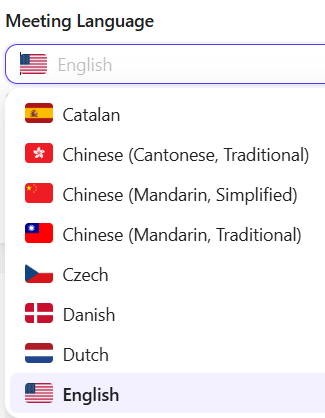
- Choose the meeting language:
- In the Default Meeting Language drop-down menu, select the default language.
- The transcript will be in the selected language, so ensure choosing correct language.
Access and review recorded meetings #
After the meeting takes place, dadan will store the recording in your dadan account for easy access.
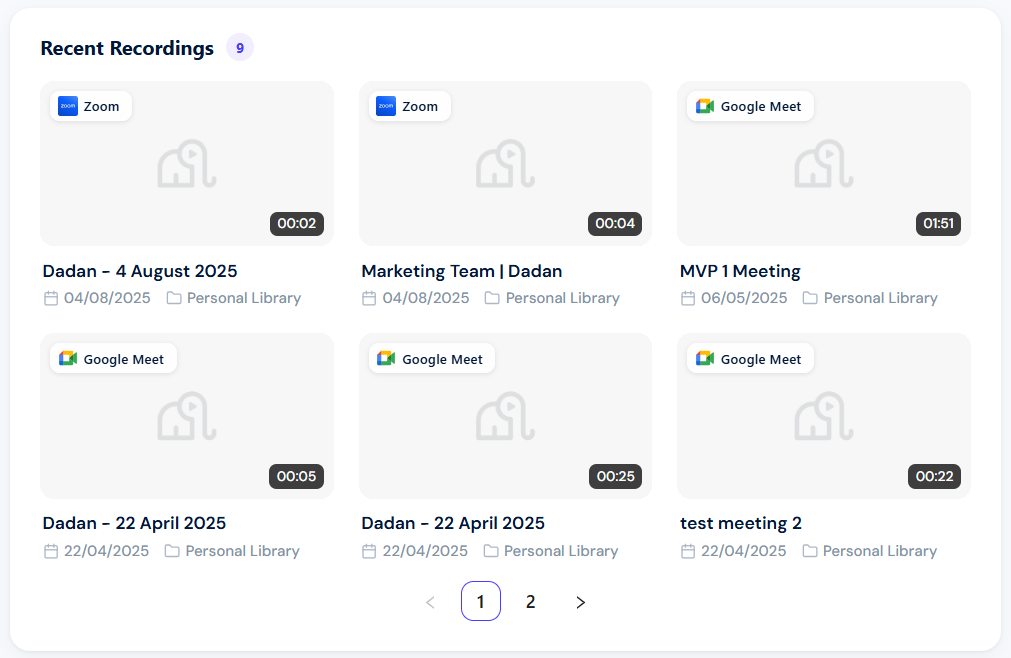
- On the Meetings Recording page, scroll to the Recent Recordings section.
- You’ll see a list of recorded meetings, including the one you just scheduled.
- Click on the recording to view or download it.