Dadan’s calendar integration enhances productivity and collaboration by helping you stay organized and track your meetings effectively. This feature allows you to streamline meeting recordings by automatically scheduling and capturing key discussions, ensuring no critical insights are missed.
This guide will help you connect your calendar, set up automatic recordings, and organize your scheduled meetings efficiently.
Steps to connect dadan with Google and Outlook Calendars #
With dadan, you can efficiently manage a variety of meeting types, including:
- Project updates.
- Team syncs.
- Client calls.
To begin managing and recording your meetings in dadan:
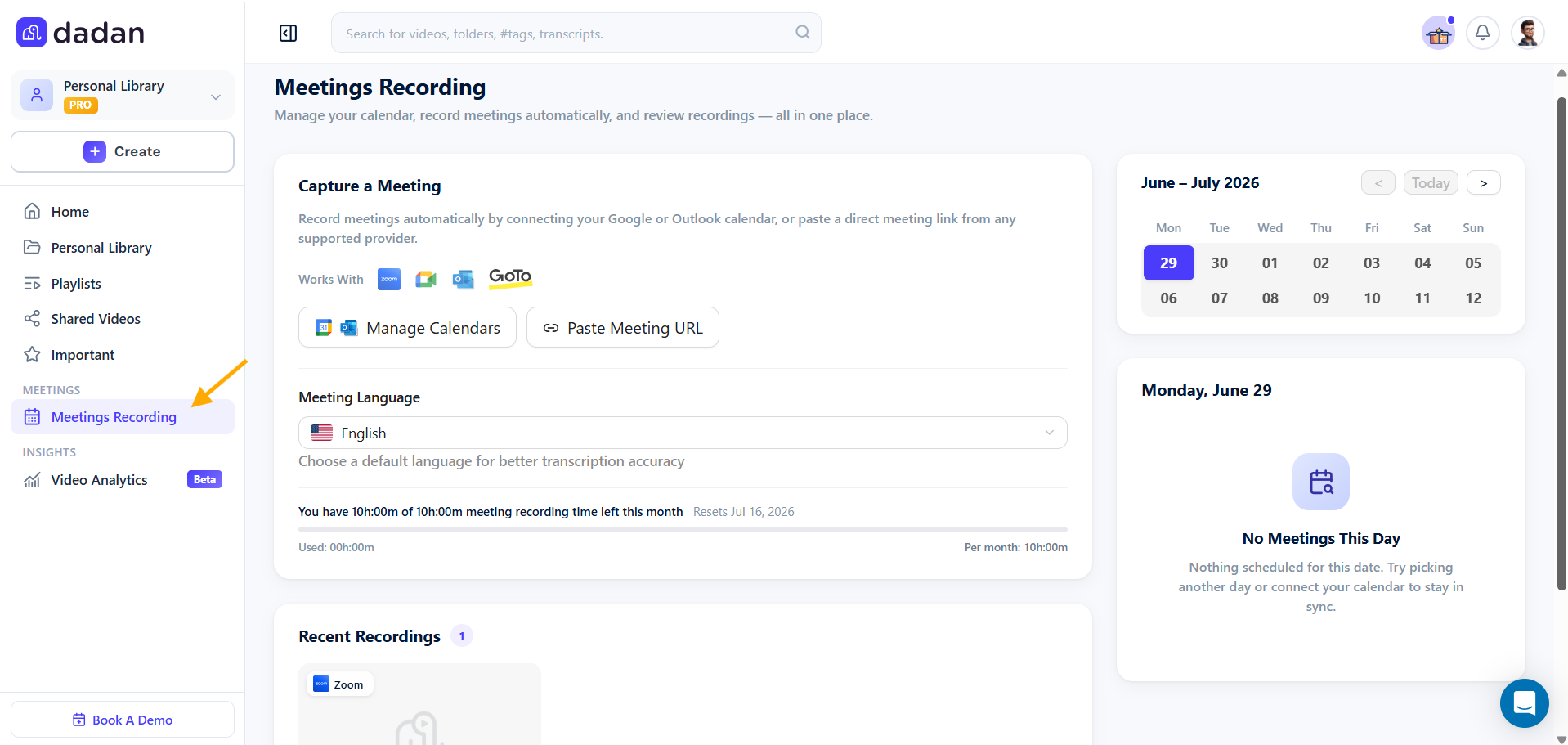
- On the left sidebar of the dadan web app, locate and click on the Meetings Recording option.
- This will take you to the Meetings Recording page, where you can view your calendar, manage upcoming meetings, and connect your calendar to schedule seamlessly.
Steps to connect your calendar #
Dadan allows you to connect your Google Calendar or Outlook Calendar to automatically sync your meetings and recordings.
Let’s connect your calendar to get started:
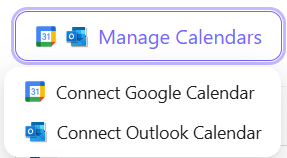
- Hover over the Manage Calendars dropdown menu.
- Select Connect Google Calendar or Connect Outlook Calendar, depending on your preference.
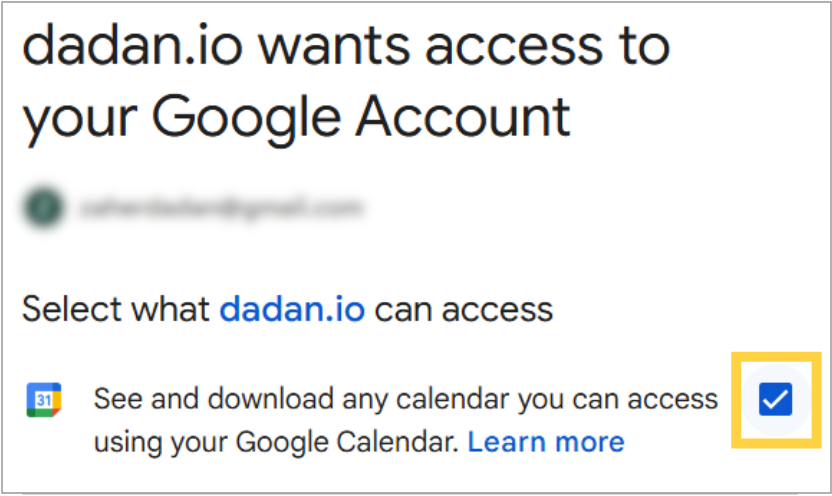
To connect your Google Calendar:
- Select your Google account on the sign-in page.
- Click Continue to sign in to dadan, allowing calendar access.
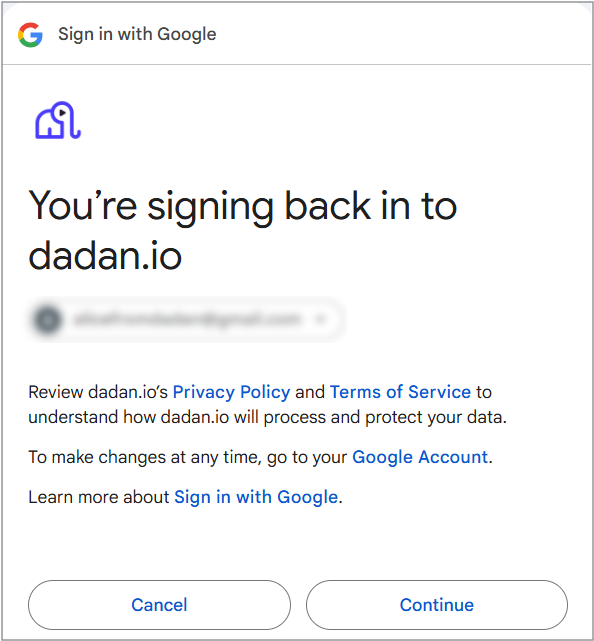
- Check the box and click Continue to finalize the connection to grant permissions.
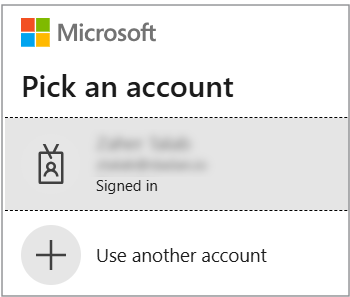
To connect your Outlook Calendar:
- Select your Outlook account, grant permissions, and confirm.
- Follow the on-screen prompts to complete the connection.
- Once your calendar is connected, dadan will display a confirmation message to let you know the integration was successful.
From now on, any upcoming Google or Outlook Calendar meetings will appear in the Meetings Recording section.
Manage and record meetings #
You can now manage and record your upcoming meetings directly from dadan. It will automatically record the meeting and store it in your dadan account for future access.
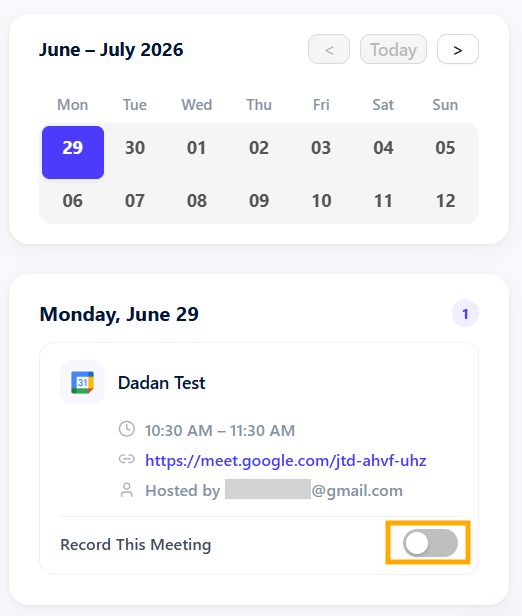
- View upcoming meetings:
- You’ll see a calendar view where your scheduled meetings are displayed.
- Click on any date to see the meetings scheduled for that day.
- To record a meeting, toggle on the Record This Meeting option.
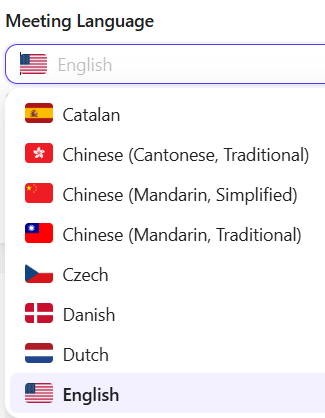
- Choose the meeting language:
- In the Meeting Language drop-down menu, select the default language.
- The transcript will be in the selected language, so ensure choosing correct language.
Note: For more information about this, read this step guide: Prepare dadan Meetings Bot for a meeting.
Calendar integration settings #
Dadan also allows you to control your calendar settings:
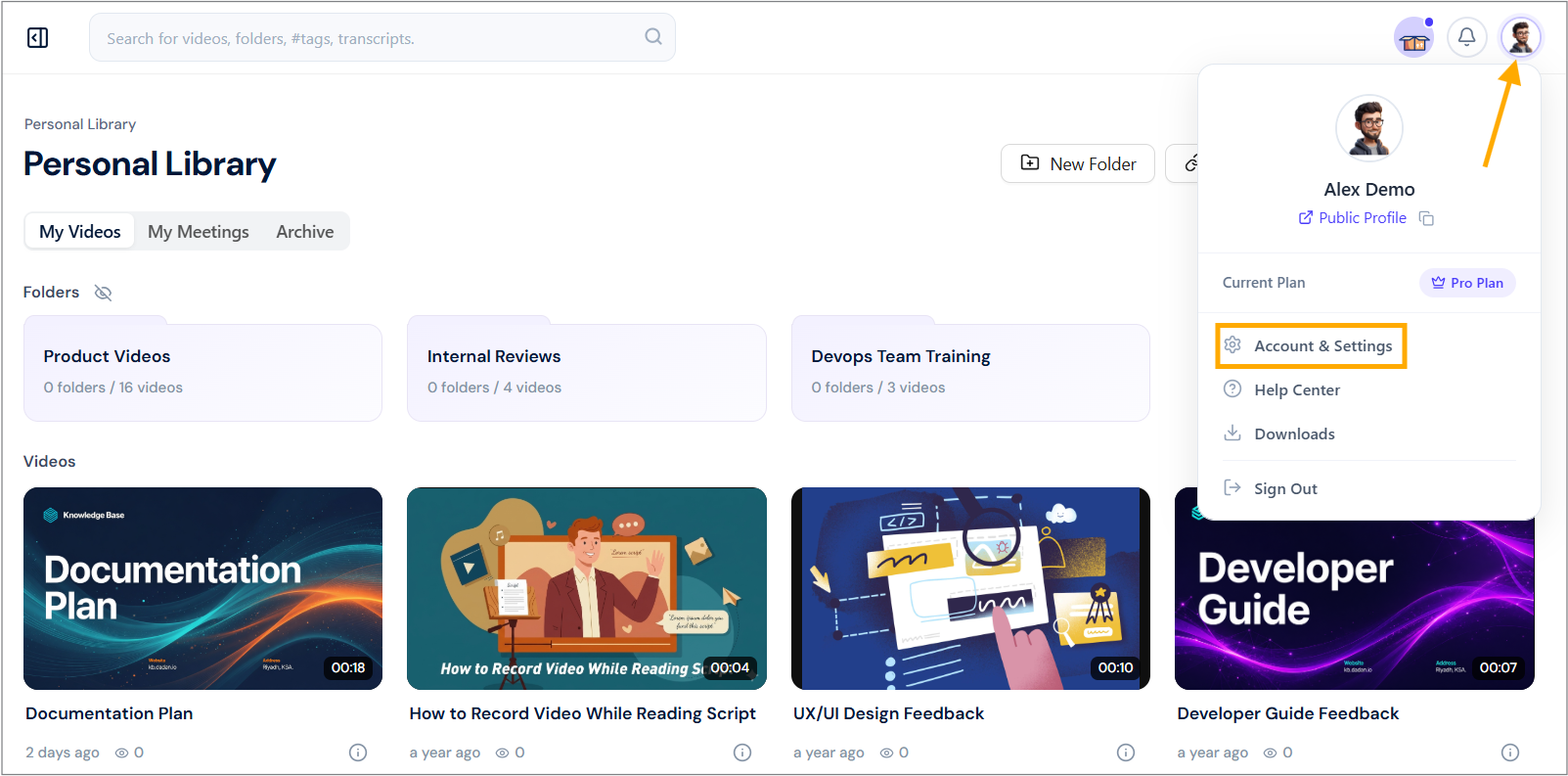
- Navigate to your dadan account and click on your profile icon in the top right corner.
- Select Account & Settings from the dropdown menu.
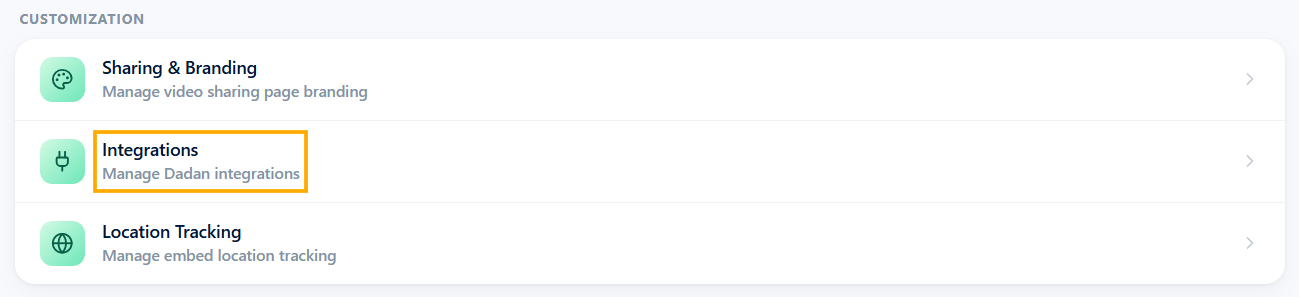
- In the Customization section, click the Integrations option.
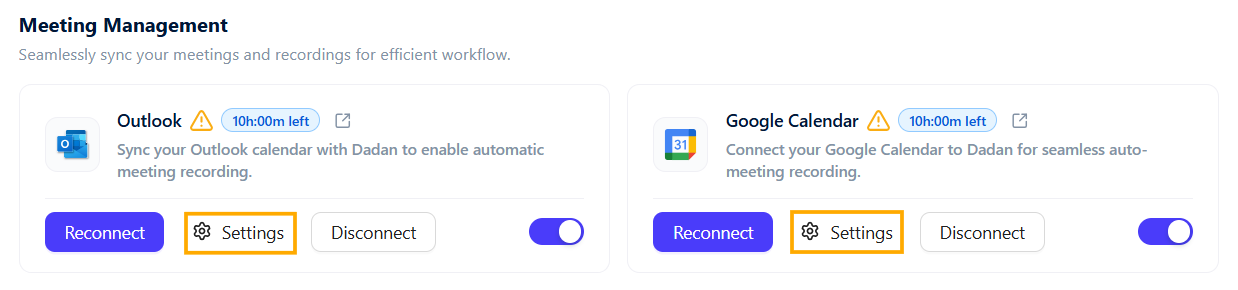
- In the Meeting Management section, select Settings for each calendar.
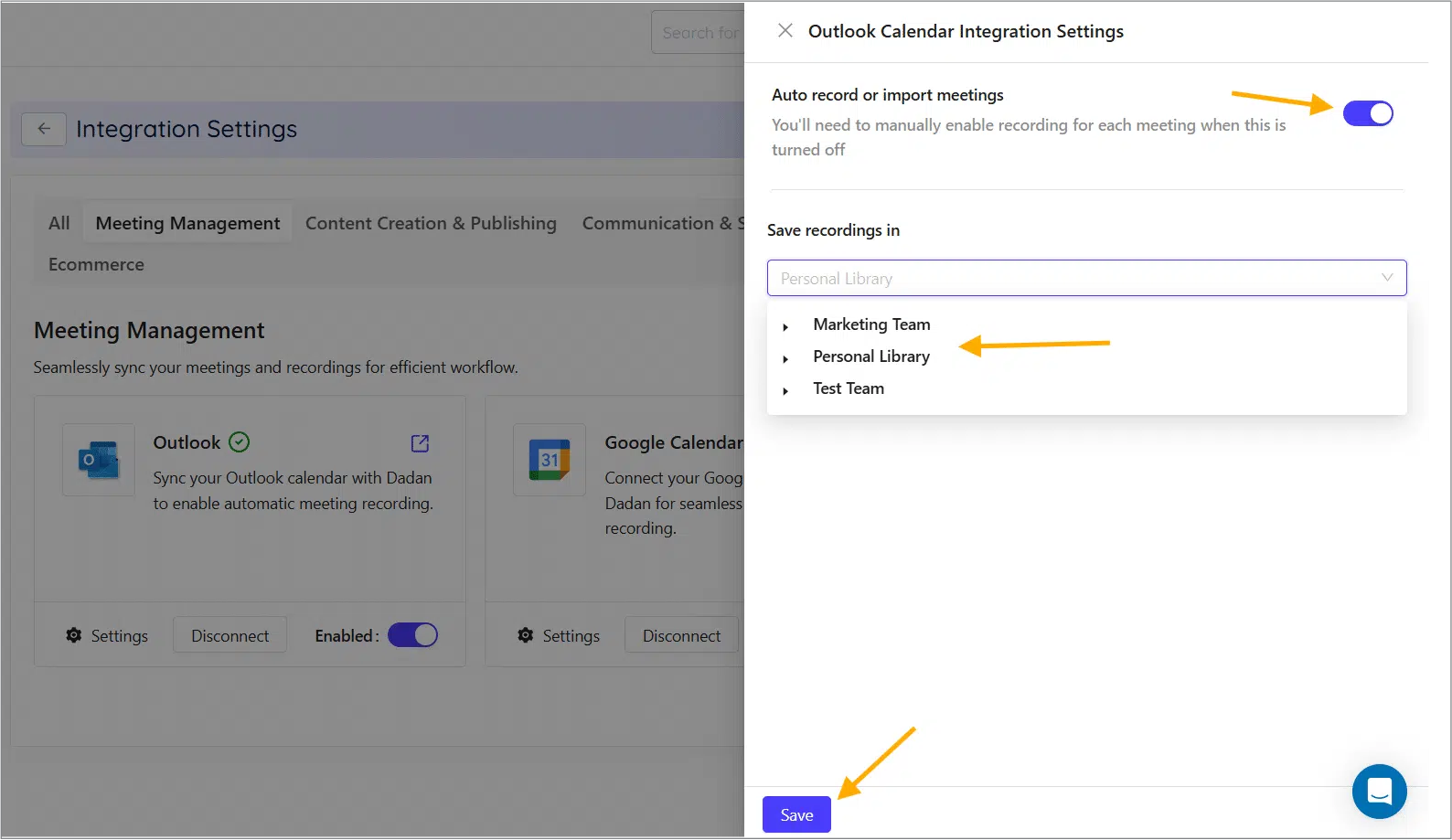
- In the Calendar Integration Settings pop-up, you can:
- Toggle on/off the Auto record or import meetings option to record manually or automatically.
- Select where you want to store the recordings: a team space or the Personal Library.
- Click Save to keep changes, or close the pop-up to cancel.
Disconnect your calendar #
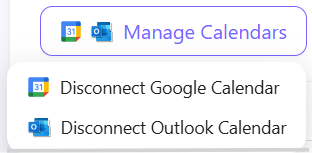
If you need to disconnect or switch calendars:
- Return to the Manage Calendars dropdown.
- Select Disconnect Google Calendar or Disconnect Outlook Calendar.