
Want to tweak how dadan desktop app looks or works? The Preferences menu lets you customize your experience by adjusting the theme or managing camera settings.
This quick guide will walk you through where to find your preferences and what you can change.
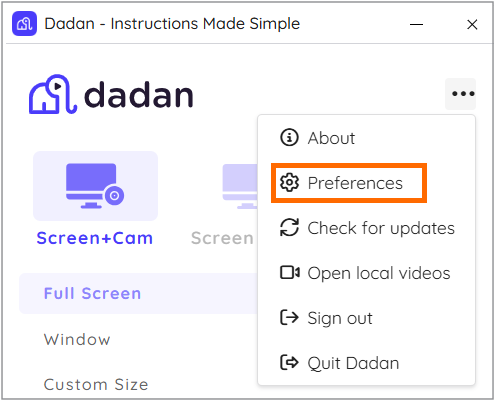
Steps to access your preferences #
To open your preferences in dadan, follow these steps:
- Click the three dots […] icon from the sidebar or top menu.
- Select Preferences from the dropdown menu.
What you can customize #
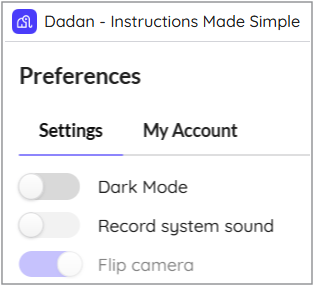
Once you’re in the Preferences window, you can control:
- Dark Mode: Switch between Light and Dark themes.
- Record system sound: Enable or disable this feature as needed.
- Flip camera: Mirror or un-mirror your camera for a more natural video setup.
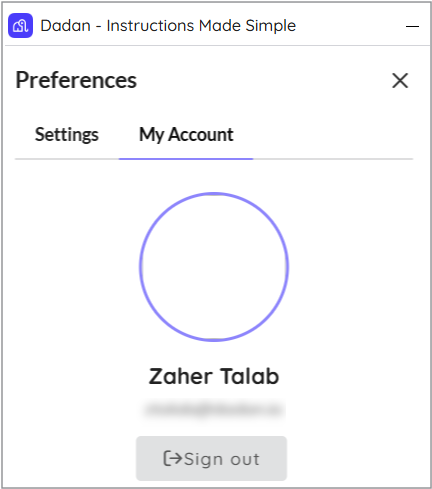
- Sign out: Choose the My Account tab to see your account info and log out when needed.
These settings help you personalize dadan to suit your workflow better, whether working late, troubleshooting audio, or managing your screen presence.
Are you also using dadan on your browser? Check out our guide to using dadan on a browser extension.


