
This guide will walk you through creating a Google Classroom video assignment using the dadan platform. Dadan is a tool that simplifies video recording, management, and assignment creation for educators, seamlessly integrating with Google Classroom to assign videos to your students.
Follow the steps below to set up your assignment efficiently.
How to create a Google Classroom video assignment #
To create a Google Classroom video assignment via dadan:
- Access the Create menu:
- Open the dadan app and click Create on the left sidebar to open the dropdown menu.
- Select Classroom Video Assignment from the options.
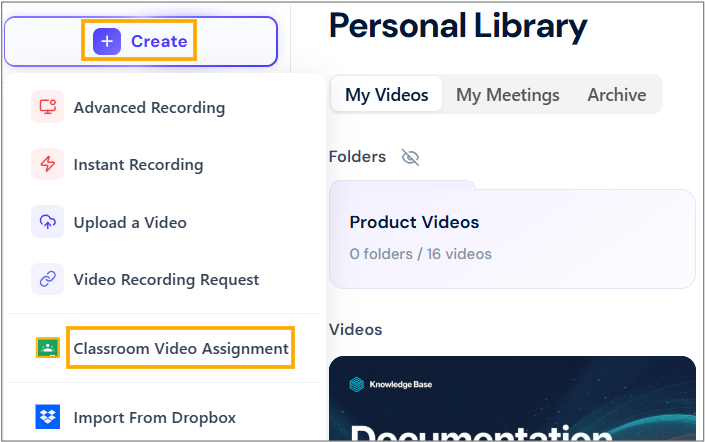
- The Classroom assignment panel will open.
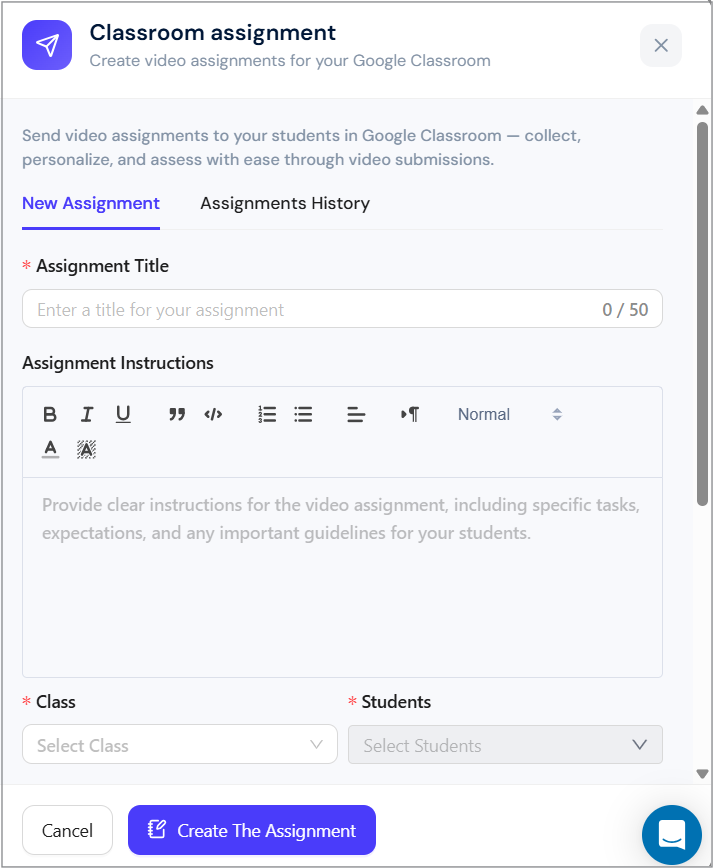
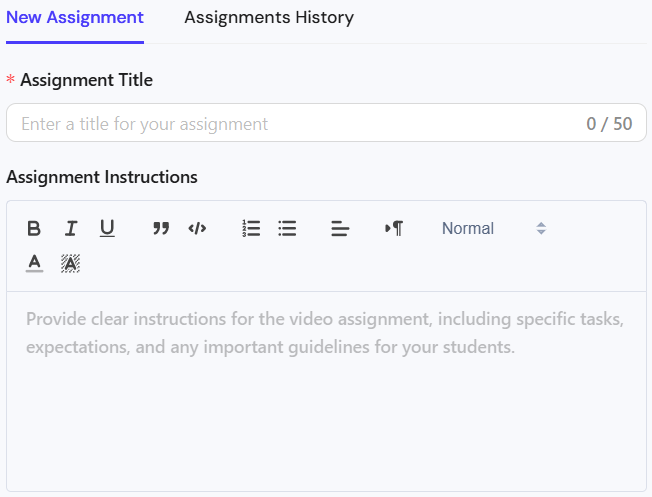
- Enter assignment details:
- Fill in the Assignment Title field.
- Add your Assignment Instructions using the text box, which supports formatting options such as bold, lists, and more.
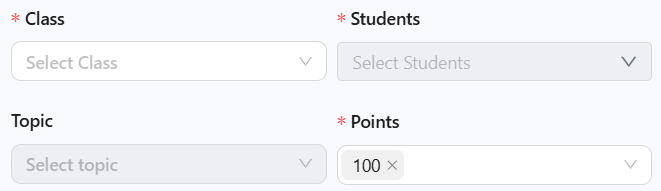
- Select Class and Students:
- Under the Class dropdown, choose the class you want to assign the video assignment to.
- Select the students who will receive the assignment in the Students dropdown menu.
- Select Topic and Set Points:
- In the Topic field, select the assignment topic (optional).
- In the Points section, assign a point value for the assignment (e.g., 100 points).
Alternatively, select Ungraded if the assignment doesn’t require a grade.
- Set the Due Date:
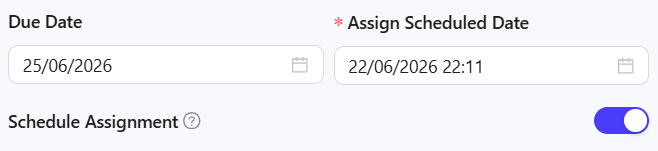
- In the Due Date field, click to open the calendar and select the date the assignment is due.
- Schedule the Assignment (optional):
- Toggle the Schedule Assignment option to On if you want to schedule it for a future date.
- Set the Assign Scheduled Date.
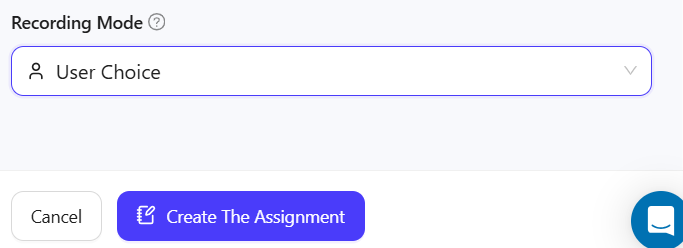
- Choose Recording Mode: Under Recording Mode, select the recording option for the assignment:
- (User Choice option allows flexibility, or specific modes: Screen & Cam, Screen Only, and Cam Only).
- Finalize and create:
- Click Create The Assignment to publish it to Google Classroom.
Share the assignment link and verify #
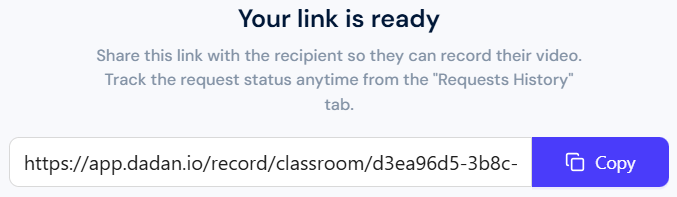
After creating the assignment, a link will be generated:
- Click Copy to share the link with your students.
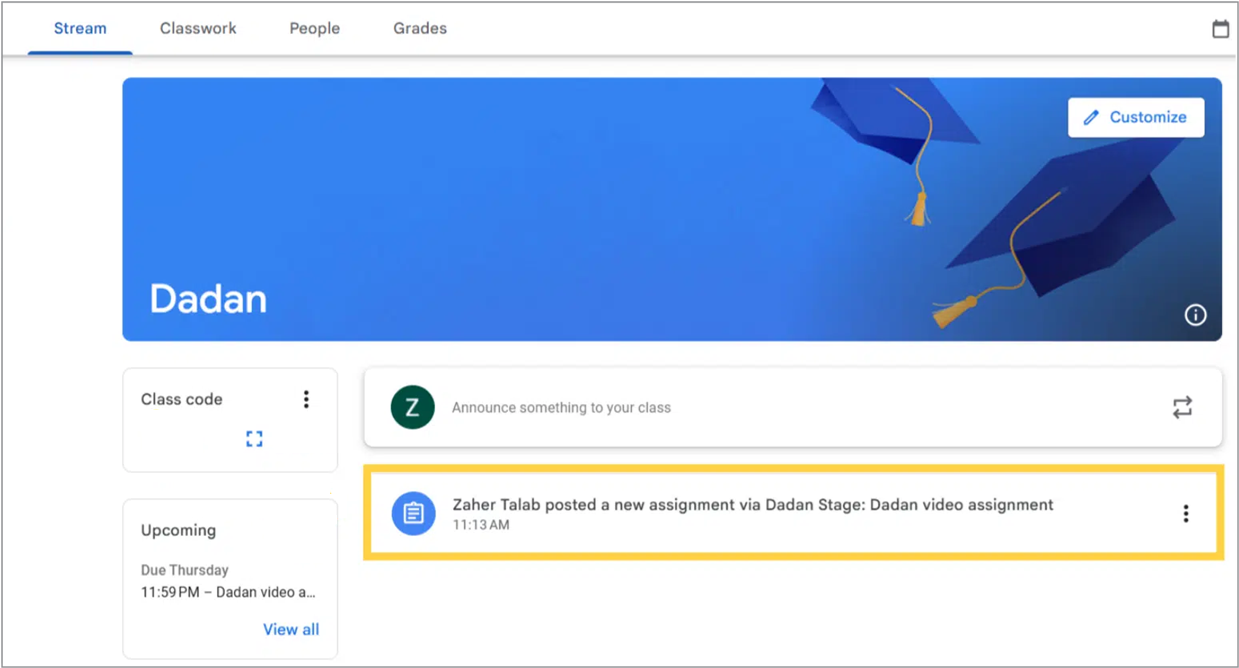
To verify the assignment in Google Classroom:
- Log in to Google Classroom and navigate to the assigned class.
- Check the Stream tab to confirm that the assignment is visible to students.
Note: To review a Google Classroom video assignment, follow this guide: Reviewing a Google Classroom video assignment with dadan.


